Windows 10 set to Dark Mode
Scrivener 3
Splash screen comes up, then a white screen which i can’t read. How can I change this to dark mode so I can read the screen?
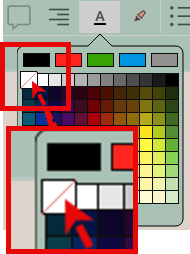
Do you mean the editor is white background and the text is invisible? If you can hit ctrl + A and see text in the copy highlight, then select text icon on format bar (make visible if cannot see it) and choose color tab with a slash. (see below) Choosing this gives dark text on light theme and light text on a dark theme.
Maybe just set Scrivener to the Dark Theme in Window > Themes?
1 Like
If you cannot see the controls in Light Mode, then here is how you would get to Dark Mode from a start that involves the template chooser (assuming you’ve never been able to use Scrivener before, and do not yet have a project to open):
- Press DownArrow twice to select the “Blank” category.
- Press Return. As the “Blank” template itself is the only thing that can be chosen in that category, Return submits the dialogue and goes into file creation.
- It doesn’t matter what you type or where the project goes, if you cannot interact with this box, just type “temp” and hit Return again. Later, you can use
File ▸ Show Project in File Explorerto track it down, and dispose of it. - Now the project window will open, and you now have access to the main menu, which all we needed this entire time.
- Press
Alt, then in sequence,w,t,DownArrowthen Enter to select the “Dark Mode” theme. - Press Enter again to dismiss the dialogue about needing to restart to change the UI theme. Do so now (
Alt,f,x) and hopefully now all will be well.
We now at this point in time have ways of detecting the Windows light/dark mode settings, and so we may go with automatically switching, if no theme has yet been chosen. But it’s a little complicated by how Scrivener for Windows does not just have light and dark mode, like on the Mac, but red mode, and blue mode, coffee mode, neon mode, and terminal mode, and whatever other theme ideas designers come up with.
1 Like
There is simply too much glare. I can’t see the visual tools. “Appearance” is an option on the Mac version–which has already been set to dark–but on Windows I can’t find this option. I;m sure it’s there-somwhere-but unless the screen background is set to dark I just can’t asee it.
@AmberV’s reply provides the exact key strokes to get through to the point of restarting Scrivener with a dark-mode appearance, even if you’re unable initially to see what’s actually in the windows.
If that didn’t work for you, I can think of two possibilities:
- If you’ve already used Scrivener and it’s set to automatically reopen the last project, then the initial steps in the list wouldn’t be necessary, since 1-3 are just to get a project window open. You could skip all of that and just start at step 5, if you know it’s loading a project. Otherwise, launching Scrivener by holding the Shift key while double-clicking Scrivener’s icon will cause it to launch straight to the Project Templates window so you can follow the instructions from step 1 and be sure you’re in the right place.
- If you had shifted focus while in the initial template chooser by clicking somewhere else or hitting tab, etc. then the initial steps to create a project might’ve failed. Quitting (
Alt+F4) and relaunching Scrivener is the easiest way to reset the focus then so that you can procede with the keystroke steps.
1 Like