I can try. The document I saw this in is a work in progress (still in progress). May take some time.
We have added an option to disable the Auto-File-Recovery procedure inside Options > General in the next update. This option is enabled by default, so those of you who do not need Auto-File-Recovery should turn it off. Please, have in mind that it is strongly not recommended to place any external files inside the Scrivener project folder. The auto-recovery mechanism is designed to restore lost files and is recommended to leave it always on. Allowing the users to toggle this option might be only a temporary solution, to avoid causing you immediate troubles. Please, reconsider placing your scripts files, tools, research documents and etc. outside of the Scrivener project folders. Placing them next to the root project folder, might be a solution in some cases.
Thanks.
I generally don’t put files inside the UUID folders. Always seemed to me to be asking for trouble. But I have made copies of the content.rtf files, to see what’s going on inside them. If those are lost, I don’t much care; they were copies.
But I do put stuff inside the project folder itself, in an extra folder beside the project.scrivx file. Usually it’s labeled research. Why? I don’t want to put the files and stuff inside Scrivener proper, because, honestly, Scrivener has trouble with large files, and some of these things are huge. Scrivener shouldn’t be looking at that folder; it should be looking just at Files, Icons, Settings, Snapshots – its own folders. I used to put it inside Files, but then I looked inside Files, and decided that wasn’t the best place for that sort of thing.
I want that information associated with the project, easily findable, and this has seemed the best way. So far, Scrivener hasn’t mucked with those folders, and I hope it doesn’t. It also doesn’t muck with the other files that I occasionally put beside the project.scrivx file (like a backup copy of that file so I can peer at it with an XML viewer – the easiest way to copy custom metadata lists from one project to another).
Why is this cleansing of alien files necessary?
And why doesn’t the cleanser tell us where they were cleansed from?
Because sometimes syncing with cloud services creates files/folders when there are collisions. As a result you might end up with unexpected version of files and a general user is totally lost recovering to the desired version. The only reliable way of restoring into a working condition is check the complete project folder for unexpected files. We treat the project folder as an complete package, which you should not alter manually. It all comes from the early days of Mac, where the folder is a package. This folder structure and not a single file indeed benefits Scrivener a lot and makes multiple device syncing possible.
Tiho_D wrote
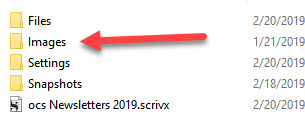
I’m confused. I do a monthly newsletter and have always maintained the practice of keeping my images separate from my writing and linking the image into the document. This is also how it is done on the website. I put the images folder inside the scrivener project folder so if I transfer my documents to a new computer, the links should maintain. My computer separates the data drive (D) from the program drive. Perhaps the next one won’t. I felt the practice of keeping the images in the pictures folder and expecting links to transfer was asking for trouble.
Now are you saying this system is also not recommended, but rather I should have another folder above the .scrivx file for Newsletter Images?
And the other question? Can this cleanser at least tell us the directory the rejected files came from, so we can reconstruct our broken documents?
I can confirm it works; I deliberately put some txt files beside a content.rtf file and restarted Scrivener (B14). They were left alone.
Thanks for that toggle. I’d like it to stay there.
My issue with the Recovered Files feature is a little different. Every time I open my project, I get a Recovered Files (Date) folder tacked on to the end of my binder. HOWEVER, this folder is always EMPTY. If I close and open the project multiple times during the day, I end up with multiple empty “Recovered Files” folders. I have never put non-binder files into the Scrivener folder, so there is nothing to recover.
If I’m understanding this thread, the auto-recovery mechanism is for resolving sync errors or other problems, where files might get left behind in the project folders and need to be reviewed. I actually DON’T want to turn this off, because I don’t intentionally put any non-binder files in the project folders, so if there ever IS a non-binder file in there, I would want to be able to review it and possibly recover it. But I don’t quite understand why I’m getting a “Recovered Files” folder every time I open the project (sometimes multiple times a day) when there actually aren’t any files to recover!
You can see one of these folders in the screenshot – it is displaying in outline mode, so you can clearly see that there is nothing in the folder.

As a thought experiment, would you consider it okay to insert your own log files into a .docx archive file, and expect MS Word to just roll with it, no matter what? Maybe it even works for years, until MS changes something, that still doesn’t make it good practice. The only real substantive difference between these two cases is that one directory hierarchy is naturally obscured by being in a compressed archive while the other is not (for scalability).
For development and augmentation of the format, there are designated methods and areas that can be used. You can place support files into a Files\CustomUserData subfolder, and there is also support for storing your own metadata in the .scrivx itself, under an element. You’re pretty much free to do whatever you want within those places, especially if you use a namespace.
That seems good enough to me, and doesn’t require developers to instruct their users that they must forever disable sync repair globally in order to use their tool!
Yes, a good directory structure would be something like this:
Documents\
    Newsletters\
        Images\
        ocs Newsletters 2019.scriv\
        project_file [shortcut→interior .scrivx for convenience]
        Morestuff.etc
That you’ve never run into linking issues is probably more a matter of luck than this having worked in your favour all this time. If you change the name of your project you’ll find the images break links because all image links use absolute paths. There will be additional link repair code in time (I think that’s a post 3.0 thing though) that will detect this Images folder and relink, if the whole thing is moved to another drive or becomes “Newsletters-2019\” next year, etc.
Beyond auto-repair, fixing broken links should become easier in general. I notice at the moment the software just puts a placeholder up, but the idea is to print an error message in plain-text that exposes the path to the image. One can then use global project search and replace to batch fix their links and reload the project.
Why would that be of any use though? If there are orphaned looking files that the software is recovering, and it gives you a detailed list of where you can put them all back, then it’s just going to keep doing that over and over every time, no?
AmberV wrote,
OK, thanks for the info. And it is only February! - Do I move the image folder and change the current 30 or so links?
Another question. Perhaps my approach is wrong. Should I actually be embedding the images into the articles, instead of just links. The images are set for the web, so they aren’t many bytes.
I did some testing and it appears that if I embed the actual image, I can change the image name or folder without the article being affected, so the article with embedded image is independent of the original image.
Given Absolute addresses, syncing issues etc. It appears to me that I should embed the images into the articles. Is there a reason not to do that?
Exactly, it’s a copy stored within the RTF file. If your images are already compressed well for Web then you might be better off with them linked, and using the originals to upload to the server. It depends on the circumstances, but you could end up with the compiled image recompressing or even changing format, which probably won’t be in its favour if the image was already optimised. But that’s almost another topic; I think it is general good practice to link to images and then use those originals in final production.
As much as I stand for the virtues of linking, I do agree there are some cases where using the file system can be problematic—and we do have a good answer for that. A feature that is yet to be implemented for 3.0 is linking to images in the binder, and that changes the whole game for those that need a portable solution, but also want predictable image quality/compression. Hopefully they can get that in for you soon enough.
But considering what is there now, I would say you’re fine. In the longer term the two repair methods I mentioned will easily remedy most situations in a way that “feels” relative even if it is absolute—I would tentatively say the auto-repair should even fix cross-platform issues, given how the search works. Otherwise there is the fallback there will be ability to search and replace to fix paths, before that.
I ran into one such case when looking into this. In the meanwhile, check for subfolders at the UUID folder level, or files named like “.this” anywhere. Those are the two types of tests I ran, and got this same perpetual rebuilding empty recovery folder.
There are all kinds of fun blind spots to check for, thanks for any help you can provide in tracking them down. I’d pay close attention to anything with an unusual naming pattern, or out of place folder structure. Using a “healthy” project as a point of comparison would help.
Thanks Amber. I moved the entire Images folder for Newsletters to the base folder for all Scrivener projects. I start a new Scrivener Newsletter project for each year, so I only needed to edit the links for 3 months of articles. It is a pretty quick process.
Scrivener sometimes autocleanses its own files from its own folders. So, yeah, I want to know where those files came from so I can REDO the work I already did, and hope Scriv doesn’t erase that too.
The only reason I found where the LAST one came from was there weren’t that many documents in the project yet (40 or 50, as I recall), and on reading through the thing again, I noticed my standard formatting was completely missing from a document. Scrivener’s fault, completely. The program should not do anything to cause that need, and when it does, it should leave a trail, and that includes which document it mucked with. The directory name would be fine; I can read the .scrivx file and find out which document it royally bollixed.
Great! And like I say in the future this will be even better for you; you shouldn’t have to even think about it. The result will be even better than relative links, because you’ll be able to move the folder around or rename it like you did, and it will auto-repair the image links. I can in fact already see that happening when I take a PC project with C:\ style links and open it on the Mac. It repairs the links to /unix/style, and once this is working on Windows, it would fix things in vice versa, making even absolute operating system dependent paths “fluid” in practice.
With all respect, this reminds me of the request a few years ago to add an option to switch off live search results and use a button you have to click on, because in large projects there were optimisation issues and entering the search term would mean lag between keystrokes.
That was a bad problem, no doubt, but the best answer back then was to fix the issues with the search optimisation engine, rather than build a whole optional UI from the ’90s as a workaround. Some people see a problem and they want us to add a bunch of stuff around it. I see a problem and I just want that part fixed. Fast, modern real-time search results seems reasonable to me in this day and age—and sync repair that doesn’t have to be turned off because it is broken also seems like a reasonable approach to making software (in any day and age).
Sync repair has been running without complaint for about a year and a half on the Mac now. It took us a few iterations to get everything right back in its beta cycle, too, but we don’t need any checklists for repair damage or switches to turn it off.
Ultimately I think this thread has been confused by two very different issues:
- Should it be feasible/encouraged/not-dangerous to hand-modify a program’s private storage format with your own files. Generally the answer to that question is a big, chunky and emphatic NO. In this case we have some blurry lines because our format is wide open and accessible to anyone that has figured out how to use File Explorer. That’s stuff we need to figure out, but I don’t think a global switch is the best answer for that.
- Should sync repair be “repairing” the actual project itself? No. This simply just needs to be fixed. Full stop. I can think of no reason to add options to turn it off for this reason, or build lists of where everything came from so you can repair it manually by hand—if it works properly to begin with.
So what would help us the most are descriptions of how to reproduce false-positive repairs so they will forever cease being an issue. I am very sorry the bug caused you problems, don’t get me wrong! All I’m saying is let’s fix it, instead of prematurely giving up and spending that time building crutches instead.
So I looked around in the UUID folders as suggested and found that several of them contained .DS_Store files. I know these are created by Mac OS, and it sort of makes sense because I HAVE opened this particular project on my Mac a few times (with whatever the latest Mac version is). I deleted these files and since then (this was a couple days ago), I have not seen the empty recovered files folder. I also haven’t brought the project back to my Mac to see if they come back.
I was a little surprised though – perhaps the Windows logic can be updated to just recognize and delete those files rather than generating empty recovered files folders? Or perhaps the Mac version should be updated to clean those out on exit or something? I’m used to seeing .DS_Store when transferring folders from Mac to PC, but it seemed weird to see them in a folder that is normally treated as a package on Mac.
One other note (not sure if it is important) – when I opened the project on Mac, it was NOT via a dropbox sync. I don’t have this particular project in DB at all. I transferred it to the mac like this:
- Zipped up project into a single file on Windows (this was done via auto backup on close)
- Copied that file to the Mac via a cloud service (one that Scrivener does not support for syncing).
- Copied the zip from the cloud service to the Mac hard drive and expanded.
- Used Mac Scrivener normally (working off the project on the local Mac hard drive).
- Did all the same zip → cloud → Windows HD sequence to move the project back to Windows.
I don’t think either the Windows or Mac version should be messing with dot files one bit. While Finder’s folder viewing preferences are of dubious long-term use (seeing as how Mac users don’t regularly browse the interior of a package format), there are other things that could be quite important to leave alone, such as CVS metadata files, or even third-party software designed to work with Scrivener. As I noted before there are better places to do that kind of stuff, but it should be okay to use dot files as well.
Mainly we just need to adjust the algorithm to ignore dot files—as it properly should no matter.
Yeah that probably doesn’t make too much of a difference. A sync service that didn’t precisely copy everything over the same way would not be much of a service.
I have noticed that some tools will create dot files in an archive though, coming from the Mac. I generally use tarballs instead of zip (old habits) and I’ve noticed that the version of tar the Mac ships with will shunt resource forks and extended attributes into “._folder|filename” files. In fact copying a project over using a tar file is what got me into a perpetual recovery folder situation to begin with.
There’s a fundamental difference between a single file and a directory, like you point out with dot files.
I hope the switch gets left in. This is desktop software, not web, and having an extra option hidden away seems like a fine compromise. It doesn’t require adding any extra UI elements or changing things for the average user. Lots of popular software like Photoshop and Word have a deep selection of options, and aren’t hurt by it. Software isn’t one-size fits all, as much as that would make things easier.
In any case, I really appreciate the developers’ response of adding it to the beta.
To respond to one of the issues being mentioned, we have found and filed a bug resulting from adding Styles to the Notes section of the Inspector that was causing content.styles files to be erroneously ‘recovered’. When this bug is fixed those files should no longer be causing this problem.