Chapter Header Image fixing [2024_09_21_17_46_11].zip (124.8 KB)
Okay, this is the one chapter example project i made to show what is happening. I am not sure what is different between mine and the one that was made above so hopefully we can finally figure this out.
Okay, I see what is wrong, you have the custom metadata text, “Prologue: Fear” typed into the image, not into the item that would want to use it (the chapter). Placeholders by default pull information from the item that is being compiled. So for example if you set the label to “Green”, and then use the <$label> placeholder in the title prefix, it would print “Green”. It is looking for the “Image” text in that chapter section, but finding nothing, so no image is inserted.
Cut and paste the text from the image’s metadata field, into the folder’s, and you should find it works.
2 Likes
So, I had to get my husband to help me with this, as I was still confused by your last reply. I did have the chapters written in the folders, but I also had it in the scene. I was editing the wrong ‘Section Layouts’. The section type that it shows in the Metadata tab, must have the <$img:<$custom:Image>> assigned to it.
So if I have it in Chapter Header then in the Section Layout of Compile, it must have the <$img:<$custom:Image>> assigned to it.
I also found out that Semicolon’s do not work. It will not show my image if there is a semicolon in the image name of the program. So, if it is named "Chapter Two: Corrupted" it will not work. but if you name it “Chapter Two Corrupted” it will work.
Thank you for trying, I am happy I got to figure this out.
1 Like
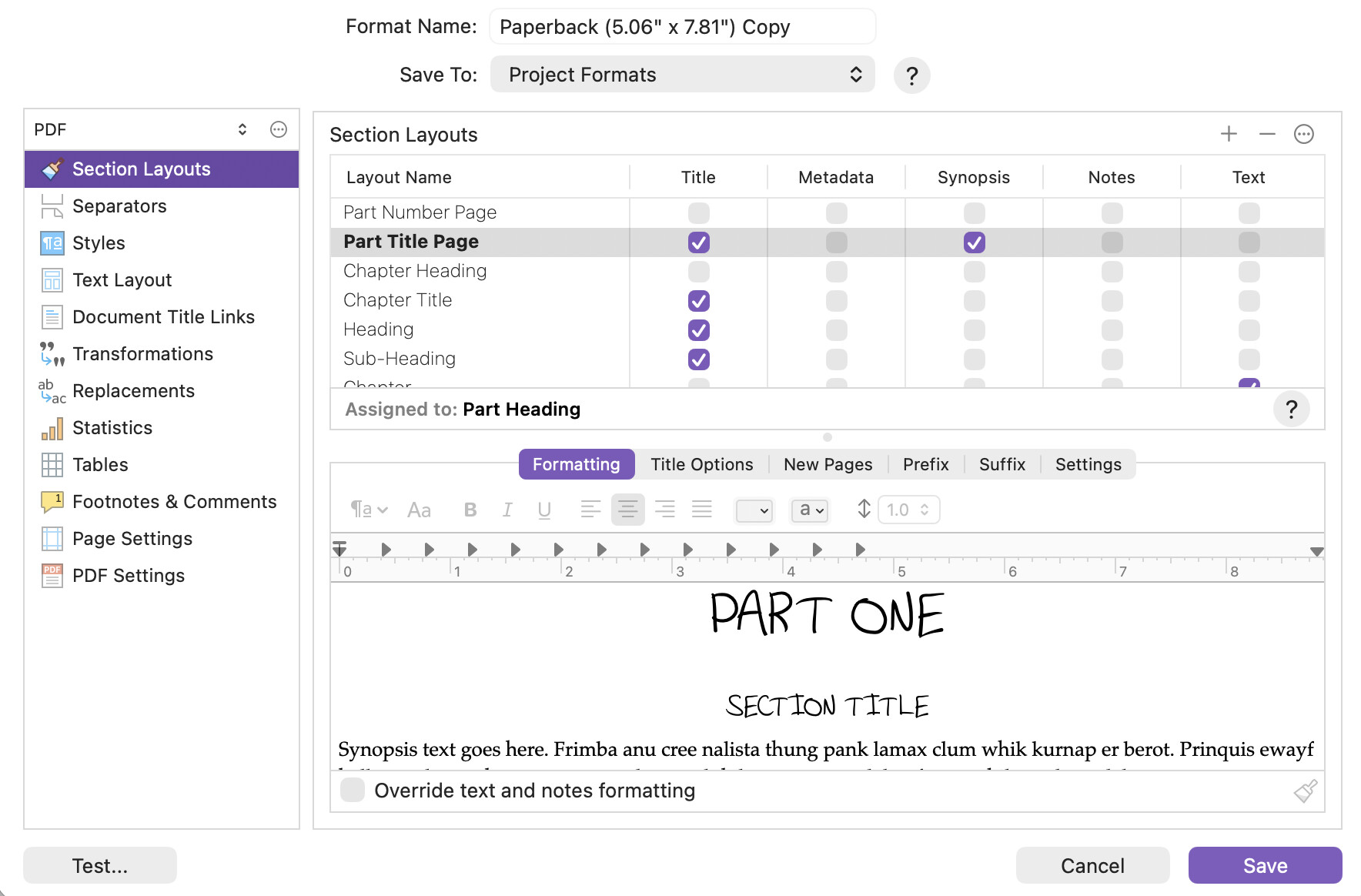
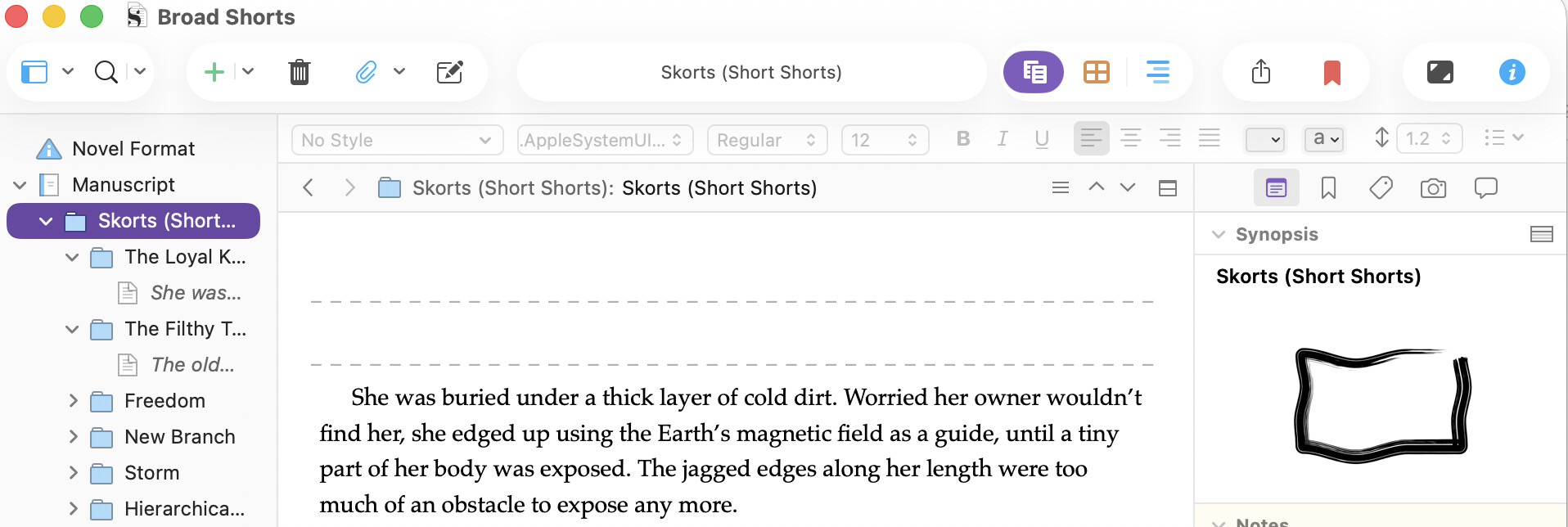
Hi, I am trying to include an image at the bottom of the part title page. I have added the image to the synopsis of the folder, and changed my project compile settings to include the synopsis when compiling. However the image doesn’t show up. Please see screenshots.
Am I doing this correctly, or is there another way to achieve putting an image on the part title page please? THanks

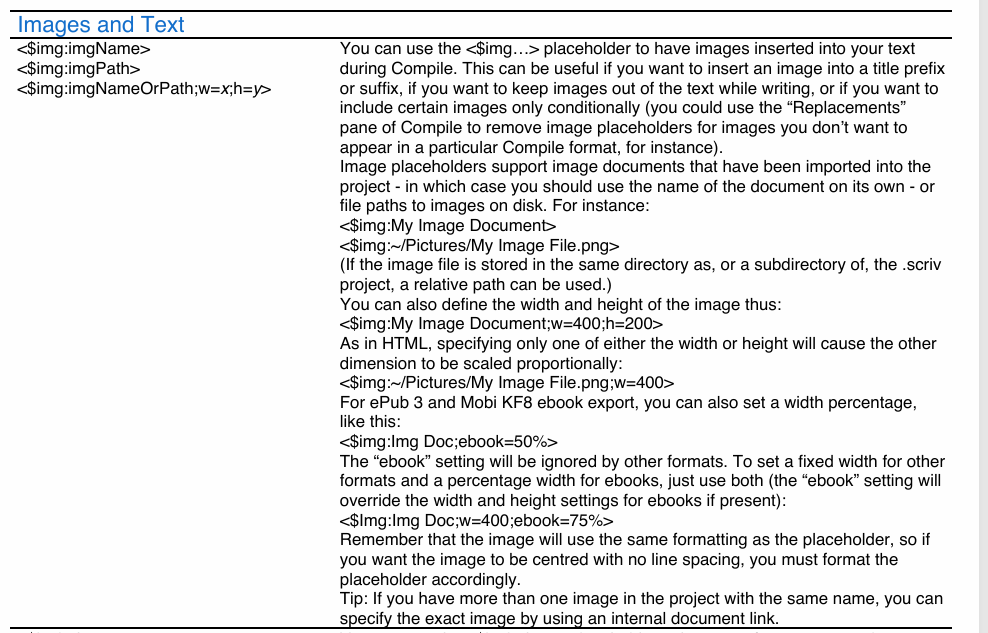
This is from the placeholders documentation. You can find them all listed and explained under the Help menu.
So to answer your question: no, unfortunately, that’s not the right way to do it.
(In case it is though, I could be wrong, you now have an alternative.) 
1 Like
Can I have each part have its own image? I.e. different images for each part
Yes, but you’ll have to create a section type and a section layout for each.
There might be a better way though. Perhaps you could place the placeholder for the image in a custom metadata and use a common placeholder to point to that metadata field in the section layout. This could potentially allow you to insert specific images per part without the need for multiple section layouts and types.
Search for posts by @drmajorbob.
He posted about it (inserting images at compile) and he knows way better than I do.
[EDIT] Now that I think of it, there is a very simple solution :
Create a folder for your parts in the binder if you haven’t already, and insert the image as you want them in each, directly in the editor. It doesn’t get any simpler than that.
(No need to do anything compile wise, regarding your compile format, section layouts.)
1 Like

It will likely need some tweaking, so run a few compile tests.
This I can’t help with : I run the Windows version.
Success to you.
2 Likes
You can also use custom metadata placeholders by having a custom metadata list of Images. see this page I’m trying to get others to help with which shows how to do this.
Look at this link shows how to insert placeholder for the custom metadata to insert the image in the part/act/chapter as you want.
There is even an example project showing that technique, up above, which also includes a much lower bandwidth naming scheme approach so you don’t have to remember to set metadata on each part/chapter. Just import your images into the binder and number them in the order they should be used (‘chapter_image-1’, ‘chapter_image-2’, etc.).
1 Like
The advantage of metadata though requires a little more work, is you can specify image width and set parameters for both a standard text book and the ebook display based on percentage of the screen, as people read books on multiple devices, using a percentage will adjust image size to the device reading the book.
As Vincent suggested you can trial compile and adjust image width based on what you want to accomplish.
I have a detailed step by step guide thru this on my website. Compiling with Images — My Writing Journey
1 Like
There are definitely good reasons to use one or the other method, or something else entirely (like based on the <$label> for those that would use a particular image per chapter POV). There are many different ways one could handle this, probably as many as there are placeholders. The <$title> placeholder can also be of use here, as then one can name their image “part image - Name of Part Folder” in the binder and it automatically pairs with <$img:part image - <$title>>.
1 Like
I never tried this method will give it a whorl on my trial compile collection. Thanks