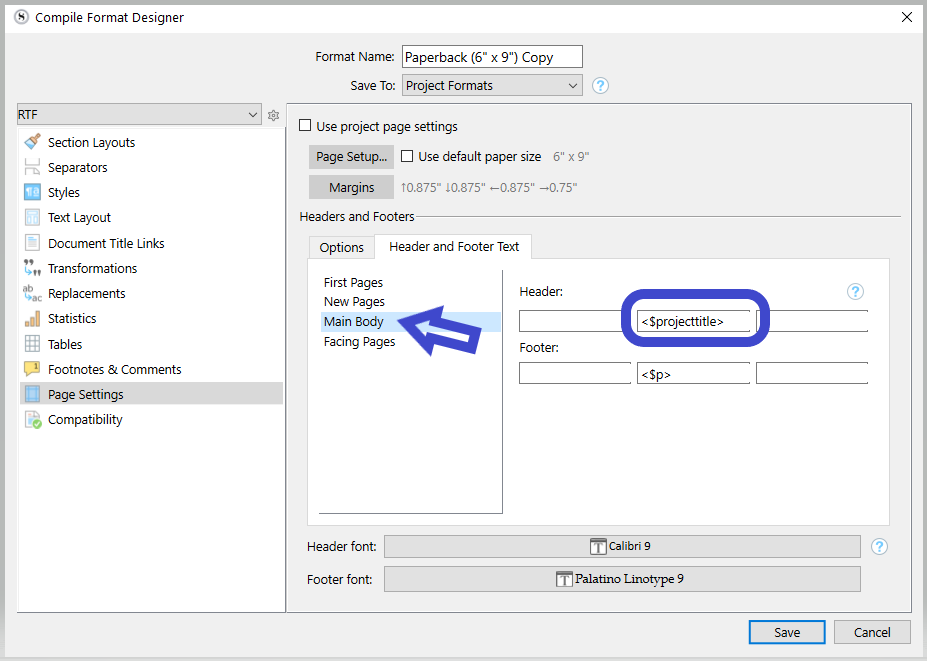
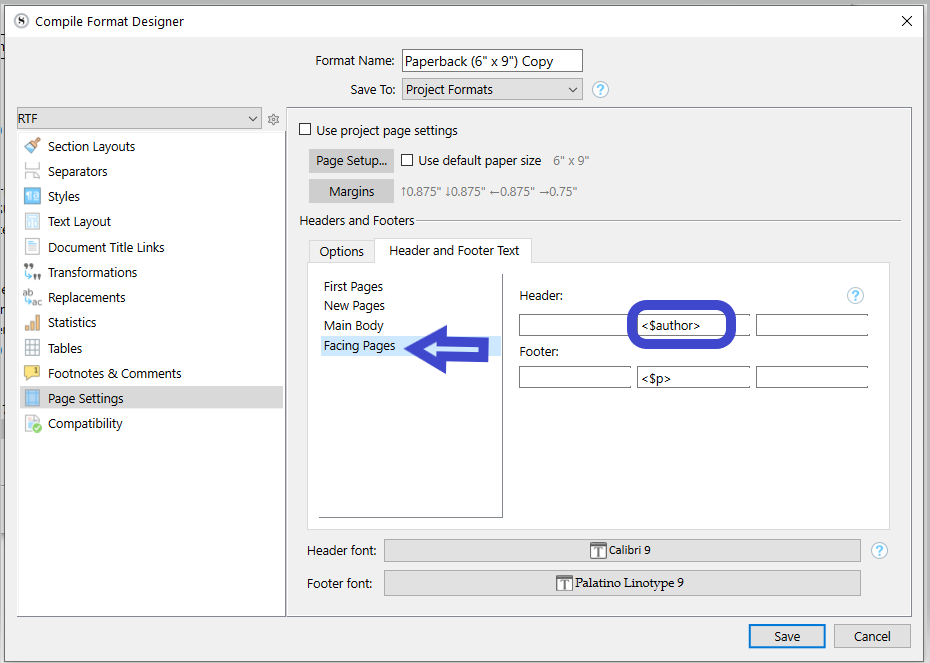
This may well be a question with an obvious answer, but I certainly don’t see it. I’ve compiled my manuscript for Word. When I open the file in Word, the project title is showing on every other page, header style (with the exception of the Front and Back Matter pages, which is good, and the occasional page within the manuscript proper). Of course, I DON’T want the project title to appear on any of the manuscript pages.
I see no obvious settings anywhere that might control this behaviour. How do I change this?
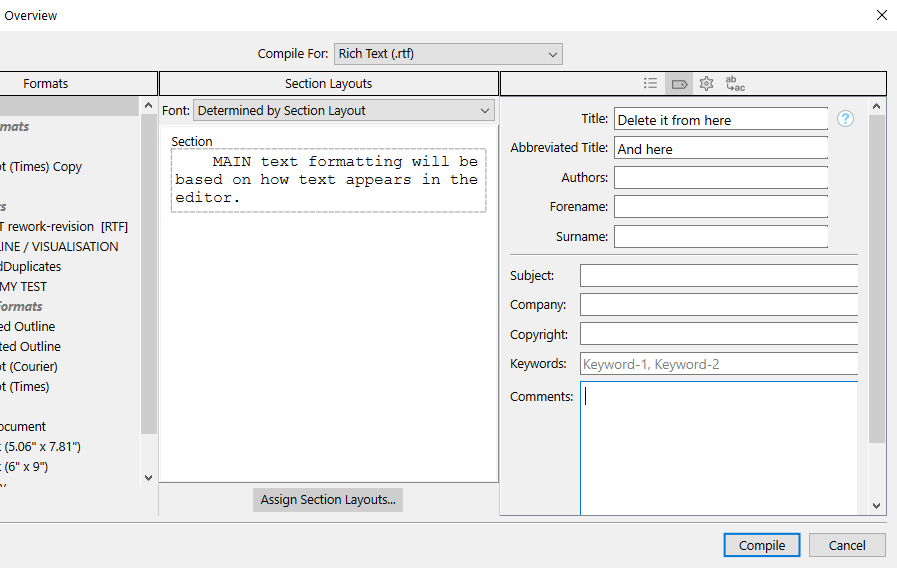
Hmm, that doesn’t appear to be it. Regarding the first option, both the “title” and “abbreviated title” fields are already blank in all the applicable templates. (see photos)
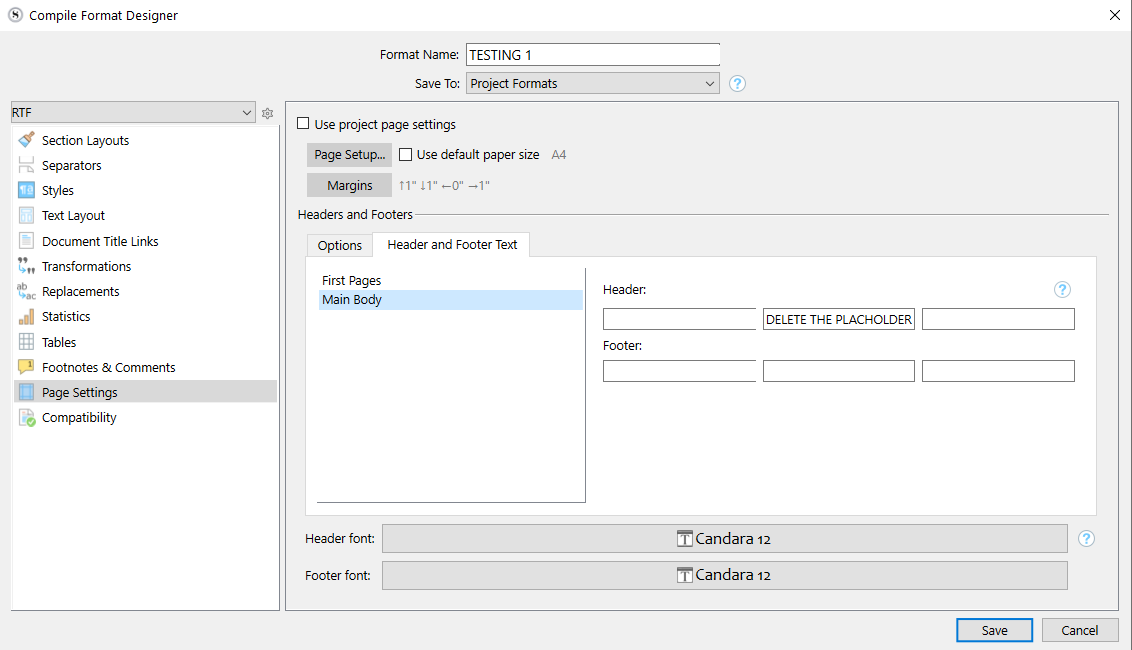
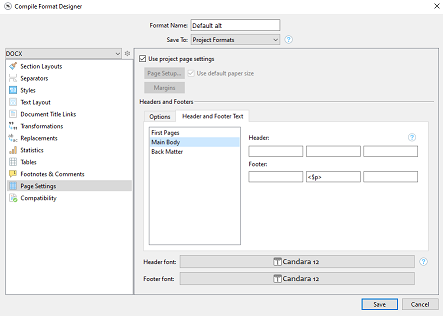
Regarding your second option, when I go to the designer and look at the header fields, they’re already blank there as well. This is the case for my custom template setup. However, I can’t get to the designer for the paperback setup since I’m using the default 6"x9" template and would have to create another editable copy. (I find this particularly odd for the paperback template because who would ever want to repeat the name of their project/novel on every page or every other page by default to begin with? Shouldn’t the default for all templates be that the title of the project/novel does NOT show on all the pages as a header?)
?? Could be my mistake. Perhaps if there is no title specified in the metadata of the compile panel it goes for the name of the project. ..?
I’ll test it.
[EDIT⮚ Yes, that’s what happens. If the metadata is blank, then it uses the name of the project on disk. Either remove the placeholder from the compile format, or put a space in the metadata if you are a fan of Red Green.] @AmberV Perhaps it should be clarified so, in the list of placeholders. Right now it doesn’t say.
In a quick glance through the books on my shelf, I found quite a few with the title on alternating-page headers (usually with the author on the other side). If you’re self-publishing, it might be worth a look around to see what’s typical in your genre.
It looks like you had to create a copy of the paperback template in order to be able to view the page settings and edit them, in which case it turns out there is a project title on the pages by default. As I mentioned to kewms here, it certainly appears to be common practice so I won’t be too fussed about it–although I would like my paperback and ebook styles to match and the latter does not currently feature the title on any page at all. I’ll have to think about whether I want to re-edit the latter template as well to match (or vice versa).
As usual, thanks for your invaluable help! You’re an absolute credit to this community.
Just clone and set your current compile format so that the page size is 6x9, then.
If you don’t want the other features to be any different than how is your custom compile format (say you’d be using the factory 6x9 compile format), that’s really all there is to it.
Beware of alternating margins, though. Gutter vs outside. (If you plan of compiling for a printed book, you need that.)
My approach is to start with the default and then “defend” why I’d want to disable some setting. There’s very much a standard design to physical books, and Scrivener is following them. Like the “No Style” default styling, think about the why of overriding a specific format choice (maybe you’re doing a custom per-page header graphic, for example.)
I can endorse, and am re-reading The Design of Books right now, which gives both examples and the vocabulary to talk of them.
The clarification should already be in the user interface, which is the real problem (the documentation assumes the GUI is doing the talking already). What should happen here is that if you erase these core fields, they will print in grey placeholder text what they will be using—the project file name, the username on the computer (if Author Info is empty).