I’ve been stressing over this for the past hour and I’ve gotten nowhere. I’ve attempted changing too many variables to count, and it (the rightmost margin) can never extend past 13.61cm or 6.35 inches. Whenever it prints it wastes an atrocious amount of space. Please help, I’d really appreciate it. Worst of all so many resources I’ve found thus far are actually increadibly outdated, with buttons and UI completely different from what I’ve got going on. I’ve tried:
Disabling Fixed Width Editing,
Reassessing Every Margin Editor I Could Find (3)
“Typewriter Mode” (Didn’t assist reseting margins for print purposes.
Fiddling with the paper width. (Final print size needs to be 8 / 11 inches, standard American print.
Upsettingly, because I joined this forum specifically to relay this issue today, I have yet to unlock permissions to embed a proper image into this post until later, hopefully. Please help me however ya’ll can think to until I can more properly provide ya’ll context.
Not sure where you are looking to find out of date screen shots … have you tried looking in the Scrivener Manual?
I’m assuming you are printing output of a file in the Binder and not printing output from a compile. If this true try: Menu → File → Page Setup or did this not work? What happens when you print not to paper, but to Preview?
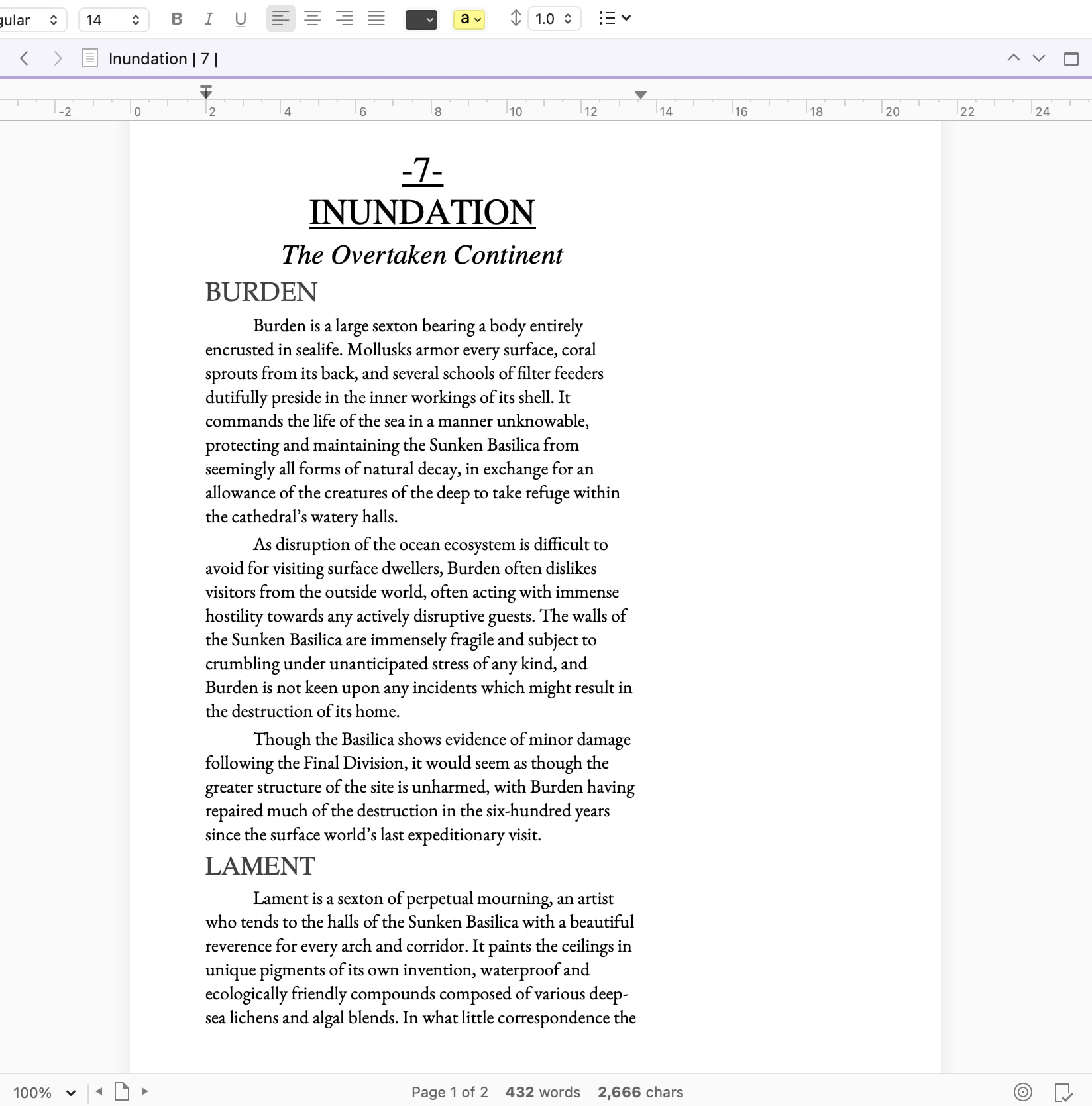
Unfortunately I’ve tried all of that but the preview. Doing so now, the preview is just as off-centered as the print itself. I’ve apparently now unlocked the ability to post images, so here it is in the editor.
Well, you have a marker between 13 and 14 and the text is stopping at that. You just need to move that to the right, to where you want the text to flow to, no?
Yes, what @philwild said. That triangle at the right edge of the page is where the edge of the text block is going to be. If you don’t like that, move it. You can use the Format → Paragraph → Tabs and Indents pane if dragging arrows around is too fussy.
Also, I’d suggesting turning on View → Text Editing → Show Invisibles. If the text isn’t flowing like you expect, that could mean that there are hard line breaks hiding in there. That’s especially a common problem in text that’s copied and pasted from the web or from a PDF.
I really do appreciate the help. It simply refuses to go past 13.61cm, no matter what I type in or drag. It physically refuses to move past that point. While Show Invisibles was helpful for understanding what’s going on, there is nothing out of the ordinary. No hard line breaks. I wrote this in a wider format but it seems to refuse to return to normal. I can’t find a “reset formating” even to escape whatever I’ve so-horribly-messed-up.
I’m going to answer here since the question may be of general interest. In the project you sent, I found three interlocking situations, all three of which potentially affect the page width.
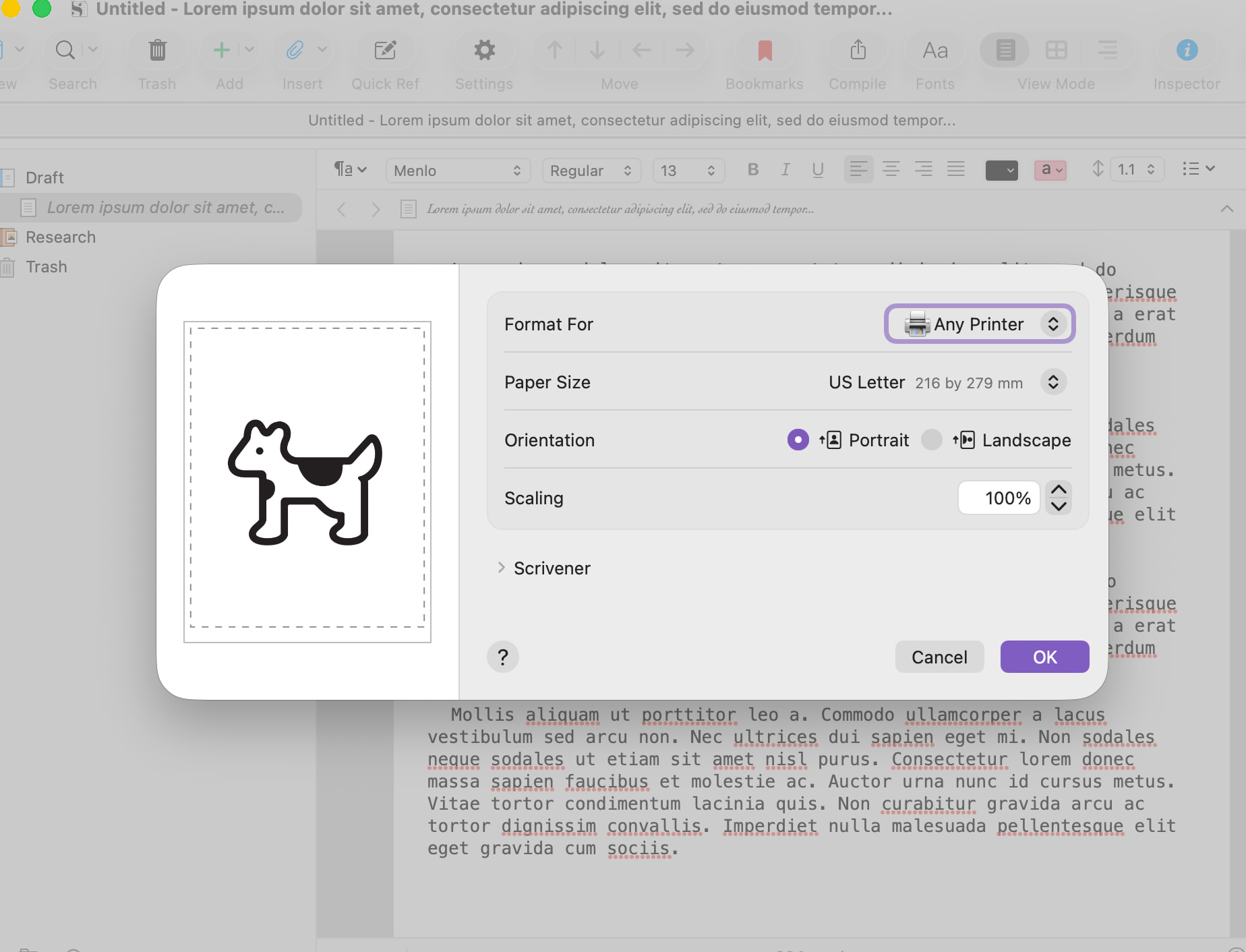
First, the File → Page Setup pane (the one @rms posted) was configured with a right margin of 8 cm. The right margin is an immovable wall, which means that attempting to set a wider paragraph indent won’t work. I suspect this is the root cause of your problems, so I’d advise fixing this first.
Second, numerous places have paragraph styles applied to the text. Paragraph styles include the Ruler settings.
Third, the problem sections were configured with an extremely narrow right indent.
For sections that are still incorrect after you change the page margins, check to see if the text has an applied Style. If it does, you’ll see it in the lefthand portion of the Format bar. Use the Format → Paragraph → Tabs and Indents pane to set the indents you want, then the Format → Style → Redefine Style from Selection command to update that style throughout the manuscript.
Similarly for text with no assigned style. Once you’ve formatted one paragraph to work the way you want, you can use the Project → Project Settings → Formatting pane to make it the default for this project, or Scrivener → Settings → Editing → Formatting to make it the default Scrivener-wide.
Then, the Documents → Convert → Text to Default Formatting command will reformat existing text to the new default.
To tack on a general comment to @kewms’s targeted fixes, setting the right indent to 0 will make the text wrap at the inside right margin, whatever you ultimately choose to make it—in other words, that will give you the flexibility to print to different paper sizes and margin settings later without having to adjust or override the indent settings for your text and styles. It’ll also mean the text will wrap to fit the width of the editor when you’re working (when not in Page View). You’ll see the right indent marker move along the ruler to stick to the right edge of the editor when you adjust the width.
Except for text that needs to be formatted with a specific right indent (scripts, for instance, or a block quote in a format that insets the right edge), you nearly always want to just leave the right indent at 0.
Thank you greatly for all of your help. I am happy I reached out and am grateful for such an attentive staff behind Scrivener! I’ll definitely be purchasing it after my trial is up. Maybe even sooner; given that there’s no harm in it!
 I’ll definitely be purchasing it after my trial is up. Maybe even sooner; given that there’s no harm in it!