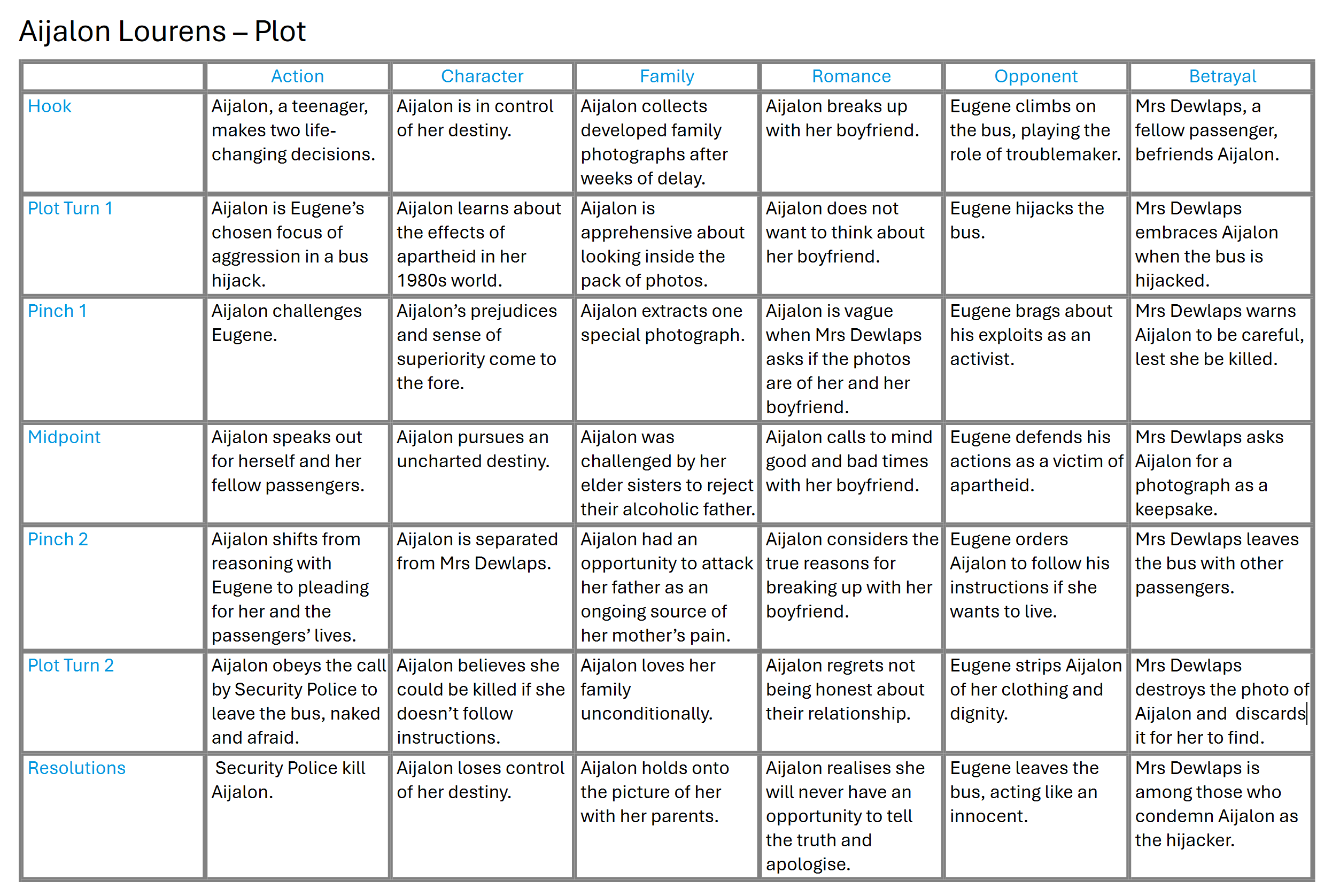
When I paste using either paste or paste and match style, I get the data, but no table.
Paste and Match Style won’t paste a table. Match style matches the Scrivener default. Otherwise it should work if copying from Word and pasting to Scrivener.
But to be sure, test your copy by pasting to OneNote. If that works, copy the table from OneNote to Scrivener. OneNote would clear any bugs you may have picked up if your table in Word has content from the internet.
We copied the terminology from the Mac, for the sake of consistency, but a better name for this command would be, “Paste as Plain Text”. It is functionally equivalent to pasting your content into Notepad, and then from there into something else.
1 Like
I don’t have any Microsoft apps. I was copying from a Google spreadsheet. When I paste it into LibreOffice Writer, it works.
Paste it into Notepad. It may strip out Google’s hidden web gremlins. Then copy it from there and paste it into Scrivener. Word Processors like Word and LibreOffice are happy to ignore the gremlins. Scrivener not.
Alternatively, save your file as a RTF in LibreOffice. And then copy it. RTF is Scrivener’s default format.
I don’t know if either of these options will work, but if you don’t try, you’ll never know, and it can’t damage your original content anyway.
I do know that a straight DOCX table created in Word, without content from the Internet, will copy and paste comfortably into Scrivener and comes with some features in Word intact that are not possible to create in Scrivener for Windows.
2 Likes
I tried the RTF, copying it to a notepad-like app, and even creating a table in the online version of Word. They all generate non-table text in Scrivener.
Just to be certain, you cut and pasted, not paste and match style.
@Vincent_Vincent: Is this also your experience cutting and pasting from LibreOffice?
Yes. And to be sure I did it again from the online Word version and used the menu to ensure I was not pasting with the matching style option.
1 Like
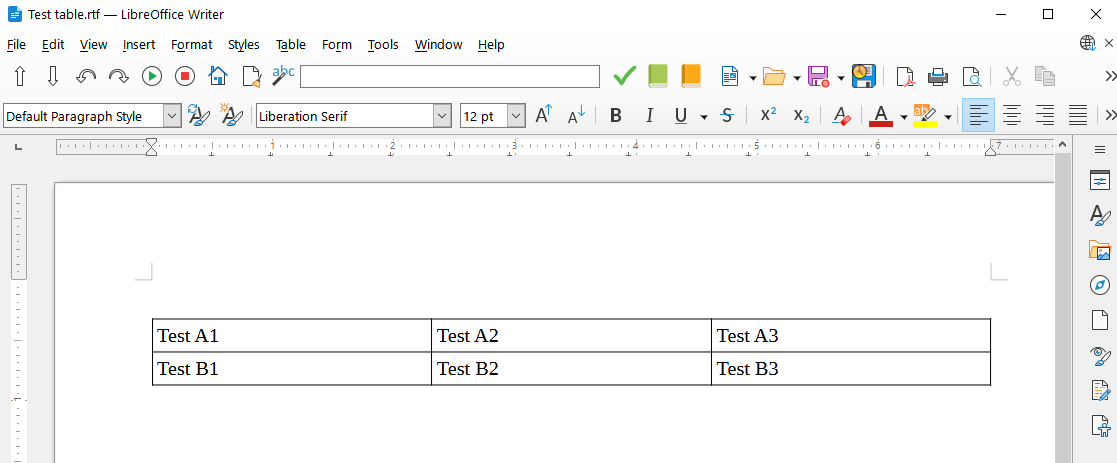
Save your LibreOffice document as RTF before copying the table, so that LibreOffice converts it properly. And then do your copy/paste.
If it still doesn’t work, check to see if perhaps your table lost its border color ?
When you say “non-table text”, are each cells pasted in Scrivener as standalone paragraphs ? Without any columns ?
You might also have to edit the table in Scrivener and fix the columns’ width.
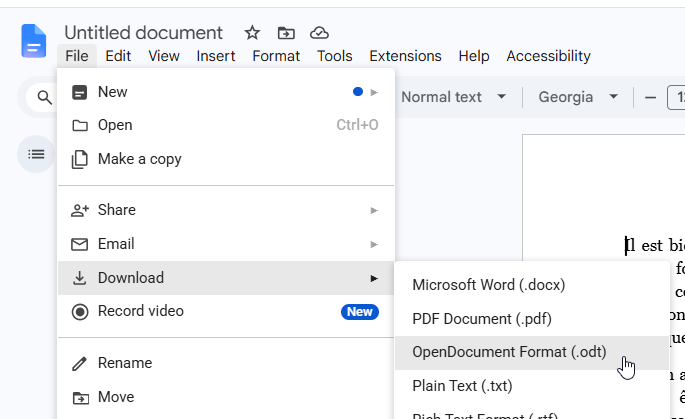
I never paste Google Docs or any Google x documents directly in Scrivener. Their format is highly incompatible. I always download from the Google x version to ODT, then save as RTF in LibreOffice. Once this conversion is done, you don’t have to worry too much about compatibility (I never had issues with it. I no longer use Paste and Match Style in this specific case.)
[Note that I pretty much exclusively use Google Docs. It works. For the other Google x documents, I can’t guarantee it. But I am pretty sure that if LibreOffice Writer handles it fine, saving to RTF will yield the same result.]
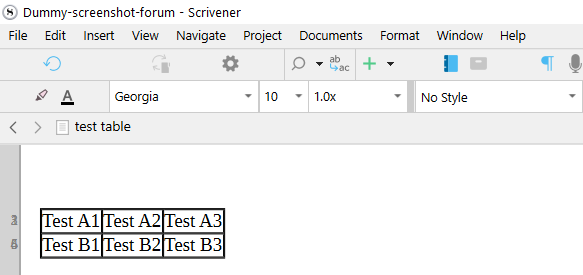
I just tried with a table (created in LO), and it rendered relatively fine.
1 Like
I have tried all these things. IS it possible that the default document is causing problems? I tried 2 things: 1) pasting it into a document that already has a table, 2) pasting it into a blank document. I know it is lines or colors because when I right-click on the text, there are no table options.
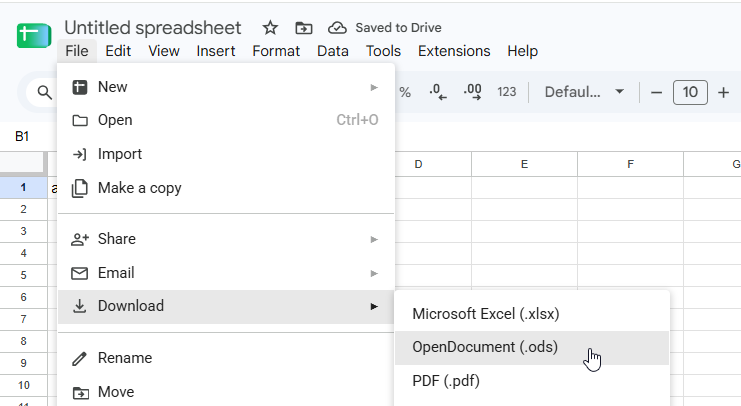
This is a sample of the GoogleSheets file that I’m working with. If I remember correctly (it’s been a few days), I copied it directly from Scrivener because I wanted to edit it there.
| 2055 | Mori’s parents die in Tokyo earthquake. |
|---|---|
| 2056 | Mori founds ImPercept. |
| 2057 | Aspect relocates all its production to New City. |
| 2058 | First fusion power plants come on-line. |
| 2058 | North American Driver Riots results in the Cities Compromise . |