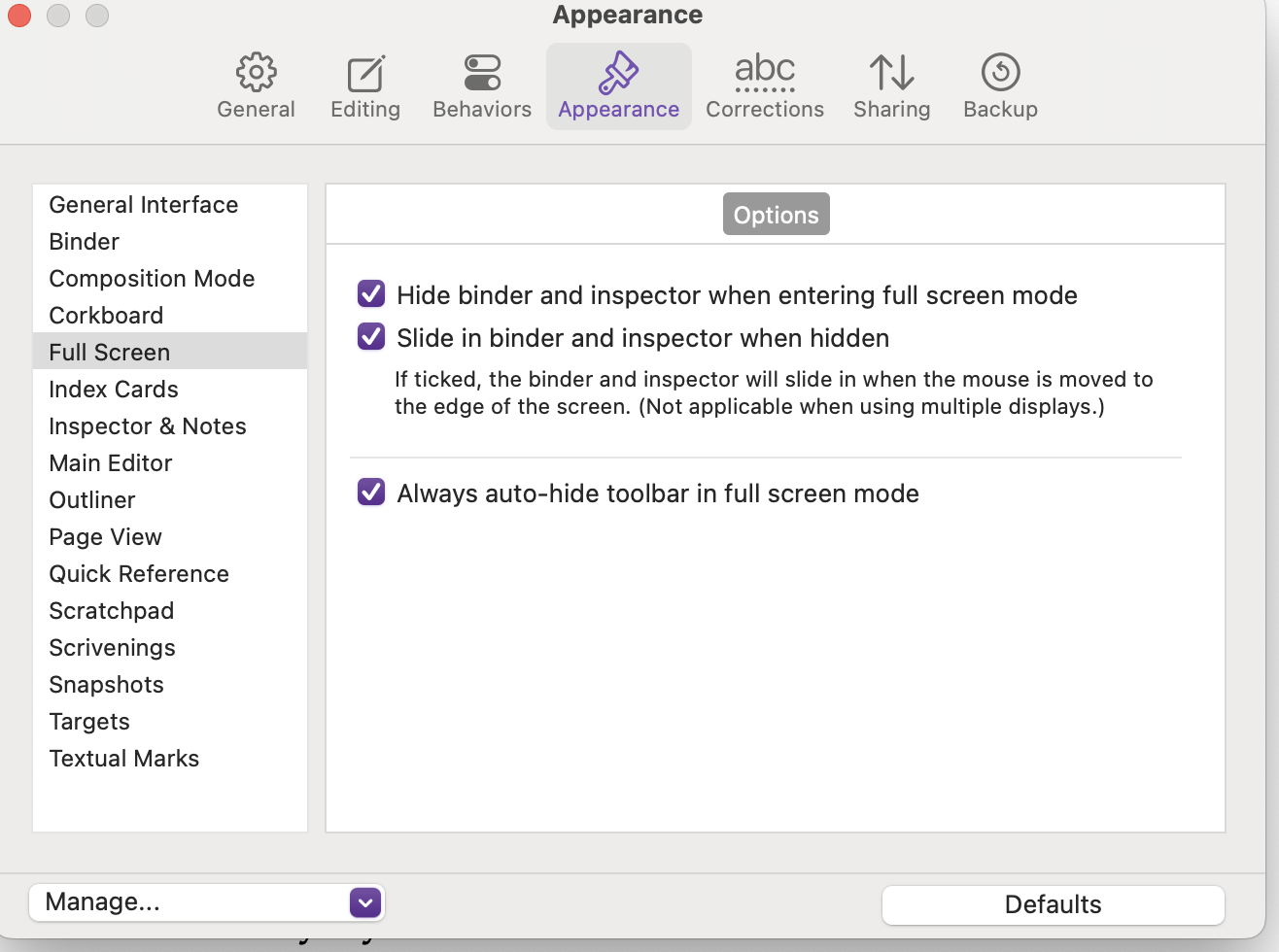
I may have misunderstood this, but are you saying that you can’t achieve either of these things in Scrivener at the moment?
I mention it because there is a setting to hide the Inspector and Binder automatically when you enter full-screen mode, and another to allow you to view them temporarily when you move the cursor to the left or right of the window.
If you combine this with hiding all the toolbars and other page furniture, you can effectively recreate the empty screen of Composition Mode, with the Binder and Inspector available as slide ins when you need them. Once you’ve got it the way you like it, save the Layout with a shortcut and it’s there whenever you need it.
Apologies if I’ve misunderstood what you’re after, but I thought I’d mention it in case it’s helpful to you (or anyone else, for that matter…).
This is how I would like it to work. But it doesn’t work on my system, and has never worked. I seem also to recollect having discussed this in the forum a few years ago, and my request was considered unfeasible.
My system is Mac Monterey (but I’m sure it behaved in the same way in Mojave). Maybe something is conflicting?
one is the standard Mac’s “Full Screen mode”, where the window in the foreground gets the full screen;
the other one is the “Full Screen Composition mode” (“Full Screen” only appears in the tooltip), where you enter a distraction-free full-screen mode that is unique to Scrivener.
I was referring to this latter. I should have called it, more specifically, “Composition mode”.
The two modes are not interchangeable. The first one, for example, will leave your UI elements and background clear, with dark text on it, if this is how one is editing in normal mode. The second one is explicitly conceived to enter a dark room, where only text (usually on a dark background) appears.
You can change the UI elements and background in Full Screen Mode as well: just clicking Scrivener > Appearance > Dark will do that. You can add shortcuts for Dark and Light of course so it’s easy to toggle when you’re in Full Screen or not.
Also, after going into Full Screen, turn off the entire interface except for your main editor, save this as a Layout, and then in the Manage Layouts window, select your “Composition Emulator” layout, click the ••• button, and toggle the “Use Selected Layout When Entering Full Screen”, option.
If I didn’t loath Apple’s Spaces/Full Screen implementation so much[1] I would use this approach and forget Composition Mode even exists. It does that, but if I want, it also does everything else, to whatever degree I want for a moment and then triggering the Layout snaps everything back to minimal again.
Switching out of full screen will restore the project window to how it was, so this isn’t a thing you have to apply and then switch to another Layout to get back—though do note the first time you do this, the act of setting things up is considered “how things were before”, so you would need to turn the header/footer bars back on, etc. first. Consider making a Layout before experimenting with all of this, even if just temporarily, to get things back to how you want.
Oh, and while I’m here, I might as well drop a link to the Butterfly Theme. Granted that may be a retrospective look at this point. I stopped keeping tabs on Ulysses when they stopped selling it.
at a deep and philosophical level; I think computers should be able to multitask, even when you’re focusing on one task, because one task isn’t necessarily one single piece of software ↩︎
Unfortunately, no. The beauty of the Composition mode is that you click a button or type a shortcut, and you are in distraction-free mode. Had you to quickly do a bird-eye exploration of your project, that’s the Esc button apart.
Getting the same Zen-like mode by switching to the Mac’s Full Screen mode would involve more actions: clicking on the green button, switching to Dark mode, hiding the UI elements or choosing a display layout. The same to go back.
It’s not only a matter or going there, but how you get there. Will it leave you focused on the idea you are typing? Or would it force you to come out of that magical state of mind?
I fear this is exactly the issue in this particular case: I don’t want it to do anything else. I want to be in focus, distraction-free mode, now, immediately, with nothing in the middle. No options, no second thoughts, no alternatives. Just straight there.
Thank you for the theme. I made several on my own for Scrivener’s Composition mode, just to stop with my preferred one (a dark coffee background with dirty-white text).
It’s the same custom theme I use in Ulysses. I developed several themes for both programs over the years, but then chose just one of them and forgot all the others, even if tempting.
No alternatives, no second thoughts, no options. Just focus on writing.
I don’t think this approach is incompatible with that desire though. Arguably it takes more effort to change the layout of the window into something more “distracting” than it does to punch the Esc button in Composition Mode.
The only point I was raising with that comment is that if (for example) the Outliner to you is not a distraction, then you have it if you need it. For me, not having the outliner available is maybe more distracting than having it, because that is how I navigate around in a longer chunk of text with nothing but the keyboard.
But ultimately we do have both features for a reason. Bending the second one to match how the other one works to a fair degree, may or may not be exactly what you’re looking for. I think for many it could be though, particularly if you just want something more, like slide-out binder/inspectors.
I think you’re misunderstanding what I’m suggesting – once you’ve set the two layouts up, which will take about a minute for each one, then you will only ever have to use two shortcuts. You won’t have to remove the UI elements, because you did that when you originally set the layout up. This is what Layouts are for – to enable you to switch between different views with a shortcut/menu action. And that includes Full Screen - so you can switch to a ‘no UI’ layout and Full Screen is automatically invoked at the same time.
So, one shortcut to switch to your new 'ui-free- layout in Full Screen, the second to switch from Dark to Light appearance. To go back to your normal mode, once again it’s just two shortcuts.
I’m not sure that invoking two shortcuts one after the other is huge distraction but, of course, if you use a third party app such as KeyBoard Maestro you can reduce that to one shortcut.
But I’m not trying to persuade you to do something you don’t want to do, just to explain that there are options you can explore if you’d rather not leave Scrivener over this.
I use Scrivener for one specific project (a research-heavy book). The Binder is such a powerful tool, among so many other great features.
I would use Scrivener much more if I could write in Markdown and integrate it with Quarto more easily for my academic writing. I don’t mind rich text toolbars, but I’d rather write in Markdown (but see the style or equation or figure previewed). Right now, I am doing my Quarto writing in BBEdit.
I hope Scrivener one day has a “Markdown mode”. I’d use it for everything at that point.