I also do not have Scrivener automatically opening any projects.
I used Scrivener’s File > Add Project to Favorites command to create a list of all my projects. From that new project templates page, I can then use File > Favorite Projects to open the one I want to work in.
I also use either Alfred 5 or Raycast to launch a specific project by name. I do that more often than I use the Favorites list, but I built that list so I can quickly access an existing project from within the app if needed.
Also: If you right-click (or control-click) on the Scrivener Dock icon, your recent projects appear in a context menu and you can launch them directly from there.
Thanks, I have tried that as well - adding my current project to ‘Favourite projects’ - and like you I do not see it showing in the start up dialogue box.
Yeah. I tend to keep an alias-folder with frequently used documents on the right side of the Dock (next to the trash bin). You have full control over what you put in there, and you can launch specific projects directly. (Video: How that works.)
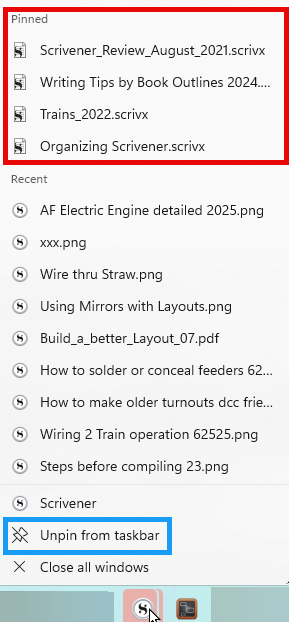
I never paid attention to the window jump lists before, (right click taskbar icon) but is cool that you can pin Scrivener Projects to this list and open from here before opening Scrivener and pick a specific project to open. you can pin to the top like the Favorite Project list inside Scrivener for windows
I use the pin function for projects that aren’t quite projects.
One is a “dump anything that comes to my mind”.
Another is one where I note things about my writing method as it develops.
Another is the dummy project I use to test things or produce the screenshots I post here.
You get the idea.
I have those quickly accessible anytime I need them.
No need for any navigation.
Very convenient.
I’ve been using Scrivener for a number of years and feel this must be in some menu somewhere, I just cannot locate it.
When I open Scrivener it presents a tidy window of potential templates I could select to start a new project. But MAYBE once a year I start a new project. The hundreds of other times I use Scrivener I am re-opening a project I have underway.
So, how do I get that start-up window to show me the six or eight ongoing projects to select from instead of the templates I could use to begin a new project. I know I can ‘Open an existing project’ from the pulldown menu below. It just seems like the most used option would be in the big window and the least used option in the small pulldown menu and not vice versa.
I cannot help you with making a change of view. I agree it would be useful. Perhaps someone else can advise.
For years I rely on macOS Finder to launch open existing Scrivener projects. I keep all my Scrivener projects in one folder on the MacBook—a folder synced by Dropbox, coincidently. Having all the projects in one place makes it easy for me to select which one or more I wish to open and work with. “Muscle memory” for me now.
Firstly, there is File > Recent Projects that auto-populates. However, I’ve seen posts from L&L staff stating it can be unreliable. More likely, they’re being kind to users. They would know better.
Then there’s File > Favourite Projects, where you can add a project you’re in at any time or remove a project being worked on from favourites.
It’s not the management tool you’re looking for, I know.
Also, if you want an alphabetical list of your favourite projects, you need to add them one by one in reverse order (on Windows), which is a tiny oversight.
On Windows, there is a Jump List for Scrivener, like most other apps, of recent projects. Right-clicking the Scrivener icon, whether in the Toolbar, Start Menu, Desktop, or floating in File Explorer, will list your recent projects. Also, hovering over specific items in the list will reveal their full path.
Specifically, if the project is moved or renamed, the “Recent Projects” list may still point to the old location/version. This is a common cause of confusion about exactly what project is being opened, and therefore a potential cause of “missing” work.
On the Mac, the Recent Projects menu is managed by Mac OS, not Scrivener directly, and can be corrupted by crashes and software updates as well.
My recommendation is to use Favorite Projects and/or your operating system’s “smart folder” functionality.
What I would find useful would be being able to see a list and preview of the latest projects. I would like to see a list of more than ten projects, as you can do now, and would like to have a preview of them.
My mind focuses on these tokens, made of projects:
on which I worked during the latest week, that is, the current ones;
on which I worked during the latest month, that is, the ones that may still be current, but are risking to slid out of my attention;
on which I worked during the latest year, that have already gone out of my attention span, but should still be considered alive.
Currently, Scrivener makes one see a list of the latest ten projects. Really too little for me.
And it can’t show a preview, that is essential to understand what it really contains (something that the file title alone can’t transfer).
I guess this would have to be done in a dedicated window/dialog.
The Finder is not good at this. You can do a search on the folder where you keep your Scrivener projects, but you usually get too many results, and often not only the ones that are really relevant to your search.
FWIW, you can create a saved search in the Finder (or three of them, in your case) which attends to the containing folder, file extension (.scriv), as well as the last modification date. In this way Finder can be made to do exactly what you are looking for – except for the preview part.
(And maybe you need to give your project files better names, if reading them does not tell you what project it is!)
FWIW , when you’ve found a .scriv in finder, tapping the spacebar gives you a scrollable preview of the project. I would think it would be possible to create a Keyboard Maestro/Better Touch Tool/Alfred/Automator script to create/access your saved search(es) and set up the preview for you.
I was hoping to avoid cluttering the sidebar of the Finder. But all considered I can just save a single search (the longer one), and it can be handy to have it there, always readily available.
Eh, there is a reason why essays always start with a long synopsis! (or why titles, during the Renaissance and Baroque, were so incredibly long!)
That’s true, thank you! And this is all I could need.
 , when you’ve found a .scriv in finder, tapping the spacebar gives you a scrollable preview of the project. I would think it would be possible to create a Keyboard Maestro/Better Touch Tool/Alfred/Automator script to create/access your saved search(es) and set up the preview for you.