I have a project where I’ve discovered that a number of files have an exact duplicate elsewhere in the project. I stumbled on the first few by accident. My suspicions aroused, I discovered the rest when I ran a duplicate file utility (TreeSize) on the project folder, which did an MD5 check on all the content.rtf files.
My question: Since I want to
get rid of each dupe, and
don’t care which of the dupes I keep, and
don’t want to have to locate the files in the project by searching for each one…
…what would happen if I just closed the project, then manually deleted one of each dupe pair, then reopened the project?
Would Scrivener deal with those missing files kindly, perhaps telling me they’re missing and offering a nice solution, or would the project be corrupted?
Or, is there some other less blunt force way of doing this?
Assuming you confine such removals to the UUID numbered folders in Files/Data, and the Snapshots subfolder, nothing! There is no difference between an empty binder item you haven’t written anything into yet, and one you deleted the contents for externally.
Before doing that though, I would empty the trash to make sure none of the duplicates are just discarded copies.
After reload:
Hold down Alt on the File menu and use the “Save and Rebuild Search Indexes” menu command.
Optional: run a project search for *, with the search scope set to “Text”, and then flip the “Invert Results” option toward the bottom. This will find all empty items. You can select the search results, make a new collection out of them, and then remove entries from the collection as you look them over; maybe just to delete them, maybe to move the other copy to where the empty one ended up, etc.
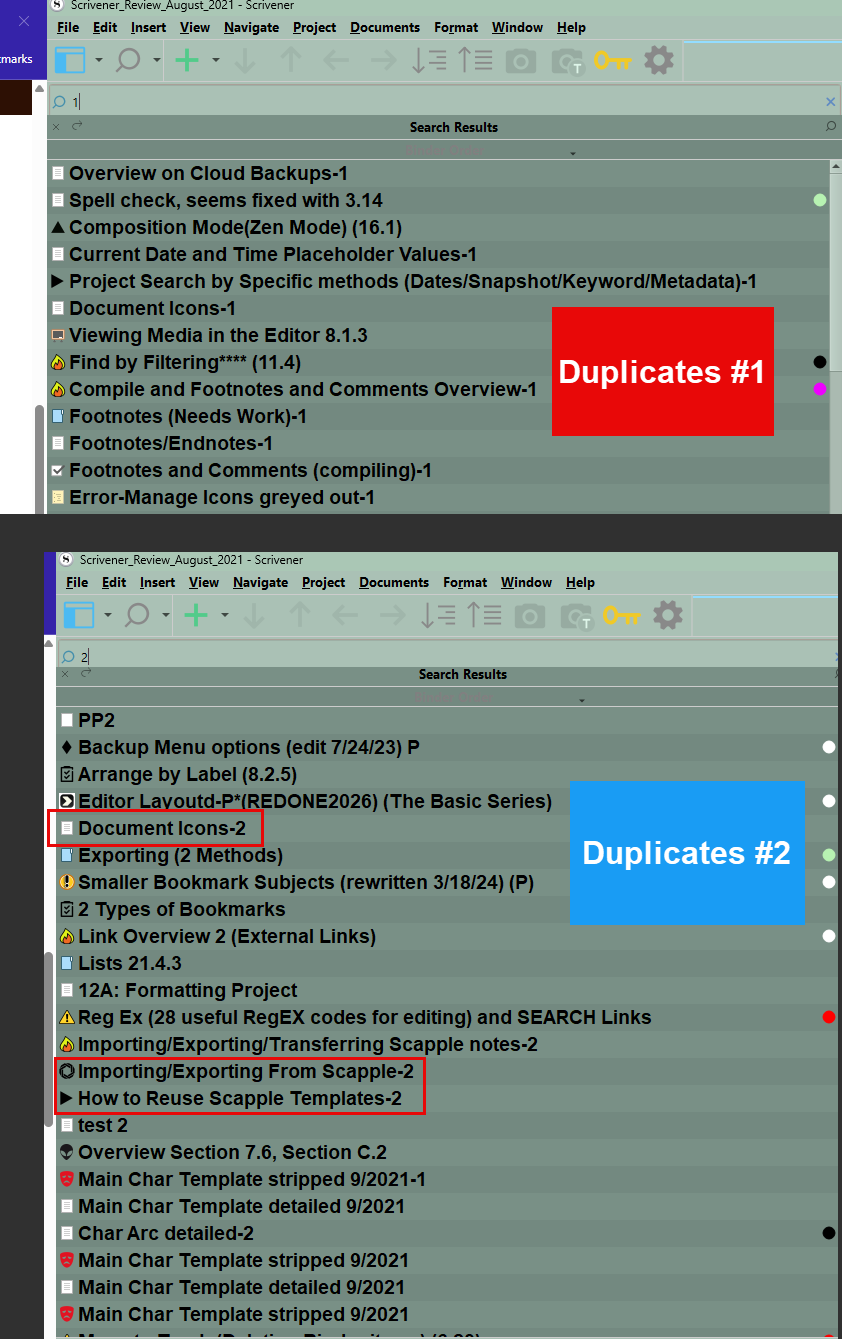
Love the * trick for blank files. The other way is to search titles for 1 and then 2 as duplicates will be in format file name-1, file name-2. Now will also find files with dates or other numbers with 1 or 2 so look at list. Below is an example.
I’m not sure how or when the dupes got created. They share the identical names in the binder, without an appended number, so they weren’t created by the Duplicate command. They were in different folders.
I thought maybe I had dragged them intending to move them but instead copied them, but testing just now I’m unable to find any mod key drag action that actually copies or duplicates the doc rather than just moving it. (Is that really so?)
I didn’t compare or make note of their created and modified dates, but I suspect they were either identical or long ago enough to not tell me anything useful.
But this project consists almost entirely of preexisting files that were imported into Scrivener as sets, each roughly corresponding to the Explorer folder where the files resided. Basically, replicating within a single Scrivener project a multi-folder/multi-document Word project — where in Explorer a mod key makes the difference between a drag-copy and a drag-move. So the dupes likely existed in the original source folders. I just never noticed them. I could check in the backup of the backup in the archives… but no, I am not going to!