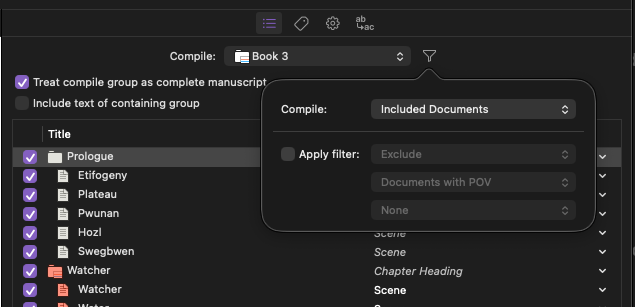
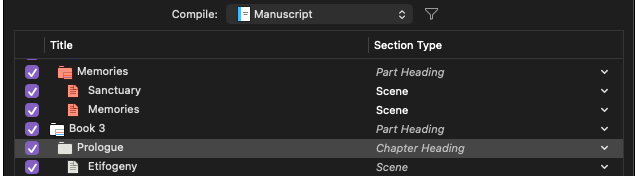
I have a project with three books in it. All three books are under ‘Manuscript’ as their own folders. They each then have chapters as folders and the chapters have the scenes. This file started off from the “Novel with Parts” template
Like this:
Manuscript
  Book 1
    Chapter 1
      Scene
      Scene
      ...
   Chapter 2
   Chapter 3
   ...
  Book 2
    Chapter 1
      Scene
      Scene
      ...
   Chapter 2
   Chapter 3
   ...
  Book 3
    Chapter 1
      Scene
      Scene
      ...
   Chapter 2
   Chapter 3
   ...
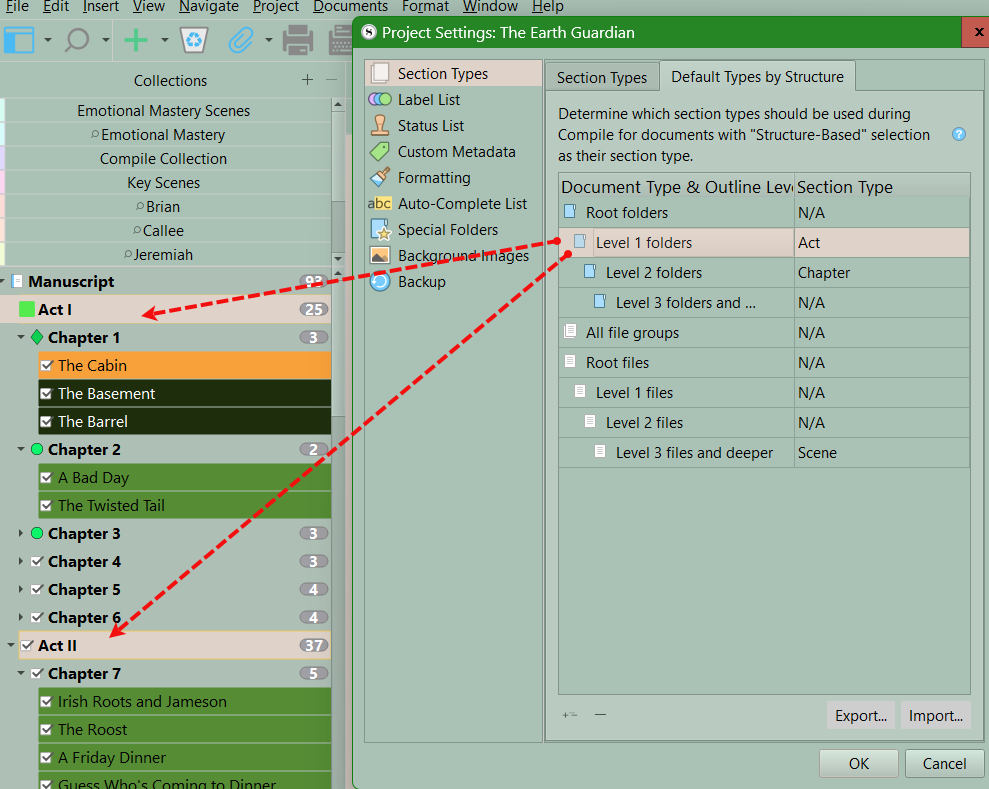
In Project Settings > Section Types > Default Types By Structure I have:
Root Folders                   : N/A              - Manuscript
  Level 1 Folders              : Part Headings    - Books
    Level 2 Folders            : Chapter Heading  - Chapters
      ⋮
      Level 3 Files and deeper : Scene
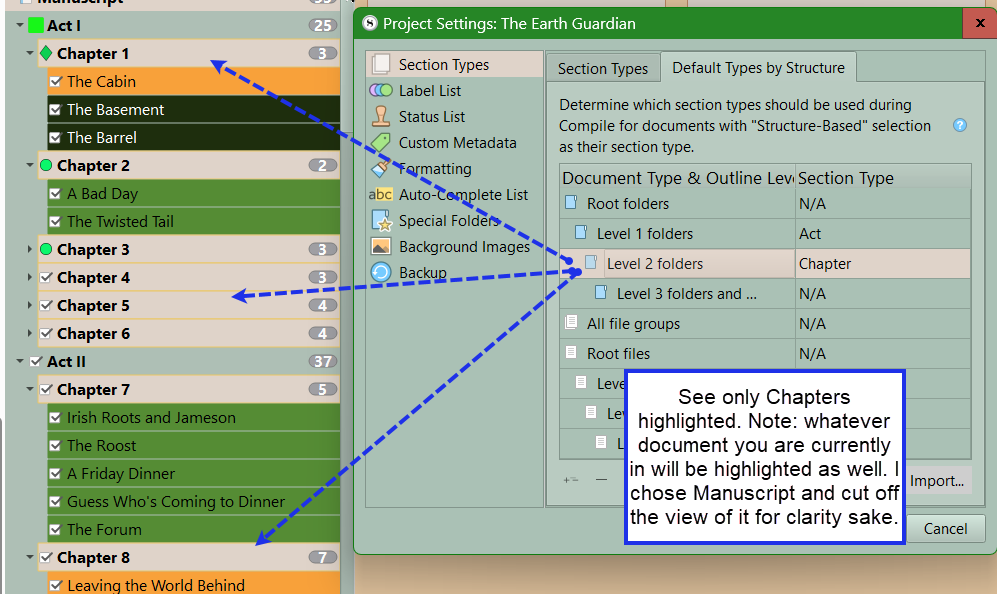
When I select Level 2 Folders in that dialog, all the correct folders are selected in the binder.
Problem
According to both:
the Metadata tab of the Inspector and
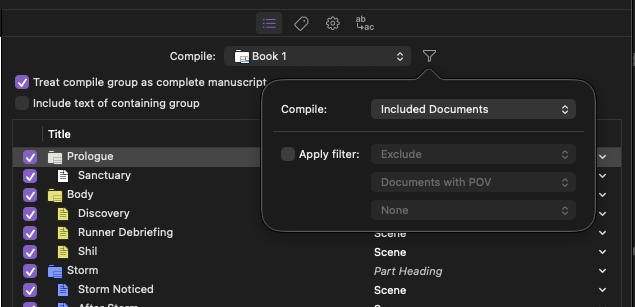
the right hand side of the Compile dialog,
the folders are interpreted as:
Book 1 ‘chapters’ are Part Headings
Book 2 ‘chapters’ are Part Headings
Book 3 ‘chapters’ are Chapter Headings
I did not set these. They are displayed in italics and when I click on the drop down to select the type, it is clear that Structure-based is the current selection.
Questions
Why is Book 3 correct while Book 1 and Book 2 have the wrong derived types?
Please attach a screenshot of your actual Binder. (I’ll check your trust settings to make sure you can.) The most likely cause is that the Book 3 chapters are at a different level in the hierarchy.
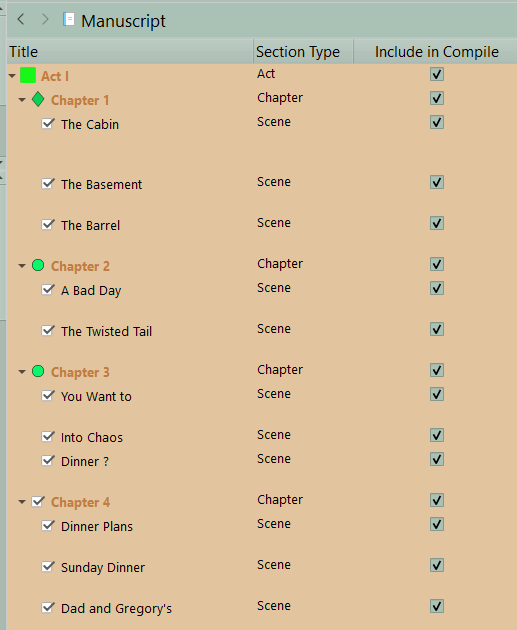
You can go to project settings and Section types and use Default type by structure to see if your section types are right. you could also do in the Outliner and check Section type as a column to view. Examples below of Acts (parts), Chapters, and Scenes.
Yes, I mentioned checking the project settings in my original post. All the chapter folders are selected in the binder as expected when I select Level 2 folders.
It’s a bit unlikely, given how this feature works, but something to check is to right-click on the book that has misbehaving child items, and check its Section Type settings to ensure it isn’t overriding subdocuments to use “Part Heading”, in the lower half of that submenu.
From the screenshots, you’ve got a mixture of automatic (structure-based - in italics) and manually-set (non-italics) section types - look at the difference Sanctuary and Etifogeny, for example. This could be causing the problem.
Easiest way to test: expand the Binder so you see every level and select them all, then right click and choose Section Type > Structure based.
If you’ve set the structure up properly in Project > Project Settings > Section Types that should work.