I can spread paper out on any convenient table – or rock – and don’t need batteries to annotate it. To each their own.
You could also print screen at size can read font and if necessary space over multiple screens and print out whole scapple board.
Seems to me jpgs and screenshots are not the way to go. Export to pdf. This gives you an indefinitely scalable map document, so you can zoom in (in your pdf reader) without degradation.
Also, for diagnostic purposes, I would try opening the exported pdf in Preview and see how it would print it. If you get the same trouble, then Scapple’s print routine must be declared innocent!
Also, the pdf export from Scap should give you a doc whose borders are cut down to where the actual map is. If you see in Preview lots of surrounding white space, then you have some stray map element(s) that are claiming extra territory and that is your problem.
Not necessarily.
If the file includes pixel images, the pdf can’t have more resolution than those images.
I tried that too. It was the first thing I tried. Same result. So “Not Guilty, Milord!”??
Aha! That is exactly what I see, @gr . I assumed that that was what’s happening:
- I’m artificially making the board too big, which in turn is
- forcing Scapple to shrink the font
If so, how do I find such silent extenders, please?
Have you tried “Select All”, then scrolling around to see if there are any tiny areas selected?
1 Like
I have thanks, @xiamenese, Yes. (An abandoned Note with a Return or a Space etc…) I also ensure that all Notes have the same font, font size and border. Nothing.
When this first became an issue, I tried expanding my Notes as far out as possible on the visible window in the hope that doing so would force the printed paper to be full and that would - in turn - proportionately enlarge the font.
Then I tried the opposite to see if Scapple would think there was enough space to make them readable.
Neither worked.
I’m beginning to think that I just need to make the length of my Notes shorter  .
.
Most posters here have - in kindly helping me - pointed out that the root cause of this is that my boards are just too big.
That prompts a respectful comment and a question:
- I do really need all that information on one sheet; so I shall experiment with shorter Notes
- What are the feint ‘square’ guidelines that I see when I invoke View > Page Guides, please; and should I be trying to fit all my (board’s) content into one rectangle?!
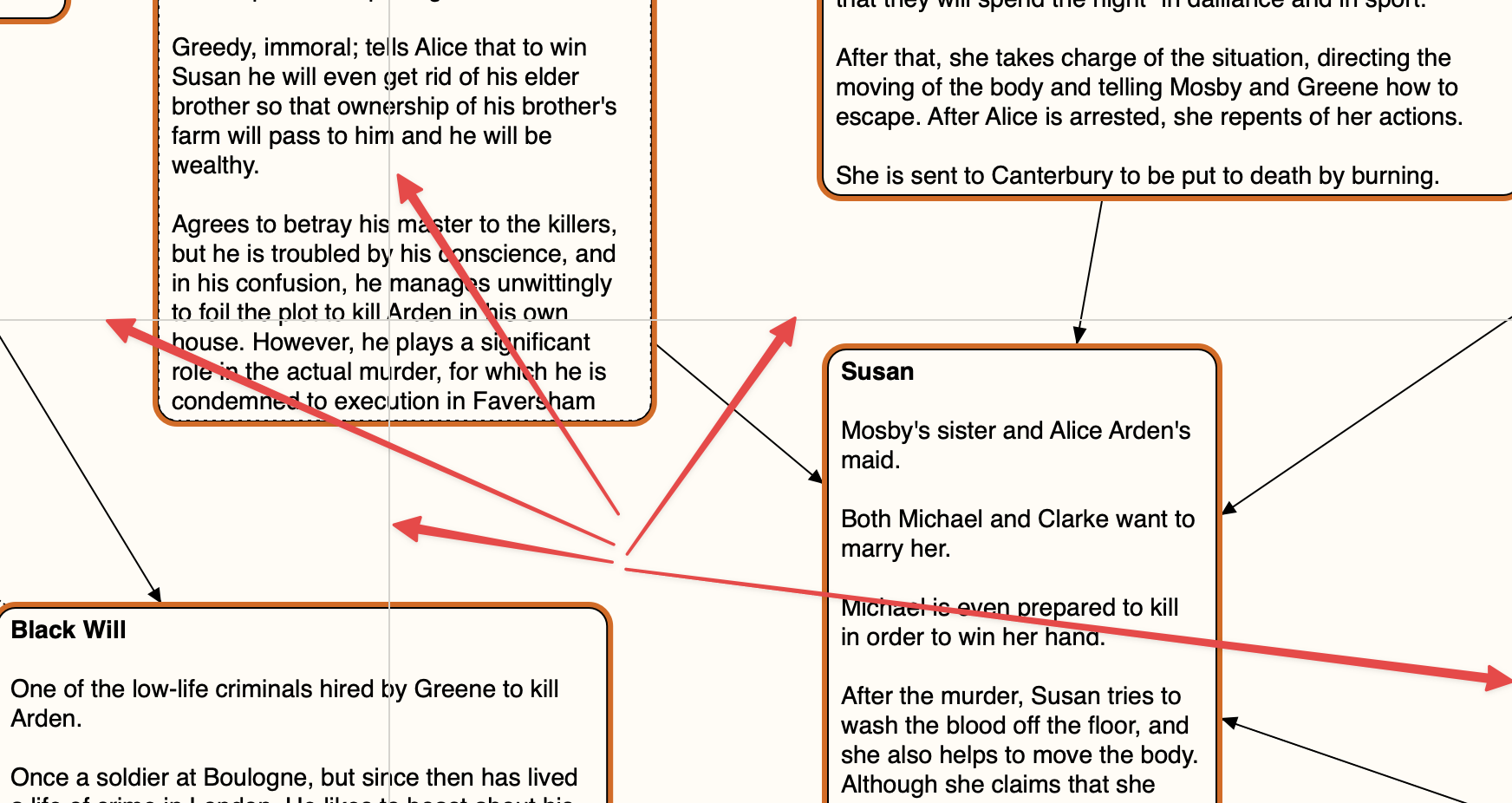
Needing a thing doesn’t mean that you’ll ever get it (in readable fashion).
1 Like
Those lines are the page guides. Yes, to fit everything on a single page, you need to fit everything in one rectangle. A more realistic goal may be to move notes around as needed to make sure that each individual note lies entirely on a single sheet.
1 Like
A digital Scapple board is zoomable. A physical sheet of paper is not. Your eyesight and the size of the paper set a hard limit on the amount of information that will fit in a single sheet. Sorry!
1 Like
@kewms - thanks. Understood.
For my purposes there’s no way at all that I could fit everything onto one such page (= into one rectangle).
Yes, I am partially sighted. As I say at the start of this thread (thanking everyone for their help here!), I need a way to represent minimal details about each character in plays along with the relationships between them.
I do accept the advice I’ve been given. Residual puzzlement lies in the fact that a screeengrab can - every time - result in a printed version which both displays every Note and in a readable font.
If Preview can do it…
I think you’re getting tripped up by the difference between screen resolution and printer resolution. Try this:
Decide what the smallest font you can read on paper is. For most people, it’s 6 pt. or so.
(A standard double-spaced page is about 250 words in 12 pt. type. So single-spaced 6 pt. type brings you up to 1000 words per page, more if you shrink the margins.)
In Scapple, set your default font and your existing text to that size. Turn on page guides.
Set Scapple’s Zoom setting to whatever is comfortable for you. Use the page guides, not your eyes, to decide what “fits” on the page.
If that doesn’t get you there, print from Scapple and from a screengrab and compare the text side by side. If the screengrab has smaller type, shrink the font in Scapple and try again.
1 Like
One more tip: often printing in Landscape rather than Portrait mode helps, because screens are typically “landscape” oriented.
-
Another sort of solution to the problem at hand would be to pick up a second monitor. More screen real estate would enable you to put your character map up so it is visible at all times.
-
If you are on a Mac, you can also toss the Scapple map window into its own Space, so whenever you are working and need to consult it, a simple swipe will slide it full-sized onto your screen, and is as easily dismissible.
-
Of course, you could just have the scriv project and the map open in the same space and bring the map forward for consultation.
All of which presses the question: To get what you need, do you really need to make this fit a printed page at all?
Since Select All didn’t make any strays obvious to the eye, using a copy of your map document for safety, I would zoom out and drag a selection rectangle in each of the four quadrants of the empty surrounding space, and hit Delete each time. We are trying to target empty notes but also background shapes. Try the export to pdf again and see if the resulting pdf displays in Preview now without extra space.
1 Like
@kewms - thanks!
Comfortably for me that’s about 10 pt. I have to squint a but even then. Scapple’s View is ‘Actual Size’. Yes, I always use Landscape orientation.
The screengrab is acceptable - even at 14 point.
I guess it’d be an advantage if Scapple had an option to 'Print from screen… ’ etc.
Thanks again for your help - much appreciated.
Thanks, @gr
… snipped thanks for your suggestions!…
Yes, I need to have a single printed sheet by my side as I read plays: the Scapple boards’ contents are useful to refer to characters and their relationships.
Thanks again, @gr - no shapes had crept in