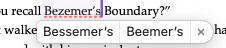
The system bubble suggestions for misspelled words are associated with the Check Spelling While Typing setting that can be toggled per project under Edit ▸ Show Spelling and Grammar. If Correct spelling errors as you type is also enabled in Scrivener’s settings, the suggestions will appear as you type a word the system identifies as misspelled, but without that, they’ll only appear when you go back and click on/place the cursor into an already-typed word with the red spell-check underline. That is much less intrusive than having the correction suggestions appear while typing, but of course an alternative is to disable the spell check while typing and use Check Spelling Now or Show Spelling and Grammar when that’s actually what you want to focus on.
Sorry, wasn’t getting emails and thought the thread had died. I hadn’t realized the previous topic was about two different features—I’m indeed referring to the suggestion feature: the bubbles that pop up whenever you click or move the cursor over a word that MacOS considers misspelled.
When I mentioned that the only way to get rid of it was to “turn off spellchecking” I was talking about the passive checking (while typing), which does seem to be inherently tied to autocorrect suggestion bubbles, even when autocorrect is disabled. I turned passive check on with stickies and the same thing happens there.
So to return to my original bump question, with the right terminology—is there any way, perhaps in terminal, to disable autocorrect suggestions even when “check spelling while typing” is enabled in Scrivener?
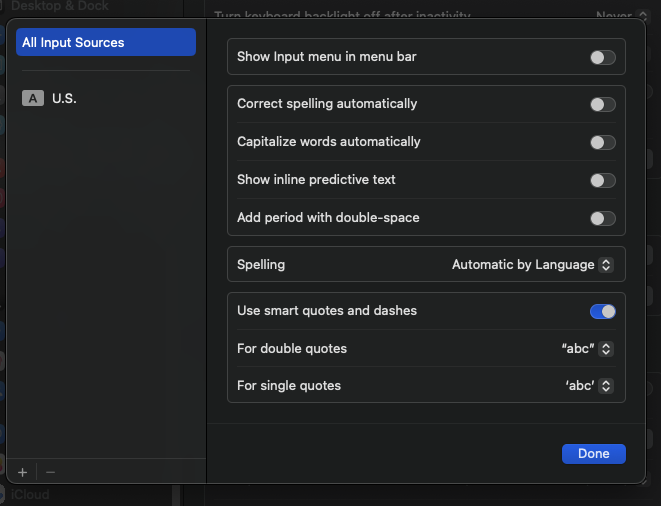
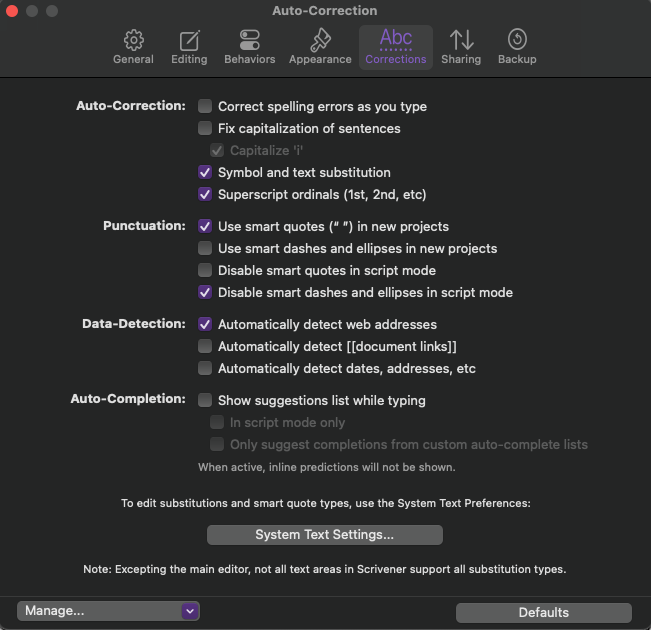
For posterity, these are the settings, now using Sequoia 15.7.7:
And this is the “feature”: