I would agree to @RuffPub , although I never tested that. But in order to do an auto-backup it makes sense to first do an auto-save. So, I am pretty sure that it is implemented that way.
Glad to hear you the got the lag issue sorted. 
Here are some (unrequested) suggestions about backups and your backup settings. All backup options are found under File > Options > Backup.
You may have mentioned this already, but you might want to ensure that Back up on project close is enabled, as well as Compress automatic backups as zip files. As others have mentioned, choose a backup location that’s on local storage (not your NAS). Then when you close Scriv, you’ll always get a local zipped backup.
I strongly recommend that you enable Backup with each manual save, and then get in the habit of doing a manual save via Ctrl-S every hour or two. This way you’ll have zipped backups of your work throughout your writing day.
I’m suggesting this because Scriv’s auto-save is not a perfect, fail-safe solution. There are occasional posts (like this one) where there was a system-level crash that corrupted Scriv files, most notably the binder and whatever documents happened to be open at the time of the crash. This happens despite auto-save, because it seems the open Scriv project files are actually damaged on the disk in this scenario.
You use of the NAS may make you more susceptible to this scenario. Not trying to scare you, just pointing out a possible risk.
But even if you weren’t on the NAS, this scenario can occur to anyone, and the simplest, most foolproof way to recover from it is to have a recent zipped backup. Hence my recommendation to get in the habit of Ctril-S with that option enabled.
There are two downsides to this approach:
-
The time necessary to make the zipped backup may interrupt your writing flow, particularly with a very large project. I’d still do it, say when you get up for a bio break.

-
You’ll have a lot more zipped backups to deal with. I handle this at the end of the day by culling backups manually.
Best,
Jim
1 Like
Hi Jim,
Thanks for the advice. For now I’ll stick to my routine of backing up unzipped to Dropbox (local folder) upon closure and manually, keeping five of those ‘calamity backups’ around. Then after finishing a chapter (about once a month) I make a ‘milestone backup’ on a local drive as well.
But we’re getting a little side-tracked here. I started this thread to talk about how to prevent lag when working on a NAS. Those questions have pretty much been answered.
Thanks everyone!
Just a suggestion. 5 backups is insufficient.
We’ve had a number of instances of users with all 5 backups having missing work due to an issue not being noticed until too late, or opening the first backup looking for missing work, then the second etc and of course each open and auto backup deletes the oldest which may have had the missing work.
I have mine set to 25.
Just a thought.
1 Like
Fair enough indeed, @repelstale.
Lots of activity from this, so several got to speak their piece.
What I do personally is use Dropbox as the meeting point for Scrivener on various platforms. And even iCloud on iPad and Windows for another editor that doesn’t get along with Dropbox.
An alteration of portable hard disks and a good delta program (Retrospect) gives very regular backups, and find myself at the point of looking at substituting SSDs for those disks, with the reliability advantage.
This works well for texts, and I use GitHub when there’s consulting involved. I can see why this might not share everything you might be concerned with, though – and anyway, we’re all free to set up as we like 
Take care, and enjoy, that’s the thing, isn’t it,
Clive
In case this helps anyone, I, too, run a Synology NAS.
- Install Synology Drive Client on each client (laptop or desktop) machine.
- Define a synch folder or folders on each machine that will synchronize to NAS (Diskstation).
- Operate Scrivener normally using files local to the client machine and ensure projects are saved in the folder(s) that were defined above to be monitored and synchronized with NAS . This avoids working from a NAS folder directly.
- Always have Drive Client running.
- The synchronization will occur transparently, in real-time.
- Backups can operate similarly, or Scrivener can point to a location on NAS directly.
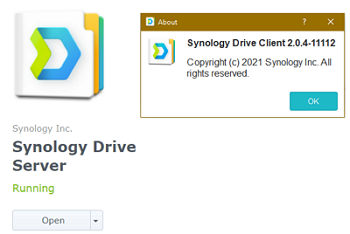
Scrivener autosave period may be a couple seconds or several minutes, Scrivener operation is not impacted. The Drive Client is just monitoring for changed files to upload to NAS.
Switching from one client machine to another, any changed files on NAS are immediately downloaded allowing for continuity of work left off just seconds earlier. The process is seamless.
Effectively, there are three sets of a project - one on each of two clients, and one on the NAS. However, the Synology Drive Client, and the Drive application on the NAS itself, keeps them in synch in real time - like any cloud provider service or NAS provider.
Initially, I tried using the NAS drive as the only single live location of a project, but experienced the aforementioned lag, even with an ethernet (wired) connection. This setup has worked so well for me, I operate most other applications similarly.
Scrivener includes some comprhensive built-in synch features, and there is extensive documentation, an entire section, in the Scrivener manual devoted to this. If I did not already have my NAS, most likely I would further explore the built-in synch process instead.
Hope this helps.
2 Likes
Exactly 
 Thanks again for your input!
Wow, I didn’t even know this existed. Sounds like a great setup, Muse
That is what we do our in family. Also use what they call “Team” folders to share access to common shared files. All synced to local drives where all the work is done. Nobody accesses the Synology server directly from an app as it’s too slow, and I fear for Scrivener the odds of corruption are higher that way.
1 Like
Is there any issue with the project being open on the client when NAS is synchronizing? (I have had issues where I forgot to close Scrivener and the resulting AirDrop to iOS was an un-openable corruption.)
Would this also allow for iOS to stay in synch? —at least a copy?
I know iOS has been a problem when it comes to two apps reading from the same folder, but if I could at least have an updated copy in another folder on my iPad it would help.
That’s a good question and my immediate thought was there is no issue, or rather I have had none so far.
However, I interpreted your question in two ways:
- Focusing to just one machine, with Scrivener project open and NAS synchronising in the background.
There is no issue. This is precisely how the NAS Drive application and its clients work. While editing a Scrivener project, changes that are auto-saved, via Scrivener’s autosave setting, are observed by the Synology client and copied over to the NAS. The client is merely “observing” files/directories to copy upon a saved change. The author may continue working in Scrivener.
- Scrivener project is open in one machine, did not close it, and now move to a second machine to open same project and continue. Both machines have NAS clients running.
This is not a scenario I have done. Primarily work on the desk machine. When I do need to go mobile, I typically close the project, before picking up the laptop to head out. However, I checked what would happen if I leave the project open on main desktop machine, and then launch Scrivener on the second laptop machine for the same project. Both machines are synched to the NAS. The following occurs:
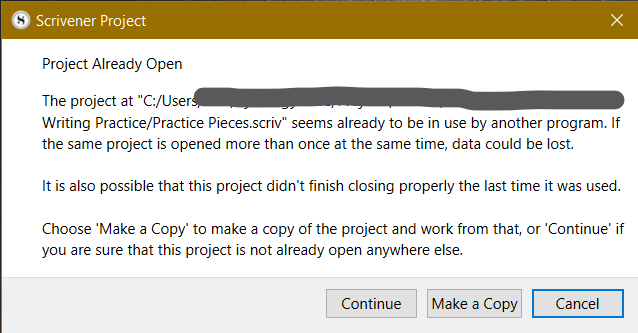
Scrivener’s warning alerts me to close the project first. This is great! Since the entire project is copied across between the two machines, via NAS, it includes any ‘project-in-progress-lock’ file(s). This is similar to trying to open the same project twice on the same machine. Clicking Continue is probably not advised and is where problems can begin to occur.
Hope this helps. I work only in Scrivener windows, no iOS. The NAS is simply a separate entity with attached clients, Windows, iOS, macOS etc. I assume Synology Drive client for iOS, or macOS, would behave similarly.
Note, I employed this synch method only because I already had the Synology NAS in place. Scrivener has an extensive built-in synch method which is also worth checking out.
I’d save the zip backups on the NAS, not the project.
1 Like
This is explicitly not supported, and proceeding through the warning message is very likely to corrupt your project.
Completely agree, and I do the same (essentially).
Whereas the Scrivener zip backups start in ~/Backups, the backup process puts those files onto the NAS (and Backblaze). As well as the Scrivener Projects which start in ~/Scrivener and also get back-ed up same time same places.
My use of Scrivener is optimum as using local files exclusively does not cause a burden with any performance problems or lead to file corruption risks and issues.
My Synology (DS213) doesn’t support Synology Drive unfortunately. It is suggested that Cloud Station Server would be an alternative. Anybody any experience with that one? I’ve downloaded it for my NAS and the Cloud Station client for my laptop. But when I want to select a folder on my NAS to sync, I can only select a main folder on my diskstation. Can’t I select a folder a few levels below?
EDIT: other than being unable to choose a specific subfolder (for now, probably my own lack of tech spirit) it seems to work splendidly! I’m going to work on a local file in Cloudstation Drive from now on. It seems to combine the best from both worlds (no typing lag and other related issues AND still having a centrally stored file). Thanks for the suggestions. It’s always hard for me to break a habit like this, but you’ve managed to get me there!