I hope not beating a dead horse here, but it is not random.
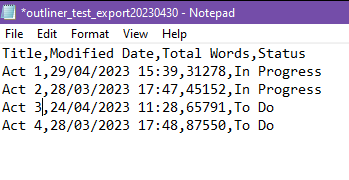
And yes, it’s not for Literature & Latte to sort out (although they acknowledge they might change the export to be in accordance with the regional settings, per @MimeticMouton … so give them time to implement the change—which won’t be immediate nor probably is it a priority).
When the CSV file is simply and directly opened, the Excel app is apparently programmed to use the local regional settings of that computer on date format to translate the text it sees that look like dates into dates that it will represent as not text, but the number of seconds after some defined date in the past. I forget what that date is. Just a long time ago.
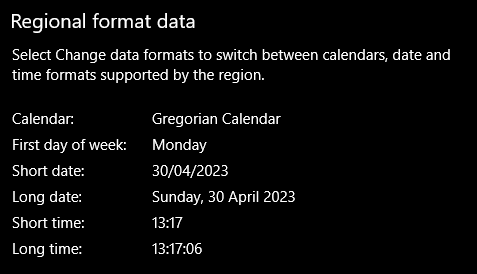
A computer with regional settings in UK assumes day, month, year with one or two (or four for years) digits separated by some normal delimiter, e.g. “/“, or “-“, or whatever. If two digit years, Excel will also make assumptions about century—a left over issue from the Year-2000 “bug” fear.
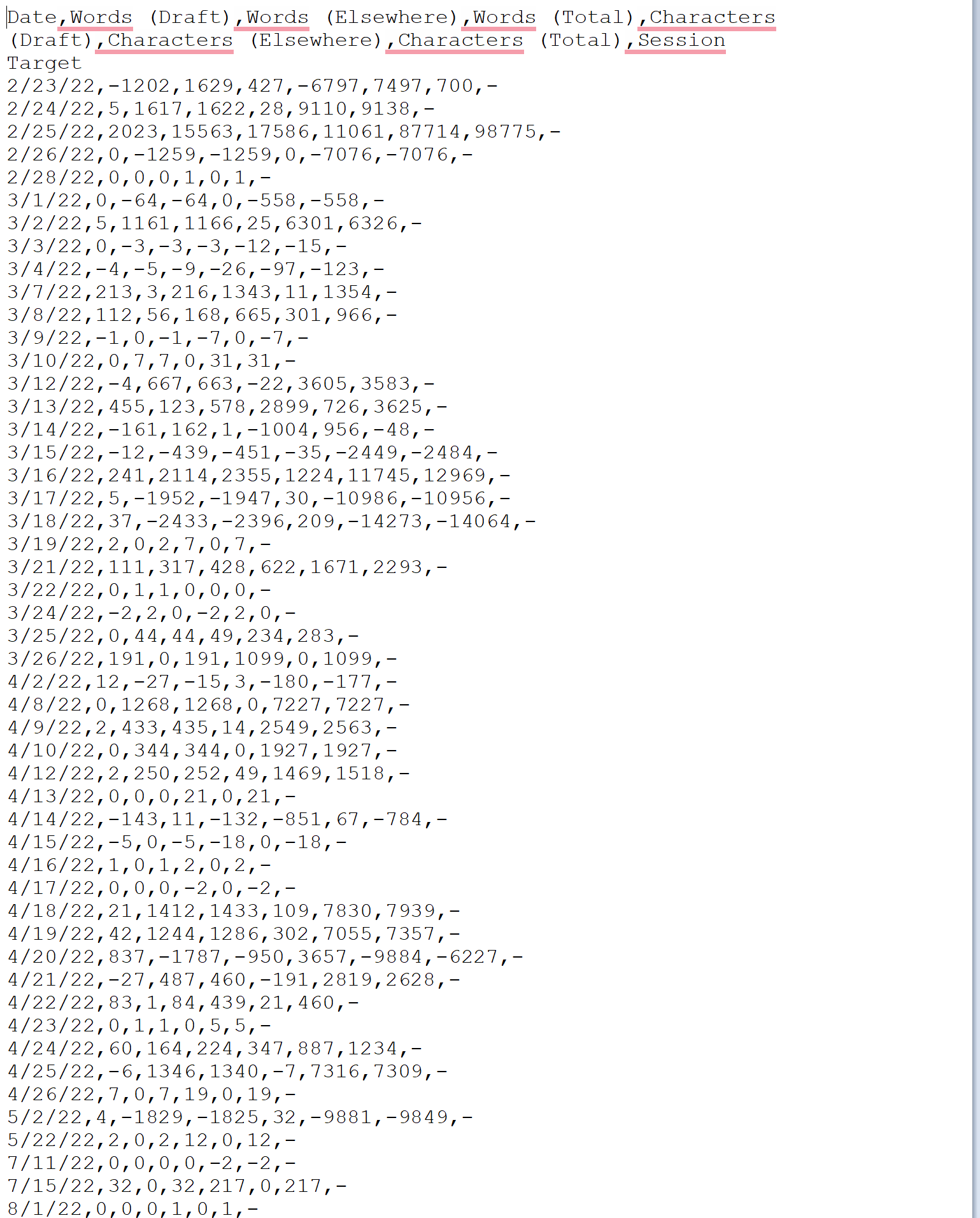
So when it sees any number in the middle part of the date text string greater than 12, it’s going to say “Gosh, but that can’t be right so I’m going to assume that this cell is a text field and I’m not going to convert to an internalised date.”
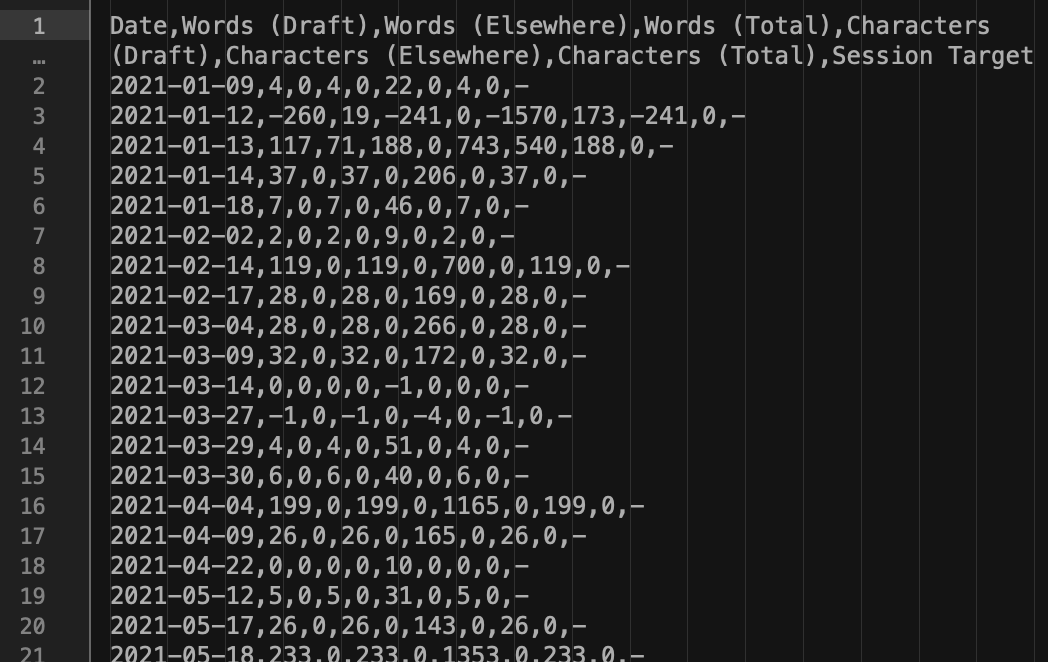
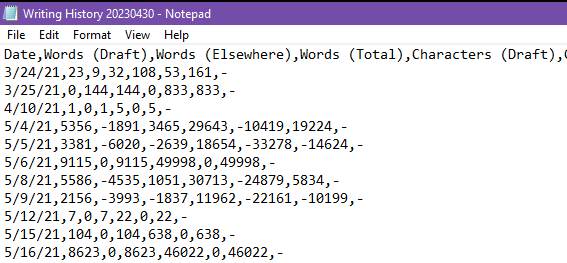
This is clearly demonstrated in above posts where a month number of 13,14,15,16,17,18,19,20, and 21 were all not accepted as month numbers and so imported as text. Hence some of the cells in the column were text, and some were dates. Hence to convert all to dates was more difficult without a lot messing about with Excel Functions.
By using the more precise import method using the “import wizard”, fully documented by Microsoft and explained in all the books and easily accessible by a very visible menu command, which in my days of doing a lot of number crunching and data analysis I used all the time, one can tell Excel what the data format is. Can do this not only for the dates, but for most if not all the data formats.
What I’m explaining is standard and common use of Excel. Powerful tools need attention and understanding and picking up a book or read “Help” is often useful.
‘Nuff said.