9th APRIL - LEE'S UPDATE - BETA 022 RELEASED

Thanks Lee! Good to know, I look forward to the fixes.

About this – as someone else posted, the project replace changes aren’t the only ones that are not saving. Other changes and edits aren’t being saved either. There’s a topic about this in this forum … could you fix this too?

Are you talking a screencast of the unknown error/PDF requiring word bug?

Er, just got another. I went to select one of the predefined formats in the linux version (since I normally do custom by default) and it segfaulted on me. Nothing descriptive, though, but it happened when I opened the pull-down menu.

Ditto this! This is pretty critical, but it doesn’t appear anyone can consistently reproduce the steps, which I know is going to be a pain. :frowning: However, the full thread on it is over here Major problem with saving. You should check it out if you haven’t already.

I unsintalled, cleaned my directories, rebooted my machine, and resinstalled. No dice, the problem still occurs.

I don’t have as screencast tool but I’ve tried to show a comprehensive scenario on what will trigger it for me over here Stuck Inspector (How To Trigger). Earlier, I shared a set of steps, but upon further testing, I discovered that it matters on which editor (in the split mode) edits are being made. I hope this helps.

Hm, does anyone have recommendations on a screencast freeware plus how best to put it up for view?

Great that Lee is fixing bugs so expeditiously. Here’s a little mystery.
I thought I would check out other Scrivener 2.2 templates so created a “test” template in “Paper, (APA)”. Noticed that the bottom bar with the wordcount etc was not showing (in all three panes, binder, doc and inspector) so clicked “Maximise” which brought it back. It disappeared again on clicking the same button (which had then become, somewhat un-intuitively, labelled “Restore Down”). So I tried this in my existing main project which is in the default template and no bug there. Does this mean that the templates all have to be separately debugged?

PS I am absolutely dying for some form of tagging or commenting on individual paragraphs or sentences which does not show up in the main text (like annotations) and which can be separately searched to be added. Would like to be able to generate something to label multiple paras or sentences with the same comment, (like “rewrite this rubbish!”) which can be easily found in repeated instances. Cannot figure out how to use any current tools for this in the present version, except possibly colour coding.

The bug here is that new projects always are created at a size such that the footer ends up under the Windows task bar at the bottom of the screen. Hitting the maximize button will auto-resize it so that it maximizes the usable space of your desktop, thus bringing the bottom up to the edge of the taskbar. From there you can drag in the corner to resize it smaller if you like, after which the maximize/restore down button should work the way you’d expect, flipping between those two sizes. This happens, as far as I know, in all templates including the “blank” project.

Otherwise, no, the templates shouldn’t need to be debugged individually. They’re just projects; bugs will be with the application itself. (There will of course potentially be things to fix in the templates–e.g. they were all ported from the Mac without being much looked over, so they include template placeholders and such that are meaningless on the Windows version. That’s not really a bug, but it is something that will be separate for each template and will need to get looked at.) On the subject of template bugs, though, there’s a bug with the 022 beta where there aren’t any templates. If you opened the Paper (APA), you probably noticed it looked just like the blank. Presumably either the templates accidentally weren’t included in the program resources for this download or there’s some other bugged code that’s redirecting all of them to produce the “blank” template; I haven’t looked. Lee’s got this on his list though for the next beta release, if you check his note above.

This really is what the annotations are for, and you can use Find by Formatting to go jump through them in your project, even using “Contains Text” to narrow it down–so if for instance you use a “REDO” tag for your rewrite paragraphs, maybe adding extra text like “REDO: this paragraph really needs more sea monsters”, you can then use the FbF tool to search for inline annotations containing “REDO” and then step through your project that way. Once they’re added, you’ll be able to do something similar with the inspector comments, which will keep that REDO comment out of the text itself.

Your other option is to really get into Scrivener’s “work in small chunks” philosophy and break your documents up into whatever grain of precision you need–so if that means on a paragraph level, do it. You can then use keywords, labels, and all other document-level meta-data to apply to just that small section.

Ctrl-Alt in shortcuts
Wanted to add this to the list–as noted in a couple threads (e.g. https://forum.literatureandlatte.com/t/keyboard-shortcuts-problems-with-speciale-signs/11185/1), certain special signs inserted with the RightAlt/AltGr key don’t work in the editor but trigger the menu items that use Ctrl-Alt-(letter) as their shortcut. Since Windows uses Ctrl-Alt to emulate the AltGr key, the Windows design guidelines recommend avoiding using that combo in a menu shortcut. Could the couple items that use this now get new shortcuts?

Inserting symbols this way does work in full screen at the moment, but presumably this is related to the same issue that’s causing the PaMS shortcut (Ctrl-Alt-V) not to work. So once that’s corrected, the Alt_R key won’t work for the symbols.

Thanks!

Here’s a capture of the fail I am seeing on Print to PDF, as an example (and example of how late it is here…): http://screencast.com/t/fTrulx4NF.

I did this with Jing, since wanted to try it. It seems to be very smooth and easy to use, as well as free for the software and for a place to post the video. As you can see, a nice player also. It’s been around a while, and is at http://www.techsmith.com/jing/

As far as this Print to PDF thing, I am very sure Lee has more important things to work with than this at present. It’s also possible that my problem comes from having upgraded to Adobe Acrobat 9 last week – had been using 8 before. Compile to Print, printing to Acrobat, works fine and always has, so I have a method for any need. Let’s take this one later, after Scrivener is back to stability, please.

Scribbles, I didn’t have a good microphone in hand, so used Scrivener to annotate. However, Jing also works very nicely with audio. I’m actually kind of impressed with it, after using other capture means.

Regards to each, and now some sleep here.

Clive

I’ll try and get some screencasts/screenshots later (did get some shots but stupidly resized them by accident so they’re not worth much) of the PDF issue, as I have made it work exactly one time and have gotten a ton of various other errors, all on fresh installs on Win7 systems that never had an earlier beta version. Nearly every failed compile also results in Scrivener going unresponsive and requiring a force quit, so if that’s what others are experiencing I’d say it may be a larger issue, unfortunately. But some of that may just be related to compile in general and not compile to PDF. Anyway, here’s some of what I’ve got, sans most of the images:

Compile to PDF error:

(These are all fresh installs of 022 on Windows 7 systems that have never had a previous install of any Scrivener beta. I don’t have Word installed on either configuration.)

  1. Create a new blank project
  2. Click the “Compile” toolbar button and choose “PDF” from the “Compile For” drop-down
  3. Type a name for the pdf and click “Save”

At this point, in my tests on the VM I just set up (so it’s got nothing on it but the Win7 package installed programs, Scrivener, and Firefox–because seriously, IE?), the “Convert” process begins, only to throw up this error message:nosuitabledriver.pngPresumably because I don’t have extra PDF-creating software installed, so fine. I can live with that. Cancel out, abort conversion, click through another “oh no, you aborted” message and everything’s fine.

On the other machine, which has some print to PDF software (CutePDF), at this stage I don’t get any “conversion” dialogue. So move on:
4. Click “Compile”

The cursor begins the spin of death and Scrivener is “Not Responding” for a minute before WordPad opens (with “Transform” as the window title) and I’m presented with a new pane in which to type the name of the PDF so it can be created by VeryPDF (is this installed/used by Scrivener? I don’t know why I get it on one machine and not the other, as it’s not something I’ve installed separately, though I guess it could be from another program). I do that and click “Save” and then the spinning and unresponsiveness continues until I get a new message (from WordPad) that it “Could not start print job.” I click out of that and I’m still stuck with Scrivener entirely Not Responding, so in the end I have to force quit Scrivener.

Repeating the process, using the same newly created project, Scrivener went unresponsive while in the compile window after I selected PDF and then switched to another open application on a second monitor. Again had to force quit. Third repeat, I made it through all the steps above but after closing the “Could not start print job” messages Scrivener gave me a new one of its own saying that it may need MS Word installed:mswordrequired.png

On another project, brought over from the Mac and about 58MB, trying to compile just doesn’t do anything. I select the format, hit compile, wait for some time while nothing happens and then eventually Scrivener just closes the compile dialogue without having done anything. I’ve made it as far as the “Save As” for the PDF option but it just gives up after a long wait. Scrivener doesn’t quit in that case, though, it’s just the compile.

Due to the fun different results with the same project on the same computer, I’m guessing this is not cleanly reproducible for all, but there you have it. More news at eleven.

Thanks, Clive, for the tip on Jing. I’d seen it mentioned elsewhere but discarded it without looking. Just downloaded it to test it out and it’s pretty nice!

Fruits of my labors: a screencast showing the modified date failure. This is a new project on a clean install of 022 on Win7 (on a VM, cough). Don’t know that it shows much, but that’s about all there is to it. All default settings in Scrivener except turning off “open recent projects” and turning on “show start panel”.

Please, visit this thread: https://forum.literatureandlatte.com/t/major-problem-with-saving-bug-fixed-in-beta-023/12298/1
We’re having a big issue with saving: in my case I lost all the work carried out yesterday, even when all seemed to work properly. Nobody has found the way to solve this problem, and I fear that there is no solution for the things we’ve written with this new beta. I am running Windows 7, 32bits. Any clue?

Ditto.

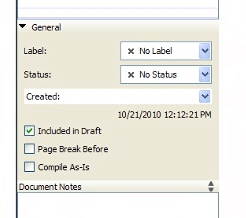
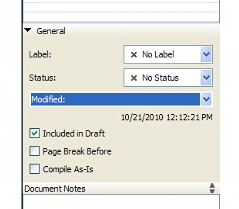
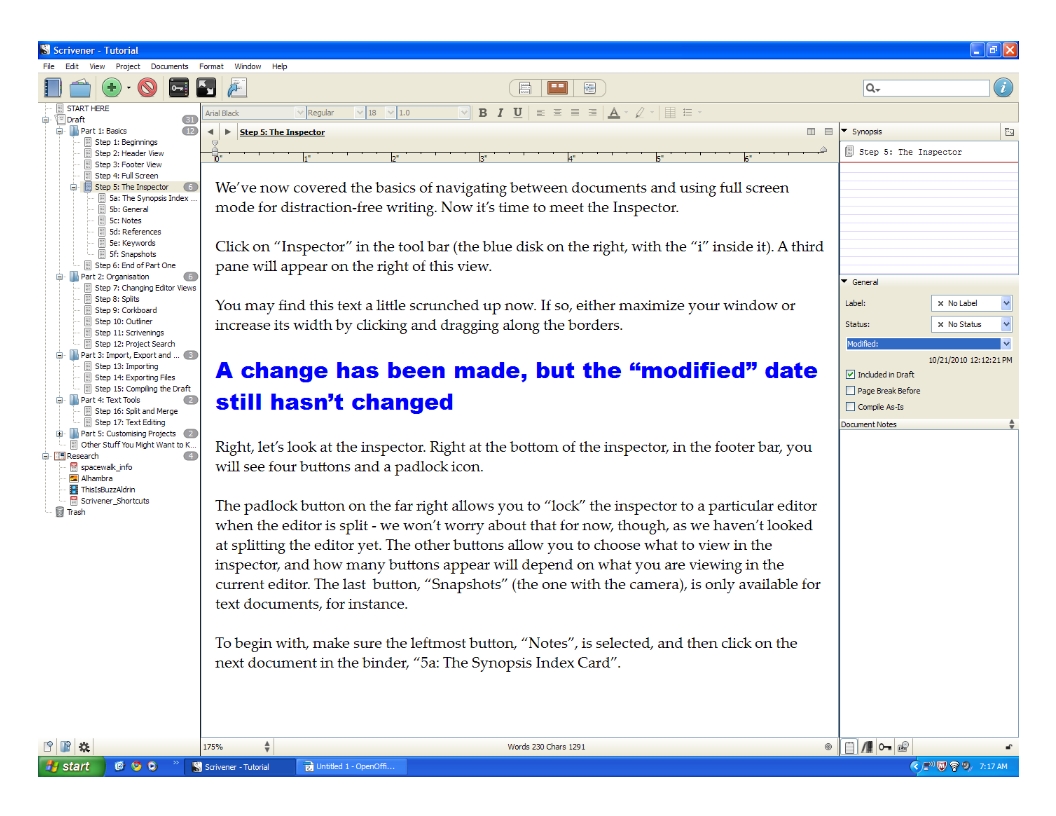
Here are some screen shots using the tutorial. I have tried it in my own documents with the same result, but used the tutorial for the best example of the date problem.

This is the date of the unmodified file with “created” selected in the inspector:Scrivener created date 2.jpg

Still unmodified with “modified” selected in the inspector:
Scrivener Modified date before changes 2.jpg

This is after I have made a very obvious change, and saved the file. I have selected “modified” in the inspector. According to this, the file was modified in October of 2010; even though I made the changes today. (and the date stayed the same after I removed the change and resaved):

I hope this helps. Let me know if you need anything else, Lunarclipper

I only want to be sure that the creators take into account this big problem of saving. I’d like to know if there is a possibility to recover the data lost: how does scrivener manage their files? Because if I knew that maybe could be some way to recover the data (for instance, always overwrite the files or use a saving system similar to Microsoft Word which saves in some kind of temporal files…?). I just want to know if there the slightest chance to recover my work (with the help of an application of data recovery for instance). Thanks anyway!

Text field crash
This consistently causes Scrivener to stop working and Windows to force it closed, for any projects (new or old) working in beta 022 on Win7 Pro 64bit:

  1. Type in a text field–e.g. synopsis text field in corkboard, outliner, or inspector.
  2. Without removing the focus/submitting the text, close the project.

This also happens when editing the title in the editor header, the binder, or the outliner, etc.

Looks very good, Mouton, and you do not fail more at typing than I did: consequence of your hour as well I think. Yes, I am already kind of liking Jing. Cute, and very smooth. Think it will show your date issue readily. Just a thought - have you tried a control-S save before checking? Maybe the modified date is linked to the actual file update?

  • Very complete on the Compile to PDF as you are seeing it. And nothing like what I am seeing :wink:. I don’t get any alerts about drivers, etc.; just apparent progress, and then the compile stops early with an incomplete file that looks corrupted. I think that when the progress bar doesn’t show sometimes, it’s just that things completed before it could get itself up.

It’s a very good question where Scrivener gets its PDF output driver. I have several on this machine, as some came with other software, and if it is trying to use those, could be involved in my ‘go to 7% and fail, 100%’ presentation of error. I think I would see if it was trying to use Acrobat, as that has icons and popups. Yet still, changing that installation could have changed what Scrivener chose to use, if it is not using its own.

In any case, these can all be saved notes for Lee, as again I am sure he & crew are working on the more important matters. Interesting that I saw another large package go belly-up on a release over the week-end also. In that case, they found that they were not delivering what they had been developing, and maybe that’s happened here also, as there have not been troubles nor has there been apparent work where things are breaking.

In any case, all fortune and quiet confidence to Lee & co. They will find what’s going on, and things will come back then. It can happen to anyone, and the new schedule should help get in a last testing to have a guard on it.

Regards to all,
Clive

Thanks everyone.

Clearly, there’s issues with this release which we are trying to address as quickly as possible - please bare with us as we try to get the beta stable again. I’m hoping to have an update ready by late today. It’s currently 9am.

We are aware of the bugs that I previously posted about in this post. We are also looking into the critical save issue which I wish I could duplicate however my best guess it’s related to the introduction of the trial code somehow as core saving has never been an issue. For those asking about recovering work, I suggest reading the announcement post regarding to how Scrivener stores project data, essentially all documents are stored as rtf with the .scriv project folder in the following directory: Files\Docs. The post is here: [url]https://forum.literatureandlatte.com/t/how-a-scrivener-project-is-structured/9717/1]

We also have issues with the sticking inspector, which once again I can’t duplicate, but we’re doing our best to try an isolate what could be causing this. We are also working to fix the other bugs I posted previously. We are doing our best to fix these issues as fast as possible.

Lee

Update:

We’ve managed to duplicate the sticky binder issue :slight_smile: We’ve fixed that in a 5 mins after duplicating - thanks to all who posted on this.

We’ve fixed the blank template issue.

We’ve fixed the project replace saving issue.

We believe we’ve fixed the sinister general saving issue. Closely linked with the project replace issue but not the result of its implementation. Rather we believe now that this was the result of an optimisation enhancement we made to improve performance. So, not the trial code as I first suspected.

Unfortunately, these fixes will require a full install of Scrivener again. You shouldn’t have to un-install just install over the top of a previous. However, if you prefer to un-install, obviously that is still okay.

We’re continuing with other fixes, but thought you might appreciate an interim update.

Lee

Fantastic, Lee! Thanks so much for the update.

Ah, just great, Lee. I had just completed a movie to show how to get in and out of the sticky inspector. Sounds like you got it - a mismatch between the binder tag highlighted, and the window and synopsis.

But here’s a solid way I found to duplicate that you can check your fix with: screencast.com/t/1WLGSbTx8l . Be sure to note that there’s a stop-start Scrivener in the middle of it. What I am basically doing is splitting the screen, switching scrivs a few times, then clicking in the non-switched pane, then clicking that pane’s single button, then stopping scrivener.

You can note just before the stop that I am waving around showing mismatched binder tag, window title, and synopsis title, though they aren’t showing a problem yet if you try, which is tricky.

But close Scrivener, and re-open it. Now you have the locked synopsis.

Going to two panes, clicking in the active pane this time, and clicking single button in that active pane will get you back out of the stuck inspector/synopsis, and from then on you are good.

Just in case this case still exists…

Very interesting that the sinister sans saving was not the trial code. Would have thought that much more than an even bet, but this is how it goes, isn’t it.

All good.

Best,
Clive

p.s. it doesn’t always take this amount of messing about to get a stuck inspector, and thus we’ve gotten stuck far more easily. I think that easy-stuck has to do with whatever state may be left in individual scrivs, and it goes away after you’ve tried a few times. But the method above is 100% effective at locking the inspector, no matter prior state, so it should be a good full-regression test.