Hello. I’ve recently acquired Scrivener and I’m in the process of loading my project into the Draft folder. The template I chose only comes with two Part folders and I will need to add a few more, but I can’t see how to add folders at that level, only at the level of Chapters and Scenes (through the + down at the bottom). I’ve checked the tutorial but haven’t found anything. Any help appreciated. Thanks. Sharon
The green plus-sign icon in the Main Toolbar allows you to create folders. Actually, text documents are easily converted to folders via its contextual menu, and visa versa.
The indentation of the folder can be updated via the Context menu, a keyboard shortcut or through icons place on the Main Toolbar.
3 Likes
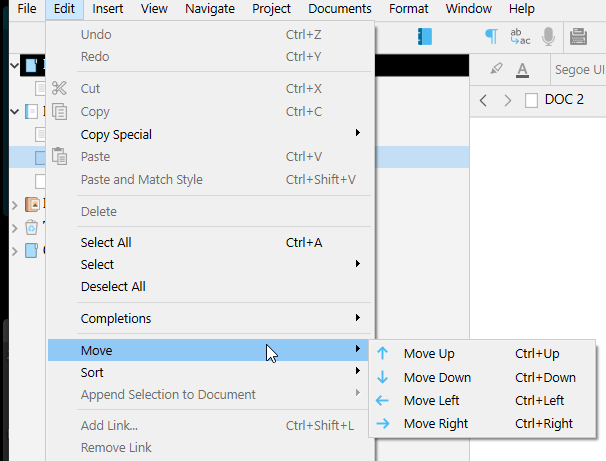
(Note that these “Move” choices are only available when the binder has focus.)
You may also drag and drop your files/folders in the binder, but it is a little bit difficult to aim. They might end-up nested under another one. Using the methods enumerated by @AntoniDol is easier.
2 Likes
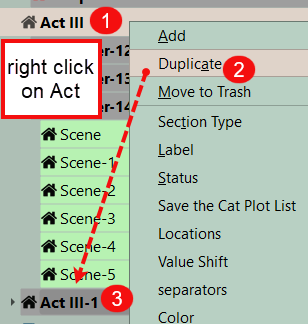
You can right click on a part/act and select duplicate to create a new part/act
1 Like
Thanks for your help 
Thanks for your help The screenshot was really useful!
Thanks for your help I don’t get a drop-down menu when I right click on a part/act  Could you screen shot how that looks for me… as that sounds useful. Thanks.
If you pick the act/part and right click on it you see this.

and the part/Act you add can be moved in the binder. or you can duplicate and move the copy in the binder as below.
3 Likes
That’s super-helpful! Thanks so much!