[BETA TESTERS WANTED] Scrivenix — Automated Flatpak Installer for Scrivener 3 on Linux


Hi everyone,

I’ve been working on a project I’m calling Scrivenix and I’m looking for beta testers
across different Linux distributions before a wider release.


WHAT IS SCRIVENIX?

Scrivenix is a Flatpak application that automates the entire process of installing and
running Scrivener 3 for Windows on Linux. If you’ve ever set up Scrivener via Lutris or
Bottles, you’ll recognize the underlying approach — Wine, winetricks, .NET 4.8, the
texttospeech folder removal, SAPI — but Scrivenix packages all of that into a
self-contained Flatpak that handles everything automatically through a graphical setup
wizard. No terminal commands are needed after the initial build, and no system-level
Wine installation is required.

The goal is an experience where a Linux user who has never touched Wine can install
Scrivener, activate their license, and start writing — without having to research
compatibility workarounds or follow a 15-step manual guide.


WHAT IT DOES AUTOMATICALLY

  • Initializes an isolated Wine 64-bit prefix inside the Flatpak sandbox
  • Installs core fonts, SAPI, GDI+, and .NET 4.8 via winetricks
  • Downloads the official Scrivener installer directly from Literature & Latte
  • Removes the texttospeech folder that causes the “Loading Fonts” hang
  • Configures ClearType font smoothing
  • Supports full license activation (confirmed working)
  • Provides a display scaling tool for adjusting UI size
  • Maps your ~/Documents folder so your projects are immediately accessible
  • Self-heals after Scrivener updates

CONFIRMED WORKING ON

  • Fedora (GNOME, Wayland)
  • Linux Mint (Cinnamon, X11)

License activation has been tested and confirmed on three separate machines.


KNOWN ISSUE

Cinnamon + Wayland: If you are running a Cinnamon desktop under Wayland, the Shift,
Ctrl, and Alt keys will not work in Scrivener. This is a bug in Cinnamon’s XWayland
implementation, not in Scrivenix. The fix is to switch to a Cinnamon (X11) session
from your login screen. Scrivenix detects this condition and warns you at launch.


WHAT I’M LOOKING FOR FROM BETA TESTERS

  • Testing on distributions not yet confirmed (Ubuntu, Debian, Arch, Pop!_OS,
    openSUSE, Manjaro, EndeavourOS, and others)
  • Testing on both X11 and Wayland sessions
  • Testing on HiDPI and high-resolution displays
  • Reports of anything that doesn’t work, looks wrong, or is confusing
  • Confirmation of “everything worked perfectly on Distro X” is equally valuable

You will need a valid Scrivener 3 for Windows license to test activation.


HOW TO GET IT

The project is hosted on GitHub:

Full installation instructions are included in INSTALL.txt in the repository.
The short version is:

  1. Install flatpak and flatpak-builder for your distro
  2. Install four Flatpak runtimes from Flathub (commands in INSTALL.txt)
  3. Download the repository, navigate to the folder, open a terminal there and run:
    flatpak-builder --force-clean --install --user build-dir com.local.Scrivenix.yml
  4. Launch from your application menu or with terminal by running: flatpak run com.local.Scrivenix
  5. Follow the setup wizard

Steps 1 and 2 involve approximately 1.5 GB of downloads and are a one-time setup cost.
This requirement goes away entirely once Scrivenix is published to Flathub, at which
point installation will be a single click in GNOME Software, KDE Discover, and the like.


REPORTING ISSUES

Please report any problems via GitHub Issues at:

Include your distro name and version, whether you are on X11 or Wayland, and the full
terminal output if you hit an error during setup. You can find your session type by
running: echo $XDG_SESSION_TYPE


RELATIONSHIP TO LUTRIS

Scrivenix was inspired by the excellent Lutris install script for Scrivener that many
in this community are already familiar with. The key differences are that Scrivenix uses
a self-contained Flatpak rather than a system Wine installation, works across
distributions without additional configuration, and requires no knowledge of Wine or
Lutris to use.


Thank you to anyone willing to test this. Even a brief “installed fine on Distro X,
license activated, Scrivener launched” is genuinely useful feedback at this stage.

— Tony (adgalloway on GitHub)

6 Likes

I would love to try this. I’ve never actually loaded something from GitHub before, but I can follow Terminal instructions. I’m on Debian + Gnome, so that’s an untested combo.

I’m also part of writing groups on Mastodon and BlueSky, so I could post a note in those areas.

Tell me if that’s something you want me to do? Also, do you have a short blurb you’d like me to put there, or would you like me to write it myself?

1 Like

Have at it, my friend. I’m not on Mastodon or BlueSky. I did make a duplicate of this post on Reddit in the Scrivener group.

As for your testing. Give it a go and see if the instructions I’ve made can get you through it. Let me know if you get stuck.

I CAN create a single Flatpak file that only requires a single command to install, but I want people to be able to easily inspect the files and sticking with raw files during the Beta testing phase allows me to quickly and easily make tweaks and changes and update the individual files.

I’m new to GitHub also, but just click the link and look for the green button that says Code and choose download Zip. Then you can unzip that and you’ll have all the files you need to give it a go.

1 Like

Success with Mint, Cinnamon, x11

Launch requires terminal, can’t see Scriv in the apps list

So far so good… just about to try Debian, Wayland, Gnome….

:slightly_smiling_face:

1 Like

Try restarting the computer and see if it shows up in the app drawer after that. I had that happen once and a restart fixed it. That’s awesome that it worked. Were the instructions simple enough to follow?

I’ll try the restart in a jiffy, on Debian now, (Wayland, Gnome)

It installed okay. The initial issue is the graphics persist at 96 dpi. <←- this was also happening to me when Lutris started going flaky on me.
Likewise, was unable to launch from the “Scrivener 3” app – even though it’s there in the list. It launches from the terminal (just with 96 dpi).

Can I just say how massively glad I am that you have done this. The instructions are first rate btw.

1 Like

Let me know once you restart in Mint and I want to try something on the DPI issue.

Back in Mint (I dual boot Mint/Debian on this laptop). Haha, Scrivenix is there in the app list, with its icon, very cool, and the dpi has persisted at 144. V. happy.

Time for tea in London. Will check back this evening or tomorrow.
Oli

EDIT Just tried a quick X11 using Gnome over on Debian. Definitely more useable than Wayland. And fiddling with the dpi (192 dpi) and the screen resolution (2560 x 1440), and the zoom (150 pc) got the written text looking okay but the binder was a bit thin and pixelated, if you know what I mean. Will be sticking with Mint for day-to-day Scrivenix. Awesome!

Regarding the DPI issue you had noted earlier, I looked back through my instructions and realized I made a crucial mistake. The correct way to call the winetrick dialogue box inside the sandbox is to run the application with the flag rather than the way I had it listed out. I’m going to edit the instructions file to reflect that right now. So on Cinnamon, where my right click settings menu option doesn’t appear, you can access Winetricks via

flatpak run com.local.Scrivenix --winecfg

In other news I just heard back from KB and got permission to bundle the official Scrivener icon so it will truly feel like a native application.

2 Likes

lol, but I’ve already grown fond of the Scrivenix logo! :rofl:

That’s great news though!

I do know what you mean. Inside Scrivener if you click File>Options and select the ‘Appearance’ tab, you can work your way down the left hand column changing the font and font-size for all elements of the Scrivener GUI and make it look how you want. If I had to guess maybe the ClearType font smoothing isn’t working on that distro. I may have to spin it up in a VM and poke around. Thanks for the feedback.

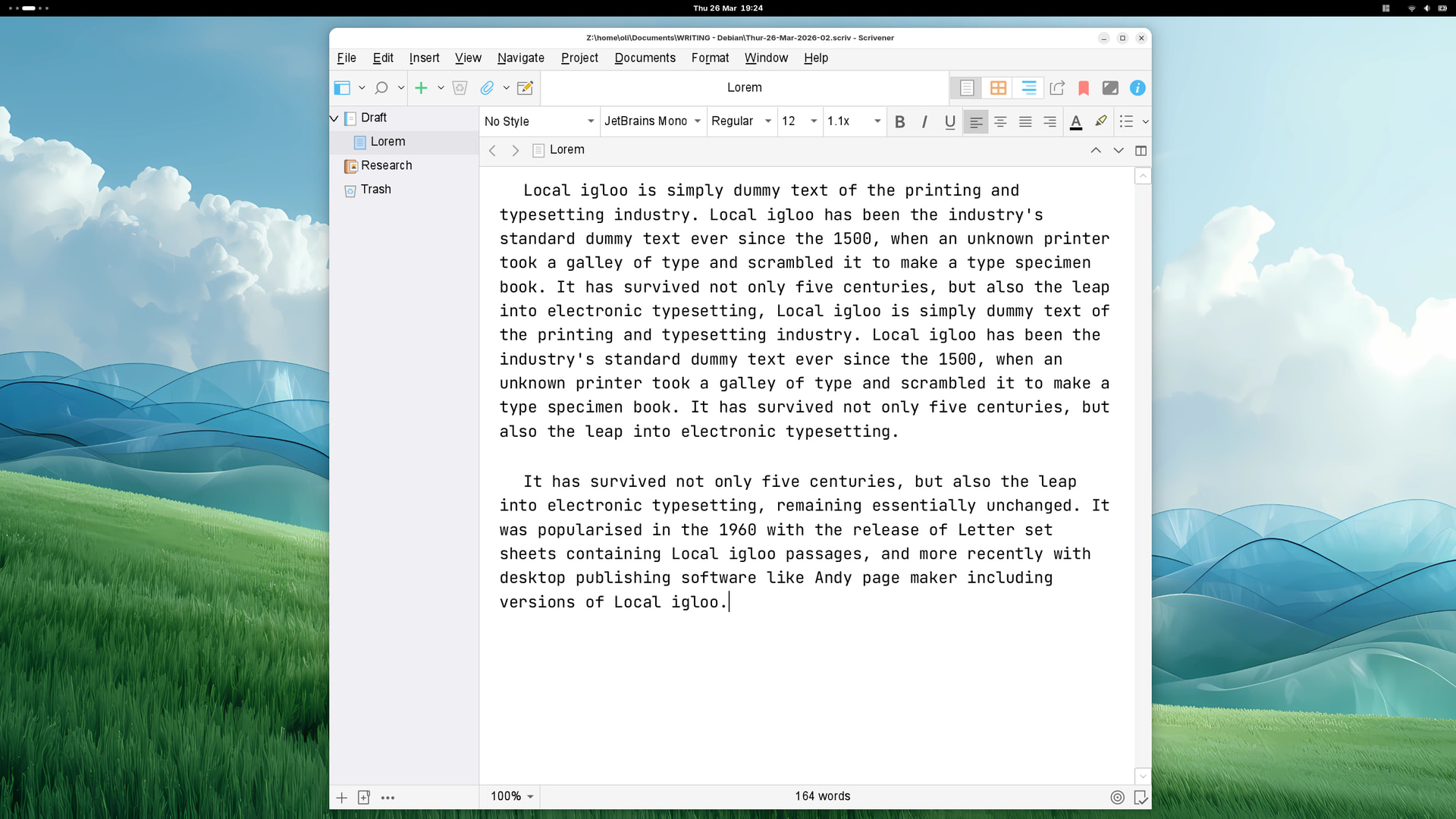
Just a quickie screenshot to mention that the tweaks appear to have worked perfectly. All text nice and crisp and all the text in the binder etc nice and crisp too. That’s a screenshot from Debian, and Gnome running under Wayland. All good!

1 Like

Just to clarify, was this achieved via DPI scaling from the right click menu or through manually configuring the GUI inside Scrivener’s settings?

Rt click menu. I set it to 168 dpi, fired it up, and it was perfect (for me) straight away. EDIT, as in I Rt clicked the Scrivenix icon, set dpi to 168, launched; sorted.

1 Like