At the top of my stage play there are three broken lines. What are they and how to delete them
Can you post a screenshot, please?
Mac or Windows? OS and Scrivener versions?

Mark
I’m Macos TahoeScreenshot 2026-01-27 at 13.53.55
Try dragging and dropping the screenshot image into the composition window, which should upload it and display a preview shortly after doing so. Whatever you did before created a link to nothing.
Before that though, make sure you are running the latest version (3.5.2).
1 Like

You’re probably in Scrivening mode…
I am. What does that mean?
1 Like
I am, and i put the screenshot in
The three lines indicate that you’re using it. To come out of it, click the corkboard or outliner button, then select the document again.
I did that but the lines are still showing

Look at your top bar:
(I’m on Windows, so it looks a bit different from Mac)

If the first button is selected, you have to click on one of the other ones and then select your document again.
If text-wise the content you see in the editor is what you wish to see (the whole of the files inside a parent folder), then leave it as it is. (The binder selection and view mode.)
These lines are only the separator to let you know where files begin/end. It is only a visual cue. It won’t be part of the final output.
You may change or remove some of them (above titles) if you still so wish in the preferences, Appearance / Scrivenings.
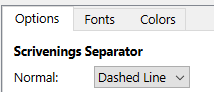
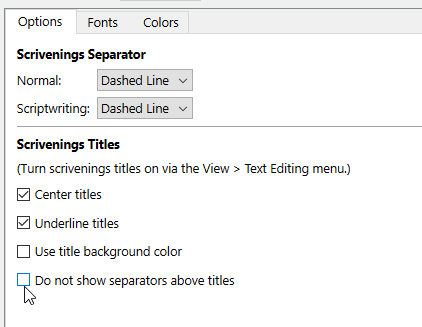
(If you toggle titles to display.)
. . . . . . . .
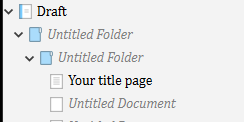
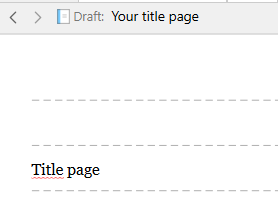
Aside that, what your screenshot reveals is that you currently have empty files or parent folders (no text in the editor) just above your title page in your binder / selection.
. . . . . . .
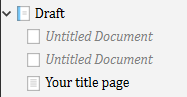
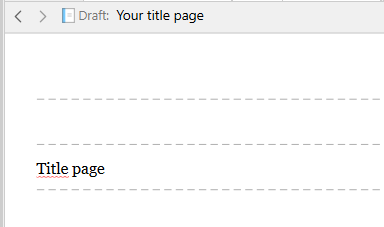
Should you have 3 empty files or folders above, there’d be 3 dashed lines and so on. One below each of these.
. . . . . . .
The fix I recommend : don’t mind them. (Other than for what they tell you, if useful information, about your binder structure, as I detailed just above.)
2 Likes
Thanks for your response. When I compiled the doc they dashes weren’t showing.