I have been a very happy Scapple user for several years and am thrilled with this wonderful tool - until two days ago.
BUT, after another Windows 11 update, I restarted a number of the programs I use every day. The only program that experienced any problems was Scapple which appeared to start as normal until I attempted to load a *.scap file with my current to do list for a writing project.
It started with the spinning blue circle of death. This was followed by “Scapple not Responding” in the header bar. I rebooted several times with the same death circle and not responding.
Meantime, I found the forum thread labeled “Can’t open Scapple or corresponding files” started on July 10. After reading, I opened Scapple and created a new file with five entries and saved is as “testcase.scap”. No problems. I opened it from Scapple and closed it again. Then, I double-clicked the file name in the sub-directory where it was saved. No problem.
I disconnected from the internet and exited from Webroot anti-virus, rebooted, and repeated the attempt to load my project file - no luck but successfully loaded my testcase file.
Meantime, all my other apps have run successfully including Scrivener.
Summary: no issues with running Scapple, creating a new file, saving, and reloading. No luck with opening any old project files (old means two to four days old as well as two or three years old).
The only thing I know that changed was a Win 11 update. Or, did I do something unintended that upset the Scapple cart?
You don’t mention if you’ve tried to open an “old file” from file explorer. (Navigate to the file, double-click.)
Perhaps the location (the path) isn’t exactly as it was? (I mean, if you try to load a project off of the recent projects list.)
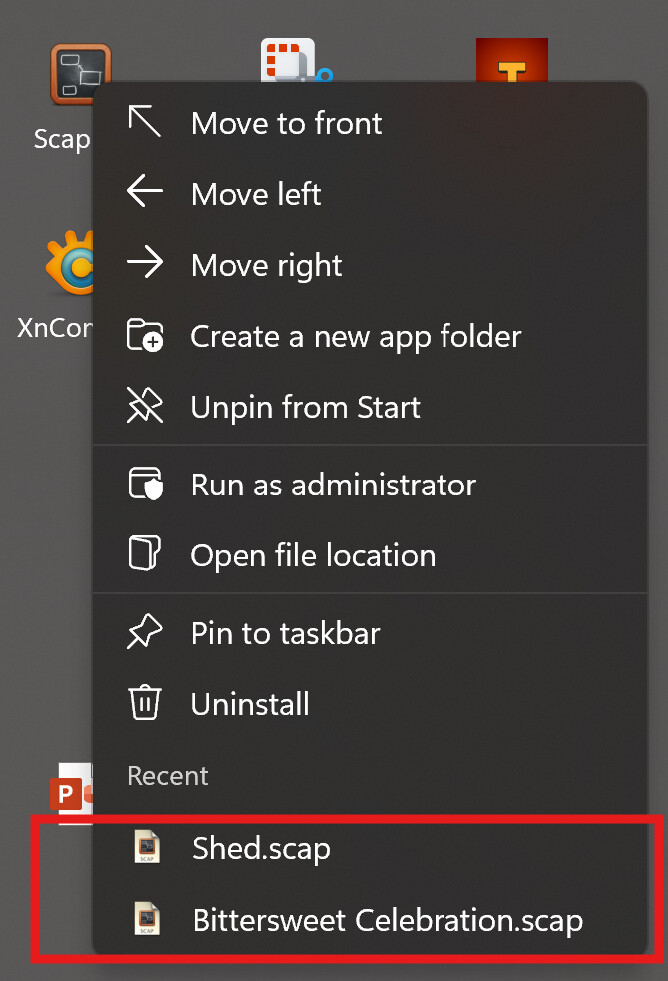
Also, check whether your recent Scapple diagrams are on a Jump List. Upgrading Windows 11 won’t disturb Jump Lists in place (I know, I upgrade my OS software most weeks).
Jump Lists are found at the bottom of the context menu when right-clicking on the app (Scapple) icon, either on the Taskbar or in the Start Menu.
Yes, I did try to open from file explorer. This works on the next testcase file but not on any of the older files.
Does not matter whether I try to load from the directory or from the jump list. the new testcase file works. Everything else starts with a normal Scapple opening screen that quicjly adds: “Not Responding”
Jump List works as normal and has most recent files there.
You did give me an idea. I could install scapple on another machine that has not had any Win 11 updates and do a file transfer of several of the most recent files and try to open them on the second machine.
How many installs on other machines can I make from y existing license?
See if your older files didn’t by any chance get “swallowed” by OneDrive. (?)
Were you a OneDrive user before the update?
When you navigate to one of your scapple files, does “OneDrive” appear in the path at the top of file explorer?
Do you happen to have backups of any of these old projects files? Specifically, backups that were stored off your PC when the update took place–like on a separate, not-connected-to-Onedrive drive. If so, it would be interesting to know if these files loaded correctly.
A suggestion for backups: My Scapple diagrams are in a Research folder on Windows in project sub-folders (Documents\Scrivener\Research\Project Name). So, when I do my manual backups once a week, I include my Research sub-folders. Else, everything is on my machine’s SSD until time for manual backup. Yes, there is a chance of losing some research items, but it’s tolerable—for me, as long as my Scrivener Projects are backed up to the sync folder that does its thing with the cloud.
FOUND THE ANSWER!!!
It turns out that the Win 11 update changed my default printer settings and selected the first physical printer as my default printer even though it was off-line at the time.
This is important because the default printer Win 11 selected is a very unique label printer but first alphabetically in my printer list. That printer driver does NOT support page guides. When loading any file with page guides turned on, the spinning blue circle of death appeared because the driver does not know that page guides exist and can’t cause an error message about a printer problem.
The take-away is check your default printer settings by going to any other app or going to Settings>Blue Tooth & Devices>Printers & Scanners and confirm the default printer.
All files safe, backed up, and accessible with the right default printer.
Hmph. I’m going to flag this as a possible bug. Being unable to figure out page guides should default to something reasonable like just turning them off, not to a spinning wheel of death.
Never would have guessed such a change would produce such a result. @OldOne , I’m super happy you found the cause and even more happy that you shared it!
Checking for default printer might need to be an item in a troubleshooting checklist for failure top open a legit *.scap file. I discovered the issue when I had created a new project file and tried to turn on page guides to be able to see how a hard copy would lay out on paper. The clue was the spinning blue wheel of death.