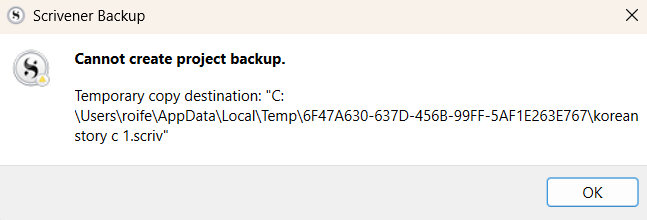
why won’t it let me back up my files??
See Section 5.2 of the “Scrivener User Manual” for how to do this.
1 Like
Your project is corrupted, so every time you start it, it will give you the message.
However, you did say you are going to paste your narrative back into Scrivener. So, what you should do when in Scrivener is start a new project, by selecting File > New Project:
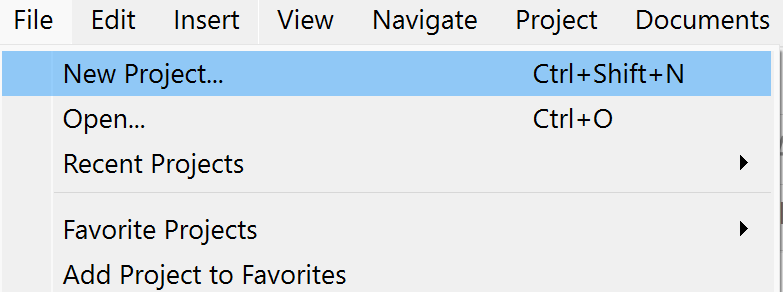
You’ll be presented with this screen:
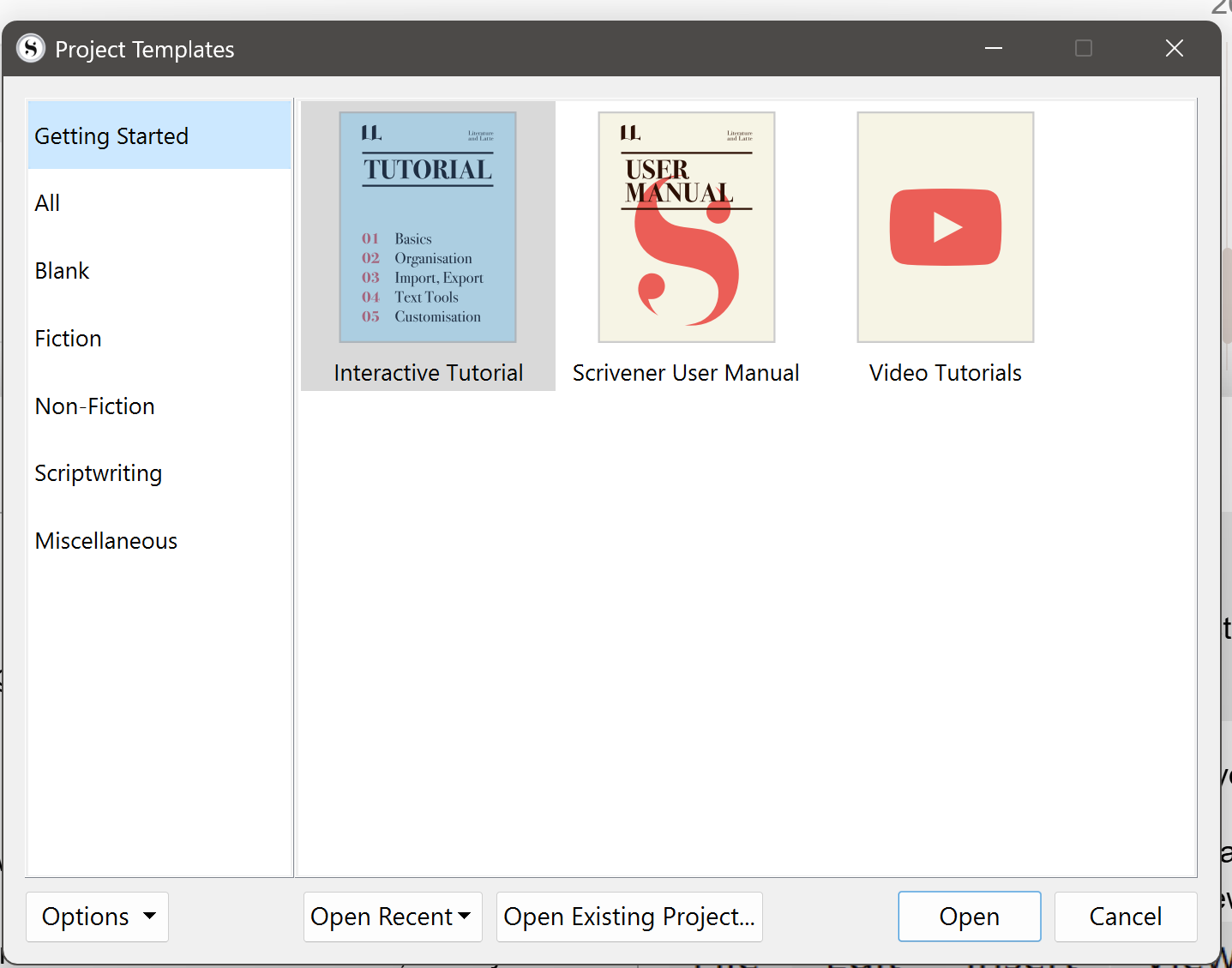
If fiction, click on Fiction > Novel > Create.
OR
If non-fiction, click on Non-Fiction > General Non-Fiction > Create.
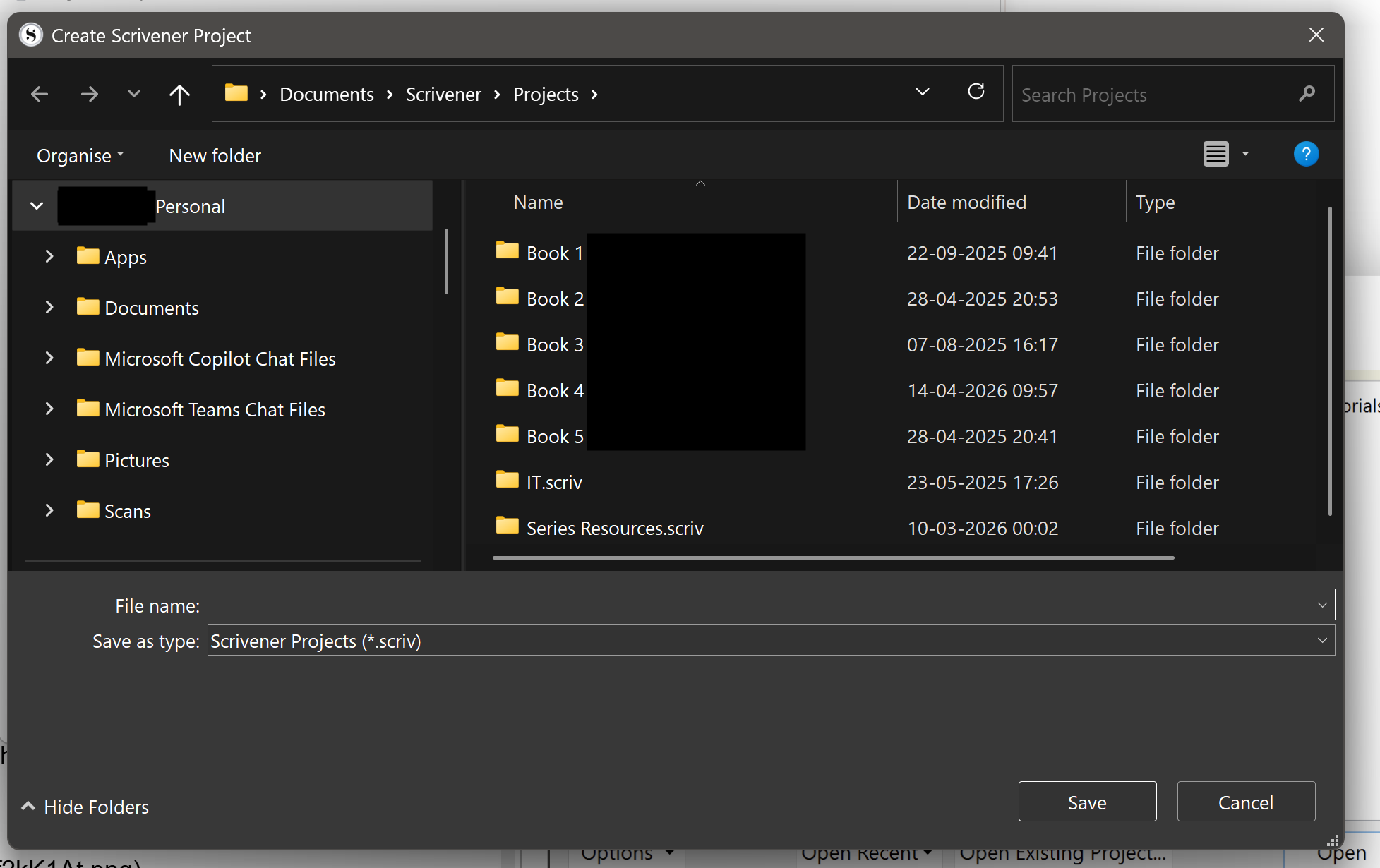
You’ll be asked to name your project. Name it something close to your prior project, but not the exactly the same, since you intend going through everyone’s prior responses and may be able to rediscover your old content. I recommend you store all your projects in an easy place to find on your hard drive:
Next, deal with housekeeping by setting your backups, selecting File > Options > Backup:
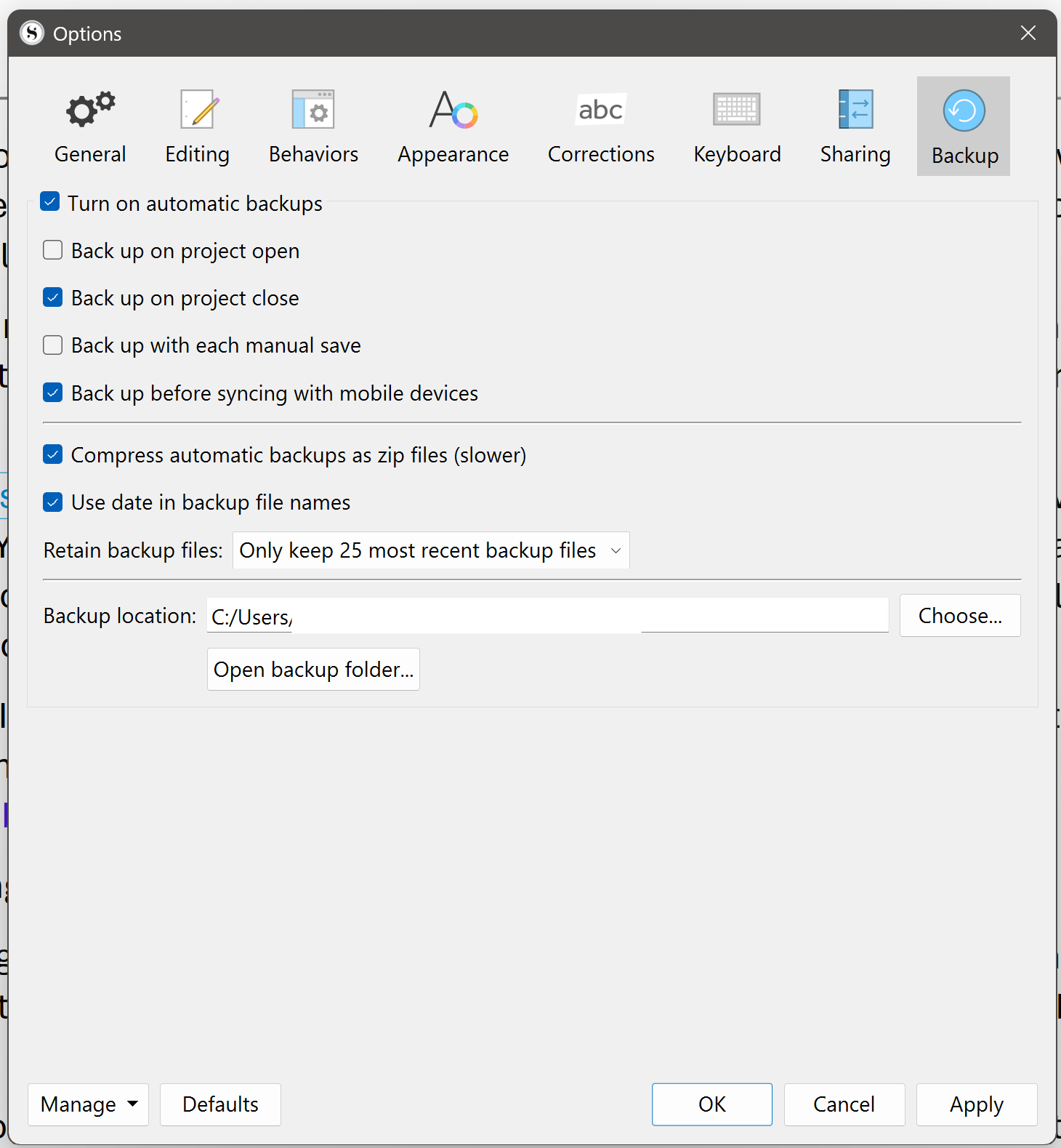
You can then start populating your project by pasting in content you copied from Word.
If these options are set under File > Options > General > Startup, you should be on safe ground.
The next time you restart Scrivener, it will no longer look to your corrupted project, but to the newly created one, including no error message.
I strongly recommend you go through the Interactive Tutorial project found by selecting Help > Interactive Tutorial. It will take a few hours, maybe you’d prefer to do it over a few or many days, it doesn’t matter. What does is that it will teach you a lot about the ins and outs of Scrivener. And, the good news is, if you somehow corrupt the Interactive Tutorial project, you simply generate a new one from Help > Interactive Tutorial.
3 Likes
One thing to add to RevoTiLlor is to before importing from word, once you create the blank project, try File > Import > Scrivener Project and open the corrupted project scrivx file (or mac version). Scrivener will try to import the corrupted project (should end up in trash/recovered files) and you might be able to recover a lot of the project files that way.
Okay. Thank you. This is great information and i appreciate you putting it together for me. I did find my way to options and back up but it seemed to ignore my efforts to set backup. But that might be because as you say, i have somehow corrupted my original files. I will follow the advice you have given here. i think you are correct as well about the tutorial. When I originally got Scrivener I was delighted with the layout but it is a learning curve. I have forgotten (after an absence of some years) what I did learn. i would say to anyone who decided to use Scrivener, it takes time to study it. Thank you.
1 Like
Okay, Thanks. Mine is Windows. But i am going to change to Apple mac m4. I’m just putting it on the long term because i have so much to do and I’m so used to windows but I believe Apple mac is best for Indie authors. But that’s for another day. And another steep learning curve. Thank you
Scrivener has made windows and mac close so most is the same with apple have preferences to windows options. Minor differences here and there, with mac having other options beside dialog focus and a few other tweaks. See Oliver Evensen webinars are primarily aimed at mac users. I made my own Scrivener learning project and keep info I learn there in a format which makes sense to me.
1 Like
Okay thanks. I’m learning a lot this week 
I started listening to apple mac videos on youtube, especially about the battery life and vellum for formatting ebooks and print books. Also, generally what amazing laptops they are supposed to be so I think I’ll switch.
Back to normal. i have opened new folders (new novel templates) and all is back to normal. The warning messages are gone. I just don’t know what caused it all in the first place. Thank you for all the help. i have managed to reset back up as well. Cheers, Roy.