I can’t find a way to remove the text highlight after making a revision. I’ve tried to select the No Highlight, but I think I read that it doesn’t work the same way as initially highlighting it. I stumbled on something a few times, but I have no clue how it happened. Please send help - I can’t afford to have more bald patches from pulling my hair out.
Do you mean the revision color (font color) or a true highlight ?
If you mean the revision (font) color, then it is one of the two top options :
[Windows screenshots]
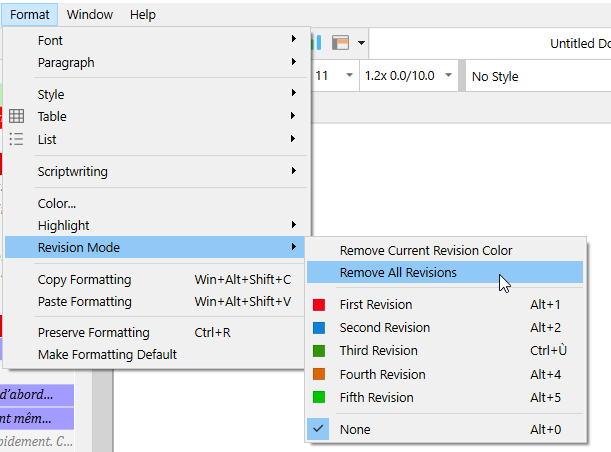
The other possibility would be that you used a style (for some reason) with a colored background.
And last, say it is a real highlight, try selecting all text, then :
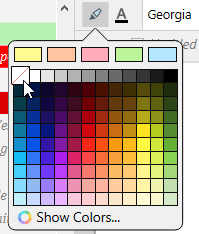
. . . . . . . .
If all this fails, please define/expand
Especially : how, initially, did you highlight your text ?
. . . . . . .
A reboot of your computer can’t hurt either.
2 Likes
It’s on Mac OS. I’d searched for specific words in the entire project so I could revise the ones that needed to be changed. I want to remove the highlights of both after I make the revision.
I ended up having to delete all of the words and the surrounding spaces and write them again.
Clear the search ?

Doesn’t that defeat the purpose of highlighting them? I have 92K words in the document. I highlighted all of the “going to” and some need to be changed to “gonna”.
The search highlight isn’t an in-text highlight.
It highlights every match. If you clear the search, then there will be no more highlight.
But Scrivener can’t guess or know which instances you decide to keep as they are. The ones you modify will no longer match and the highlight will be no more, but those that you don’t edit, there is nothing to do.
…Other than adding a special character that you’d automatically delete by find, replacing it with nothing once you are done with this revision pass.
Something like : word¤ …⮚ ¤ ⮘
(Any character that you are absolutely sure isn’t used elsewhere in your project.)
1 Like
The text I don’t need to replace is still highlighted. It would be easy enough (though bothersome and tedious) to manually copy and paste for the ones I need to change, but then I still have to manually selected the other highlighted words and rewrite them.
Are you saying that if you have a word, say “lonely”, highlighted, and you delete it and type back “lonely”, it is then no longer highlighted ?
Yes, but I have to select the surrounding spaces so it deletes the highlighting format.
I’ve seen in Windows that a right click brings up a “remove highlight” option instead of just changing it altogether, but Mac OS doesn’t bring up that option.
If you’ve tried the Mac equivalent of
and it failed, reboot.
And then try that again.
I’ll try that quickly.
For search highlights, one discrepancy to be aware of, between Mac and Windows, is that Windows is better about highlighting search terms as they appear in the editor. It will thus highlight search terms as you write, or edit text to create a match.
The Mac doesn’t do that, you have to basically refresh the search. Thus typing over ‘lonely’ would indeed “remove” the “highlight”, but only until you do something that refreshes search.
I’ve seen in Windows that a right click brings up a “remove highlight” option instead of just changing it altogether, but Mac OS doesn’t bring up that option.
For real highlights, the Mac also has a “Remove Color” menu command when right-clicking on text, under “Highlight Color”. I don’t know why you aren’t seeing it. That should show up even if there is no highlight (it will just do nothing), because the submenu also lets you apply highlights.
One last thing I would add is that if highlighting is part of your editing process, and you’re thinking like you would in a word processor where everything you see will print/export and you have to waste time cleaning up the document to make it presentable—think again. Open File ▸ Compile..., click on the gear tab on the right, and tick the Remove highlighting checkbox. There is also one for text colour, right below, as Revision Mode uses text colour. There is no need to nuke all of your editing markup unless you really actually want it gone.
2 Likes
No, it’s still there. I selected the highlights and tried to change it to No Highlight, but it’s not the same as Remove Highlight.
@AmberV
If I remember right from an old conversation, doesn’t the Mac have two layers of highlight ? Something about highlighting via a background color ?
Anyways, I’ve done what I could. 
I’ll leave you guys at it.
2 Likes
Let me see if Editing mode gives me some options.
Yeah, in fact Scrivener (on both platforms) uses background colours, technically, because those are widely supported in other text editors, while highlighters tend not to be a formal thing. So there is a highlighter that Mac software can use, but that won’t be a factor here because it is half-baked. Apple made it in such a way that it doesn’t work with anything else other than native Mac software. We deliberately block it, and ignore any markings that would call for it, on paste. That shouldn’t be a factor.
Anyway, it’s vital to understand what you are talking about, @klkb. It sounds from earlier mentions you are using the Project Search feature, the search field at the top of the binder sidebar, to dynamically highlight text. That isn’t highlighted in the sense of formatting. You can’t remove it with highlighting controls. Over-typing only provides the illusion of removing it until you return to the document later. Such highlighting will, by default, have a special underscore effect on it, to help you distinguish between such dynamic highlights and real formatting.
In short don’t worry about them. They will go away as soon as you stop searching, they are just there to help you find what you are searching for.
2 Likes
Okay, thank you everyone!
1 Like