My problem is in the topic title. Here’s the situation: (Edited paragraph 3 for clarity)
My project has more than a hundred external references to scanned images of file cards. The Title of each card is an alphanumeric reference. The synopsis matches a handwritten summary on the card. The Title references map to subject matter. The references are arranged according to the Title references in the Binder.
The Binder order does not correspond to the order in which the content to be drafted will exist in the final project. So, I’ve used Collections for “draft” order. In the Collections view of the left pane, I’ve moved the titles as I want them for drafting. These change frequently, as I’m early in the drafting process.
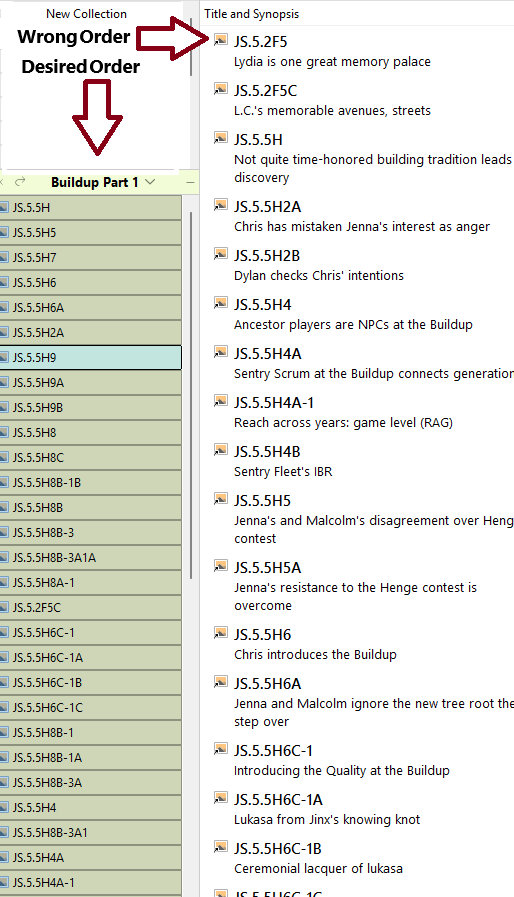
My issue is with the Outliner. I cannot make the cards in the Outliner appear in the same order as the Binder. (EDIT: the view of the collection in the left pane). I cannot move them (EDIT: in the Outliner) with the keyboard or mouse. They will not move. With the mouse, I can initiate a drag operation, but I’m not able to drop. With the keyboard, I can select an item and press the key, or use the menu command that it corresponds to, but nothing happens.
I know that I can use two editor views to reference a card at a time in one view and compose my draft in another. I still need a correct outline view for a number of reasons, one being that I have reason to export this Outline in order. The CSV export is fine for that, if the order is correct.
I’ve found various workarounds related to the presence of the Title column in the Outliner view. The move behavior is not affected by that.
The only stinky workaround I can come up with is sorting by a custom field with numbers in it. Did I say stinky?
You need to close the collection view and return to viewing the Binder as it is. With the Collections drawer open, you can click between your special collection view and the natural Binder view.
If your specially ordered collection is showing in the Binder area, then the Outliner will show things in that order.
If the Binder itself is showing in the Binder area, then the Outliner will show things in Binder order.
Dragging things around in the Outliner changes the Binder order of things. So, if the Outliner is showing you the Collection order of things, you cannot drag things around in the outliner — to prevent you from disarranging things in the Binder in unknown ways. (In fact, many such drags would have no determinable corresponding Binder move.)
If you switch from Collection to Binder with Outliner view open, you may need to click/select something in the Binder to make the Outliner view update.
Thank you for the quick response. To be clear, point #1 is not correct for me.
if the Outliner would show me the items in the order I’ve made them in the collection, I’d be all good. I’d not have tried to move them manually in the outliner. That was already a stinky workaround.
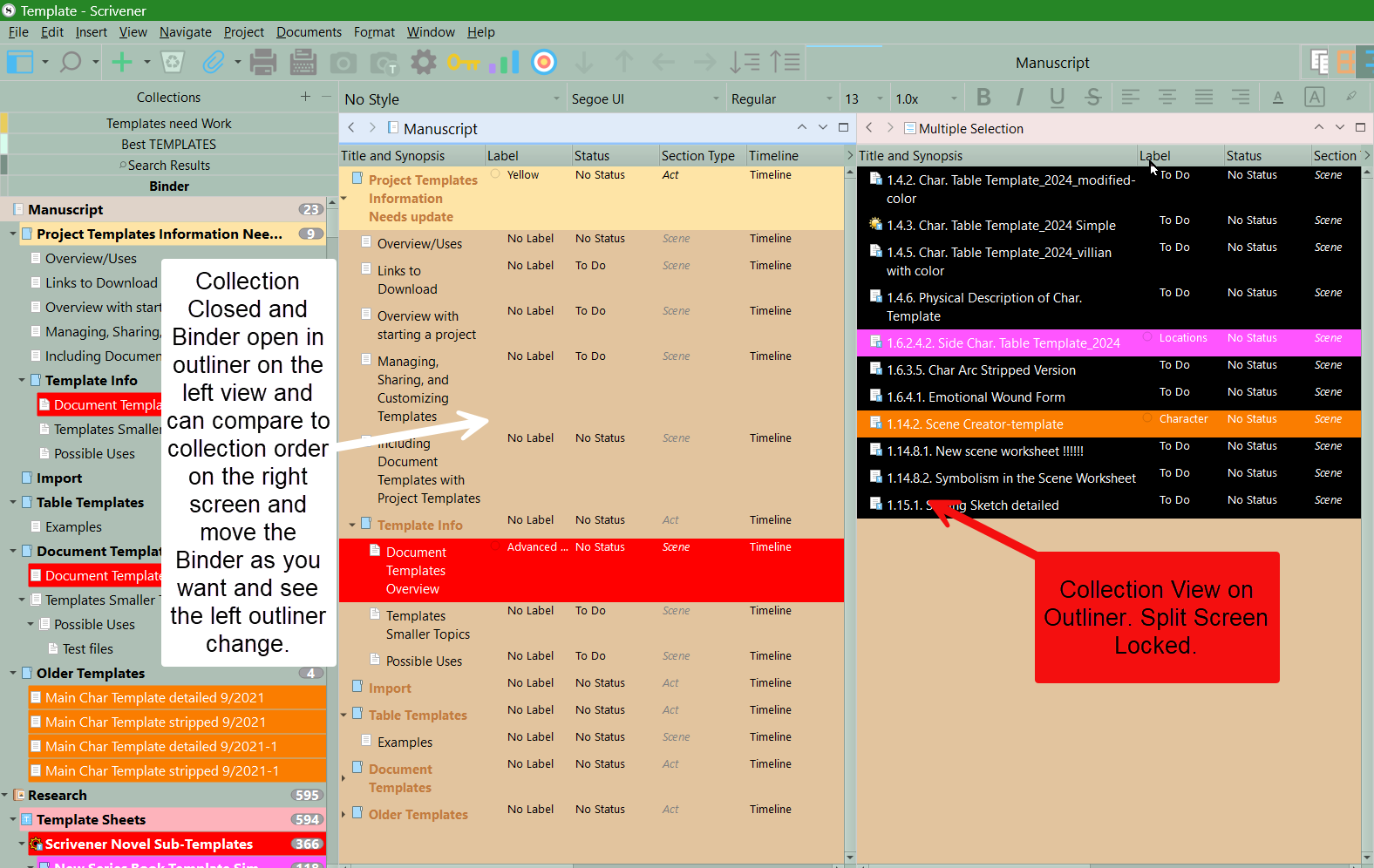
Why not open your draft collection adjust the static collection’s order to what you want. Use ctrl + a to select all and then go to the Outliner view. Now split the editor and lock the editor on the right side. Close the collection and will see the Binder and then can change the Binder order if desired, using the Outliner to guide you.
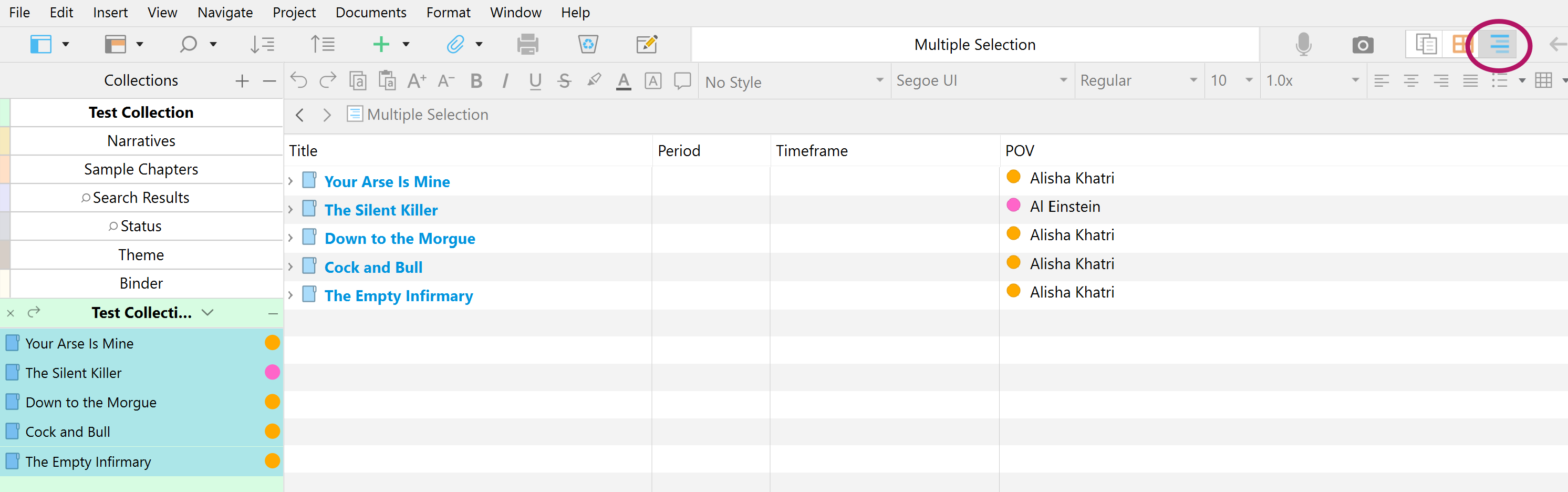
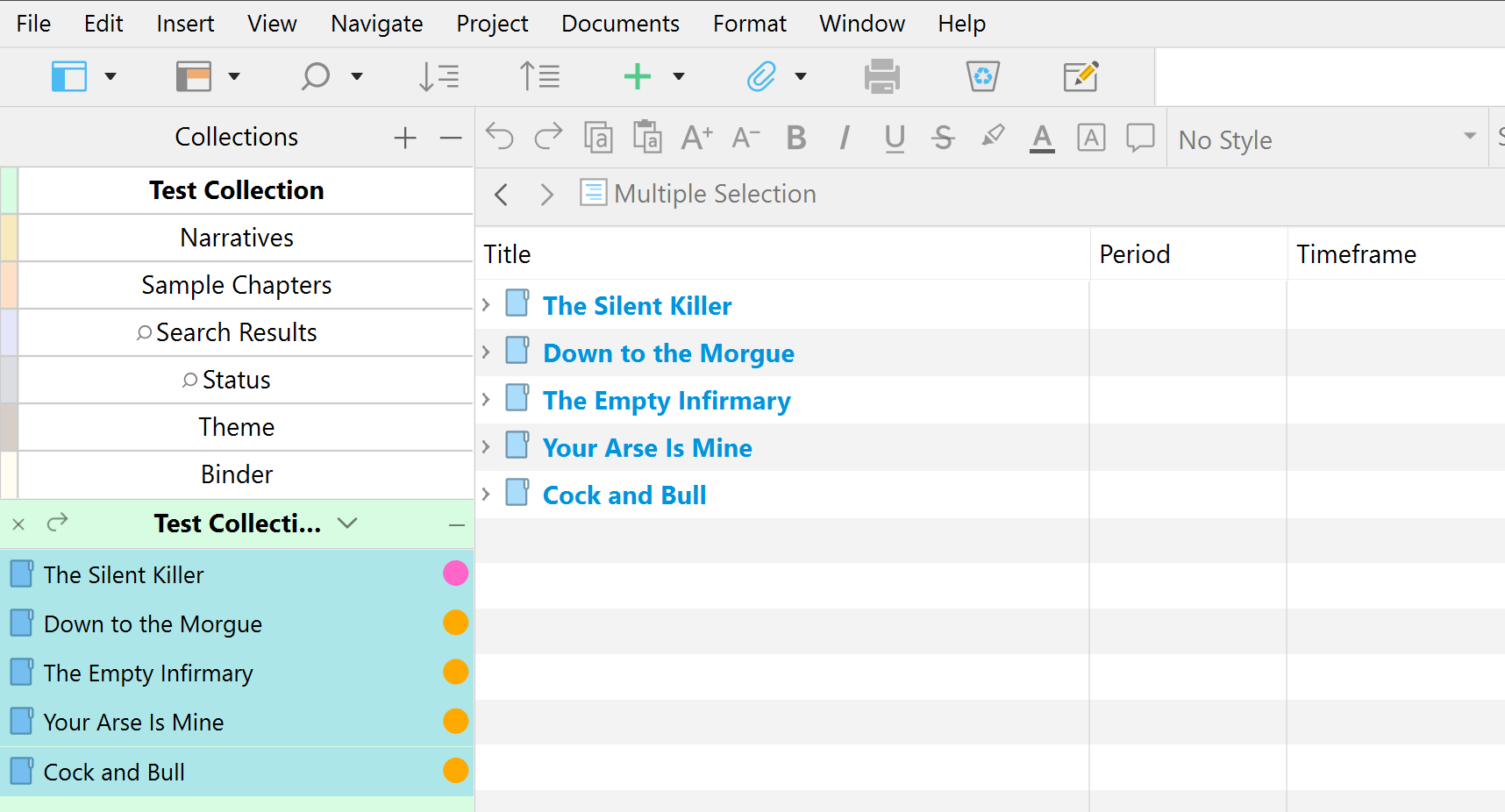
My collection is in the order I want. When I select all the documents in it with ctrl+a, and go to the Outliner view, the Outliner view is different from the collection view.
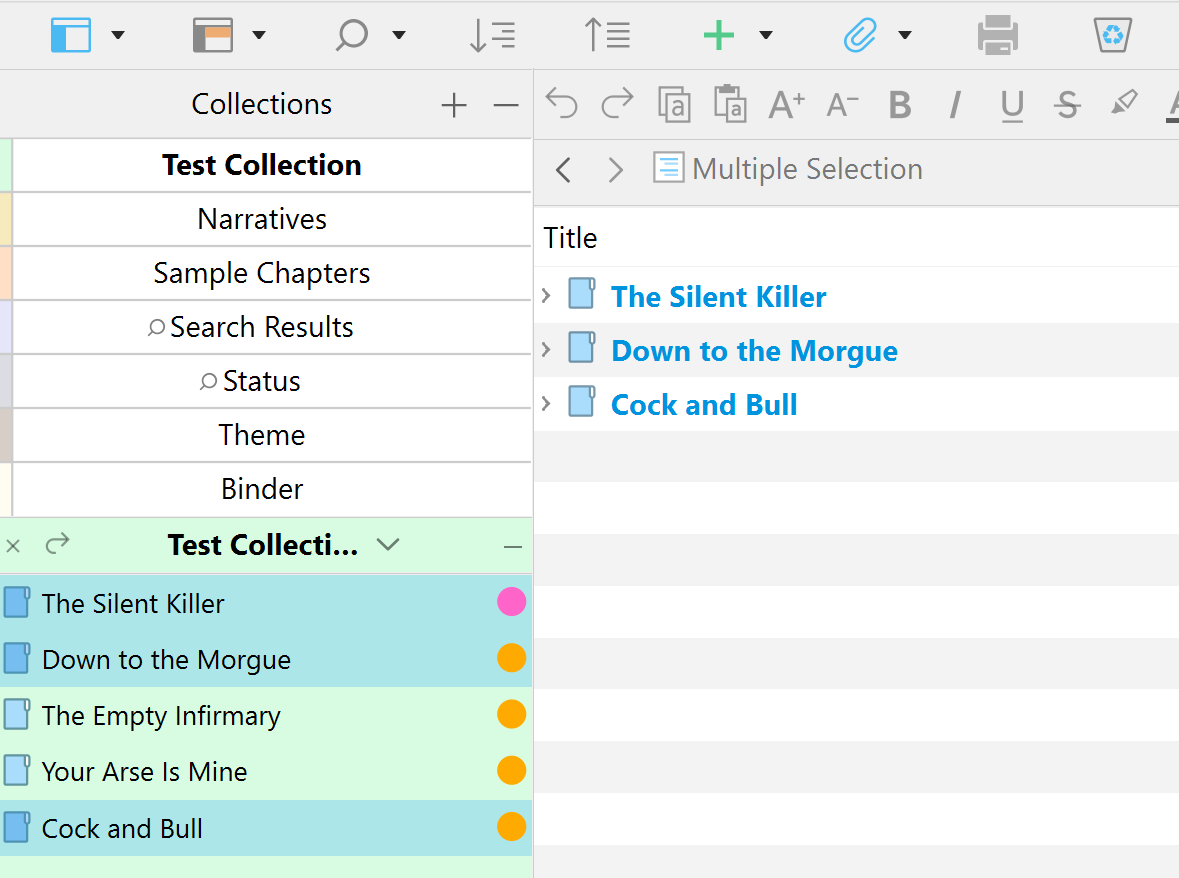
It appears to be ordered that way, but you don’t see the arrow in my screenshot, right? That’s not because I cropped it out. If I click the title column, the arrow does appear. The outline order remains the same. Then if I click it again, it sorts in descending order, totally understandable.
Here’s what I expected would happen. It’s what all of you nice people tell me does happens (I think). Except it doesn’t:
Move items in the collection pane in the order I want them.
Ctrl-a to select the items in the collection pane.
View in the Outline, just like you have it in the collection pane. (Not!)
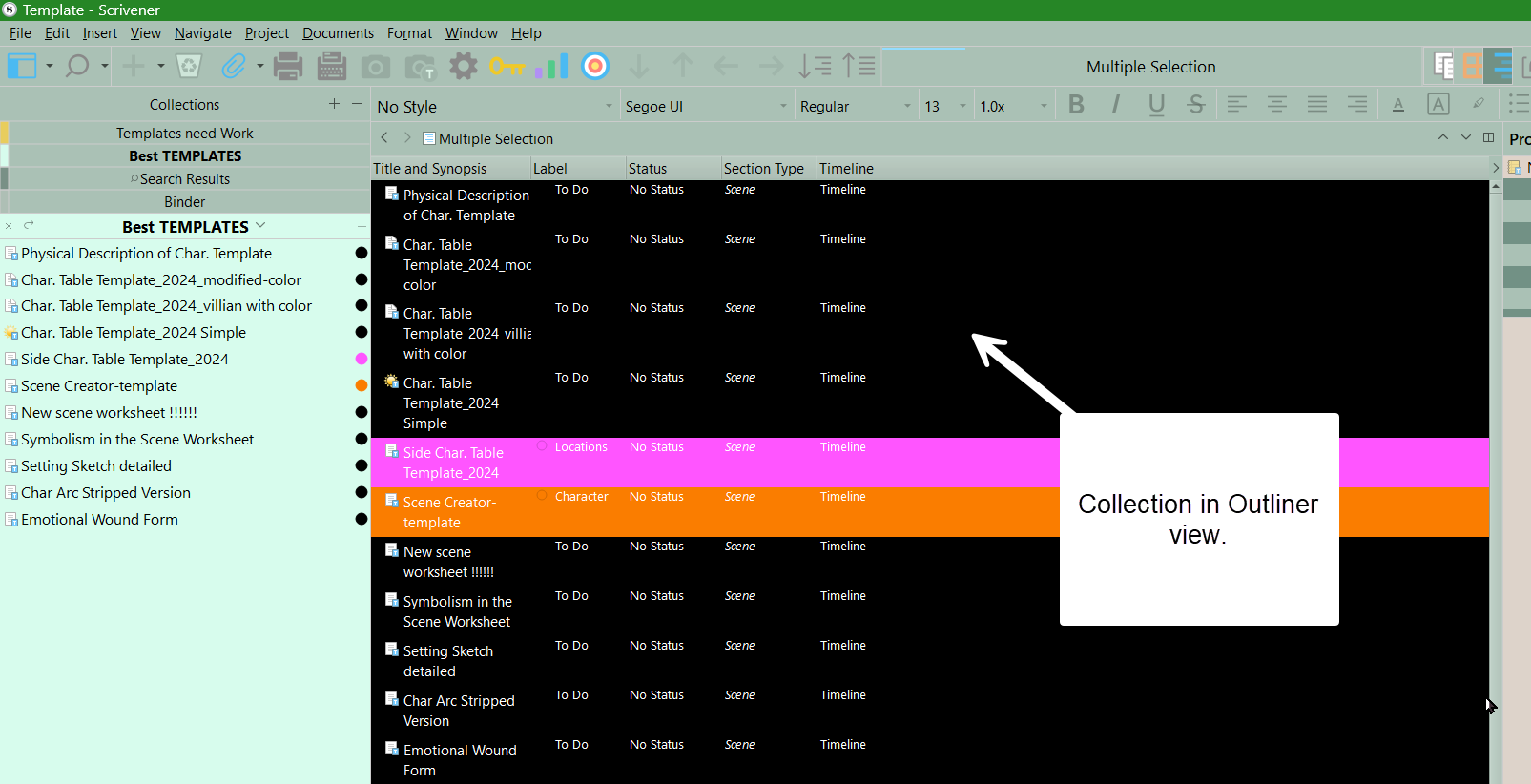
In your first screenshot, your items in the Outliner view appear in the same order as in the Collection. That is literally all I want. I don’t get that outcome.
Is it because my items in my collection are references to research?
You can sort a collection into Binder order (Edit > Sort > Collection into Binder Order). It’s especially handy if you have Folder and Documents in you Collection that have somehow become jumbled.
Thank you for that tip. In this case, that is not my issue. My static collection of research shortcuts is sorted just as I want it. It is, intentionally, different from Binder Order.
My issue is that I cannot get the Outline view to respect my collection’s manual sort order. This is what I want, and it’s what isn’t happening.
The help I’ve received so far (and thank everyone for, even though it hasn’t resolved my issue), seems to start with the premise: If I sort my collection as I want it, moving things up and down as I want, when I select all those sorted items in the collection, the Outliner will display those items in the collection’s manual sort order with no other step required. That was my premise when I tried it. It doesn’t work that way, for me.
Thanks for all this effort. FWIW, I already believed all who say that it works for them. The possibility of different behavior with research shortcuts hasn’t been addressed, though.
I’m crossing fingers that the forum will support this animated GIF of how it works with my content. https://drive.google.com/file/d/1XQ9mbxjincCCYidJ836UJol0dA8LBA-_/view?usp=sharing
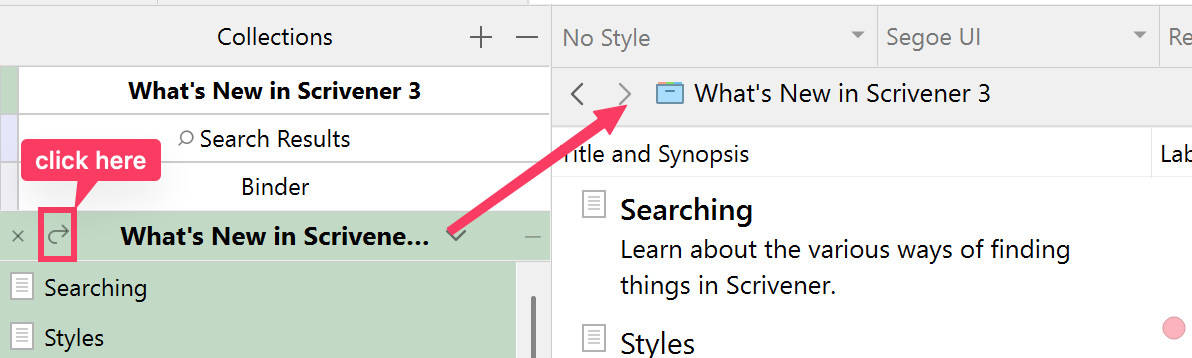
With the collection loaded, you should see its icon and title in the outliner header, and the unsorted outliner order will match the collection order in the binder and vice versa. If you reorder in one location, the change will be reflected in the other. (Depending on your binder-click settings, you may want to lock the editor if you’re going to do a lot of rearranging in the binder view and want to avoid loading the documents. Locking the editor will prevent the binder clicks from switching you away from viewing the collection in outliner, so you’ll see your rearrangements reflected in real time.)
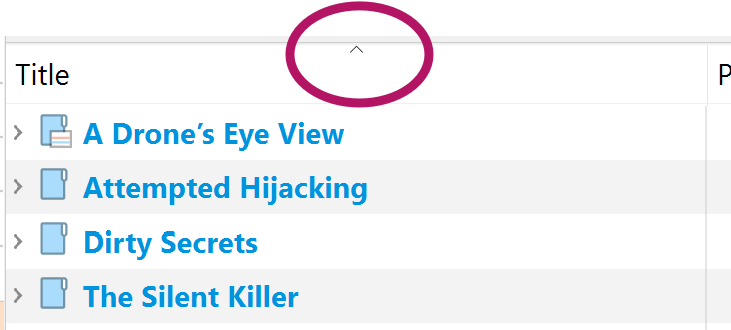
 If I click the title column, the arrow does appear. The outline order remains the same. Then if I click it again, it sorts in descending order, totally understandable.