Everything I’ve read suggests that Scrivener remembers which monitor it was open on when you close it and will reopen on that monitor when you boot it back up. That’s not my experience. Every time I load Scrivener, it opens on my third monitor even though I closed it (in full-screen or windowed mode) on my main monitor. This behavior persists even though I have “Reopen projects that were open on quit” checked. The project that was open is properly loaded on boot-up, but the monitor that Scrivener gets placed on is always wrong no matter what I do. Any suggestions?
if you hold alt key and tab will see all open programs and clicking on Scrivener usually pulls that up. If you hold the windows key and tab will see above and any virtual desktops you have.
I frequently use Alt-Tab and do see Scrivener listed there, though that doesn’t stop Scrivener loading on the wrong monitor. Windows-Tab doesn’t reveal any virtual desktops.
I’ll add that, even when I’ve moved the Scrivener window to my main monitor, Composition Mode moves everything to my third monitor. This requires me to use Windows-Shift-Left Arrow to move the Composition Mode to my main monitor. If I exit and re-enter Composition Mode, the issue repeats and I need to again move the window.
If go to options and believe on behaviors can set the screen for composition mode.
I’ll post the solution I found to my problem here. It was monstrously difficult to track down. I hope this is helpful to people experiencing similar trouble, and I hope the software is eventually updated to make this rigamarole unnecessary.
The problem related to the fact that my main monitor has its display scaled to 125%, while my secondary monitors have their displays set at 100%. This disparity causes fits for Scrivener. My solution was:
- With Scrivener shut down, equalize the scaling on all your monitors by going to Setting > System > Display, clicking on each individual monitor, and ensuring that each has its scaling set to 100%.
- Load Scrivener, move it to your primary monitor, ensure it is in full-screen mode, and close the program.
- When you reboot, Scrivener should load on your primary screen. You can now change your primary monitor’s scaling back to its original setting.
- Unfortunately, if you do restore your primary monitor’s original scaling value, Composition Mode will be borked. For me, it appeared as a single narrow band with barely any text visible.
- To allow Composition Mode to work with unequalized scaling values, shut down Scrivener and find your Scrivener shortcut (mine was located in C:\Program Data\Microsoft\Windows\Start Menu\Programs\Scrivener 3).
- Right-click on the shortcut and select “Properties.” Under the “Compatibility” tab, click “Change setting for all users” (will require Administrator privileges), then “Change high DPI settings.”
- In the “High DPI settings for Scrivener.exe” menu, locate the “High DPI scaling override” option. Check the “Override high DPI scaling behavior” box, then select “Application” for the “Scaling performed by” option.
- When you reload Scrivener, Composition Mode should work even with unequal scaling between your monitors.
1 Like
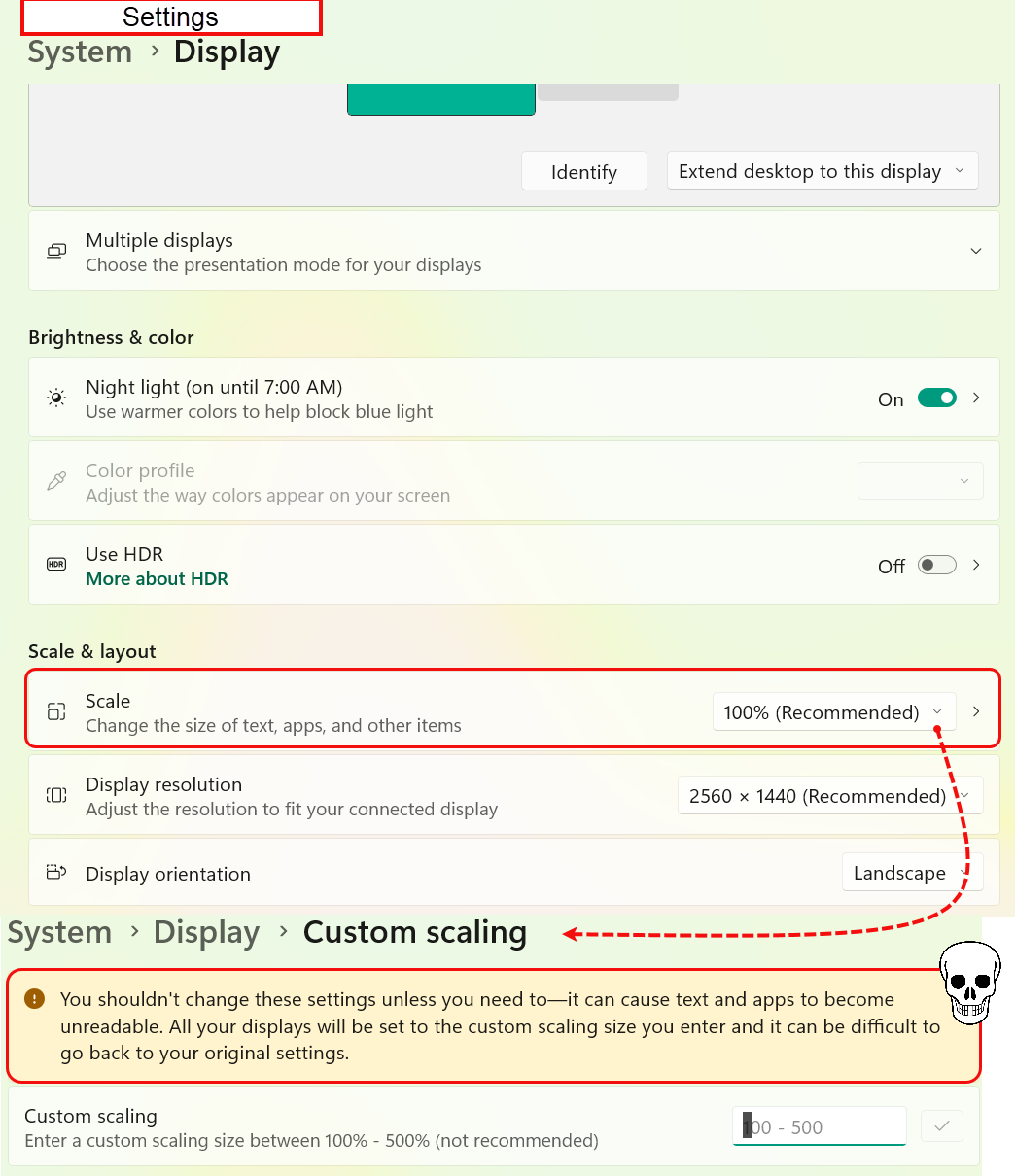
Thanks for the detailed explanation and solution. You will find the warning about Screen scaling and a way to check if this is your issue in Settings >System > Display > Custom Scaling
1 Like
The solution to 2 monitors of disparate rendering in Scrivener for Windows is not to fiddle with the scaling. That’s a rabbit hole with innumerable stumbling blocks, if not just plain damned irritating.
Switch a Scrivener window between monitors by ensuring the window to be switched is full screen.
Then use Win+Shift+Left or Win+Shift+Right to switch between monitors. It renders at your preferred resolution on the alternative monitor as Word, Excel or whatever else would.
Regarding Scrivener opening on the last-used monitor, that is project-dependent. So, if Project 1 opened on your primary monitor and Project 2 on your secondary monitor, those particular projects would open on those respective monitors the next time. I actually did that test yesterday, including a reboot. Physically unplugging the peripheral, however, would probably sever that information from wherever the OS stores it.
If I used the manufacturer’s recommendation, my monitor would look like a laptop used in kindergarten:
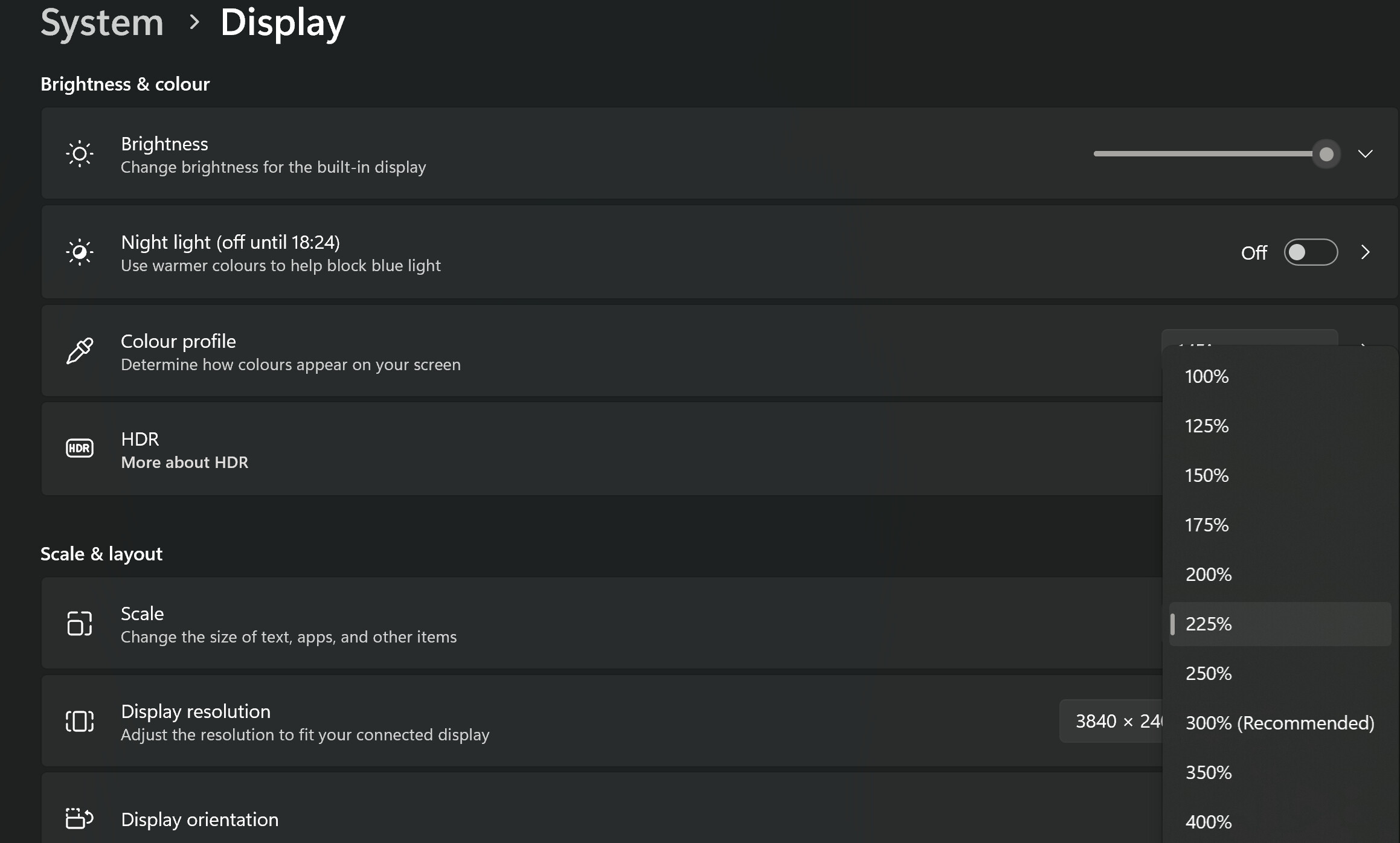
I was only pointing out about the warning windows gives about scaling potentially causing issues.
2 Likes
Sorry if my email appears abrupt. I should sleep more often.
No issue with what you said, I was just showcasing the same message is in windows settings
2 Likes