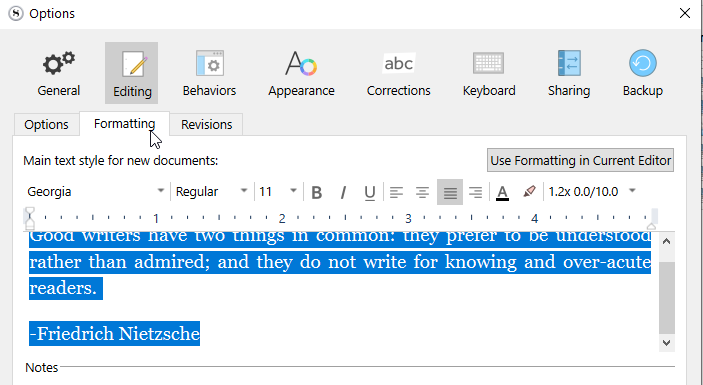
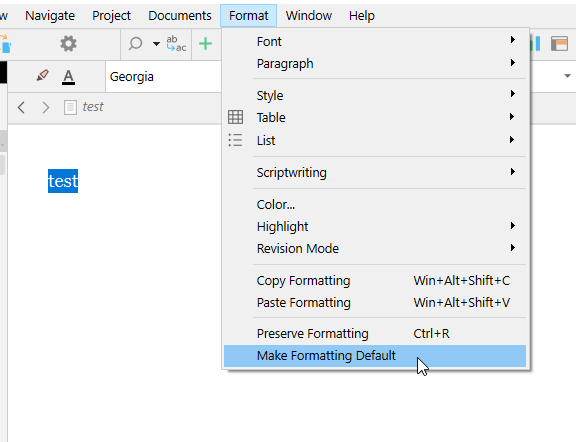
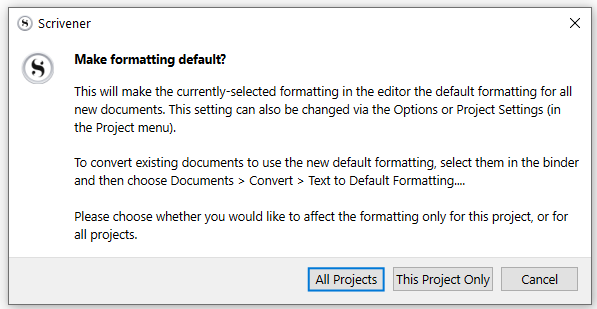
They both would work. It is only a matter of if you want that formatting to apply to all new documents across all of your projects (2nd half of my post), or only in a specific project (1st half of my post).
[EDIT] I went back and added a split line to it, for further clarity.
Hi,
I’m using the latest version of Scrivener for Windows. (and what would I do without it?!)
I’m a poet that writes a poem every day, so I have over 1100. Under Options/Editing/Formatting, I set the spacing for my poems at 1.2x and applied it. However, in my “text” entries, the poems are always 1.0x and then I have to change it.
Why is this setting not responding globally?
thank you for your responses,
Skye
Have you selected Use Formatting in Current Editor under File → Options → Editing → Formatting?
Alternatively, you could go to a document that you have set your spacing to 1.2x and with your cursor on the relevant text in the Editor, select Format → Make Formatting Default (the last option in the Format menu).
I was writing in MS word and decided to give scivener a go and so I tried to import my manuscript into the scrivener app. When I did this the formatting went all wonky and squished it to have a 5" wide page. Now I have found the ruler and am able to correct this but is there an easier way? And why would it smush it all like that. It is properly formatted in MS Word. I even tried copy & paste and it does the same thing. I have looked around online and not finding the help I need.
Thanks!
Refer to the conversation above, on how to set your default formatting, and then batch apply it to imported text. If what you are seeing can be fixed with the ruler, that’s likely all you have to worry about (other issues wouldn’t be, like hard-wrapped lines as you might get when copying from emails).
I’m writing a novel and find that somehow not all the chapters use the same font or font size. How do I specify a standard font and font size that will be the default for all chapters?
Thank you. I also looked at default settings (Scrivner → Settings → Editing → Formatting). I found that confusing. I can choose a font for “Notes” and “Comments and footnotes”, but what about for the body of the document? Oh, well.
There’s also the Use Formatting in Current Editor button, as seen in Vincent’s screenshot, if you already adjusted it in the Editor and want to “import” it from there.
And compile formats can specify the look of body text of individual Section Layouts (incl. font and font-size) which get assigned to the various sections (docs) in your Binder.
(Text which has some defined paragraph or character style applied to it can also be redefined by a compile format.)