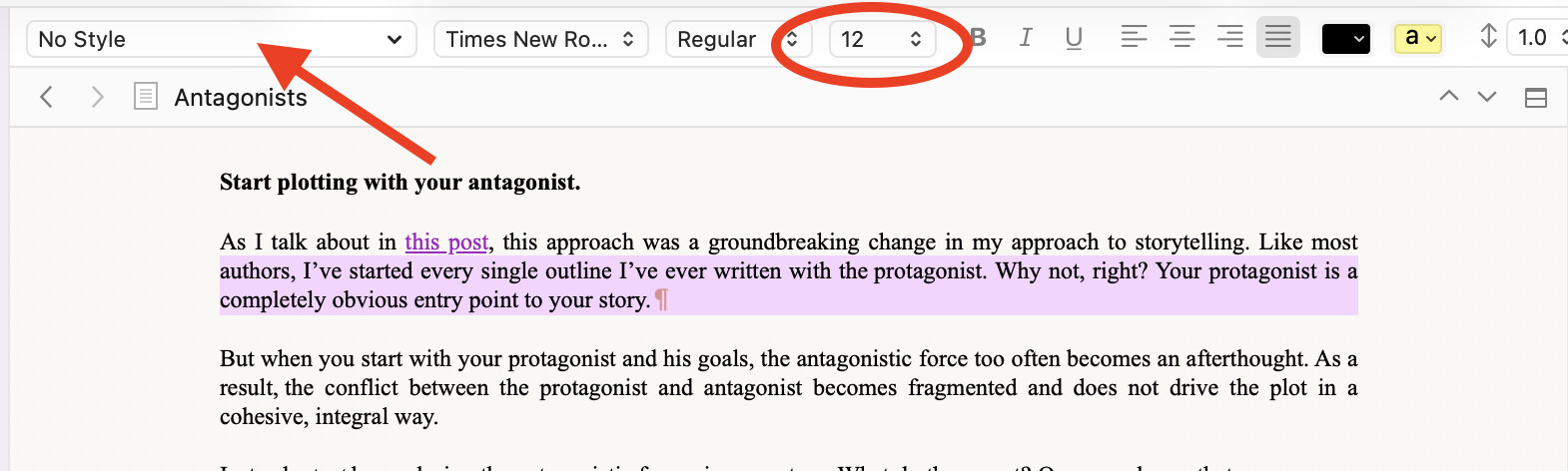
Is there a way to adjust No Style so that the font size automatically changes when I adjusts to 14, for instance? I’m assuming that “No Style” is the default within the app but there seems to be no way to adjust this within Settings… panel.
File / Preferences(Mac), Options(Windows) / Editing / Formatting
This is where the global default “no style” formatting is set for all projects.
If you want a project to have a specific default “no style” formatting of its own, that would be set in Project Settings / Formatting. There is a checkbox to tick (Use different formatting for new documents in this project), and a formatting panel similar to the one in the preferences(Mac)/options(Windows).
Alternatively, you can format text in the editor, the way you want your default “no style” to be, and then Format / Make Formatting Default. You’ll then be asked if you want it global, or just for the current project.
. . . . . . . .
Note that the new default formatting will only affect documents created after the change. For your pre-existing ones (imprinted with the previous default “no style” formatting), you have to select them documents in the binder, and use Document / Convert / Text to Default Formatting if you want them of the new “no style” too.
3 Likes
I am not quite sure what is wanted. Is it that you sometimes want to change the font size and then see all No Style paragraphs dynamically reflect that change (become 14pts as it might be)?
If this is what you mean, then I would say two things:
-
If this is about viewing things in the Editor pane in Scrivener, leave the font size alone. The Editor has a zoom setting you should adjust instead. That % setting can be found in a pop-up menu in the footer area of the Editor pane. There are good reasons to leave your body text at a standard font size.
-
If this is about some special font size requirement on your output, you might consider letting Compile set the alt font size for you at compile time. A compile format has total control of what your No Style paragraphs will look like.
As a general rule, your default No Style paragraph should be set to make paragraphs look the way you want to see them when you are working with your manuscript. (Exception: font size should remain standard size; use zoom setting for your vision.) Compile can then render your text in the manner you want your final text to appear.
For example, I like my working typescripts to be in 12pt Courier Prime with no indent and 12pts of built-in space between paragraphs. But I have the Editor set to 175% zoom so the text appears sizeable on all my monitors. When I compile such text, it will typically end up in 12pt Adobe Garamond Pro with first-line indents and no space between paragraphs.
3 Likes
This can’t be said too much.
3 Likes
Thanks! Looks like this is what I want and the easiest way to enlarge files created in other people’s template.
1 Like
I’ve followed some formatting suggestions here, but I’m not getting anywhere. I’ve have cut and pasted text from a Google doc, and now my Scrivener project has different fonts and different margins. I’ve tried to adjust the project settings and thought I had set it back to the default, but nothing changed. I would love some help—thanks!
When you have either Scrivener > Settings > Editing > Formatting set (for all new projects) or Project > Project Settings… > Formatting (with Use different formatting for documents in this project ticked on), what you have set only applies to New documents.
To apply your settings to what you have alkready entered (in this case what you pasted in from Google docs) you need to select it all by selecting Draft/Manuscript in the Binder, going into Scrivenings mode (Cmd-1), clicking in the editor and Cmd-A. Then go to Documents > Convert > Text to Default Formatting…
That should result in all your text having the formatting you have set.
As you have pasted in from Google docs, I would recommend selecting all the text again and choosing Edit > Text Tidying > Zap Gremlins to remove any stray weird bits of code left over from Google docs.
Hope that helps.

Mark
5 Likes
And also @ Lizofistanbul, lest we forget, welcome to the Scrivener Forums!
-gr
Hi Mark,
Thank you for your help, I don’t see “Document > Convert though I do see the Text to Default Formatting, which I set. But the Google portion is still not resetting. I don’t see the Edit >Text Tidying > Zap Gremlins. It said my version was current, so I’m not sure why I’m not seeing these prompts. Thank you, Liz
Thank you, gr! Happy to be here. 
Hi Liz.
I’m afraid I won’t be able to get back to one of my computers till tomorrow afternoon (10:30 p.m. here in the UK), so I’ll post screenshots to help you unless someone gets in first.
Mark
Hi Liz,
I’ll give it a crack since I’m here now, but others on this forum are way better than me.
When I can’t find a command, I go to Help on the menu bar, then start typing what I think the command is that I want. Such as:
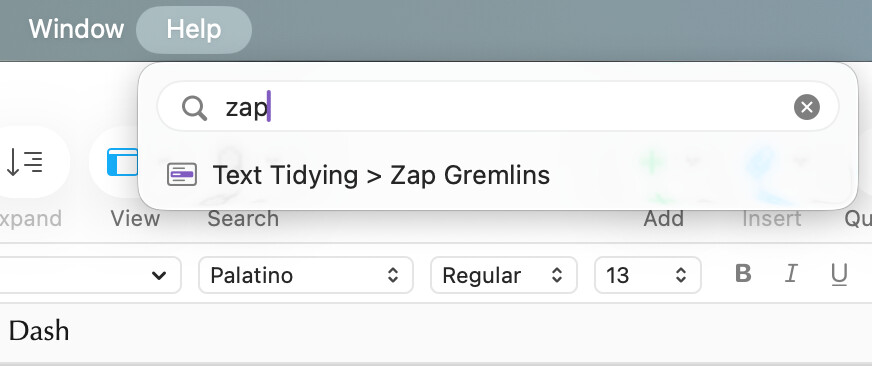
Select all the text in the document by holding down cmd then tapping a, then go to the Zap Gremlins.
To change a document to default formatting:
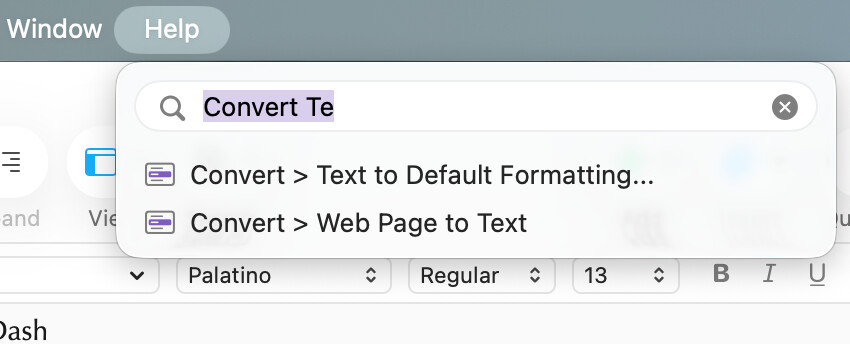
Hope this helps.
4 Likes
Hi Albert,
Thank you! I’ll try it now…
1 Like
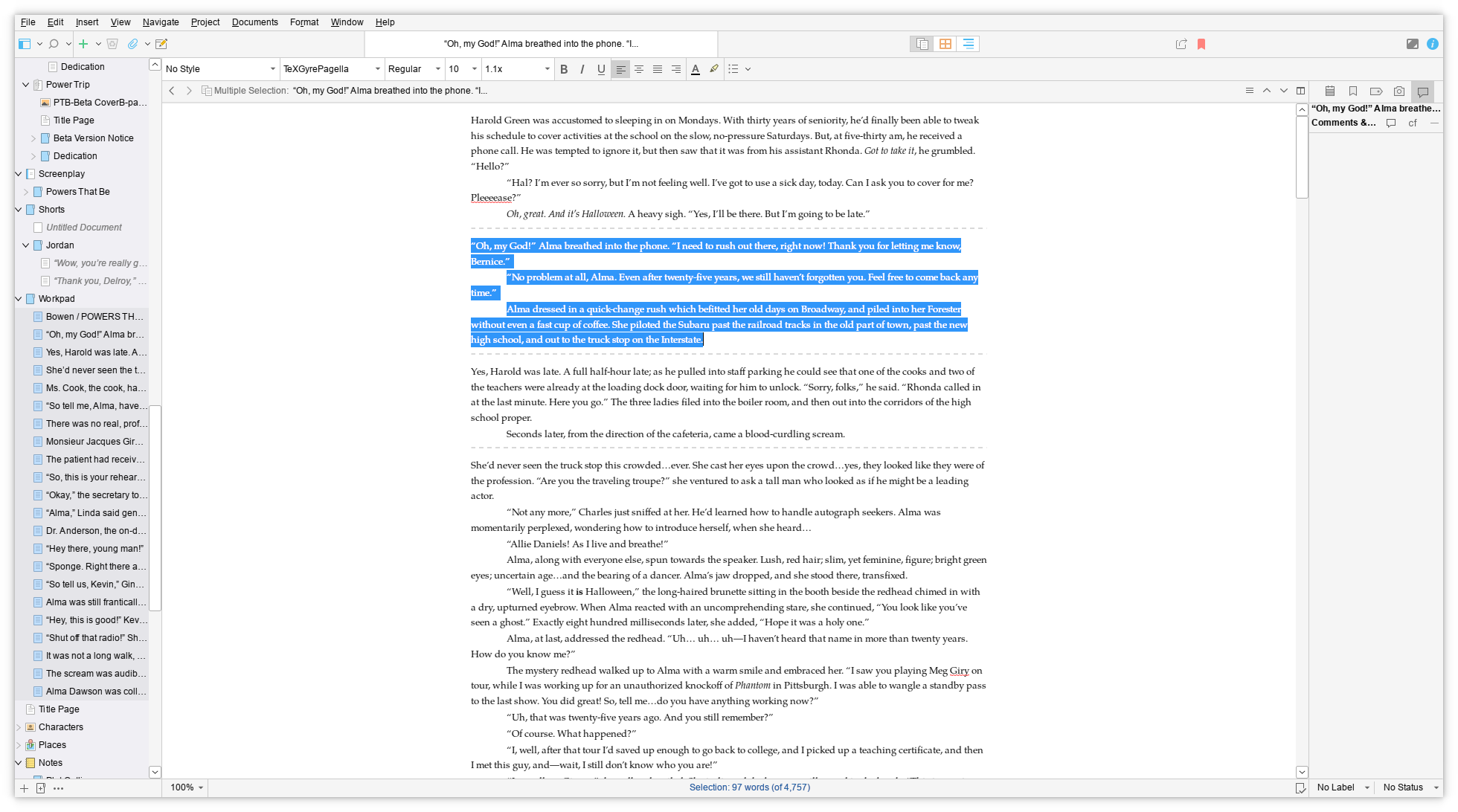
How do you select multiple scenes/chapters for applying and changing styles? I’m not wanting to do a global default style change…but I don’t want to have to select, and to apply, every single one of these scenes, one at a time…?
I’ve merged your post with the best discussion for this. The one you had replied to was about selecting multiple sections for compiling, not performing operations on them, such as resetting formatting to defaults.
Multiple selection is described in the user manual PDF, in §6.3.2, Selecting Items. You might want to skip down to the section on using the mouse, and specifically the 2nd to 4th bullet points, although the third describes the easiest method for selecting lots of things at once.
Alternatively, if you want to reset everything with text in it, then click the magnifying glass icon in the toolbar to open Project Search, type a single asterisk (*) into the search field, and then click the smaller blue magnifying glass to the left of the search field. In the top section, select “Text”. This special search will find all items in the binder that have any text at all in them. Click the smaller magnifying glass icon to view further refinements that might be useful, such as confining the results to the Draft folder only (to avoid reformatting research, notes, etc.).
Once you have a multiple selection, follow these instructions.
1 Like