Hi Gumboot,
It doesn’t exist on the Windows version yet, but it does on the Mac. Have a look at this thread to see what it will eventually look like:
Hi Gumboot,
It doesn’t exist on the Windows version yet, but it does on the Mac. Have a look at this thread to see what it will eventually look like:
Perhaps I have an issue related to this topic. In my novel (which was started using the novel format template), each chapter is a folder and I would like to figure out how to do chapter numbering without counting the title page and dedication page (I have tried it various ways, with these pages as folders or files).
Is this possible?
Thanks!!
John
EDIT: Am I just out of luck until the Windows version catches up to the Mac version when it comes to omitting things like title pages and a dedication page from the chapter count? Thanks!
I’m not sure if it comes this way “out of the box”, but the compile presets for that template should allow you to insert the title page as a document at the base level of your draft folder. In other words; don’t create a folder for this kind of “front matter”, but instead, just have title and dedication, etc… pages at the same level as your chapter folders, and things should come out the way you want. If not, then the compile settings can be modified so that “level 1” documents (not folders) lack the “CHAPTER <$W>” title text and other chapter-like embellishments.
Thank you, Robert. I will give this a try asap.
(Is there a way to get the table of contents to say “Chapter 1” etc. instead of just “Chapter”?)
John
Robert,
I must confess that the folder vs. file and levels are one area of Scrivener that still confuse me (despite printing out the manual and running thru the tutorial twice). What also puzzles me is how it numbers (or does not number) chapters. 
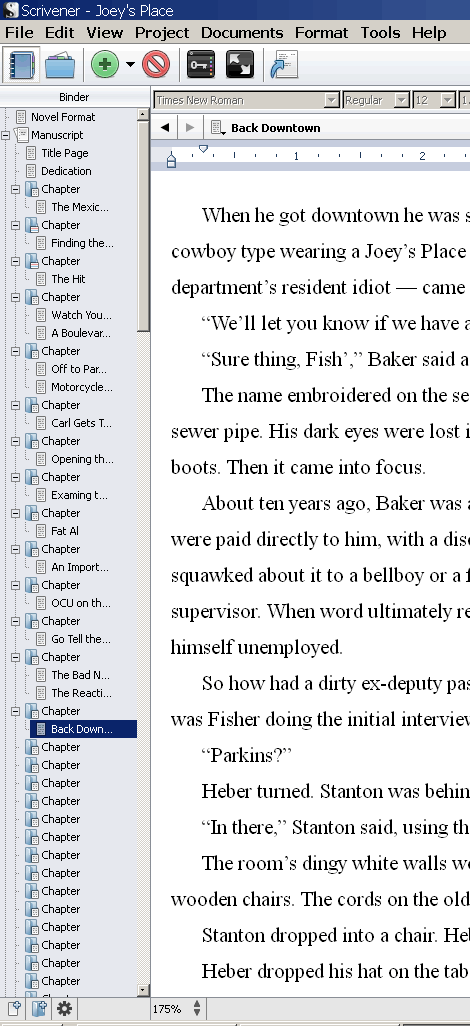
I have attached a snap of my current structure to this post in order to clarify things a bit more.
Thanks again for your patience and advice!
John
Ah, I wasn’t able to answer, since it should have given you something besides “Chapter” but now I see what it’s doing in your ToC: It’s using the name of your folder, which is just “Chapter”. You could, for instance, name each chapter for what happens, like “Tom Throws a Party”, and “The Magician”. Then your ToC would probably include those titles.
Now, I’m not entirely sure how to get the ToC to just say “Chapter One” and “Chapter Two”, without putting in the <$w> placeholder after each folder’s "Chapter " name. There has to be a way though, since that’s something that a lot of people want. Maybe someone else can answer that question…
As for files, folders, and levels…
Your “Chapter” folders are at level 1.
Your files/documents titled “The Mexican”, and “The Hit” are at level 2 (they’re “under” the level 1 folders"
The icons for the two above are the what differentiates them to some extent, but as you have (accidentally?) discovered, a folder can have it’s own text. In this case, your title page is the text of the folder titled “Title Page”, rather than it containing a document with the title page’s words in it. That is a tricky thing to wrap your brain around, because your “My Documents” folder doesn’t have it’s own text, it just contains other files and folders. In Scrivener, the difference between a file (or document) and a folder is blurred. It’s just a visual way to treat them differently, as we want to do here with your title pages vs. your chapters.
Now, you want to convert your “Title Page” folder to a regular “file” or document in the common Scrivener nomenclature. Click on the title page folder, and then in the lower left corner of your window, click on the Gear icon, and select “Convert to File”. Now the icon will look like the icon for “The Hit”.
Finally, in your compile settings, make sure the window is expanded (an arrow button to the far right of “Format As”). There are a couple of things to note. First, there is the Separators section. That lets you dictate what is interspersed between various kinds of things in your binder (page breaks, special text like <<< >>>, or whatever you like). Then there’s the Formatting section. If you de-select “Title” from your level one folders, your ToC might work better for you. If you click on that icon in the compile settings, you should see a sample preview that includes something like “CHAPTER ONE” and under it, “Title” depending on what check-marks above you have selected…
There is a lot you can do at that particular page, so you might want to read the sections of the manual on Compiling, and fiddle with the settings as you go to get a good grasp of it. I hope that sheds some light on the matter, and helps you toward your compiling goals. Once you do have everything set up the way you like, you can save your customized compile settings for use with other projects, so everything you learn now will pay off later. Good luck!
P.S. Sorry that the 2nd to last paragraph is a jumbled mess. It started to speculate on the chapter folders there; the takeaway from what you should have done so far is that your Title Page, which is now a document instead of a folder, will be treated differently, and shouldn’t be numbered anymore. I don’t know if excluding the “title” from your folders will have any impact on the Table of Contents, so I’m sorry if my explanation might have implied that it definitely does.
THANKS, Robert! I am printing this out for careful review.
Good GOD man, there has got to be a more economical way for you to heat your home than burning my blatherings.  Seriously, that’s gotta be some of the worst explaining I’ve done in a while.
Changing your Title Page and Dedication folders into files should solve the chapter numbering issue. Do that first, and see how it turns out. The rest of what I wrote is mostly worthless, except for the bit about folders containing text… that’s just weird. It threw me when I was new to Scrivener.
 I do not usually have separate scenes within chapters, but using Scrivener has shown me how I can let the software do the spacing between separate thoughts, as opposed to my entering an extra line-return.
My experimentation continues!
thanks!
John
EDIT: after some experimenting and then reviewing previous comments made about the topic of Chapter numbers in the Windows version, it appears that, for the moment, you cannot exclude a folder/file included in the compile from the Chapter numbering process. If my reading of other discussions is correct, this still needs to be brought over from the Mac version. (I probably should have added that my goal here is a clean .mobi file.)
That just doesn’t seem right. Go to your compile settings and select the Formatting section. Click on the level 1 document icon, and below that you should see some fake Latin text. Does it display “CHAPTER ONE” or something similar above the text? If so, click on the “Modify” button and remove the stuff that looks like “CHAPTER <$W>” or similar. You should only get a new chapter number when it encounters such symbols. Make sure they’re not anywhere in your text as well, or even in the title of your level 1 document in the binder.
I shall definitely give it a try!
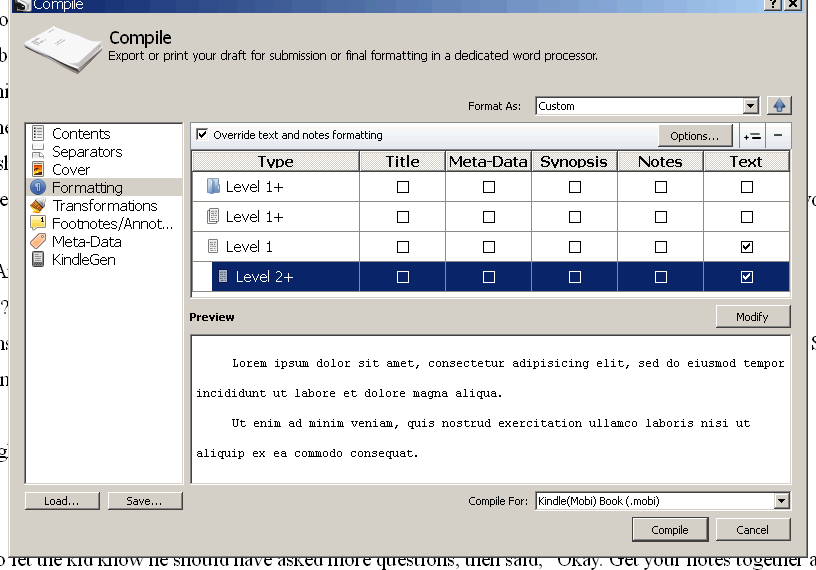
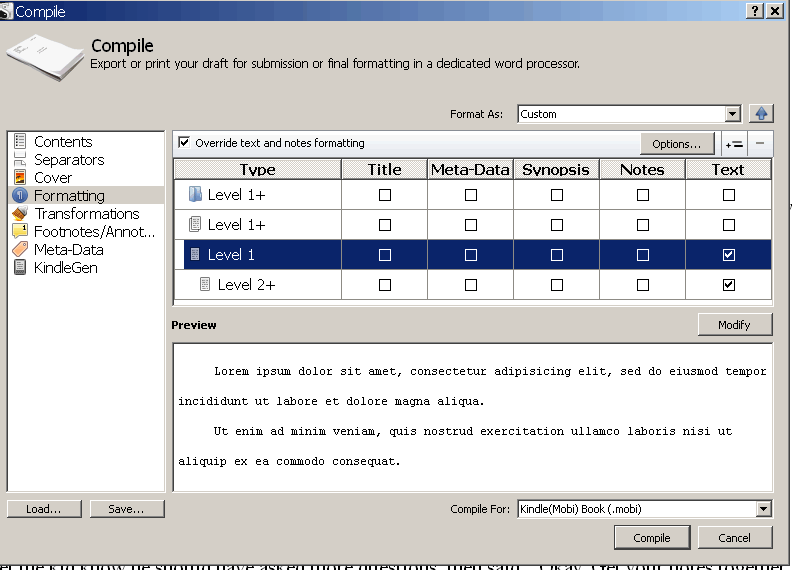
Okay, thought I would share some screen captures so you can see my actual settings. Here is the “contents” information of compile.
Here is one formatting example… with this, even tho’ they are identified as “in the compile” the title page and dedication don’t get compiled
Thanks! That’s great news.
So, is the issue now that you want the title & dedication to be excluded from the ToC? That’s pretty non-standard for any e-book I’ve seen. I’m looking at the ToC of one book, and it has the following listed in it:
Cover Page
Title Page
Dedication
Table of Contents <- that’s not a mistake, you should be able to jump straight to the ToC and see it as a page if you want)
Part I
Chapter 1
Chapter 2
…
It does make a great deal of sense that if you de-select the checkbox for “text” on the level 1 non-folder documents, that their contents will be excluded entirely; there’s nothing left to include. So you do have to have the “text” check box selected if you actually want the title and dedication to appear in your novel.
Edit: I see that you have the chapter folder highlighted in the last screen shot. Can you add one more, with the Level 1 text document icon selected?
Also, a pic of the binder, showing the title page, dedication, and the first few chapter folders would be enlightening.
In the mean-time, if you compile to PDF, and then open that in adobe acrobat (or other pdf reader), you can just find where “chapter 7” starts and ends, then print the pdf using that page range. That’s what I’ve been doing for a long while now. I didn’t even know about the option that I have in MacScriv!
Thanks, Robert! Excellent points for my consideration. I think I have attached the additional images you were interested in seeing.
I can certainly “live” with having things like the title page and dedication in the TOC, especially if it is a common e-book occurrence, but I would hope to be able to exclude them from the chapter count (otherwise Chapter One is counted as Chapter Three).
best regards
John
A post was split to a new topic: Placeholder numbering