That is (could be) because you are missing the page break. Your two sections are actually a single one.
Create a new page style.
Then, insert a page break at the end of the first of your two sections (as you wish they’d be two sections, not just a single one).
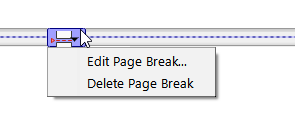
A horizontal dashed line will appear between the two pages. Click it once, then click the little box that will appear : edit page break.
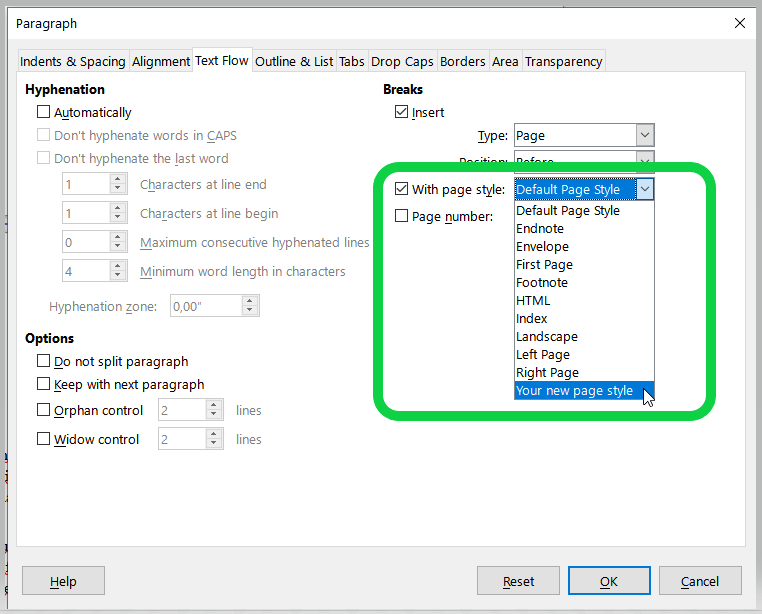
Then check the box “With page style” and pick your newly created page style :
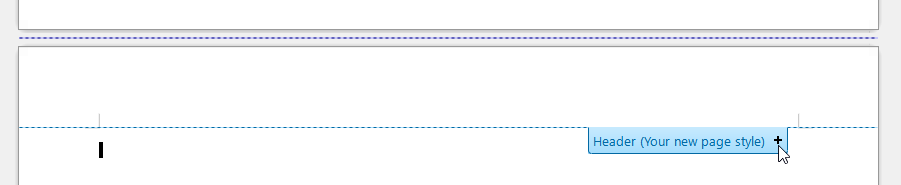
Then, back in your document, click in the new/now empty header, and click the +
and type in your desired header for that section.
. . . . . . . . . .
Alternatively, you can go back to Scrivener and fix what you did not quite right (assuming it is not the result of a manipulation in LO), so that you have a page break where you are currently missing one. And which, in turn, will have you have the proper header and nothing to tweak at all, as regard to this, in LO.
(It would most likely be easier, if you are not too used to LO.)
Hope this helps.
. . . . . . . . . . . .
P.S. I assumed you are in LO-Writer as per your .odt compile out of Scrivener.
“Master page” means nothing in Writer, to my knowledge.
If you are not in LO-Writer, disregard all of the above, as it won’t help you one bit. (Except for the last part, about fixing your compile in Scrivener.)
. . . . . . . . . . . . .
[EDIT]
I kept thinking about it : another possibility is that you’ve simply switched the problematic section to a page style other than its intended one. In which case all that you have to do is set it back to the right one, in the list on the right.
If that’s the case, you’ll see the right header appear once you’ve found the right page style.
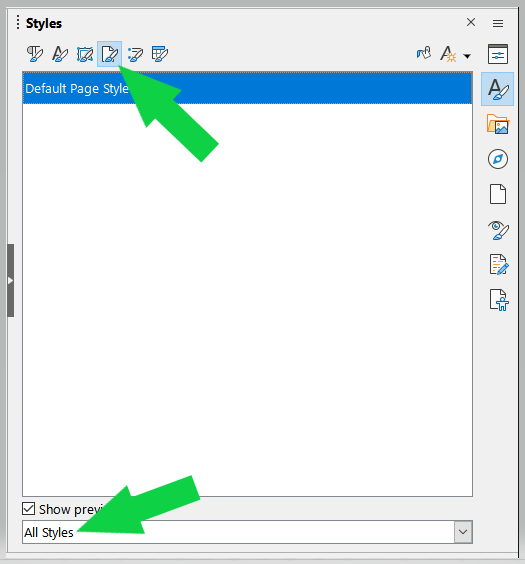
This list will contain all of the styles out of compile, plus a couple generic ones. If you are not in “All styles”, but rather in “Applied styles”, you’ll see all of the page styles used throughout your document BUT the one you are looking for.
[EDIT 2]
I just did a big compile to .odt (which I never do), and now I understand where you got the name “Masterpage” from. This is the name Scrivener gives to the different page styles it creates at compile (to ODT). If in LO you set the page style panel (my screenshot just above) to display custom styles (bottom selector, where I screenshotted “All styles”), you will see the whole of the page styles created by Scrivener at compile. Find the right one by double clicking items in this list whiles your cursor is in the problematic section (in the text).
Even better: if you set your cursor in the section just above your problematic one, the list will highlight the current page style used. The one you are looking for, to fix your “linked” section, is the one just below it.
– Set your cursor in your faulty section and double click that style in the list. Voilà.