Hi! I have a large project with 500+ footnotes. I would like to compile the text from the footnotes in a document on their own. That is, I’d like to have a (docx or similar) document with only the text from the footnotes – no footnote markers.
Is there a way to compile footnotes only? Or to select the text of all footnotes at once in Scrivener? (I’ve tried compiling the whole document and then selecting the text of all footnotes in word, but cutting and pasting them into a new document gives me a lot of footnote markers; and pasting with the “text only” option removes all formatting.)
There are plenty of others far more adept with Scrivener than I, but I recall having had to do this myself with a long, footnoted document in Word. So if you import your compiled Scrivener .docx document into Word, this could work. I recall the gist of it was something like this:
In Word, go to draft view. Open the footnotes pane. Select, then copy, all of the footnotes, then paste them into a new Word document. You’ll have footnote numbering, but you can remove it with search/replace: enter ^f in Find and leave Replace blank. Then select replace all.
I love that Scrivener is endlessly capable of things I hadn’t suspected could be done.
Would @samh then import the .docx into Word, then use the search/replace function to remove the numbering? Or is this something that could be done in Scrivener?
Maybe there’s a better way, but it seems you can’t set the endnotes numbering to “nothing” in Scrivener. (I’m not even sure if Word would handle them correctly if that were possible.)
Thank you both, but unfortunately I cannot seem to make this work.
The suggestion from @November_Sierra to remove everything that comes before the endnotes, erases the endnotes as well (since they are connected to the main body of text). Same with Find and Replace ^f or ^e – that erases not only the numbering but also the text within the endnotes.
This problem can be solved by copying the endnotes into another document, but that leaves me with the problem of numbering …
Copying the endnotes into a new document seems to turn the endnotes into something other than endnotes. After having done that, Find and Replace ^f or ^e results in nothing. Same with Find and Replace “1.” or whatever endnote marker I use.
Word apparantly turns the numbering into some sort of format/bookmark/hyperlink/? that I cannot seem to Find and Replace.
(I also tried Find and Replace ^f in the original document, before copying the footnotes into a new doc, but that removes not only numbering, but the text within the footnotes as well.)
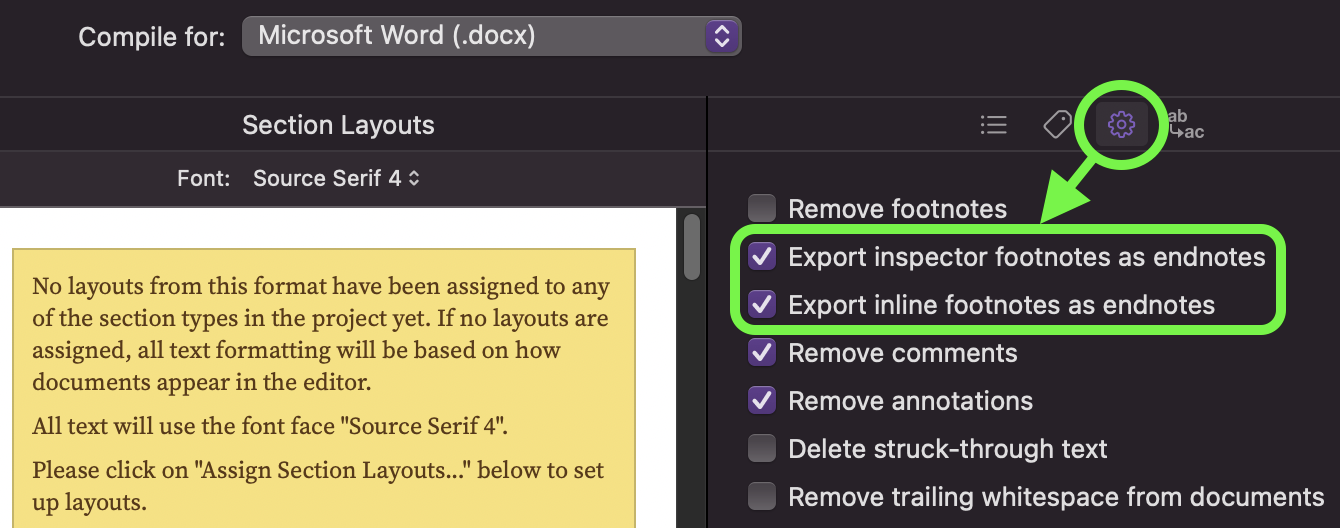
In the general Compile settings, check the box to export footnotes as endnotes.
In the Compatibility pane of the Compile Format Editor, check the box to flatten footnotes into regular text.
This will break the link between the notes and the text, while keeping the numbers. Then, in Word, you’ll be able to edit the document to get rid of the text.
If I could also make Scrivener compile non-continous endnote markers, the process would be even easier. In the project settings of Scrivener I have non-continous footnote markers (using an asterisk instead of 1, 2, 3), but in compile they turn into numbers. The compile settings allow for a change of markers (e.g. i, ii, iii) but not non-contious numbering (e.g. *, *, *) it seems. If I’ve missed something, please let me know!
If not, for anyone else having the same problem, this is what I did:
In scrivener:
– In general Compile settings, tick: Export footnotes to endnotes
– In the Compatibility pane of the Compile Format Editor, tick: Flatten footnotes to text
– Compile
In word:
– Remove the main body of text, leaving endnotes only
– Find & Replace ^#. to remove the numbering (this requires that you have no other instances of a number followed by punctuation, so a little caution is needed)
In scrivener:
– In the Compatibility pane of the Compile Format Editor, UNtick:
Flatten footnotes to text
In word:
– Find & Replace ^e to remove all endnotes
I have a different question about this…which is a very good idea by the way! Do you happen to know how to unlock the footnotes so they can be edited in word and then taken back into the Scrivener file? (I am working with someone I cannot share the .scriv with. They need to research/proofread etc all 240 footnotes but they are locked when I compile
Check the Dec 2025post from @kewms above in this thread, where she explains what to do.
You need to break the hyperlink between the footnote marker in the text and the footnote itself. If you don’t, deleting the text with the footnote marker also deletes the footnote. So that’s what “flatten footnotes into regular text” does, it removes the link.
Compiling them as endnotes will also make things easier, as then all the notes follow the main text, they’re not dispersed at the bottom of the relevant pages.
Like @November_Sierra I don’t know and perhaps someone else can advise their techniques.
When in past I have collaborated with someone who used Microsoft Word to make suggestions/edits/changes to my manuscript, I require them to work in Word with “Track Changes” for “All Users” turned on and then return that new DOCX back to me. I then go through their changes and accept/ignore as appropriate, editing my Scrivener manuscript as I go. I know this not “automatic”, but I’ve learned I have to do my own filtering/thinking of changes suggested by others.
I just checked, and changes to footnotes in Word will show Revision Marks, so even suggested changes to footnotes will be highlighted for your attention.