I am working on projects saved in Dropbox so that I can work between my Mac and iPad, and have been doing so without problems for many years. However, in the last few days I have begun to experience problems with repeated Conflicted Documents errors on my Mac. I have been careful to save and come out of my project properly on the iPad, and checked that my Mac is synchronised before opening my project. Dropbox is set to make all files in my Scrivener folder available offline.
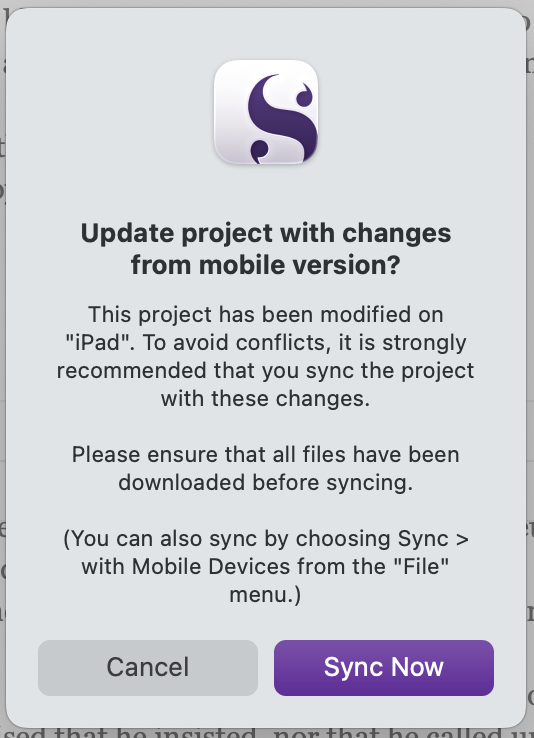
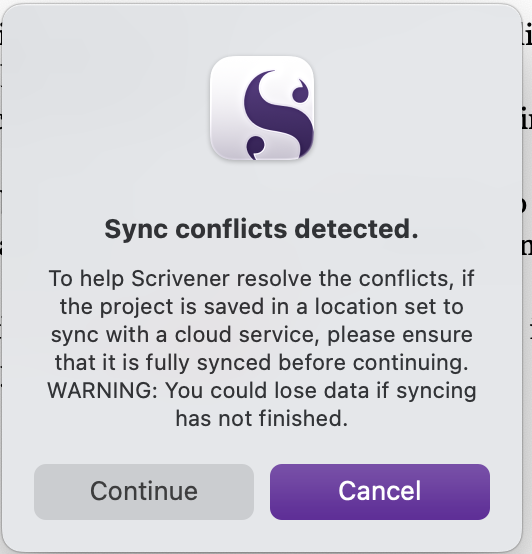
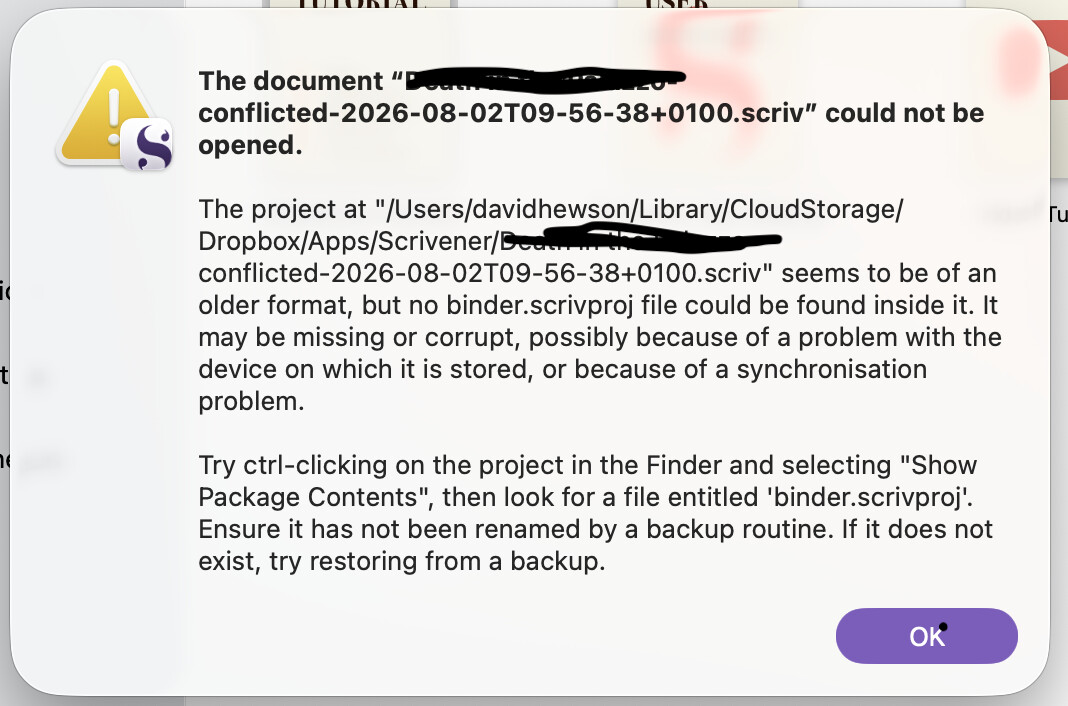
However, every time Scrivener on my Mac saves a document with any change (including Autosave), I get this message:
and when I continue it closes and reopens having made a new conflicted documents folder containing the previous saved version of whichever scene I have made changes to.
I start work again, but as soon as I pause for long enough for Autosave to kick in, it happens again.
Any assistance would be greatly appreciated.
Paul
Macbook Pro running Monterey 12.7.6
Scrivener version is 3.5.2
Dropbox version is 262.4.3183
Hmmm…. I’ve had this problem a few times, and it usually comes down to a munched cache somewhere.
You have covered most of the low hanging fruit (letting sync finish…. Have you run out of space on DropBox? The usual simple things…) So lets get cracking with how I deal with this.
First thing to try:
Quit Scrivener on your mac, Sync on your iPad, let that process finish and swipe-kill Scrivener on it. Wait at least 60 seconds, then open Scrivener again and then go through the conflicts[1] process.
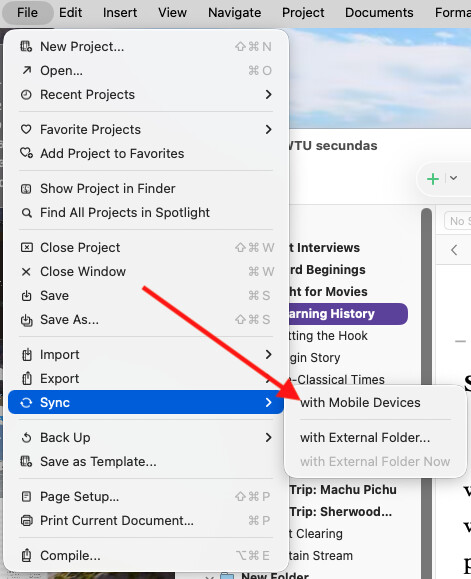
Ok, you’re through that process, here’s where you want to try this:
That often clears things up. If you were using a cloud service other than DropBox you could use the other option.
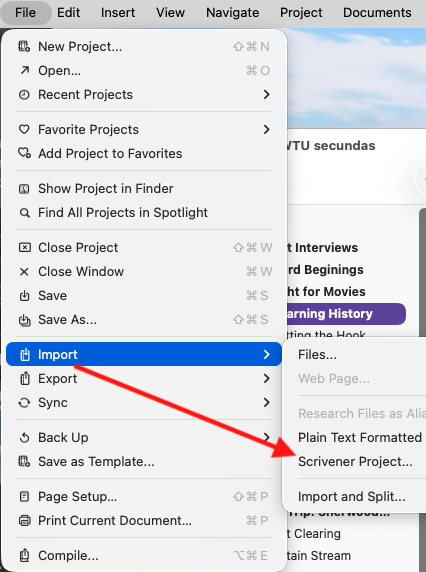
If that doesn’t clear things up, the cleanest and safest way to fix this is to start a brand new Scrivener project on your Mac, then import the old conflicted project:
When that new project gets sent to DropBox, it will not have any of the cache issues that the old project had and you should be able to open your iPad’s Scrivener, sync, see the new project and get back to work.
Apropos of nothing, but it’s ironic that the project I have open in these screenshots was one that I rescued by importing just as I have described because of just what you are suffering from.
When a conflict is detected, Scrivener tries to use logic to figure out what’s most up to date and usually can sort it out, but when it cannot it puts it’s best guess of the current version in the binder, and copies the other version to a new folder under Conflicts down past the Research node. ↩︎
I’ve had this issue as well, literally happening within the last week or two, it only happens when I’ve used my iPad the night before. The only way I’ve fixed it is restarting my Mac, but then it keeps happening as soon as I use my iPad again.
In the iOS Settings app, look for Scrivener, then scroll down to the Reset Scrivener menu. “Clear Dropbox Sync Cache” is one of the options. Read the description carefully: this may cause sync conflicts in the short term.
Thank you. This advice seems to be mainly working. I’m still getting errors when I never did before, but the disruptive repetitious alerts are no longer happening.
Same here. It was all working perfectly until a few days ago. Now I can’t open Scrivener files on two different iPads. All solutions tried. Just cleared Scrivener iPad cache and it downloaded new files, created a conflicted copy and nothing opens on iPad an
y more . The conflicted copy won’t open and generates this message on the Mac. Sounds like something has changed on the Dropbox end. The same file opens fine on Mac to Mac syncing.
At this point you can try one more trick, but after that I’d submit a support ticket. Fair warning it is not complicated but a bit of work, but it insures that as much of your data as possible is preserved.
Sync iPad #1 with dropbox. Put it in airplane mode, and turn off WiFi and Bluetooth.
Sync iPad #2 with dropbox. Put it in airplane mode, and turn off WiFi and Bluetooth.
(repeat as necessary with iPhone or other tablets. We will need to do work on them later and don’t need their copies of the data re-contaminating our work)
On your mac go to your desktop and create a new folder, call it ‘Insurance’ if you like, then open finder, and go to your user directory, then hold Command, Shift, and Period. This reveals the hidden files and folders. Navigate from your user home directory to: Library → Application Support → Scrivener → Backups
Once in that folder, Command-A to select everything, Command-C to copy, then go into the folder you just created on the desktop and Command-V. You want a copy of the contents of your Backup folder just in case.
Create another new folder on your Desktop, call this one ‘naughty box’ and then go into Dropbox’s web interface (not via the MacOS app) and go to the folder where Scrivener is setup to sync to, by default it is /home/Apps/Scrivener/. Copy everything here to the new ‘naughty box’ folder. Wait until the transfer is finished before starting the next step.
Create a third new folder on the Desktop, call this one ‘local dropbox’ and then from your user directory navigate here: Library → CloudStorage → Dropbox → Apps → Scrivener
Command-A, Command-C, and back to the 3rd new folder on the desktop for the Command-V.
When that finishes you have a complete archive of all of your local, cloud, and backup data so we can be sure you won’t loose anything.
On the Dropbox web application, select EVERYTHING in the Scrivener folder and delete it. Then go back to ~/Library/Application Support/CloudStorage/Dropbox/Apps/Scrivener and Command-A then delete. This should purge everything from Dropbox. Give it a minute and watch for the activity badge on the Dropbox toolbar bug to go away. Then look at the folders in both places to make sure everything is gone. (This is extra-paranoid version of just delete everything and sync)
Go back to your iPad(s) and go into the Settings gear icon, Show App Settings, Reset Scrivener, then toggle Clear Dropbox Sync Cache to on. Quit and close Scrivener (important, don’t just switch away from the app)
In the Files app, you should see a Scrivener folder under Favorites. If you don’t it can be found by going to On My iPad → Scrivener. Before we do anything else lets create a new folder in the main storage area for our use, select On My iPad and then Create Folder, call it ‘LS Backup’. Go into the Scrivener folder and there are two folders of interest: Backup and Dropbox there may be Scrivener projects here too if you created any and selected the option for On My iPad instead of cloud storage. Tap the Select button on the top, then the Select All button, then the box with the arrow rising out of it and select the Copy icon. Navigate to the newly created ‘LS Backup’ folder, tap and hold anywhere near the empty folder notice and then select paste. All of your iPad’s local and cloud data cached on the machine will be copied here. Repeat this process for every other iPad or iPhone you have.
When the iPad(s) next connect to the internet, they will poll Dropbox and see that everything has been deleted. They should delete everything locally, but I don’t trust that Dropbox will see it has nothing, and data exists on the iPad(s) and therefore will clone the data on the iPad(s) which we don’t want. So go back into On My iPad → Scrivener → Dropbox and then tap Select, then Select All, then the trashcan icon. Now you can turn on WiFi and Bluetooth and turn off Airplane mode.
Let Dropbox go through it’s cleanup routines on all of your machines and then have a coffee or tea (or your usual relaxing beverage of choice)
At this point you are in complete control of which version the which project you will trust. You can even look through the backups for earlier versions if you wish. I would however create blank projects to import the candidates into, rather than opening the suspect projects. Once you’ve figured out which is good, put them back on Dropbox and proceed.
There’s a new setting in Tahoe that allows iCloud Drive to access the Dropbox folder. It’s a terrible idea and should be disabled. You’ll find it in the System Settings → iCloud → Saved to iCloud list.
Also, make sure that Dropbox on the Mac is configured to keep projects downloaded.
If necessary, you can use the Files app to get projects to/from the iPad. It’s less convenient than a true sync operation, but also less prone to conflicts.
I appreciate the advice. But honestly life’s too short. I’ve no idea what’s going on here though I suspect it’s Dropbox not Scrivener. But I’m not spending more time on it.
I’m not on Tahoe (computer’s too old) so don’t have that setting, so I suspect they’ve made some other system changes in adding it that have fouled things up.
Solved. The Scrivener folder was set to download all files for offline use in the Dropbox IOS app. When I looked it just kept downloading constantly for some reason. Turning this off mean tit worked correctly. Not sure if that’s the best setting but having it on certainly screwed everything up.
Definitely not best. Bad. Scrivener needs all files downloaded and on local disk.
Dropbox downloading as it determined files on their server different than local and it was syncing.
From my perch here impossible to tell if this a problem or not. my hunch, not. Let it sync to completion. Check that you do not have too many files in Dropbox that you do not need to be synced. Only sync what is needed. Do not consider Dropbox Sync as a credible backup.
In the Dropbox iOS app? That’s odd. iOS Scrivener talks to the Dropbox server directly and doesn’t even need the Dropbox app installed. Which I guess means that the Dropbox app can try to duplicate what iOS Scrivener already does, with the results you saw.
Okay, so I’ve tried most of the things that people have said apart from the long one from Dain because I’m too scared to do that
I still get the error, despite that I can see them updated behind the error popup. When I open scriv on my MAC I just very quickly type something, a space or backspace, anything and that stops the error coming up.
You said it only happens when you’ve used the iPad the night before. Before you attempt to open the project on the Mac, please do the following:
Make sure iOS Scrivener has synced to the Dropbox server. Do that as the last step before you put the iPad away for the evening. If you don’t remember whether you did it, do it again in the morning.
Allow a few minutes to pass. Dropbox has to do some internal processing before a newly uploaded file (from the iPad) is ready to download (to the Mac). Waiting overnight would certainly take care of it, but maybe not if you synced the iPad first thing in the morning and then immediately opened the project on the Mac.
Make sure the Dropbox server has synced to the Mac. This will require some amount of time, depending on the speed of your connection and how much data is involved. The Dropbox status icon for the project should show a white checkmark on a green field when it’s done.