Hi,
I have two vertical editors with Corkboard on the left and Scrivenings on the right and as I scroll through Srivenings sections, I want the respective cards in the left Corkboard to be highlighted.
How to make it happen?
TIA
There is nothing that would work that way. This would go against one the principle designs of the software, which is described in §4.1.2, under subheading, Left to Right Navigation.
Of course when it comes to editor split integration, the concept of “left” and “right” is a bit fluid and could even be reversed (or sideways), but traditionally the secondary browsing split (the corkboard) would be on the left side and the text on the right. Even when they are swapped, the following still holds:
This never works in reverse: if you navigate into a folder using just the
editor to do so, the binder to the left will not change its configuration to
follow suit—but our changing perspective within the editor will impact the
inspector.
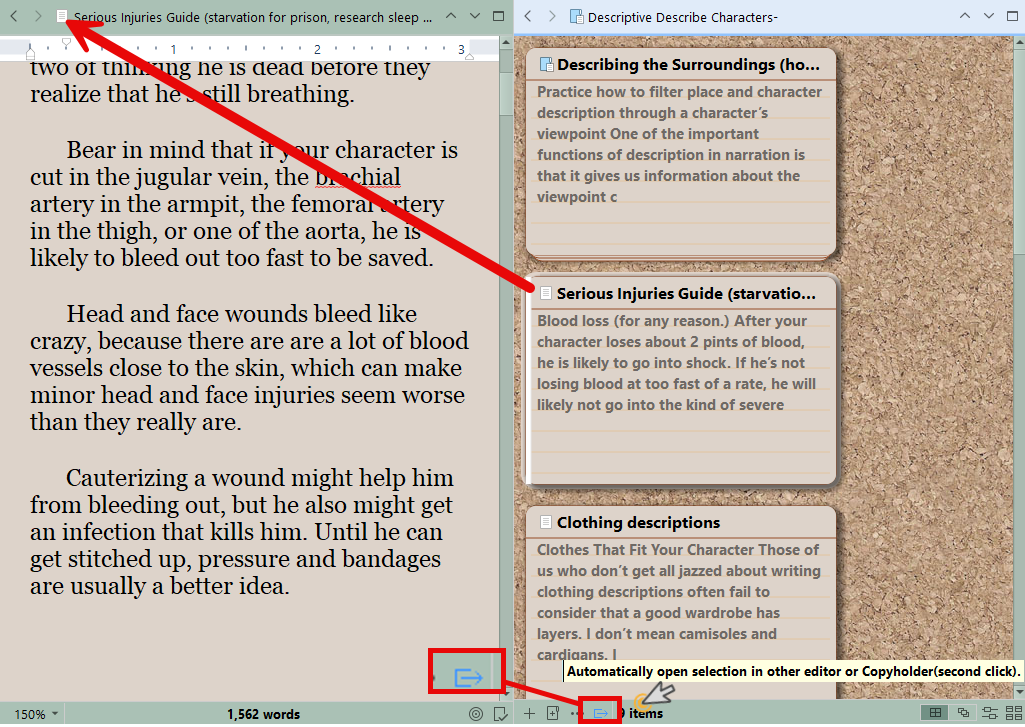
The exceptions are deliberately executed commands: Navigate ▸ Reveal in Binder, and for what you’re looking for, “Reveal in Other Editor”, which is found in the editor header bar’s right-click menu.[1] It is available whenever the text you are editing is listed somewhere in the other editor. So exactly your conditions, only as a manually run command if you get lost, instead of “as you scroll”.
Speaking for myself, I find it a lot easier to just hit Ctrl2 / ⌘2, to switch the corkboard on briefly (or 3, for the Outliner), and then Ctrl1 / ⌘1 to switch back to Scrivenings, if I need to see the titles of things around where I am working. As the view modes are linked together, working with the same information in different ways, this shows you which section you are in by scrolling to and selecting the card/outliner row you were editing the text of. You can even at this point select a different card, and then when you switch back to scrivenings, it will scroll to that spot in the text.
§8.1.1, Header Bar, and Header Bar Contextual Menu ↩︎
Thanks. Very helpful information.
The “Reveal in Other Editor” worked for me. I realised, I may need to come from Corkboard back to another spot in Scrivenings. Is that possible?
I love the automatic selection option in the corkboard and outliner in the split view. To quickly move thru and evaluate a large group of files
The above method will make it so every card you click on will scroll the other split’s scrivenings view to that text. This special behaviour only works if the card is already in the scrivenings session. If it is not, then it will load it individually.
If that’s all a bit more than you want—if you want to be able to just click around, add cards and edit them without the other view scrolling around—there is also a command that will do that as a one-shot: Navigate ▸ Open ▸ in [Left|Right] Editor. There is a keyboard shortcut associated with it, to make it easier to use when you want.
Thanks GoalieDad and AmberV.
What would be the shortcuts to opening selected file in left or the right editor as in Navigate ▸ Open ▸ in [Left|Right] Editor ?
You can look up all shortcuts in the Help menu, with the “List of All Shortcuts” PDF, or in Appendix A of the user manual PDF (which I believe is more up to date), or of course by navigating to the menu command itself (which you can look up at the top of the Help menu if you are unsure of where it is). You can also customise many shortcuts in the Keyboard tab of File ▸ Options....
In this case the defaults are CtrlShiftO (that is “Open” not “Zero”) for the other split (wherever it may be), and AltShiftO for the current split.
You would open in the current editor (in editor) or the other non active editor be it left or right.
Erm… can I point out that @Tava reports themselves as on MacOS (though not which version) and Scrivener 3.3.1. I’m not on my computer at the moment, and the shortcuts @AmberV gives are the Windows shortcuts and @GoalieDad’s screenshots are the Windows version.
Also @Tava might consider upgrading to the latest MacOS Scrivener version.

Mark
Good catch. Well the menu command itself and the user manual Appendix A still serve as references for looking up shortcuts, no matter where you are (the shortcut PDF is alas only something the Windows version has).
And yes, 3.3.1 is quite old and buggy at this point, particularly if running the latest system, maybe not so much if running on the one it was made for.
All true.  And I’m pretty sure that on going to the menu entry, the shortcut is given there if there is one…
And if not, one can make one’s own through system settings/preferences.