I have upgraded to the latest version and when I click Add > New Text on the Research folder, it does add a page, yet I cannot type onto it. It seems locked. The icon is also empty (instead of the usual 4 lines) so I suspect its not creating the correct type of page, yet I am selecting to add a Text Page.
When you create a New Text document, what does the Editor pane (where you would expect to type) look like? Is it possible that you have the doc selected in the Binder, but are in the wrong display mode – like if you were in the Corkboard display mode, you would see nothing but a message saying the doc in question contained no subdocuments. (Or so it goes on my platform.)
(The document icon in the binder not having the four lines on it, but looking like a blank piece of paper, just literally reflects the fact that the document has no body text yet.)
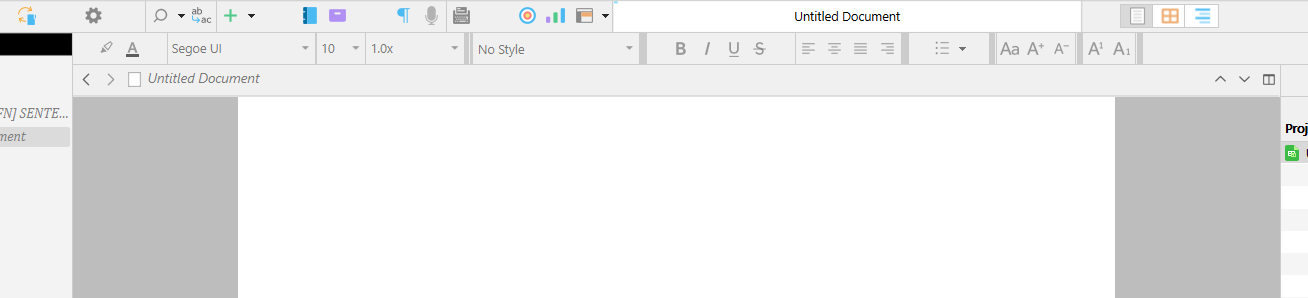
After some trial and error, I think I have solved it. Scrivener is creating the page, but I was clicking toward the left of the page and couldn’t get into any kind of edit mode. It seems the page actually starts almost halfway over the screen and the editing page is central (I found this out by randomly clicking around until I hit on the right spot).
I didn’t realise the editing panel was only a 24cm strip in the centre. If there had been a page outline I would have seen this.
Once I get some text on the page, the icon does indeed get its 4 lines.
I’d prefer a wider editing panel or at least a border around the page, or colour in the margins. Not sure if this is possible?
Yes, just tried to paste in the screenshot and it wouldn’t allow me to post it.
Basically, what I have are massive margins. This is what threw me. However, I have now found the Page View option under the View menu which has added the page edges.
I still don’t understand why such wide margins are needed. A lot of the screen is kind of wasted?
I do my writing with page view “off” … and I let the compiler be in charge of margins in the deliverable document. As to why you see “massive” margins in Page View “on” when apparently you did not set them, I don’t know. Perhaps others can comment. Meantime, reset them in Menu: File → Page Setup…
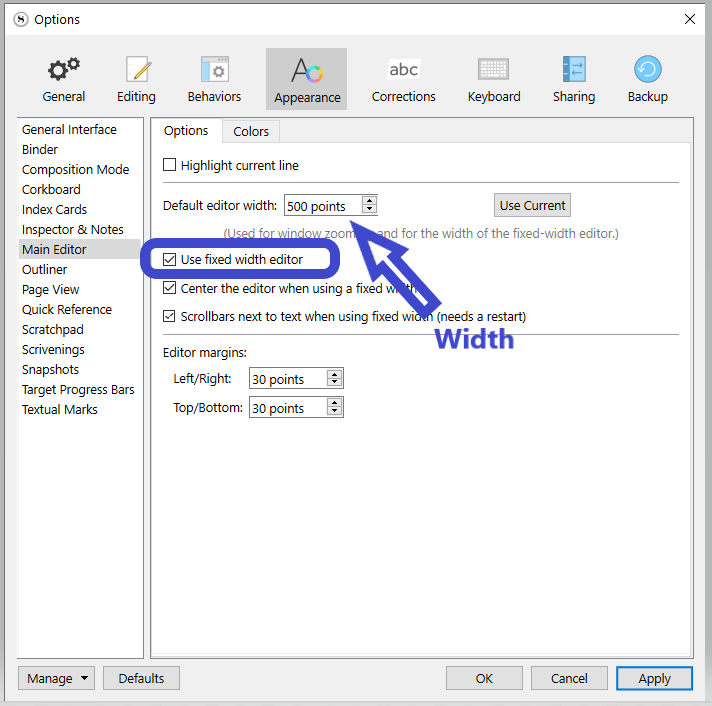
Either uncheck this setting, or adjust the width to comfort.
If you uncheck “Use fixed width editor”, the text will always use the full width of the editor. (Unless you are in pageview mode.)
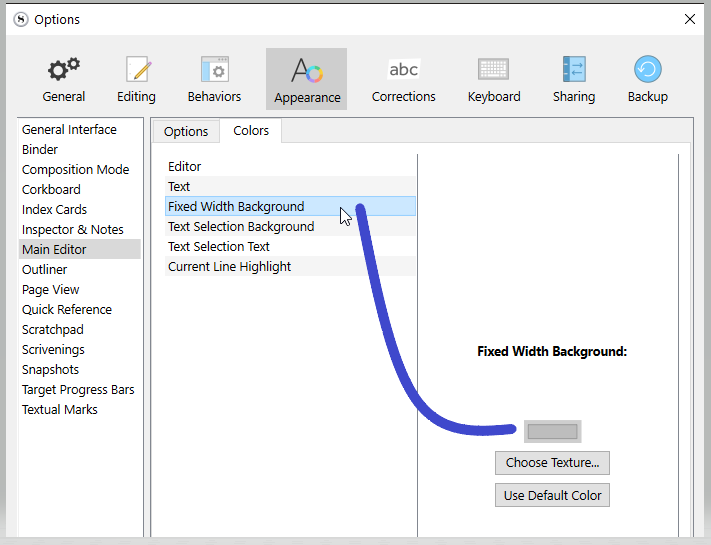
Should you decide to keep the fixed width turned on, the setting so that the background isn’t white and so you see where the typing zone is, is as below :