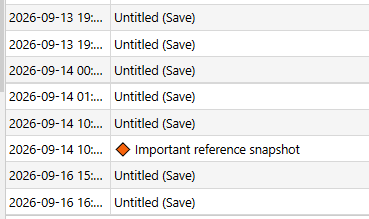
I finished my first draft and have my edits. What is the best way to create a second draft without changing/deleting parts of the first draft? I cant imagine duplicating the entire manuscript is the way to do this?
Personally I use snapshots. There is a function to snapshot all selected documents and name the resulting snapshots. (A common name.)
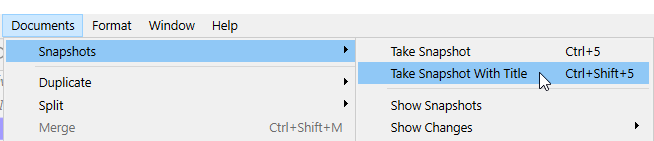
Say you name them “Draft one”, they are then there as a reference, and you work your draft 1 into a draft 2, in the editor. In other words, you saved a milestone version inside your project.
Snapshots can be viewed in the inspector, snapshots tab.
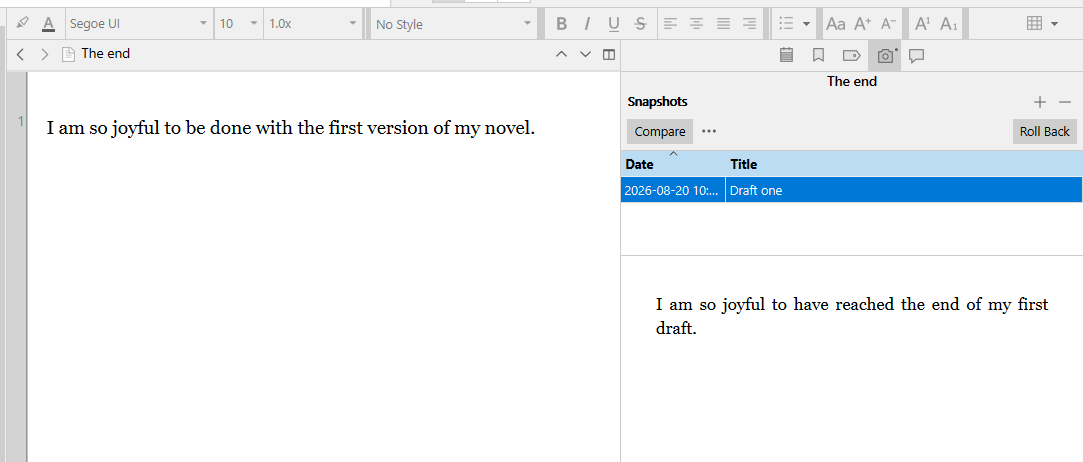
Snapshots are locked in their state and can’t be mistakenly edited. As long as you don’t delete a snapshot, it’ll follow the document it belongs to.
. . . . . . . .
Alternatively you could duplicate the project. But it is prone to errors. You might at some point lose track and work on the wrong one.
It is not something I would myself do. Though doable.
(I advise against.)
. . . . . .
As an extra to this post, here is a link to my label system that perhaps could be useful to you.
Draft labels.
3 Likes
There are a lot of ways to approach this.
Vincent’s use of snapshots is one good option. For more on using Snapshots, you may want to review §15.8 of Chapter 15 in the manual. You can access a PDF of the manual from the Help menu or download it here.
Other users may use the File > Back Up > Back Up To… command to create a full backup of the project. On the panel that opens, you can tick the “Back up as ZIP file” option to compress this backup. Then, you can rename the backup to indicate it’s a full first draft.
You can then make edits in the existing project, knowing you still have that first draft backup stored in another location on the computer. For this approach, you may find using the Format > Revision Mode colors helpful. The Revision Mode tools are covered in §18.6 of Chapter 18 in the manual. You’ll repeat as needed with each draft.
Other users might actually create a full duplicate of every file in the project’s binder and then revise in the copies while leaving the first draft intact for reference. This is another situation where the Format > Revision Mode options could be helpful. Or using items like the Status & Labels markers, which is in §10.4.3 in Chapter 10. Or a combination of tools.
Which approach you choose will depend on your preferences and how often you think you’ll want to review the first draft during revisions. I’m sure a search of the forum will turn up other approaches that I’m not thinking of at present.
7 Likes
Why not? When the manuscript is mainly text, duplicating it won’t increase the size of the entire project that much. It’s research files that would make the project grow significantly, particularly large video or audio files or lots of PDFs, but you wouldn’t have to duplicate them.
Try out the different options mentioned above to find the method that suits you best. If you duplicate the draft, give it a distinct name and maybe add a descriptive document or comment to make it clear what sets this draft apart from the subsequent ones.
4 Likes
This is the key question, IMO. Personally, I try to read each draft with fresh eyes, avoiding attachment to “how it was before.” So I make a backup of the project and go from there. At the other extreme, say something like a collaborative project where every edit is subject to review, you might want to make frequent snapshots.
4 Likes
Here’s another consideration.
I used to use the “named snapshot” method. But snapshots are not independent; they are tied to the documents that they’re made from.
I like to break my manuscripts into scenes or even smaller documents. During revision, I’ll start new ones, split some, combine old ones, move them around, or even delete some completely. Snapshots of merged or deleted documents are lost. Each half of a split document gets the entire original snapshot. New documents obviously have no equivalents in the old draft, so no snapshot. Keeping track of what the original draft actually said, for me, becomes impossible.
So now I use either the “complete zipped named backup method” or the “save a copy of the entire draft in a folder outside the draft folder” method.
My current preference is a zipped named backup because I can keep the old draft completely intact and look at it whenever I want with no danger of modifying the zipped backup or of confusing it with the current WIP. YMMV.
4 Likes
I’ve been using Scrivener since 2013 and that’s actually how I use it.
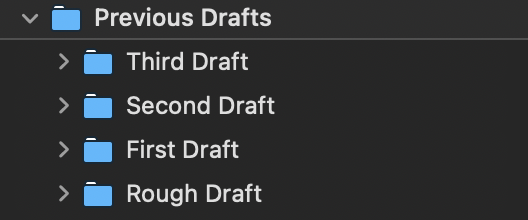
I just have a folder that houses them all. This is from my current work in progress and it’s about 80k words currently. The previous draft was about 30k more than that. Some older ones are less. It doesn’t really have an effect on storage space.
4 Likes
Just noticed that when you select all documents and use the Take Snapshots menu, it seems to skip folders that have text.
My current WiP has 2 parts, for which I use folders in the Binder. Selecting everything in the manuscript, including the 2 folders, and using the Take Snapshots menu, it did not create snapshots for those folders, even though they have text in them (which Scrivener lets you do).
Not sure if this is a bug or intended behaviour, but surely something to look out for.
If the text is in a child document, the folder needs to be expanded and the sub-documents be selected along the rest of the binder.
If the folder itself didn’t take a snapshot with text of its own, then yes, something is off.
1 Like
I ended up duplicating the entire manuscript folder (Draft 1), and have been editing in the duplicate (Draft 2). Now, I am realizing maybe I should have been editing in the original? I go to compile to save a copy and it wont let me compile draft 2. How do I adjust this?
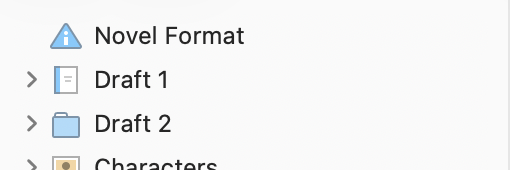
The Compile command can only see the (original) Draft folder, which you can identify by its icon.
So the solution is to drag Draft 1 out of the (original) Draft folder, and drag Draft 2 in.
2 Likes
If you set the compiler to compile current selection, and have the master folder of your second draft selected in the binder, that’ll work too.
2 Likes
Snapshots seem like the cleanest way to handle this. You keep the original draft intact while still being able to revise the same documents. I like the idea of naming each snapshot too, since it makes it easier to compare changes later.
With Snapshots please remember which one is current and which is the next version.
Remember snapshots have date and time included and appear in chronological order.
1 Like
 the important ones (in their name, using shapes emojis).