MacBook Air M2, Scrivener 3.5.2, macOS Tahoe 26.5.1
Since I updated to macOS Tahoe 26.5.1, the custom metadata date control (for entering dates and times) has become unresponsive. I have closed and reopened the app and rebooted my computer. It was working fine prior to the Tahoe 26.5.1 update.
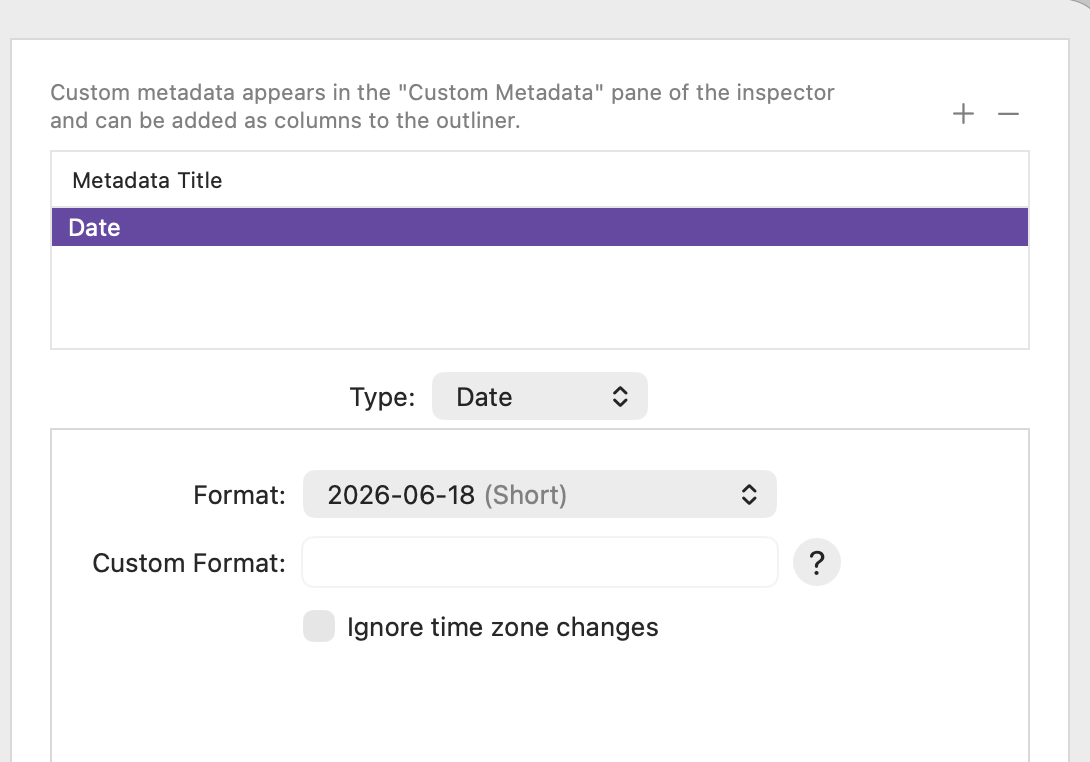
Being curious about my macOS 26.5.1, I setup a test date metadata as in the screen shot, and I’m not seeing the non-responsiveness that you report. Do you have a different definition for your dates?
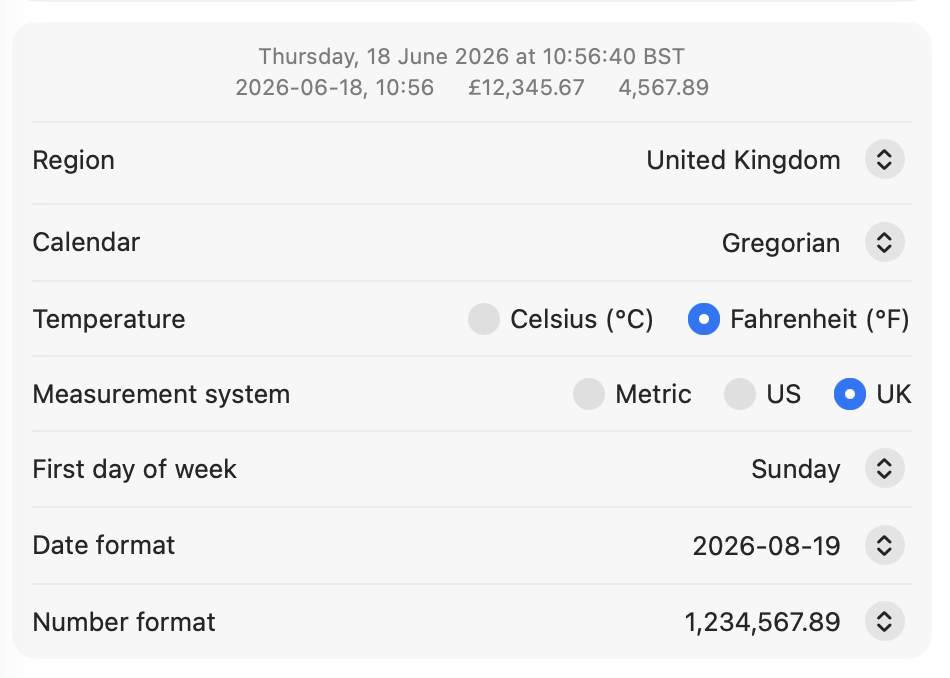
Edit: may or may not be relevant, but my System settings for date in the second screenshot below.
OK. That is very weird. Yes, I had a custom date format set. Your question prompted me to change it to the default short date format. Bingo. Clicking the button opened the calendar control. Then I set it back to my custom format. It still works. I didn’t expect that, but I’m glad it fixed itself. Thanks for the hint that got things working again.
That said, there are two other potential causes that I might have cured while testing the date format. I noticed the app window had moved so that it was just barely off the screen. Also, my Grammarly floating control was just below the calendar control button and might have overlapped with it. I recentered the app window and moved Grammarly without thinking, before changing the formats. I am usually better at troubleshooting, but I was frustrated last night when I couldn’t get the calendar button to work.
I was having the same problem on Mac and found that Grammarly’s icon, embedded at the centre-right of the screen, was the culprit, falling directly over my date and time set up. The good news is you can grab the Grammarly icon with the mouse pointer and drag it higher or lower to a position that doesn’t interfere.