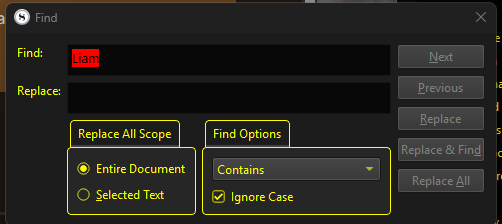
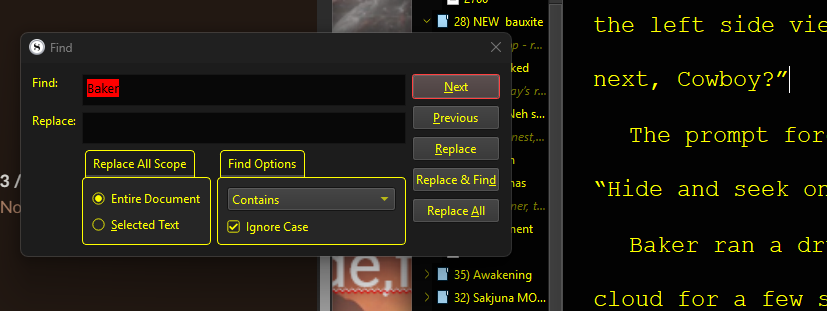
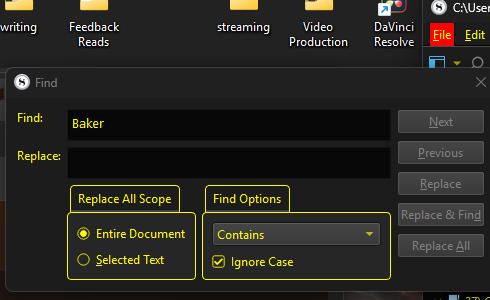
Sometimes I can type in the box but then the next/previous boxes are grayed out. Sometimes I cannot type in the box but if I type F, the file tab opens, E and the edit tab opens… etc.
I uninstalled/reinstalled with no change. I opened a new blank project, still happens. Don’t know what else to try. On windows 11.
We would need much more precise descriptions of what “sometimes” refers to, in your query here. I do not know how to invoke the sequence of steps you took, to arrive at the scenario you describe of being unable to type in the window.
I can say that if you type letters and activate menus, then you hit Alt at some point, which you can’t do from the Find window, meaning you’re clicking around a bunch in the background while this window is open. It’s fine to do that, but underscores the extreme amount of variability that can go into the word “sometimes”.
Sometimes means that it’s not consistent. The pic is what always hapens when hitting contro-f. Most of the time, as soon as I click in the box is when it allows typing letters to access to menu. Then all of a sudden it works. Then a bit later, it locks up again. Just now for the FIRST time all day, it worked after being red. One minute later, it’s not working again.
All right, so in this hypothetical scenario, you do this:
Click into the main text editor; cursor is blinking there.
Press CtrlF
You mention clicking into the box. I’ve never had to do that, when I press the shortcut it automatically moves the cursor into the Find field, with whatever I had typed in previously already selected for convenience (the red you see). If I do click in there, then the selection will be dismissed, which is expected. I can then edit the text that was there.
I don’t really follow this part of the instruction though. You mention clicking into the box, and that is when focus switches to the main menu in the inactive window behind the Find window?
For me, I can’t do that. If I accidentally press Alt in the Find window, nothing happens exception briefly activating the hotkeys in this window (e.g. holding down AltS together would switch over to Selected Text mode, for the Replace All button.
For completion:
The buttons will be inactive if the request is invalid. For example if you clear the Find field, they will deactivate, because they would find nothing.
They will be inactive if you switch to an area of the project window that cannot use it, such as the Binder (or the main menus for that matter).
There are probably others, but it still would be easier to know what you’re trying and figure out the logic from that.
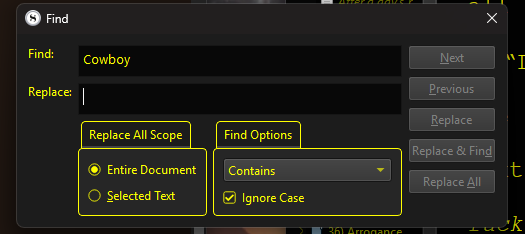
You can see the cursor next to the word cowboy. That’s why I have to click in the box. And when I do, you can see here that FILE is now highlighted as if it’s in use.
Hmm, I don’t think the theme should fundamentally change behaviour like this, but could you run a quick check with the Window ▸ Themes ▸ Default setup, after a restart?
I’ve never had to manually click into the Find window after using the shortcut—even if it is already open, the shortcut is designed to move the focus back into the Find window. But even so, it almost seems like clicking is doing more than it should, otherwise how would the main menu light up?
Does that happen elsewhere, say if you click into the Project ▸ Project Keywords panel?
I guess it is also worth asking whether you use any Win11 accessibility settings. For example the one to switch window focus on mouse hover could radically change how stuff works.
I’d like to support this and say that I’m also experiencing the same issue. I’m unable to embed images at the moment.
I am unable to type in the search window until I manually click and drag the window’s position, after which I’m able to type in the Find: and Replace: boxes. The buttons to the right of the window (Next, Previous etc). are greyed out when the window is selected, become selectable when the window is moved, and then become greyed out/unselectable once more when the window is selected again. If something is typed in the Find: or Replace: boxes, interacting with the buttons to the right when they are selectable does not actually do anything.
I also have some problems with the find feature. The culprit is Discord. My situation is a bit different from yours though. When I press Control + H, the find feature tab opens as intended, but when I try typing on it, my words appear in my manuscript instead. After I try clicking the tab then start typing, it instead opened the bar on top (the one with Files, Edit, Insert, View, etc) and I couldn’t search anything.
I quit Discord using the upward arrow in the windows bar, then this problem was solved. I don’t know if this helps you, but at least give it a try.
P.S. Sorry for bad grammar. I’m tired lol.
Wow. Happens with project keywords, too, I have never even looked at windows accessibility settings. I feel almost like I hit an accidental shortcut and have no clue what I did and there might be a simple fix, but I sure am at a loss.
Turns out the windows bar is called the taskbar. Idk what’s the arrow is called though, sorry xD. It should be somewhere in the bottom right corner of your screen. After clicking on the upward arrow, it should turn downwards, and then a tab shows up full of different applications’ icons. You need to find Discord’s icon, right click it, then click ‘Quit Discord’.
I wish I can show you with an image, but I can’t do that with a new account lol
Son of a gun, that was it. I suspected it might be related to the overlay, but didn’t end up finding anything.
You don’t actually need to quit Discord for this though. It’s because of the chat overlay that’s automatically enabled. In Discord, go to Settings (the gear symbol towards the bottom left of Discord), scroll down to the Activity Settings section, and then click Game Overlay. Scrivener should be shown in “Currently Playing”. Click the toggle button that is next to it to disable the overlay for Scrivener, or click the toggle next to Enable Overlay to disable it for any application you open.