I have imported a number of shortcuts to images on my desktop. Each image is a scanned, handwritten note of an idea that should eventually make it into my manuscript. To track what’s accounted for in the manuscript vs. to-do, I’d like to use links from the manuscript to the idea cards.
What I’m envisioning is a way to see, at a glance, when looking at a folder full of card images in the editor, which ones have been linked to and which haven’t.
I have successfully created a couple of those links. I can see the automatically created “linkback” from each of those image shortcut files in its Document Bookmarks list.
So far, so good! But how do I get the birdseye view I’m looking for?
I’m not certain I fully understand what you are trying to do so I may be getting offtrack. It sounds like you want to create a very visual workflow from your card images. Status can track and be visualized as mentioned by @kewms. Or you could have a folder of “to-import” and as you pull those in you remove the aliased files from that folder perhaps.
I’m still new to Scrivener but play around with it to learn more. I don’t know if this would help do what you want, but another way could be instead of linking in each card alias in a note as a bookmark might be:
select all the alias files at once.
drag them all into the Binder (This puts a snapshot of each into the binder. You can do right-click reveal in finder from the binder snapshot icon if you want to see the actual image file at anytime).
if you look in corkboard view mode you can see them all there graphically (and do any organization of them if you want)
now as you want to work on one of the notes, create a new text document and write what you want to say about it.
Then drag the snapshot of that card under the new text document to create a sub-document.
Then in corkboard view you should be able to see the text for that note only and not the sub-document image. At the same time you will see the pictures of all the ones you haven’t processed yet.
You also can look back at any notecard within scrivener simply by looking at the subdocument.
Now I’ve not done much writing yet in Scrivener so others more experienced will have better suggestions. I just thought what you were trying to do sounded interesting.
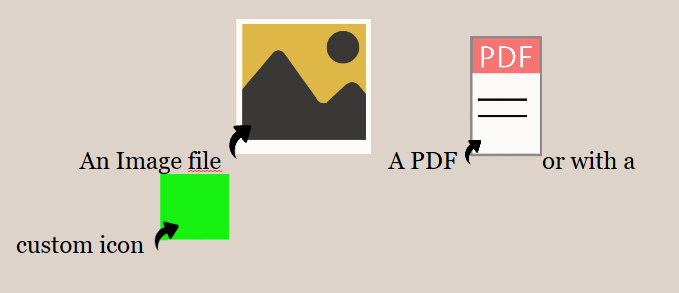
You could also use labels with a special color for linked images and another for non linked images. or use icons. One for linked ex a blue flag and a white flag if not. I personally use a bunch of custom png files imported as icons. Also if use the menu command File > Import > Research files as shortcuts, this will link the image to scrivener without impacting the project size and it has a special icon to show this type of link. (below is a blowup of icons to show this)
Thank you for the helpful suggestions. I had already discovered the Research files as shortcut feature, but appreciate having it pointed out.
I was hoping not to have to take any extra step to confirm “a document has linked to this image” beyond having made the link. That is to say, I’m making the link to the image anyway. Having done so, and seeing that from the targeted image view, the source of a link to it is listed in its Document Bookmarks, I hoped to elevate that information so that it is visible when viewed with sibling images on the corkboard. Outliner view would be handy, too.