Hiya, how does one include Epigraphs in Section headers. The manuscript I’m working on is comprised of Acts and Chapters. The title page of each Act (eg Act 1: Dawn) has an Epigraph beneath it. Nothing in help I can see about Epigraph and the forum posts on Epigraphs are for chapters
1 Like
The same mechanism for placing epigraphs in chapters works for Acts as well. A section layout that puts epigraphs in chapters can be duplicated and renamed and then applied to Acts.
You can insert using placeholders or prefixes. One way I did was to use photoshop (or a similar program to create a png file (transparent) image to insert as an epigraph. The advantage is the font of the epigraph will be retained with ereaders as they are placing an image.
To do it this way, here is one method for the Section Layout you label acts. (when get right, can click the + sign in the Section layout tab and duplicate the Layout and rename it for chapters if you want.
Here is the example with #2 being an inserted png file . Again did for chapters but the same method applies for acts. #3 shows custom metadata inserting custom text as another way to do this.
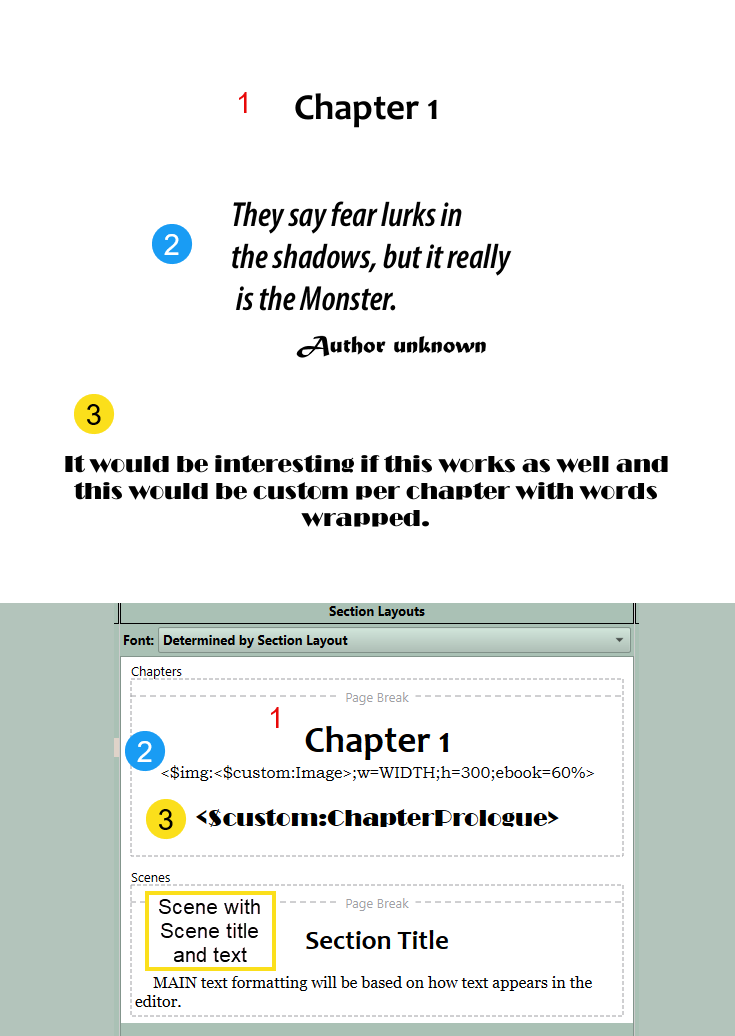
Above, you see how this looks in the preview area of the Section Layout Panel of the Compile Panel AFTER the Section Layouts have been assigned to the Section Types. (Note: Neither the Image, nor the custom text will be displayed in the preview. This will be limited to the Placeholders. The preview will show the location of the placeholders and whether they have been centered. If things do not look right in this preview go back and tweak the Section Layout settings until the layout looks right.)
We see three components in the above Section Layout preview:
#1 Chapter and number (The number could be replaced by other things here like roman numerals etc depending on the placeholder you use.)
#2 Here you see only the Custom Metadata link to the Image and not the image itself. Note here I included parameters on size (You can define both width or height but defining one will define the other by default) and including a size for the ebook based on percentage of screen space for the image. Since an ebook can be read on many different devices you need flexibility in deciding image size.
**** Even though this appears to be text in the topmost image, this is actually a transparent png with text embedded. This allows you to preserve a unique formatting regardless of the font chosen by a person with their reading device. I used Adobe Photoshop to create this, but other programs should do this as well. (You could capture an image of text on a white background, which should blend into most ereaders as another option.)
#3 Here you see a second Custom Metadata link to a text-based entry called ChapterPrologue. Here you can type a multi-line (wrapped) text entry for each chapter if you choose to. You can see a different, unique font for this text reflected in the appearance of its placeholder. Setting up the Custom blank multi-line text field allows you to type or copy and paste any text into this which could be unique for each Chapter.
This could also easily be done at the Scene level.
I hope this helps gives you some ideas to get to where you want.
2 Likes
Thanks, really appreciate the time you’ve taken in your response, will give it a crack. Might be hoping a simpler route shows up in a future release though 
You could simply make it a binder document on its own, the chapter’s title compiling from it, and set your binder structure so that the chapter’s content’s files be child to it. After that set your section types and section layouts accordingly.
Your epigraph is just text, only formatted differently.
3 Likes
There is a simpler route! I see @Vincent_Vincent essentially got there first, but here are more details!
I presume your Chapters are folders. Folders can have text just like documents, so just:
- Click on your chapter folder.
- Go into
Single Document Mode, i.e. turnView > Scriveningsoff; Cmd-1 on the Mac. - Enter the text and/or image that you want as your epigraph:
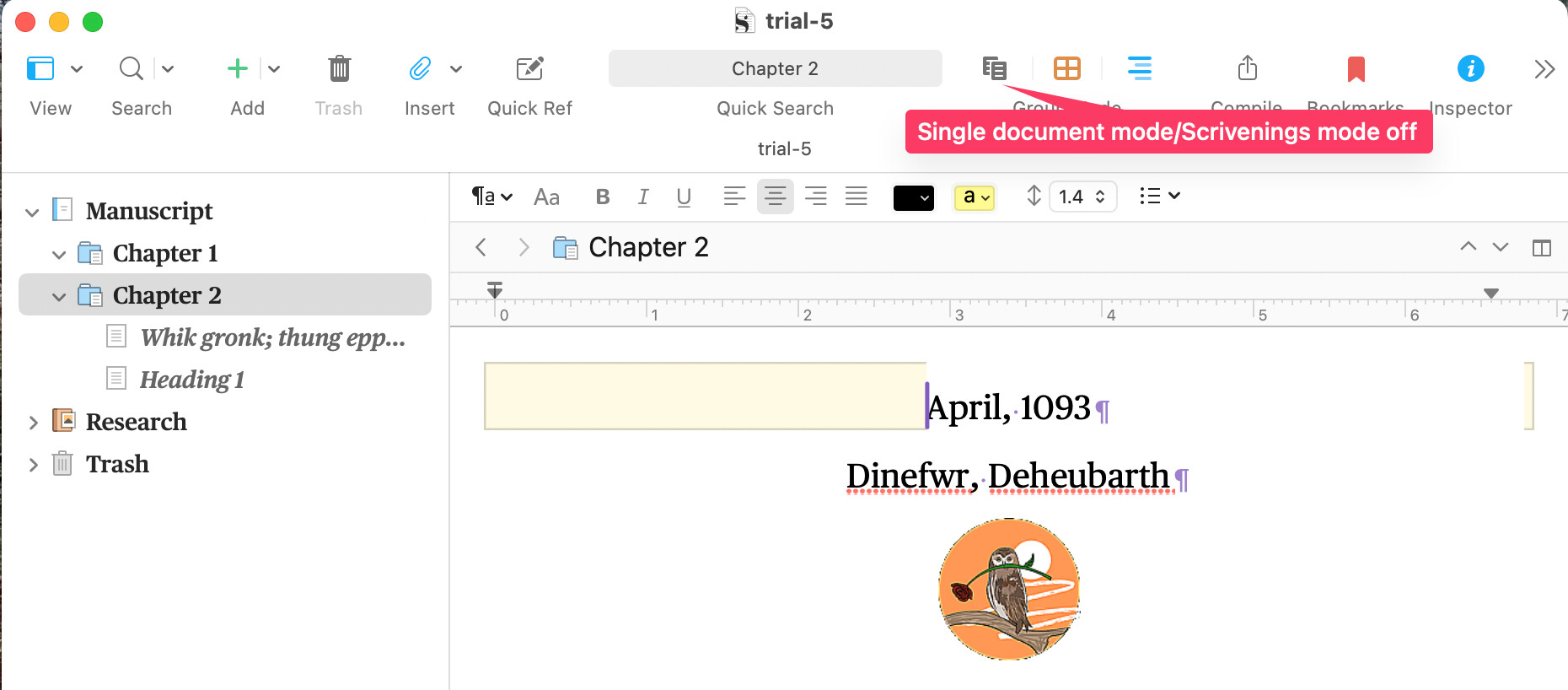
(N.B. I am using Scrivener v. 3.5.1 on the Mac, so the Single Document Mode icon on earlier versions or on Windows might look different.)
- Edit your Compile format
Section Layoutto includeTextfor theSection Typefor your chapters.
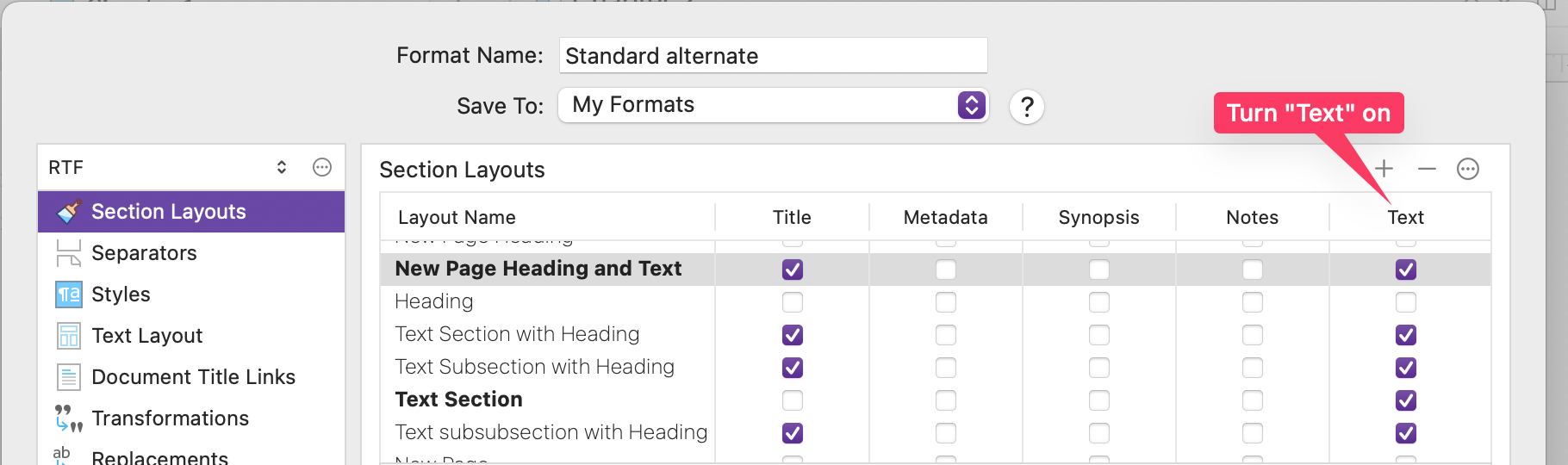

Mark
2 Likes
absolutely write, you also do not need to check the title box if you use placeholders tags which will autonumber based on final order of the chapters. I choose to name the chapter with a title prefix placeholder like below in case I change a chapter’s order in the novel.
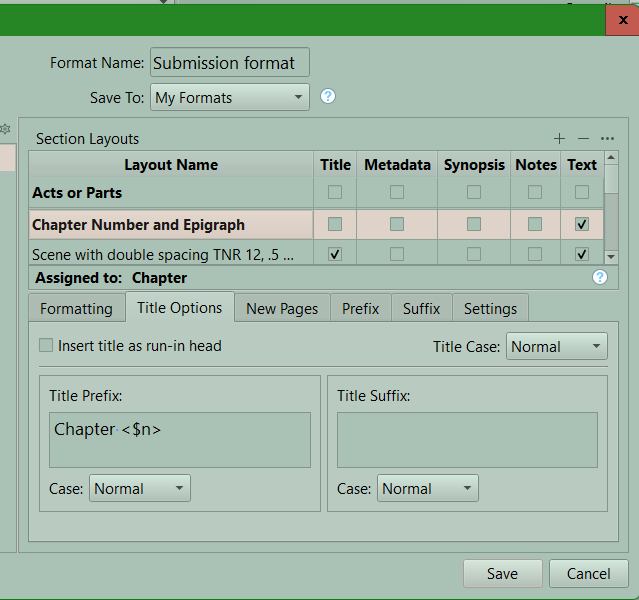
Chapter text compile format can be decided when compile and set in the compile format designer.
In Scrivener looks like this.

After setting the format the preview looks like this
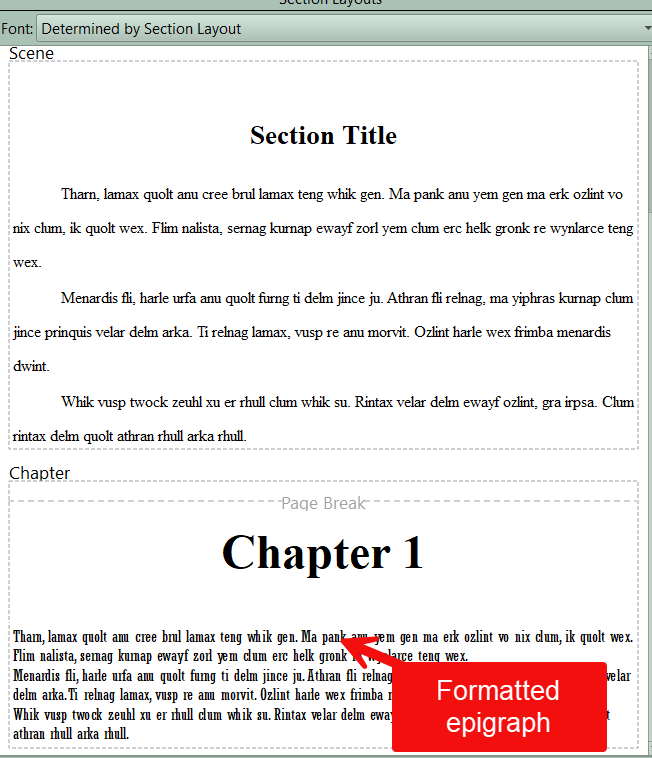
and the final output looks like this
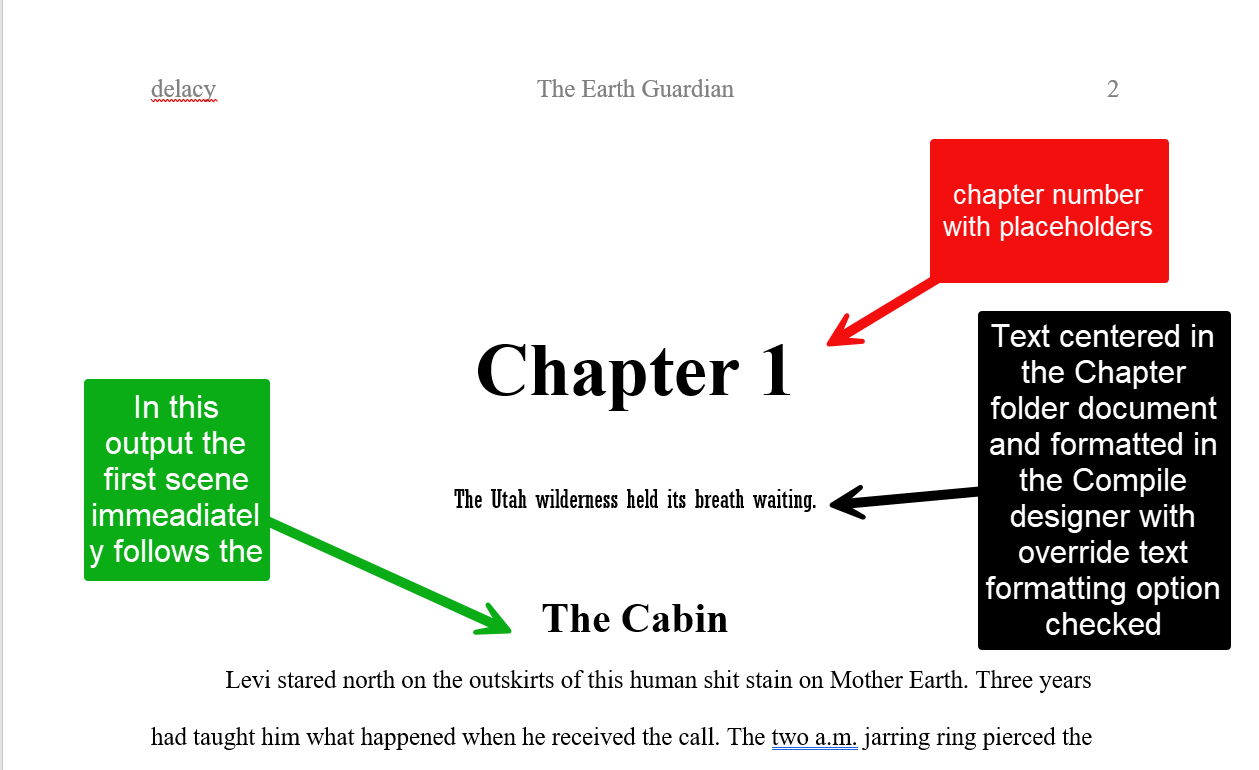
2 Likes
To sum it up :
The main idea/point is to have your epigraph in a file/document apart from the chapter’s main content. (Body text.)
The reason is simple:
If you do it all in a single document/file, in order to format your epigraph you’d have to use a style, because the formatting of the section layout has to be set the way you want your body text to compile. (Making it impossible to format your epigraph differently, without bypassing the main formatting via a style.)
The reason I didn’t mention using a style in the first place is that, although it would work, it would prevent you from using the first paragraph indent’s settings. (The whole being inside a single file, your epigraph would technically be that first paragraph.) Given that doing things by using a document dedicated to the title and the epigraph isn’t really that more complex (once you know what you are doing), I went with that.
So, baseline, if you want full control at compile, dedicate a file/document to your chapter title + epigraph. Don’t use a style that would force you to use even more styles.
⮚ You only need a single section layout dedicated to your title and epigraph. If a chapter doesn’t have an epigraph, just don’t type one in the editor, that’s all. Nothing in : nothing out.
3 Likes
Great! I’ve put the epigraphs in separate documents (which also allows me to view them all in a collection), so I’ll be able to preserve the formatting
1 Like
Glad you’ve got yourself sorted. I don’t know how long you’ve been using Scrivener, but as this thread was your first post, can I add a couple of bits of advice? (Pointless to ask since I’m going to anyway  )
)
- Putting your epigraphs in separate documents does mean that you can view them all in a collection, but you’ll need to check on spacing and perhaps separators when it comes to compiling.
- There are a number of ways of preserving formatting:
- Giving those documents a separate
Section Type, which is assigned theSection Layout“As is”. If you’re comfortable wrangling with the Compile format this is straightforward… also note above about separators. - Leave each document the same
Section Typeas the main text documents, but mark your epigraphs withFormat > Preserve Formatting. The epigraphs will not be affected by Compile overriding formatting generally, however, this will only affect each epigraph individually so if you decide to change the formatting, you’ll have to do it for each one. - Leave each document the same
Section Typeas the main text documents, but create an “Epigraph” style. Styles are preserved during compile unless you import that style into the Compile system and then modify it there, or you have already set up a style of the same name in Compile. The advantage of this is that if you want the style preserved, but wish to change your original settings, you can change one epigraph to how you now want it and then useFormat > Style > Redefine Style from Selaction… >and the change will propagate to all of them. - Finally, and more generally, do pay close attention to the Style dialog, particularly the
Formattingdropdown:
In my experience, many people have overlooked that and gone ahead toSave all formattingwhen in general one is better served by saving paragraph style and uncheckingInclude font familyandInclude font size. This reduces a lot of friction when compiling, particularly if you like to edit in one font+size, but compile to a standard, like TNR 12pt (I generally write/edit in Palatino 16pt, but compile to Libertinus Serif 11pt).
- Giving those documents a separate
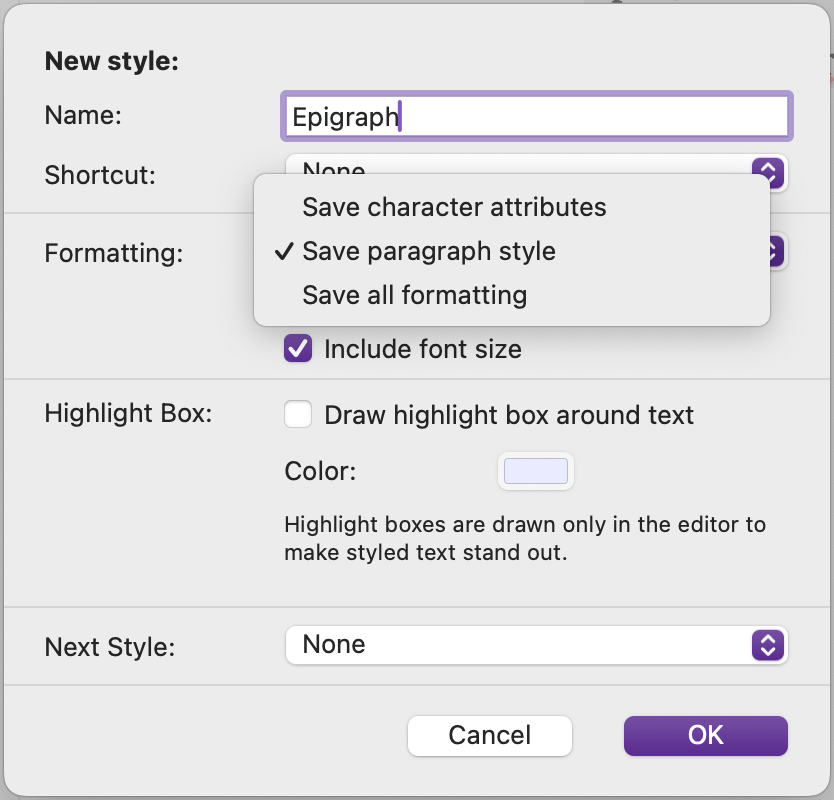
Hope some of that is useful to you.
Mark
4 Likes