I love Scrivener and will die some day with my fingers tapping away in front of an app with a “S” logo.
The implementation of hyperlinking in Obsidian is first-rate. I’ve moved my research notes and backstory from Scrivener to the world of freeform hyperlinking of O and have experienced a significant productivity boost. Yes, O has lots of other features, but the hyperlinking is core and could easily be jammed in the S app. Please. Stop the defectors!
4 Likes
The hyperlinking in Scrivener is pretty good though - back-links and all - and works well for my sometimes fairly dense non-fiction linking.
Also: Go to Obsidian and select a note in the side-bar/binder. Now try moving to the next note up or down in the list using cursor (arrow) keys. Obsidian doesn’t let you, never has. When they fix that I’ll think about going back to visit the purple logo. The new Obsidian - Octarine - is the same.
2 Likes
Yes, the S Binder is awesome (author driven ordering) vs the weakness of O (file system driven)… Which is completely unrelated to how full hyperlinking works O. The interactive experience is night and day different 
1 Like
I would have a read through this post on the pros and cons of different systems. To my mind, it is not nearly as clear-cut as you are describing, but this could be explained as a matter of preferences. For example, while I use Obsidian, I do not use it for its linking system one bit—to the point of actively avoiding it. I do not find it to be particularly useful for how I link to things. So we obviously have a difference of opinion there!
Also note that at the bottom of that post there is a series of cross-references to other topics that are closely related, but if you want a much more thorough round-up of topics on using Scrivener more like how one might use a program like Zettlr, Logseq, Obsidian, The Archive, and so on—then this is the mega-post for that. As above, there is not to my mind one obviously best way of doing any of this. Scrivener does some things nothing else comes close to (what else can take a list of backlinks and edit them as a single text file in the order they were given—or hey, even let you rearrange back-links into a more logical and human-friendly order to begin with), but on other things it is lacking in areas on that other tools do far better.
A lot of any of this is going to come down to precisely what works best for you, what feels the most comfortable.
4 Likes
Well, horses for courses: for the management of my research material I use DTPro and Tinderbox - the interlinking offered is elegant and (if this is the right word) profound. I use Scrivener for writing.
Agreed - Scrivener for writing big blocks. The best.
The rapid type [[ link ]] auto note creation is ideal for many live note taking activities, and very good for ideating. You barely have to touch a track pad or mouse. It’s nice for annotating and rapidly connecting atomic ideas.
It’s the antithesis of writing several thousand words in a block over several hours.
They are separate and both valuable activities.
Pitting one versus the other when they aren’t incompatible is mystifying.
3 Likes
To clarify on that point: this method in particular is discussed in one of the posts I linked to. There is an option for that kind of type-based linking in Scrivener, including title auto-complete. I use it extensively.
I don’t know if I would necessarily agree that Scrivener is for big blocks only, though. Many of my outline sections are no longer than a paragraph or two, and if anything I feel Scrivener works better that way, than with long chunks of text. I tend to have hundreds if not thousands of outline entries in the Draft (never mind the rest).
But if you mean, in the whole, as in which is better for architecting a hundred thousand words together (however they are split apart), then yes, I would very much agree there. Tools like Obsidian can be used for that (and Zettlr is even meant to be used for that), I’ve seen articles on how people do it (typically with piles of mods), but I would never want to write text at that scale without an indented outline tree to manage it.
1 Like
Yeah, I am aware of the “Automatically detect [[document links]]” in the
Data-Detection section and have read the provided links. The S feature is a different behaviour, less streamlined while you are typing. Not the same. It adds friction, and the ux popup is heavy and not keyboard friendly, with the three columns. You can’t even read the names of the doc you are linking to because so much ux is lost to the adornments of the listboxes. S, which I love, can do better.
1 Like
Oh, I never use that! That tool is mainly for accessibility—systems that might need extended automated access using VoiceOver or other tactile inputs.
What I use is the shortcut for Edit ▸ Completions ▸ Complete Document Title, after typing in a bit, which works more like what you’re used to. The only thing we could really do better there is trigger that to automatically start filtering completions as you type, once [[ has been typed in, which is something I do in fact have on our list of things to consider for refinement.
3 Likes
Yes, [[ to start and a clean autocomplete popup could do it! I apologize for not forming the feature request as cleanly as I should have.
(I admit I’m sticking with this more than most might. Sorry. 20+ years ago I locked my teeth on to wanting to type in a file path in the Windows (file) explorer - it used to only support mouse interactions via listboxes. I managed to get to the dev in question (chrisg) and they finally agreed to change the behavior to what it is today - ie. if you want to type a path, you can. You can do it via listbox dropdowns too - either way. So if you hate that, it’s my fault.)
2 Likes
Ha, no! As someone that routinely has at least fifteen shell windows open rather than using GUI file managers for 99.99% of things related to file management, I entirely get the desire to have a place to type and Tab and type and Tab until you have what you want.
So, even though I don’t use Windows much, or File Explorer, whenever I do use it, thanks for sticking to your guns on that. Ctrl+L is the only way I use it.
2 Likes
A kindred soul is a rare thing 
(I mostly am on a Mac these days)
It’s all about finding the path of least cognitive friction while tapping out a thought.
1 Like
I appreciate your post because the idea of using Obsidian for writing hadn’t occurred to me. I’ll have to consider that. I have used Scrivener for years for only my writing. I had used Evernote (and Trello- I absolutely love Trello!) to for most everything else in my life besides writing. In recent years, however Evernote has become annoying and overpriced. So just a few months ago I transitioned everything from Evernote to Obsidian. I’m still getting the hang of Obsidian but so far I am impressed and I like your idea of making some of the features that make Obsidian kick butt something in Scrivener too.
Well in that case, if you haven’t already discovered it, you will probably like ⇧⌘G in Finder, as that’s about the equivalent of Ctrl+L in Explorer. Note that it does take the UNIX shorthand for one’s user folder, as “~/” at the start of the path. So for example, ~/doc<TAB> will get you to /Users/myname/Documents/ swiftly.
3 Likes
I’ve had the same thoughts, @tipsypanda. I, too, think Obsidian’s linking is magical.
I had an interesting dialogue with @AmberV, starting with this posting:
I admit I’ve been so ensconced in writing that I haven’t made time to understand Scrivener’s capabilities for links and backlinks fully. I will, though, when I need a break.
I’ve never tried to navigate that way before in Obsidian. So of course I had to test it. As you mention, using the up/down arrow keys doesn’t work. However, making sure the sidebar is selected, using command-up and command-down worked just fine to navigate to the notes up or down with the note window updating automatically to the appropriate note in the list.
I find keyboard navigation in Obsidian its biggest stumbling block. But that’s probably only because I’m familiar with Scrivener, which does it so well – and demonstrates what’s possible. Once you’ve learned Scrivener’s keyboard commands – for both search and navigation – you can move around enormous sets of documents, using multiple panes, very quickly. Better still if you are conversant with regex. Obsidian just has nowhere near this level of sophistication.
My complaint about Obsidian isn’t limited to the main page, though. but even more so to project search results. Scrivener absolutely shines in this department – and I pray it hasn’t been compromised in the new app. It’s such a shame that Obsidian’s search feature are so basic, especially given most folk – as far as I can tell – use it as a repository for data. You can’t even set regex as the default – I made that request years ago.
Scrivener isn’t perfect in this area, though. The fact that it shares the search string across multiple open projects annoys me almost every day – I reported this as a bug years ago. So, if you want to search for one thing in one project, and a different thing in another, be prepared for a world of pain as you step through your results.
1 Like
Any thoughts on how each app compares to the other on linking?
I do realise I was OT. But threads stray, and this already had, and I had something to say. Nevertheless, linking is a form of navigation, as is search.
Personally, while I link a bit in Obsidian, I rarely do in Scrivener, because that’s not how I use it. I find tags useful in Obsidian, but find I can create my own in Scrivener, via annotations, primarily. I’d probably do the same in Obsidian if it had more powerful – Scrivener equivalent – search capabilities.
1 Like
You make a good case that search is closely related to linking, particularly if you don’t rely on linking the way I do.
I spent months staging a kind of shootout between using Obsidian as my complete novel-writing environment versus using Scrivener synced to Aeon Timeline.
In Obsidian, I loved that I could wrap a word in double brackets and it would instantly create a new file linked to that word, which enabled me to create new characters, locations, objects, and so on with zero friction. As I mentioned above, though, it could be that Scrivener’s linking capability would meet my needs; I have not had time to dive into it as I’m focused on writing my manuscript, and I continue to use Obsidian for my story bible even if I don’t use it for writing my novels.
I’m oversimplifying the linking capabilities of Obsidian, but I have previously posted this video where I showed how I set things up: https://youtu.be/LolhMjhsFCY?si=IrM8kVG_OSupIvLa.
Scrivener, when used with Aeon Timeline, won out because of Scrivener’s deep writing feature set, and because syncing Scrivener to Aeon Timeline gives me powerful visual views of my fantasy novel series that could not be replicated in Obsidian (believe me, I tried).
I have also posted a video showing my Scrivener/Aeon Timeline setup: https://youtu.be/8FR1325pZxI.
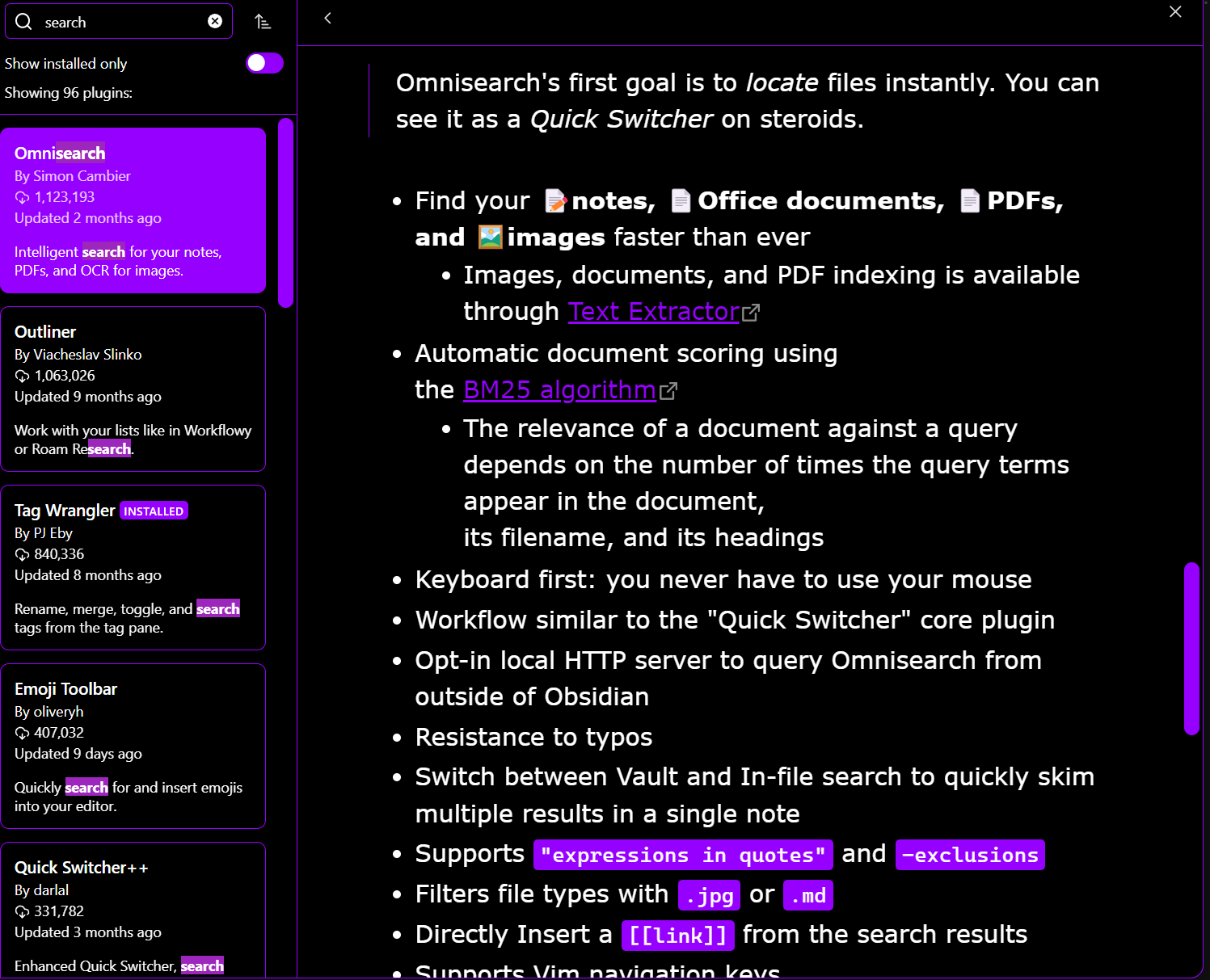
I admit that I never found the built-in search in Obsidian to be lacking, but, again, I do not rely on it the way you seem to. I wonder, though, if you tried the Omnisearch plugin. (I haven’t.)
I’ve been intrigued, too, by the Copilot plugin, which uses AI to look at your vault and call up pretty much anything you can think of. BTW, the word “Copilot” has nothing to do with Microsoft Copilot; rather, the two share a name but are completely separate projects. If you’re using Obsidian’s Copilot plugin, you’re not interacting with Microsoft Copilot, but with whatever model the plugin developer wired up behind the scenes like OpenAI’s GPT or similar.
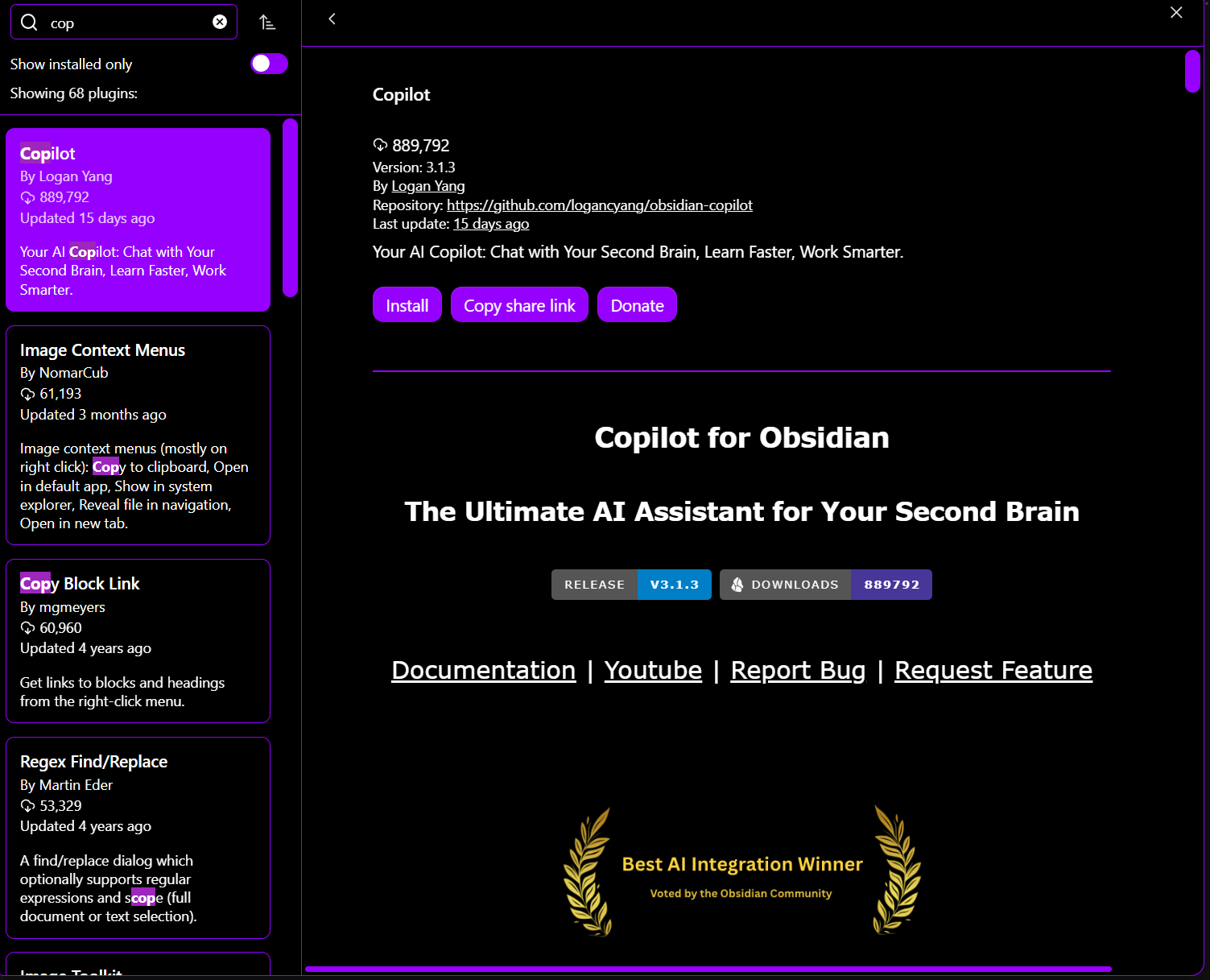
I’m deeply sceptical of AI in general, but it does offer an intriguing way to interact with one’s Obsidian vault. I haven’t yet tried it, but here’s a video showing how it works: 4 Ways to Chat with Your Notes - Obsidian Copilot.
1 Like