I’ve add to text links provided by a 3rd-party app (Logos) in several files.
It turns out, the link provision represented a unannounced changed programming assumption (or a bug … it hasn’t responded yet).
Regardless Logos’ follow-up, I have to-date about 121 documents with the “new” links in them, links that need to be reformatted back to the form they had before the programming was changed.
It seems the links are not in the documents themselves: in metadata somewhere? In each document’s INDEX.XML? (Where a document needs an index.)
Rather than having to fix each link to the proper format manually, is there a way to FIND/REPLACE the necessary bits of the link?
Thank you Vincent;
Each tick/selection is as you indicate it.
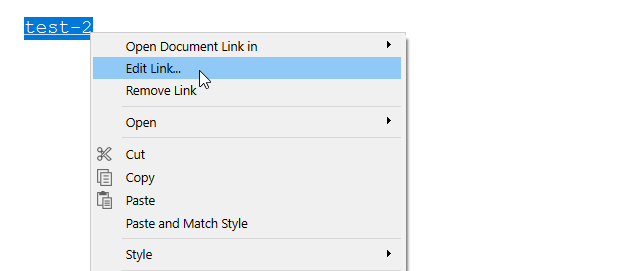
I understand that hovering reveals the link and also how to edit the link. (Thx)
However, since my editing needs involve up to 121 documents changed since 7/28, I prefer an automated/group way
– to identify those with links to be edited (which could be grunt work done by opening each and visually scanning them): for this reason, I was disappointed that the link content was not “find-able”.
– to change the routine portion of the Logos supplied link that needs to be changed.
I am interested in a bulk way to identify and make the change, but I do not expect to be able to change the files’ INDEX.XML file while the Scrivener project is open … the code replacement will have to be done “I don’t know how” …?
At this early point, I need confirmation that in the INDEX is where the actual link is stored. (If it makes any difference, most of the links are “in” footnotes.)
Understood. (My previous post was only in case you meant you couldn’t see the links – the anchors – themselves.)
I think that unless you have only a few unique links (although repeated multiple times), you will have to look toward a script of some sort to edit the source files directly. (After making sure you’ve got a proper backup of the original project. Of course.)
But should your issue involve only a couple of unique links repeated plenty, then perhaps you could simply use Find... with the new version of the link in your clipboard and paste them over. Find Next⮚Paste⮚Find Next⮚Paste⮚Find Next⮚Paste⮚…
A link in the body text of a Scrivener document (including in an inline footnote or annotation) is stored in the content.rtf file associated with that document.
A link in an inspector footnote or comment is stored in the content.comments file associated with the root document.
“index.xml” is not a file that I would expect to see anywhere in a Scrivener project.
You could try the Atom Editor from GitHub: Release 1.60.0 · atom/atom · GitHub
Run a Replace in Buffer on the Project.Scrivx file: It find and replaces commonalities in links.
Okay, if not there, then in Files > Data folder of a project. It’s a long time since I did it, but it does the change to everything (multiple links) in one shot.
– the strings are essentially unique, but each begins with code that needs to be converted … it’s that code that I’m probably going to have to target.
– So, if I convert the Inspector fns to inline, they’ll be visible to FIND and PROJECT FIND ! If that so, that’s the way to go. (Of course you’re right about INDEX, they only showed up in a few snapshots once I went to the file’s folder … no worries … I didn’t intend – yet – to fiddle with the XML.)
– Grr After 35 years with PC/IT, retired, I’d hoped I’d not need that stuff again
Just tried the inline approach …
For instance, this fn is now visible: “NRSVue. Friendship Press, 2021, 2 Co 6:4.”
The link of interest is in the “2 Co 6:4” text: it reads, “NRSVue - Logos Bible Study”.
– It’s the “https://ref.ly/” I need to get at.
However, a FIND “ref.ly” on the document doesn’t see it. (Nor the “https”.)
Looking a file of interest through the Copernic viewer, I do see the formatting, “{\Scrv_fn=[2 Co 6:4\end_Scrv_fn}”, but no visible “https://ref.ly/”.
But, if I copy/paste “{\Scrv_fn=[2 Co 6:4\end_Scrv_fn}” into this post from the relevant content.rtf, I do get,
" {\Scrv_fn=2 Co 6:4\end_Scrv_fn}".
Yes indeed there it is, the “https://ref.ly/” string I want to get at … but whence comes it?
Let me give you succinct reason I used a low-level editor like Atom. All my links have user-friendly names. Underneath the radar is the https://… which Scrivener will not find.
I’d renamed my Windows username, so all my links over 5 projects became instantly redundant and would have taken a month of Sundays to fish out to change individually.
The Atom editor did each project in mere seconds, if that long. Task: Find c:\user\revoti... in all links of a project and replace with c:\user\revo..., wham-bam-watch-out-sam-done.
This time around though, I’ve learned that despite some seeming inconsistency in the overall implementation of Windows’ Apps for Websites in Logos (which prompted my concern), after digging and mulling, there are steps I can take to use the changed link text as it now stands.
I realize this was probably answered, but I wanted to add my input, since I found the thread with essentially the same question. Atom is a good suggestion, and it falls under the category of text editing software that programmers use. Personally I prefer Notepad++ for example (Windows).
So my situation was that I had pasted Google summary results into a document for safekeeping, and discovered too late all the urls were redirected links. Using the “find in files” feature of Notepad++ I searched (for my case) https://www.google.com/goto?url= and it found them all in the Data folder of the particular Scrivener package. For Mac there would be a similar procedure, possibly simply searching within the given Scrivener file.
So to look for any link, use a text editor to search for “http” within the Data folder (or Scrivener file for Mac) of the project you’re working on, and you will find all the urls. Or be more specific with the url, as I was.
Thanks for all the replies on this, it helped me solve my issue.
 Grr After 35 years with PC/IT, retired, I’d hoped I’d not need that stuff again

 (Nor the “https”.)
