Folder got lost for the second time

Hi everybody,

and again: a folder got lost, the same as the last time btw: the one i’m working on.
I could help myself again with the backup-stick but it does not feel sure to go on like this.
I controlled the status of my virus-defender, everything seem to be fine.
So what??

Hi

The whole folder (it, in the binder, with sub-files), or just the editor content?

Please be more specific ; “as the last time” means something only for you. (What was the solution, then. And the issue – the cause – therefor solved?)

Hi Vincent,

i folder - or better - the content of the files of this folder - dissappeard for a second time.
The first time i helped myself with my backup-stick. And this time also.
But in the meantime i made some confusion with the “file” and “settings” folder and the 665 words i wrote in the last hours got also lost, without backup this time. wow.

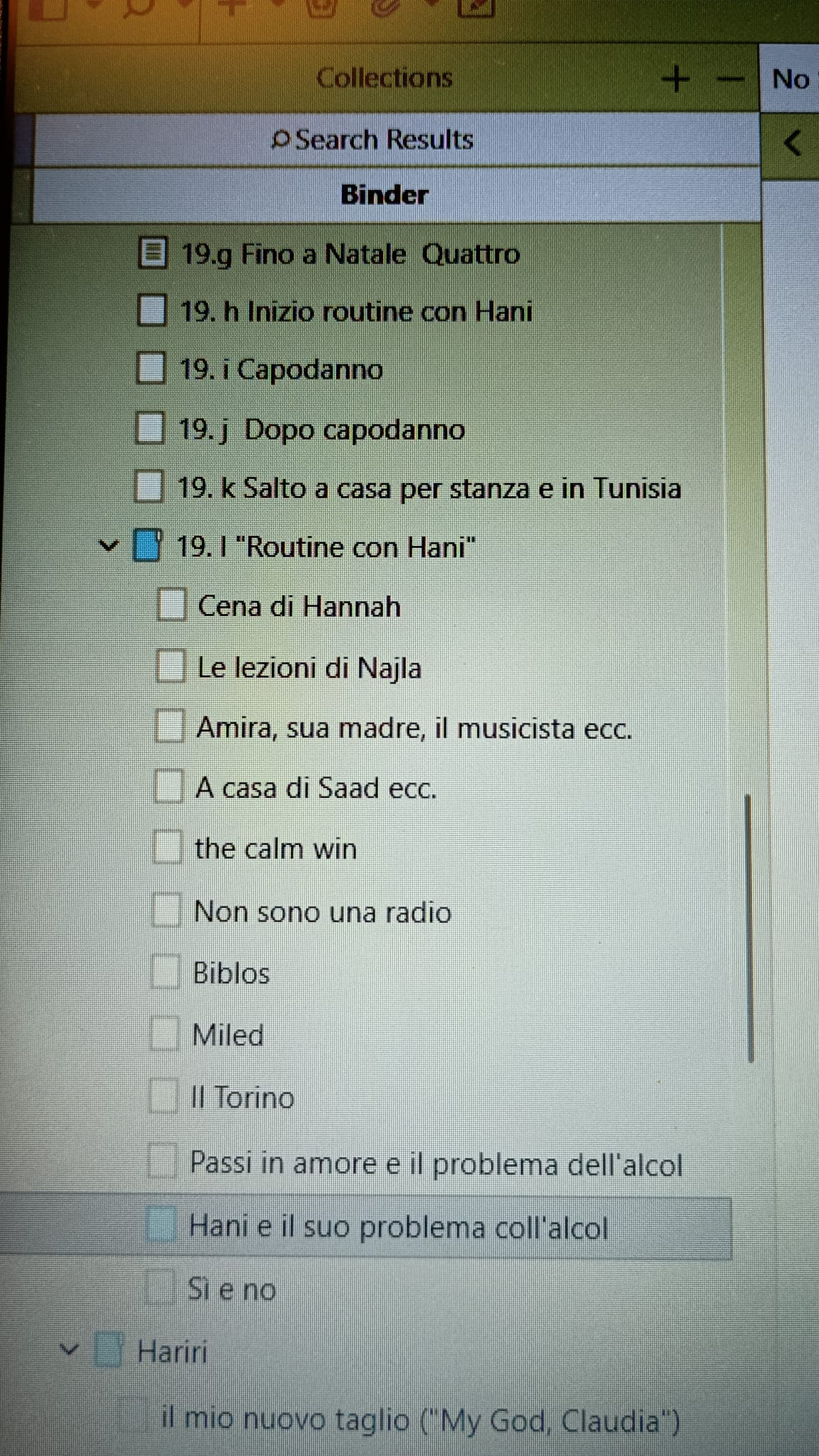
You see the empty files in this image? From 19.h to “Sì e no”? About 20 files = chapters: they where full written before…

Now with my backup from some day ago, i can reconstruct most of it, but not the work of today.

OK. Files still in the binder.

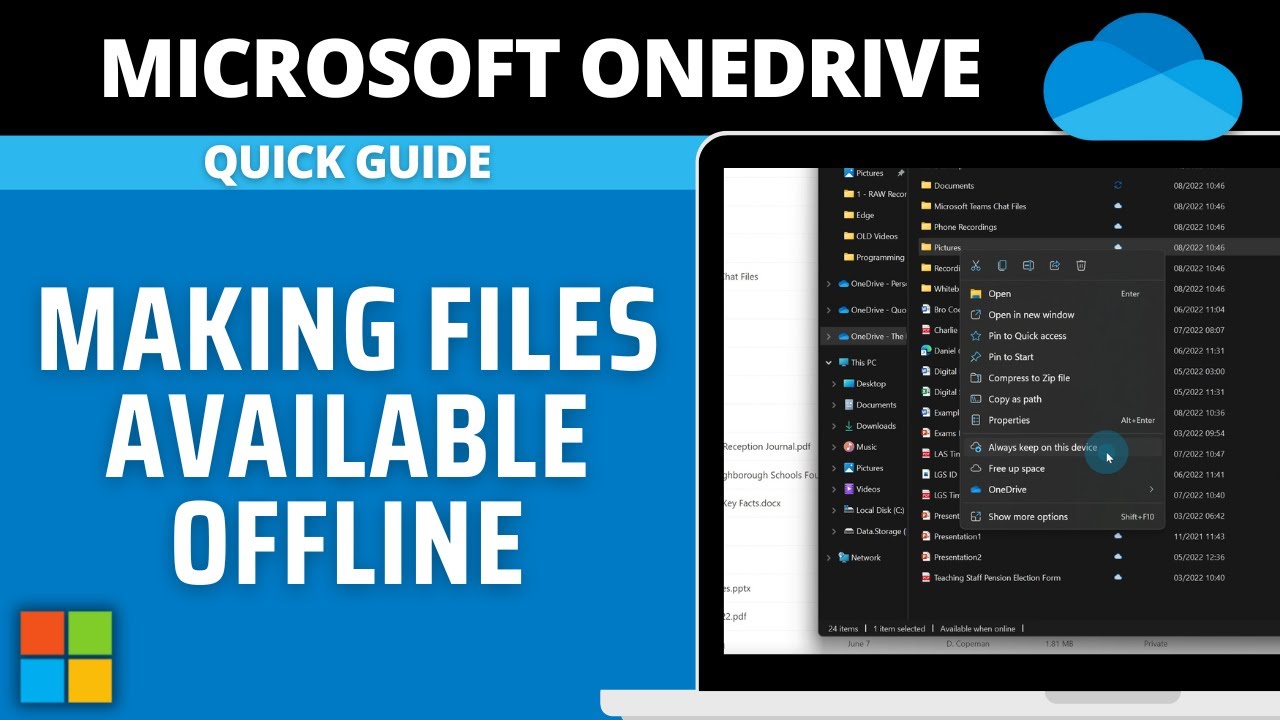
That looks like it does when you have a cloud storage such as OneDrive that makes some of your files available online only. Sometimes, OneDrive (I am pretty sure that this is your problem) moves them silently, behing your back, to free up space on your computer.
You need to fetch the files back from this cloud service, and then tell it to stop.

There will be a OneDrive folder accessible via File Explorer. If I am right, your files will be in there. Find the menu and the option to set it (whatever folder your files are now in) “available offline”.

. . . . . . .

Restart Scrivener and reload your project after that. Or, better, quit Scrivener first.

6 Likes

Hi Vincent,
thank you very much for your effort.
i had to take a break, now i’m back.
i have to say that i’m completely new to cloud using…
Now i took a look and i must say it’s very empty there and i can’t find the documents i’m looking for.

I followed your instructions making “all file” avaiable offline and the result on scrivener is …

… the same as before.
Deep shit.

(Now in Windows’ File Explorer) Right click your project folder.

Find the OneDrive sub-menu.
Make sure your project folder is set for “Always keep on this device”.

Quit Scrivener.
Wait a few minutes.

Relaunch, reopen your project.

If no change still :

Restart Scrivener, reload your project.

. . . . . . . . . . . . . . .

P.S. For fututre convenience, know that you can quickly take screenshots instead of having to take a picture of your screen :
image

3 Likes

Some good info on using your computer to take screenshots of entire screen, or portions of the screen using Windows built-in feature that’s been available for decades, see
thank you very much, but in this moment my problems are not the screenshots…

that is very true. but it seemed to me this was a learning opportunity for you, and others, for a basic Windows feature.

1 Like

i can’t desagree.
but as you surely understand, using a writing programm and fearing to loose weeks of work
is not that nice and makes one nervous.

1 Like

You will not lose your work.
Just don’t do any radical moves.

Report on my previous instructions when ready.

1 Like

Hi
i tried.
no result.

In Scrivener do this:

Then, in File Explorer, right click on the folder and please take a screenshot of the menu, using
image

Ctrl-V will paste that screenshot in your next message.

1 Like

Hi Vincent,

that i have been on a Book Fair may be accepted as excuse for the late replay?

In that case, at the end of the message you see the screenshot you asked me.

But: I allready opened the backup folder and … also there the missing files are missing.

The good part: I have them on my back-up-stick, but: i can’t go on like this.

So i am thinking about quitting Scrivener and i am not glad about that.

Anyway thank you very much.