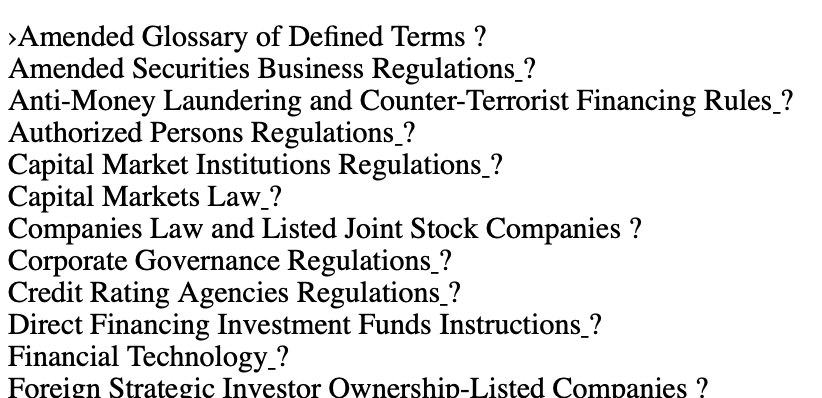
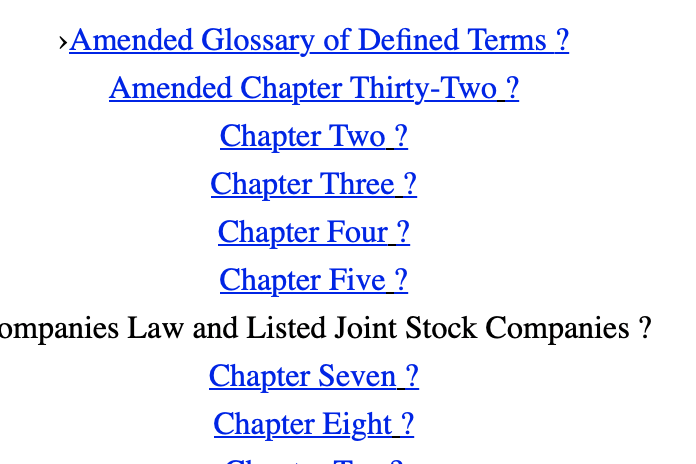
I’m finishing up my mega-project and reached the conclusion that a 70 page table of contents does more harm than good.
So I went back and marked the names of all the volumes as “Header 1” in the editor. The rest of the Scrivener file–except for a few images–is all plain text and no parts, chapters or sub-chapters are marked.
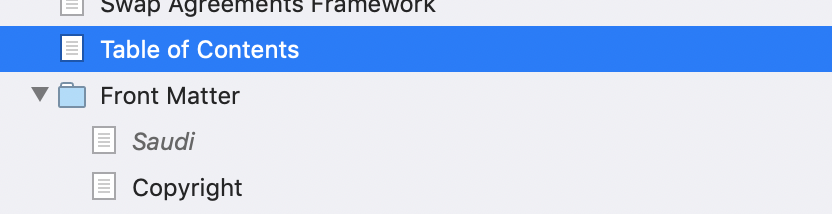
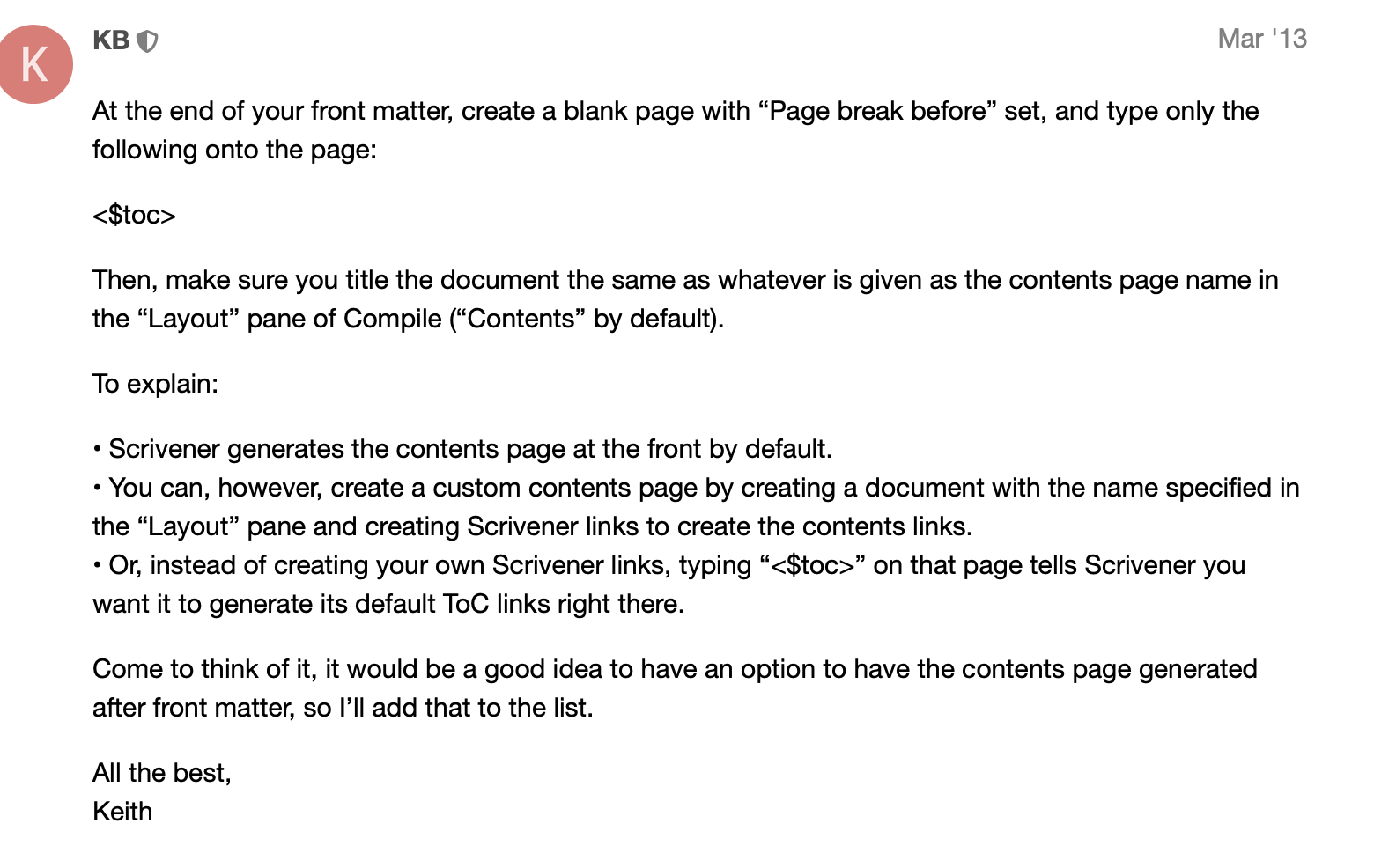
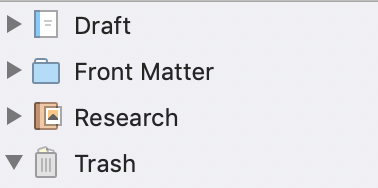
I’m compiling to ePub and using the Scrivener template. There are two issues. There’s a folder in the binder titled “Front Matter” which contains two documents:
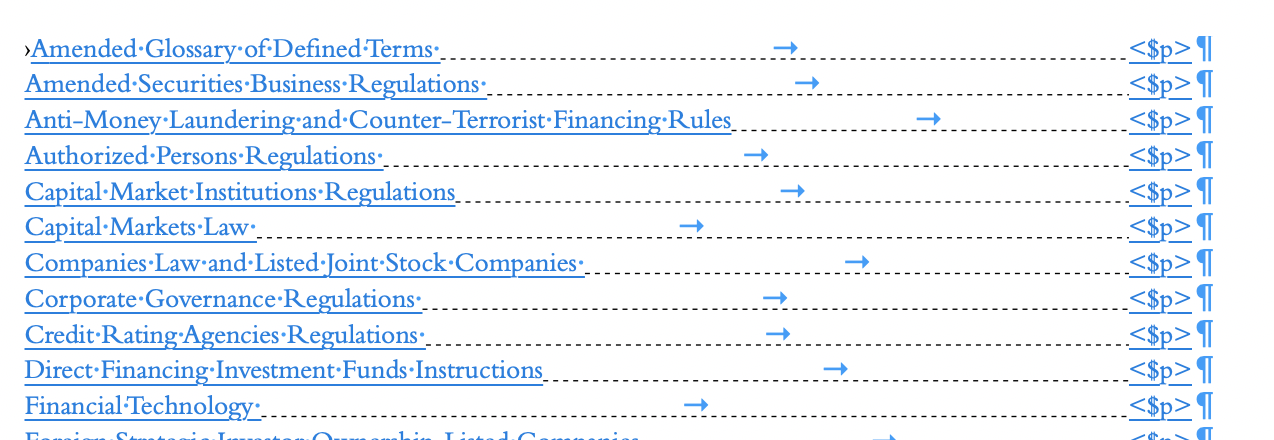
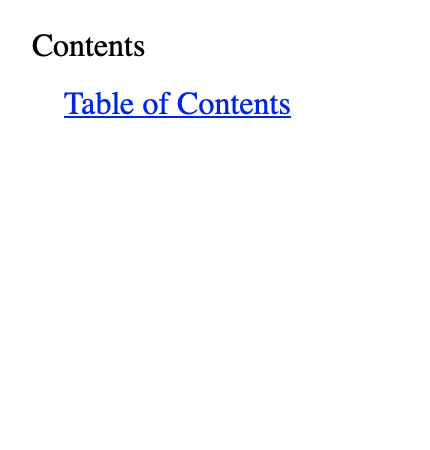
(I’m not even sure how I generated that, btw. “Edit=>Copy Special=>Copy Documents as ToC”? Is that the ToC solution? Create a document with that “Copy Documents as ToC” into a document and put that as the first document after the half-title and copyright notice?)
I thought I knew how to do this; but on the last project I wrote in Markdown and somehow when compiling through Pandoc everything worked out fine. This project is so long (1200 or so print pages) that the Pandoc to ePub compile path is not available. The computer just hangs.
It’s only a partial screenshot, so it’s hard to be sure, but “None” in this image seems to say you haven’t assigned a front matter folder. Naming a folder “Front Matter” doesn’t do anything. It doesn’t matter what you name it; what matters is selecting it in the dropdown box.
I read last night that the Front Matter folder should not be in Drafts. The problem is that this folder is not showing up in the Compile pane, so I can’t select it. I’ll move it and see if it magically reappears.
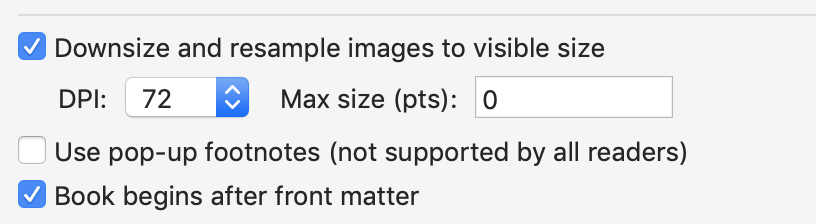
I had to move the Front Matter folder out of “Drafts.” Once that was done, Scrivener Compile could see it. But even with this box checked, Compile did not place Front Matter at the beginning of the book–that box, on a different screen (!) was checked too–or anywhere else.
I keep playing around with the settings.
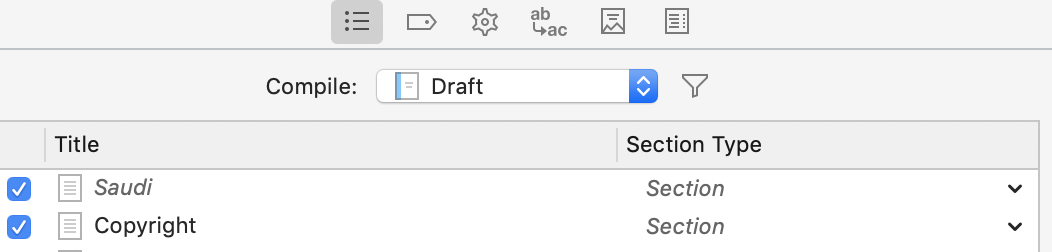
The two documents in Front Matter (half title page and copyright page) now show up at the beginning of the list of documents to be compiled,
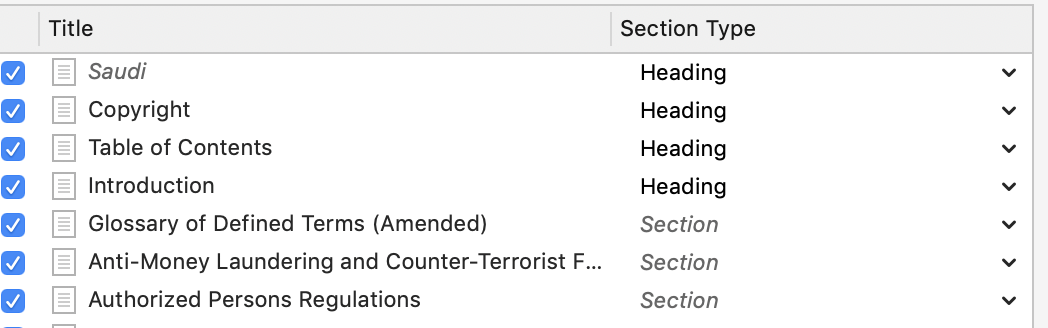
By changing the classification of the front matter documents from “Structure” to “Heading” the two front matter documents are no longer treated as chapters. Major progress!
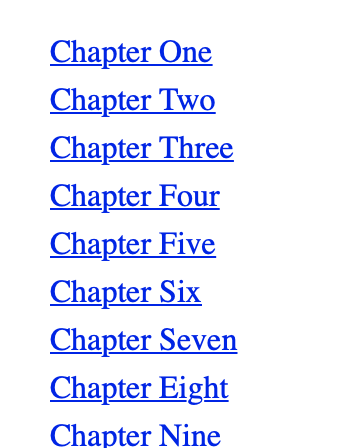
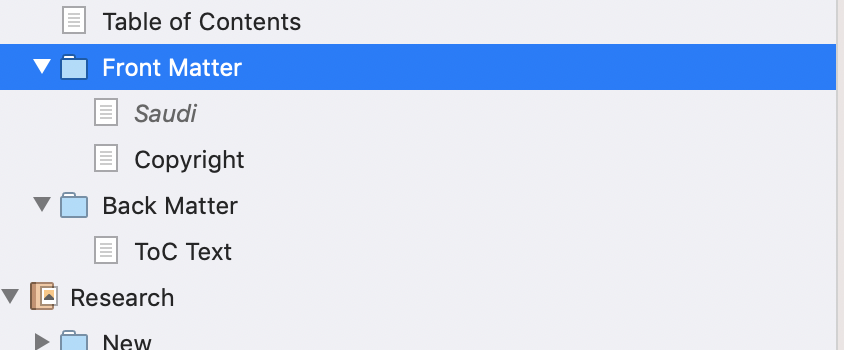
Table of Contents without chapter titles showing up at the beginning of the document. How can I fix the lack of chapter titles? There’s nothing in the manual about this: (23.4.6 begins on p. 598) The “Contents Depth” setting only refers to Pandoc=>ePub, which I can’t use: the computer hangs spinning beach ball, fan initiates, have to force quit. Chapter 22 (p.551 et seq.) is supposed to explain how to customize the ToC, but I don’t see anything about adding chapter titles to the automatically-generated ToC.
The ToC has to go before the front matter? Seems odd to precede the half-title page, but maybe that’s OK.
If you want a table of contents in an eBook that uses the titles in your binder it is better to create it manually. First, create a table of contents file directly below the other documents in your Front Matter folder. Call it Contents. (Add the heading, Contents, at the top of the editor if you want it). Go to Project ▸ Project Settings, make sure Section Types is selected in the left-hand sidebar, and click on the + symbol at the bottom of the window to add a new section type. Call it Contents. Select your “Contents” file in your binder, open the metadata tab in your Inspector and assign the section type, Contents, to it via the dropdown menu.
Collapse your documents in the binder to the level of titles you want to see in your table of contents. In your case, it looks like you need to collapse them down to show just your chapter titles. Select all your documents and go to Edit ▸ Copy Special ▸ Copy Documents as Structured Link List. Paste that into your Contents file. You will not see the <$p> page number placeholders, but you don’t need them because eBooks don’t have pages as such. Center the text if you want.
In the Compile menu, make sure your Front Matter has been included, that you see “Contents” in the document list and that it has the Section Type, Contents, applied to it. Open the “Assign Section Layouts…” menu. Select your Contents section type from the list in the left-hand sidebar and assign a layout to it that has a section break before. (I used “New Section”)
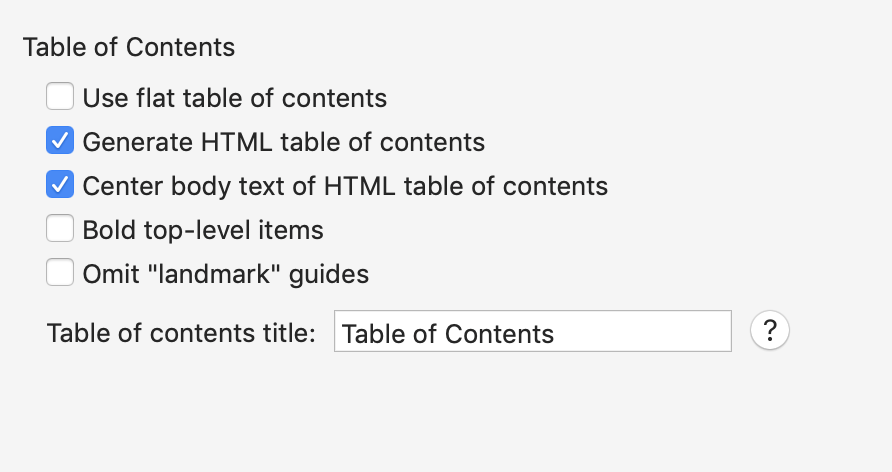
Open the table of contents tab at the top of the window and uncheck “Generate HTML table of Contents”. Open the gear tab and place a check inside “Convert document links to HTML links”. Then go ahead and compile.