Help needed with basic steps to compile through Pandoc into .docx and .odt

I am trying to understand how to make full use of compiling for Pandoc. I must admit that the learning curve is very steep for me. I have tried tools and tutorials that I find challenging to understand. I probably lack acquaintance with the very first steps. Having not seen a forum thread or a step-by-step guide to help me move forward with what I want to do next, I have decided to ask here. Apologies if the response is already available somewhere else.

So far, I have managed to compile into .docx and .odt using my own Pandoc templates, each with its own styling. Additionally, I can also get floating Zotero citations, which I transform into the desired citation style in Word or LibreOffice. Everything works well after this issue was solved.

Now, my reference.docx or reference.odt templates have a list of styles, created directly in Word and LibreOffice. Compiling into MultiMarkdown and post-processing with Pandoc smoothly attributes many of them to the final document: Main title, Author, Header 1, Header 2, Footnotes, etc. No issues here—it works out of the box.

For other styles, such as Abstract, Subtitle, and those created by me (Affiliation, for instance), it seems I need to configure Scrivener to pass the information to Pandoc and have it properly attributed to the respective styles in the final document. I have no clue about how to proceed. I guess it has to do with metadata (the information that appears at the top of the .md file). But how to introduce metadata for, say, the Abstract and the Affiliation fields? Using the metadata options in the Compile Overview? I get a line for Abstract, another for Affiliation, but the content does not appear in the final document. Inserting them in a front-matter section? Using custom categories such as <$author> and then writing the content somewhere? I feel completely lost. I would really appreciate some help. Thanks!
1 Like

Pardon my confusion on the thing you’re trying to do, but you are using the word styles to describe what sounds to me like Pandoc metadata, what would go within the --- markers in the document? You wouldn’t ordinarily use styles for that in Scrivener, that would be how you mark up text in the editor.

Using the metadata options in the Compile Overview?

Precisely so, I don’t know why that isn’t working for you. Perhaps a demonstration will help. There are two different approaches I take, depending upon the project, and this sample demonstrates both.

metadata_test.zip (72.6 KB)

  1. First compile it using the given settings. To be clear, if you visit the Metadata tab in compile overview you will find I have cleared it entirely. Normally you would of course want to put your project-specific metadata, like the Title and Author, in here. Instead I’ve moved everything over to the compile Format’s own Metadata tab, so that you can very easily switch between the two methods without have to delete a bunch of stuff from the compile overview Metadata tab.

    So to see what is going on there, just double-click on the “Compile Settings” Format, and look at the Metadata tab. This is the same tool as over in the main project’s Metadata tab. It is used the same way—the only difference is that “Insert Project Metadata Here” row that you can’t delete. That is where Scrivener would merge project-specific metadata into the YAML block, with what is here.

  2. Next, select the “Binder Metadata” compile Format, and note how this will select the “Full Metadata” document for the Add front matter feature. You don’t have to use that, again this just makes the demonstration simpler, so you can click between the two Formats to get an idea of the different ways to do this.

    You could just put this document at the top of the Draft folder. It’s worth bearing in mind that this will all become a single .md file when you compile, and there really is nothing “special” about this metadata block. It’s just text like everything else. But the Front Matter feature will be nicer if you want different chunks of metadata depending upon the compile Format you are using (which might dictate the type of file you get). And as you can see, each Format stores its own front/back matter settings so it’s a simple matter to flip between things and swap metadata sets.

    Compiling with these settings, you should get an identical document.

Once that is done, check out the “Full Metadata” item in the binder. Of note, I am using a style here, but to be perfectly clear this is cosmetic only. I just use a style like this for metadata blocks so that the values all line up neatly and there is a little space between rows. It performs no function in the compile settings.

Which to use? It’s entirely up to you. I often just use a text section in the binder because that’s easier to me than messing around with the GUI. I can copy and paste it from an existing file, and that sort of stuff.

2 Likes

I start to understand how it works. Using the “Compile Settings” Format works well enough, although I prefer the second option.

It worked, but I had to change the section type of the “Full metadata” document to match the As-If section layout; otherwise, the result would appear without the --- markers:

Full metadata
title:	Metadata
subtitle:	A Pandoc YAML Test
author:	AmberV
date:	30 November, 2025
abstract:	This project demonstrates a few different techniques for applying Pandoc/MultiMarkdown metadata to a document upon compiling.
affiliation:	Literature & Latte
copyright:	Public domain. Please feel free to use these examples in your own work, or share them with others.
Test Section
Main content begins.

However, I’ve noticed a difference between the output when using the Metadata in the compiler settings:

---
title: Metadata
subtitle: A Pandoc YAML Test
author: AmberV
date: 30 November, 2025
abstract: This project demonstrates a few different techniques for applying Pandoc/MultiMarkdown metadata to a document upon compiling.
affiliation: Literature & Latte
copyright: Public domain. Please feel free to use these examples in your own work, or share them with others.
---

# Test Section #
Main content begins.

And when using the second approach:

---
title:	Metadata
subtitle:	A Pandoc YAML Test
author:	AmberV
date:	30 November, 2025
abstract:	This project demonstrates a few different techniques for applying Pandoc/MultiMarkdown metadata to a document upon compiling.
affiliation:	Literature & Latte
copyright:	Public domain. Please feel free to use these examples in your own work, or share them with others.
---

# Test Section #
Main content begins.

In the second case, spacings of different lengths have been added before the metadata content. I am not sure if this is an issue or if I can ignore it.

Now, I want to postprocess it with Pandoc to .odt and .docx. I have ensured that my reference templates include the “Abstract” and “Affiliation” styles (with those exact names). The output .odt document, however, only shows “title”, “subtitle”, “author”, “date”, and the first header, formatted in their respective styles; “abstract” and “affiliation” have not made it into the document. As for .docs, the “abstract” metadata content appears formatted as “Abstract” in the resulting document, but not “affiliation”. How do I move next?

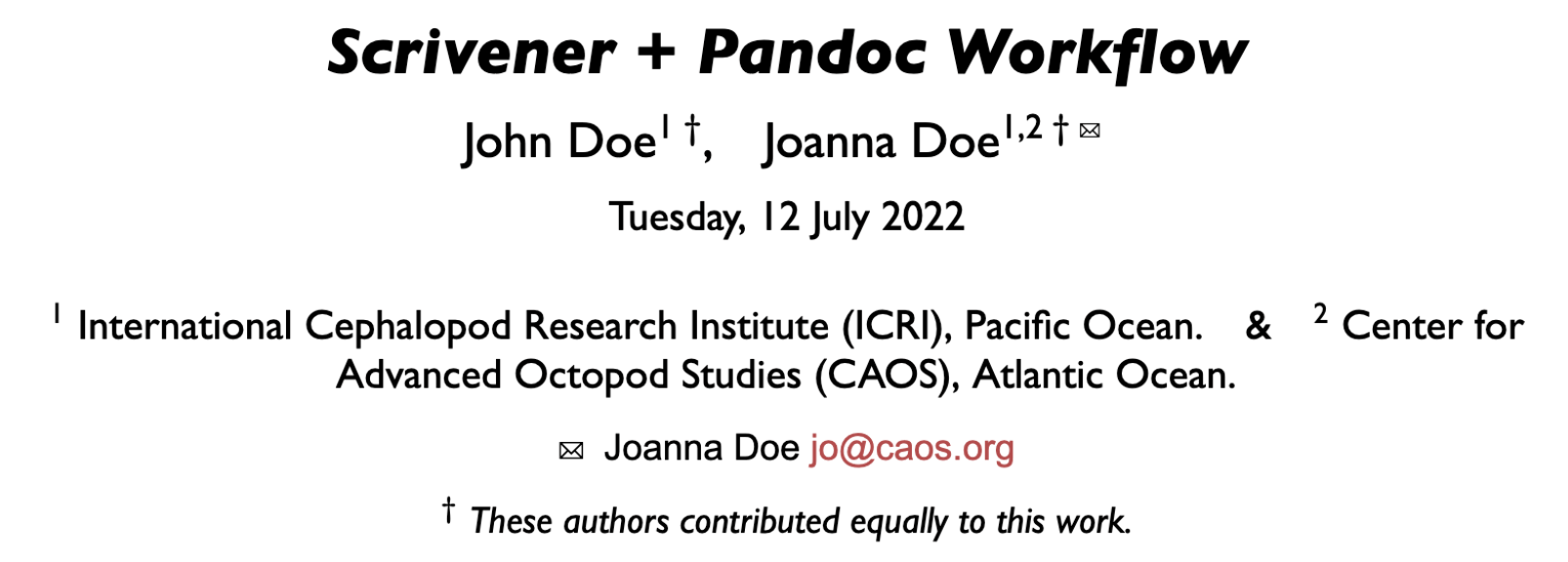
The next step is that you must create a template: https://pandoc.org/MANUAL.html#templates for Pandoc that uses the metadata and produces content from it. For text based outputs like TeX/HTML/Typst this has always been easy as the templates are easy to edit and implement. My scrivomatic workfow demonstrates this, with affiliations, corresponding and equal authors etc. for HTML and PDF directly:

For DOCX this used to be harder it is a zip bundle format and the reference.docx is only for styles, not content. BUT good news as recently Pandoc supports templating for DOCX as it did for other formats. The default template for ODT:

and for DOCX:

You can also copy these from pandoc locally, e.g.

pandoc -D openxml > /Users/<YOU>/.local/share/pandoc/templates/custom.openxml

The $if(variable)$ syntax allows you to inject in content if that metadata field exists. Taking DOCX as an example you create your template (see above), and edit it to add the fields you want, and move the existing fields around. So you could add in affiliation (reusing the author styling) from your metadata like:

$if(affiliation)$
    <w:p>
      <w:pPr>
        <w:pStyle w:val="$author-style-id$" />
      </w:pPr>
      $affiliation$
    </w:p>
$endif$

Then when you run pandoc you use this template so pandoc --output test.docx --template custom.openxml test.md – pandoc looks in ~/.local/share/templates by default or you can store it somewhere else and use an absolute path. This system came after I developed the scrivomatic template so my example workflow doesn’t demonstrate this yet, it is on my long todo list.

$if$ deals with single items, but if you have a list of items (more than one affiliation), then $for$ can loop through each item in the metadata list and generate content for you. As you inject raw openxml / opendoc syntax you can do some low level control of word/libreoffice…

4 Likes

There are a few other tricks involving pandoc filters. For example there is an abstract filter:

This looks for a section in the main text with a heading “Abstract” and move it into the metadata for compile (thus taking advantage of your template and its styles). At least in my field abstracts are critical and it is nicer to edit in as a Scrivener document rather than yaml metadata…

Filters can do a bunch of other cool things, but, well, one step at a time :grin:

3 Likes

Thanks @nontroppo for your detailed explanation! I am going step by step, trying to understand what I am doing each time.

I have several different reference documents for various uses, for instance, reference.doc journal1.docx, journal2.odt, handout.odt, etc., as well as the two defaults reference.docx and reference.odt, all of them located in my Pandoc user data directory.

After unzipping the .odt and .docx reference documents, I can edit the content.xml file (I understand it is content.xml for .odt and document.xml for Word, but correct me if I am wrong). But should I do that for each different template? Or can I edit the default pandoc template so that it automatically recognizes the metadata for every new reference document?

Reference docs and Templates are two different things:

  1. Templates are used to modify document content with metadata. Content!
  2. Reference docs are exclusive to DOCX and ODT and can only be used to modify styles and some other packaging details, they cannot modify the content itself. Aesthetics!

Do not change your reference docs or try to merge these: you add a new template file and you call both the reference-doc and templates when running pandoc like:

pandoc --reference-doc custom.docx --template custom.openxml ...

You create custom templates[1] based on the default one just as you have done for your reference-docs. custom.openxml and custom.opendocument can be stored in your pandoc data directory or elsewhere if you prefer.


  1. you could make new default templates, but if there is a bug it is hard to fix, so I recommend not replacing default templates unless you are a pandoc pro ↩︎

2 Likes