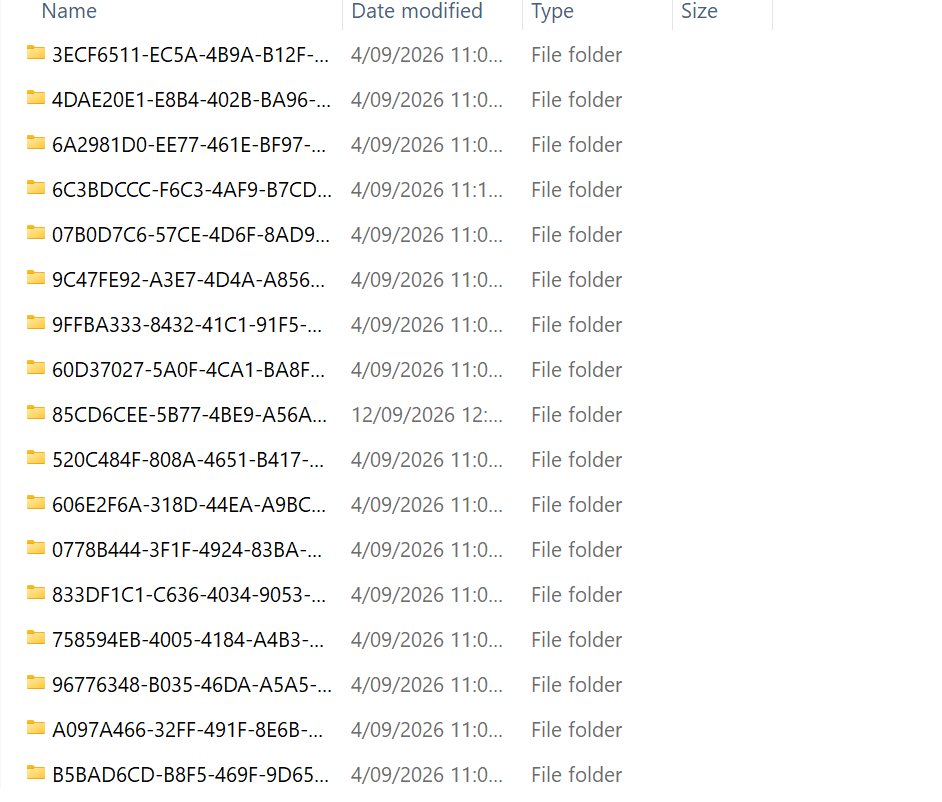
Scrivener has ceased saving my files, the boxes with letters and numbers are there but there are not files in them
1 Like
File writing permissions?
Virusscanner blocking?
Cloud service moving files to the cloud?
Little information to go with …
- what verison of macOS or Windows?
- what version of Scrivener
- exactly what commands are you using to “save” the files
- what do you mean “boxes with letters and numbers”. Screen shot?
- what are you doing to see these boxes/letters/numbers?
- what is your Scrivener “auto-save” setting?
- specifically what is the full path to the folder you are saving?
- does your computer have space to save files?
- using any third party sync service?
- any error messages or symptoms of files not being saved other than you inspecting and seeing boxes/letters/numbers?
No, was saving files, but when I went to check something today, folders are in file explorer but no rtf files in the folders.
Been using Scrivener for many years, but havent check the file folders for a while. I havent changed anything, but all the folders have numbers and letters and all empty. I have saved a previous manuscript without issues. Dont know when it all changed. Folders are being saved in correct places, have checked everything. Masses of spaces plus
A classic windows issue is One Drive not syncing with the scrivener project. If you do not use one drive, consider deleting the program or look at settings to exclude your project folder, Are the backups the same? How often do you backup and do you backup as a zip backup which should not be damaged by One Drive (unless the project backed up is.)
1 Like
No, I do not use onedrive. They back up automatically when they are saved. Every now and then I will manually save the manuscript and they will back up then. It saves and backsup everything in Scriverner program but not the files under Data. those particular backup files, are all empty. So the problem as far as I can determine, is inside of Scrivener as far as I can determine. The only way I can obtain RTF files or Doc, is to manually export each chapter every time I work on it. A !!! nusiance to say the least. If that all makes any sense to you!!
As described does not make sense to me. Never saw this in my experience nor reported here, as far as I know
Not yet said. rather than looking at files in the folder structure what messages if any are presented to you when you attempt to open the project in Scrivener? Do you know the exact file location for the working version and not past saved copies?
While you have said you do not use Microsoft One Drive, any other sync services running?
You say you periodically “save” projects. Specifically which Menu option are you using? What is the “auto save” interval (asked above but not answered)?
1 Like
It doesnt make sense to me either. There are no messages given re this matter. Project opens correctly. Yes, I know where the location of my version is working, I set it up. I don’t syn files, I copy and paste them onto another computer for safe keeping. I use the save in Scrivener to save! How else would I be able to save them!
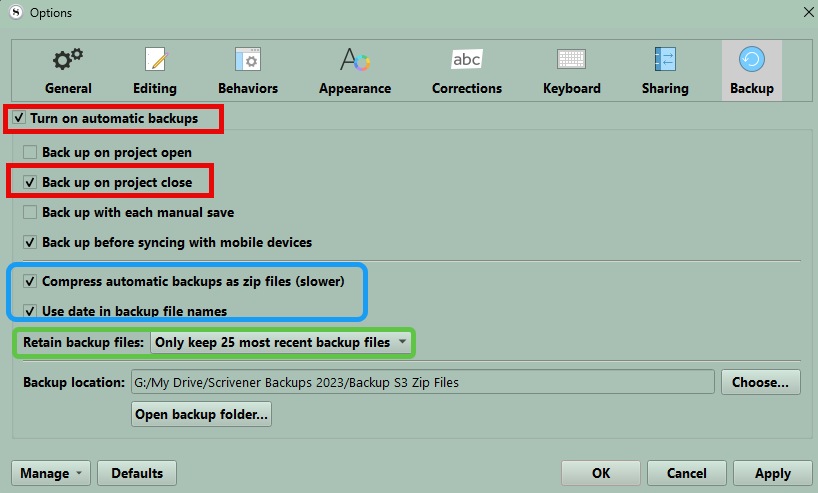
save a zip backup, File > backup to
My backup settings are:
paste the zip backup onto the second computer
remove the current version of the full project on computer 2 from your Scrivener project folder (I put on a desktop folder called update until the process is complete)
now I extract the zip backup and select the Scrivener Project folder to create the extracted Project backup.
Extra steps but never had issues doing it this way.
1 Like
Autosave is set at 2sec. But, I have lost work sometimes so every now and then, I press save before I want to copy and paste the project onto another disk.
There are two save methods: Menu: File → Save and Menu File: Save As …,
They behave differently and do different things. Hence I asked you.
Ok, from that location, exactly what happens when you use Scrivener to open the project? Open in Scrivener, not in Windows Explorer or macOS Finder (which ever you are using).
That is unusual, but I guess it would work but being manual may not be completely reliable. Using Scrivener’s automated back is probably a better approach.
But being as it may, what happens when you copy/paste back from the “safe” location onto your computer into a new and different folder, then open with Scrivener?
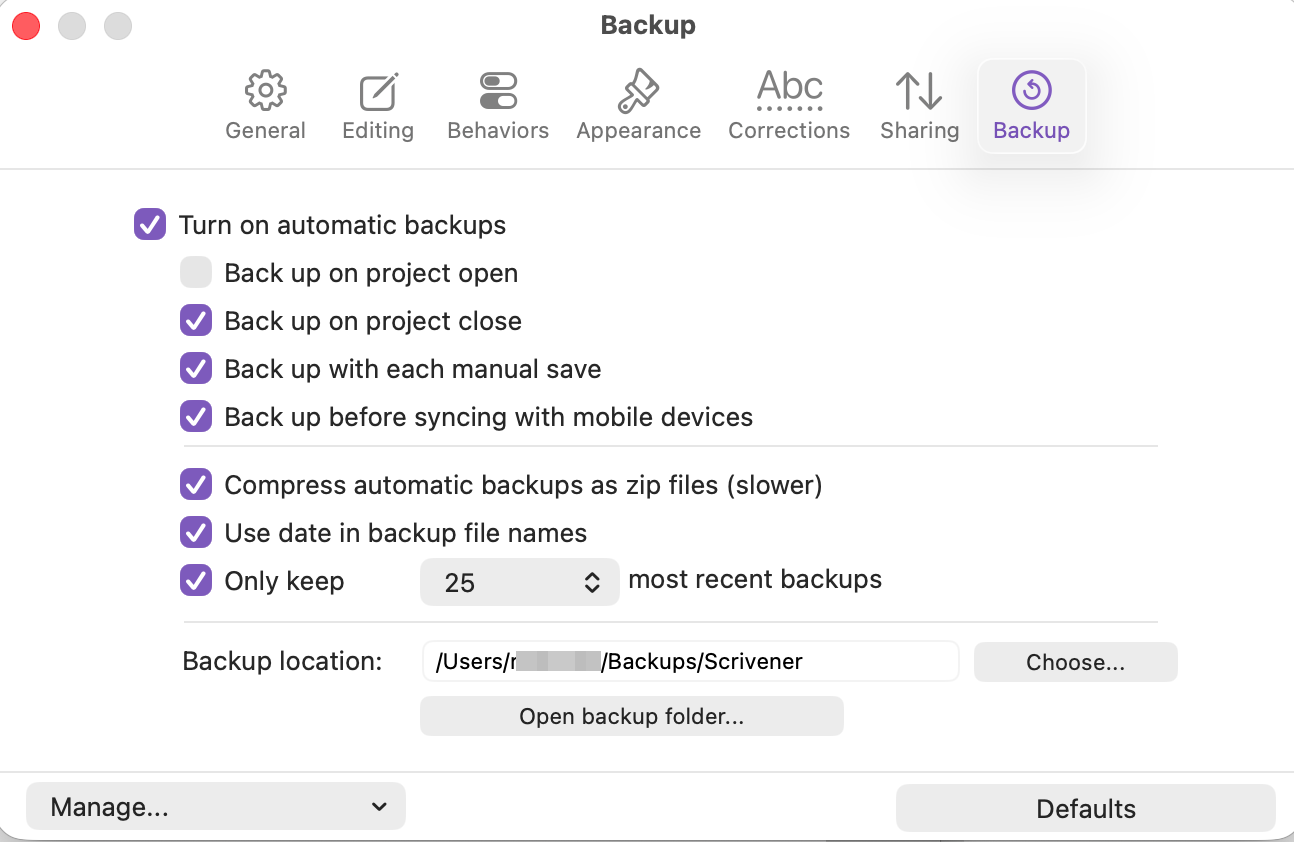
@Goaliedad shows the automated Scrivener backup settings for Windows. I don’t know yet if you use Windows or macOS as you haven’t said. In case macOS, here is the backup settings I use, for your future consideration.
If the project is working correctly in Scrivener, then the files are definitely being saved somewhere.
Options are:
- You’re looking at something other than the current project in Windows Explorer.
- A cloud service has “optimized” the files off to their server, and they are being successfully downloaded on demand. (I think this is unlikely, as usually a zero byte placeholder is left behind in that case.)
- The specific folders you’re looking at happen to correspond to empty documents in the Binder.
3 Likes
Once would assume such, but, I only use the computer to write nothing else. So,they are not hard to try and find.
Correct. As I stated before, Scrivener is saving the file folders but they have no content.
The folders I am looking at are being saved by Scrivener in the Data folder. On the last version of Scrivener, some years ago, they were all being saved as DOC files in the folders and were easily assessable and you could see the names on the folders. The latest version of scrivener is saving Folders with empty files which have letters and numbers for names. Even if as you mentions cloud server etc. The files have to be there to go to the cloud to begin with. I dont do cloud
No empty documents in the binder
Again, if the project is working correctly, your data is being saved somewhere. If it’s not in the files you’re looking at, then you’re looking in the wrong place. One alternative would be to use File Explorer to search for some of the text in your project.
As for the project structure generally, a Scrivener 3 project creates a folder with a UUID – the alphanumeric strings you’re seeing – for each item in the Binder. That folder, in turn, contains an RTF file for the body text (of any), a .txt file for the Synopsis (if any), and additional files for footnotes, comments, and so on. So the folders you’re seeing are completely normal and expected, except for being empty.
2 Likes
Not at the computer, but if right click while holding either the alt, Ctrl, or shift key will see option to reveal a document’s location,
1 Like