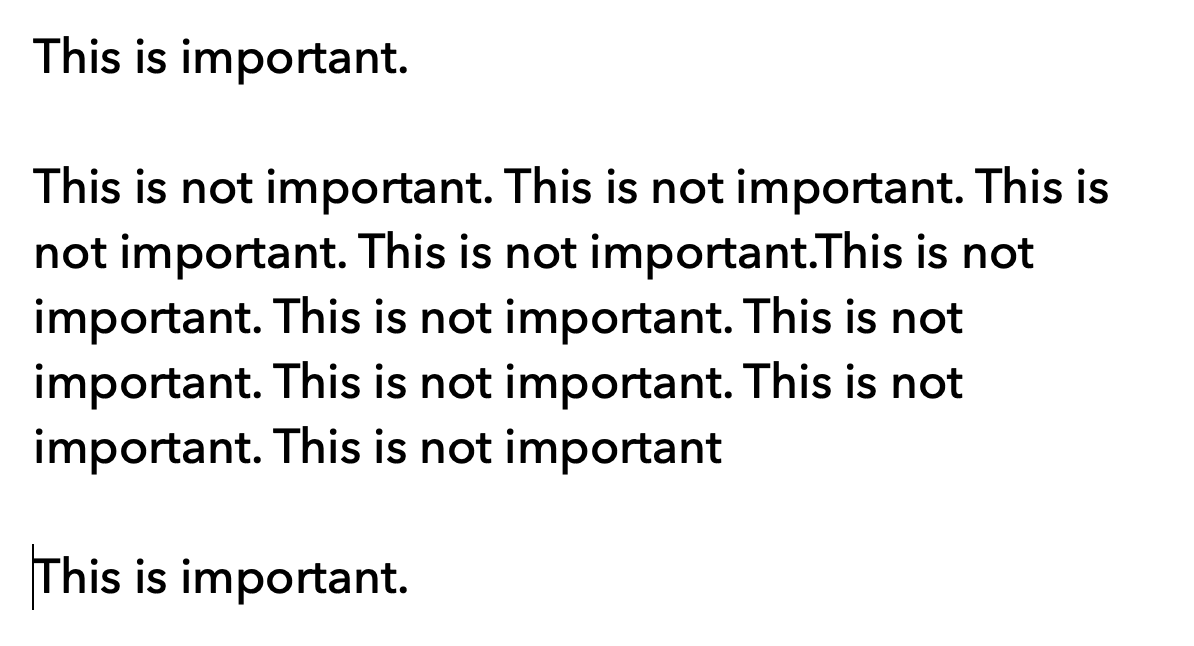
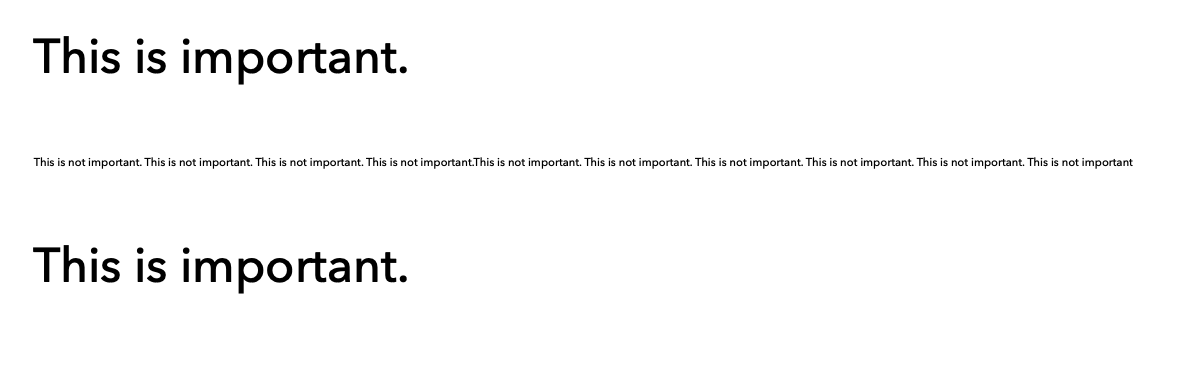
Making a certain part of the text “disappear” can be useful if you want to focus on more important parts of the text without having to scroll a lot.
Then I simply make the “unimportant” text much smaller. This can be automated with software such as Keyboard Maestro or BTT. Then it works with a shortcut.
Oh, sure. So I brain dump into a single document for as long as desired, then organize later. Which, in Scrivener terms, usually involves generous use of the Document → Split command, followed by moving things around in the Outline or Corkboard view.
Sometimes it’s useful to just bash out a load of sections/lists without worrying about other views, splitting into other documents, etc. There’s a reason all the modern editors have this feature (Obsidian, Ulysses, etc.). Telling us to use an outline view when we just want to capture a braindump misses the point - it totally breaks flow.
There is nothing Ulysses does for lists that you can’t do in Scrivener, sometimes more easily, sometimes slightly differently.
Scrivener lists:
create a new dashed list: opt-tab. (This is the standard MacOS shortcut for starting lists, which works in any conforming text editor.)
change bullet/number style for current list level: cmd-opt-left/right (Your choice will continue for that level, even if it’s interrupted by a higher level)
move the current item up/down or promote/demote it: cmd-ctl-up/down/left/right
renumber list: right-click > Re-number list
Ulysses lists:
create a new dashed / numbered list: used ctl-b or ctl-l and accepts - and 1. as shortcut. Ignores standard MacOS opt-tab.
change bullet/number for current list level: type Ctl-b, ctl-l only changes the current item, and it doesn’t do that consistently (try changing a numbered sub-item to a bullet…). In any case, you have to select each line you want to change, and you can only have -, *, 1. as leaders, rather than the many options available in Scrivener
move the current item up/down or promote/demote it: cmd-ctl-up/down, tab or shift-tab
renumber list: I can’t find a way to do this, but Markdown ignores the numbers anyway.
In other words, both Scrivener and Ulysses often handle lists in much the same way if you know the shortcuts. Scrivener’s version is more flexible; Ulysses’s version is on the face of it simpler, but clunkier if you want to change things. Neither is perfect.
Personally, I prefer Scrivener’s list handling to Ulysses, as it’s more flexible and involves less faffing about if you want to change things, though both are equally adept at bashing out quick lists, once you know the shortcuts. I would never use Ulysses for long lists, but Scrivener handles them comfortably.
There are some good ideas in Scrivener but it shows its age. The UX isn’t a patch on the modern tools, with keyboards shortcuts, hashtags, @ references, distraction-free minimalistic modes, etc.
Please do the Interactive Tutorial. Once you’ve done this, you’ll realise that you have been missing a significant part of what Scrivener can do: all of those things are built-in, and some are significantly more powerful than Ulysses’s versions.
Yeah I have no clue what they meant by that, but figured I would go with the spirit of the post rather than the particulars on that one. They also don’t seem to be aware that Ulysses’ current design is a lot older than Scrivener’s, but I am not one to get too hung up on things like that. After all design models from 50 years ago still work well enough to confuse some into thinking they new again.
As for outlining quickly in the outliner, I addressed that in the very first post I linked to, I believe. By default Enter makes new entries, and if you turn off inline notes (synopses) then you can hammer out notes and ideas into a list with efficiency. Learn the simple shortcuts for the Move commands in the Edit menu (or add the four arrow buttons if you prefer to outline with the mouse), and you’re now beyond the realm of text editor outlining (which can’t indent or promote more than one line at a time). We haven’t even started cracking into the rest of Scrivener’s feature set.
Scrivener does also fold in the text editor, effectively, but that is another thing I wrote about in a linked post.