Hope to be able to fold or collapse content and lists in the editor

Sometimes when writing a chapter, there are several points. These points will be divided into several parts in the article. I want to be able to fold the content, Hope to be able to fold part of the content separately. Fold what has been written.

This helps to organize the contents of the chapter and you can see what points have been written at a glance
Some derived content can also be folded. It is more convenient to appear in the article.
Existing link cannot replace folds,folds don’t need to create a new article.

(This is machine translation)

This is a topic that comes up now and then, and so there are several existing discussions on the topic that you could read at your leisure.

Online discussions

  • A crash course on outlining, using the User Manual project as example material.

  • Basics of Outlining in Scrivener: this older but shorter post goes over some of the concepts explored in much greater depth in the following links, so I’d start here.

  • Differences Between MS Word Outliner and Scrivener: of course Word is quite different from the example software spoken of thus far, I would say it is in a simplistic design sense quite similar to org-mode and other structural parsers, in that the underlying structure of the document is what generates the outline interface. In Word that is stylesheets, and in org-mode, textual markings (similar to a Markdown-based editor that supports folding would work, such as the late FoldingText, or Typora or Obsidian with plug-ins). So while the technical mechanism is wildly different, the end result is still quite similar, and thus many of the arguments made in that thread are applicable.

  • Scrivener is a Real Outliner: here we more directly discuss how Scrivener compares to traditional outliners, like the classic MORE, Acta, ThinkTank, and in more modern terms, NeO, OmniOutliner and even most mind-mapping tools.

    A way that I like to describe Scrivener in comparison to these is that it is essentially just like them, only its “notes” field is far more powerful and capable of acting more like a word processor (including a simplistic bullet/enumeration feature, which doesn’t help to clarify anything, but we certainly couldn’t do without it)—not to mention the fact that Scrivener has not one, but three different note fields: the main editor, the document notes sidebar and the universal synopsis, the latter of which acts much more like the sort of inline notes you find in outliners.

    When you think of it that way, you wouldn’t generally wish for there to be folding within the notes field attached to each node—but this desire commonly is expressed in Scrivener perhaps because its primary notes field is so much more capable. The inclination becomes to treat Scrivener more like a .docx style document manager, rather than an outliner, despite having nearly all of the tools traditional outliners provide, one level “up” from the text.

  • While these two posts are aimed at the discussion of how “folders” and “files” fit into the outlining model, they also address some fundamental concepts on outlining in general, that may be useful:

  • Originating as a feature request, this exploration on using Section Types as an outlining tool, or a writing tool, illustrates by nature what advantages there are in thinking of the binder as a detailed outline of one’s work.

    It also shows how Scrivener is not only an outliner, but one that is capable of assigning meaning to outline items directly: of saying this item right here, this is an equation, and this one over here is a glossary entry, while this one is a chapter heading. The discussion is a bit more advanced, but once the above has been consumed it can be a valuable way of looking at how the software is designed to be used.

Documentation

I believe that some of the initial friction toward recognising Scrivener’s design as an outliner can be understood as a gap in knowledge about how keyboard-friendly the outlining interface is. The first reaction may be to think of how laborious it would be to stop typing, reach for the mouse, and click on a tiny little button in the footer bar to add a new row, when one can just press return and keep typing in a text editor. Indeed! That would be terrible.

The thing is, the Enter key is just what you would use in the outliner (and binder and corkboard), too. By default it naturally cascades from title to description (synopsis) and back to title for the next item, but if you turn synopses off then one can focus strictly on headings. With a few shortcuts for promoting and demoting items, moving them around and making new ones, one can become as proficient at outlining as they would in a text editor.

So to that end here are some sections of the manual worth skimming:

  • §6.1, What is Outlining?. Perhaps a bit remedial if you are already familiar with the concepts, but in application to the design of Scrivener, it may be of help.
  • §6.3, Using the Binder. This covers almost everything you would need to know about outlining in the software. Of particular interest to the process of outlining itself, the subsections Adding New Items, Selecting Items, Moving and Copying Things Around and Expanding and Collapsing the Tree will be of particular interest.
  • §7.3, Folders are Files are Folders. Getting over the hurdle of thinking in file system terms about the binder, as well as explore whether folders are a tool you want to use while outlining.

Hopefully that gives you a better idea of where we are coming from on this topic. It has less to do with whether or not, in isolation, the concept of folding structural elements in the main editor is useful (it surely would be), but rather that it as a concept is at odds with the overall design of the software—again in the same way folding inside of OmniOutliner or FreePlane note fields would be a bit odd.

5 Likes

I would love to be able to collapse and view specific “headers” in my document

for example I could have a document with the header1 “Mac N Cheese” with a header2 that says “Why I like Mac N Cheese” and another that says “Mac N Cheese vs. Grilled Cheese” both with their various text under it. I would love the ability to collapse the headers and also be able to see in a side bar the header titles so I can click it and be taken to that section. To help organizing documents with lots of tables, text, questions and answers and so-on.

is this possible in the current version? Am I just missing it?

That, by definition, is what the binder is/does.
Split your documents if you have more than one section/header in them… (The compiler will glue them back together when the time comes. :wink: )

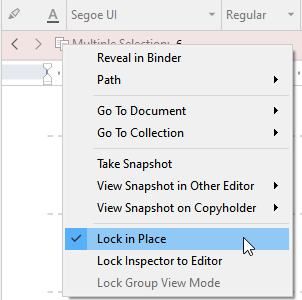
If you view multiple documents at once and lock the scrivening view, you can navigate from one document to another (as long as they were part of the initial selection and therefor present in the scrivening) by selecting them in the binder.
After selecting your documents and setting the view to scrivening, right click image in the editor header, then:
2022-10-31 01_20_15-DUMMY Screenshot forum project - Scrivener


As for the collapse, body text is not collapsible.
But you could use a combination of side by side windows, like editor-outliner, or editor-corkboard, depending on your needs and personal approach.

Collections might also be of interest to you, if you never used them.
And also probably bookmarks, both offering different ways to navigate, that could ultimately get close to what you are looking for.

1 Like

I’ve merged this with an existing request for folding text in the editor. If you scroll up you’ll find a bit of a compendium post with links to in-depth discussions on how Scrivener’s design is different from a traditional word processor, or a tool that would embed outlining principles directly into the text editor.

Short answer though is: if you’re trying to fold text inside the text editor, you almost certainly have way too much text in one outline node. :slight_smile: I would even go so far as to say that of headings in general, but I can see some arguments for headings at a fairly deep level of the outline, where they cease to be major topical markers and are more just tools for the reader’s eye.

2 Likes

I concur. For RTF, I generally use three levels of depth in the binder giving me headings 1-3 on compile; heading 4, if needed, I add in the editor. For compiling to HTML, I use four levels of depth as I need <h4>…</h4> in the output.

Mark

I strongly recommend adding this feature: Could we incorporate a Document Outline button in Scrivener? Sometimes, a single document of mine contains multiple headings, and being able to browse them by hierarchy would greatly boost work efficiency. Almost all document - related software comes with a document outline function. However, the outline in Scrivener is usually based on the titles of individual documents within a project, which is not suitable for navigating the headings inside a single document. I believe the document outline is an extremely important feature and urge its addition—especially the ability to display the outline specifically for a single document.

It is already built-in by design.
The way Scrivener goes about it is to split your documents where you have those sub-titles and nest those new smaller documents in the parent document.
When you want to see the whole as a “single document”, that’s what a scrivening view is for.

8 Likes

Scrivener’s philosophy is that if you need multiple headings in a single document, and especially if you have so many of them that you need this feature, you’re doing it wrong. The Binder supports as many levels of hierarchy as you want, and Scrivener doesn’t care whether a document is 2 paragraphs or ten pages.

7 Likes

I’ve merged this with a very similar feature request, which could be seen as an extension of where you were headed.

This is also not only thread in which a request of this nature has been discussed. You will find the annotated list of links & user manual references, above, to likely address any facet or nuance this topic may have available to it. In particular, based upon your wording of how text editors should have something like this, the third link from the top, on the differences between MS Word headline navigation and editor-based outlining, and programs like Scrivener, may be a good place to start (even if you aren’t thinking of Word in particular).

1 Like

In nested lists (either ordered or unordered), make it so parent items can be collapsed to hide their children items. This feature exists in Evernote and it makes for a great experience when working on lengthy notes. I suspect other writers like myself have this problem with simplifying the view of their notes.

This is what Scrivener’s Outline view does.

The “Scrivener-like” answer to your request is that if your outline is so complex that you need to collapse it, why is it in a single Binder item?

1 Like

You can use comments, too, for “show on demand” specifics.

(Although Kewms’ answer is the optimal one.)

The difference with Outline View is that you can’t see your whole list of parent items and selected children items all at a single glance. Rather, you can choose between the list view and the detail view of a single item at a time. The expand/collapse functionality would make this more flexible.

As for why have an outline so long, I find that when dealing with rough outlines, it’s easier to be able to see it all together.

I have actually used comments for that very purpose. But it’s a bit clunky.

Are you perhaps referring to the Corkboard view here? That does indeed confine you to looking at one single layer of the tree at a time, but the Outliner view mode (also at the top of the View menu) works exactly like you describe. Its one and only limitation is, unlike the binder, it doesn’t show the top-most level.

But that aside, I have merged your request into the main existing feature discussion for this. At the top of the thread, you will find a compendium of many other discussions revolving around this topic, some going back many years. Using Scrivener’s outliner effectively is, as you might suspect, a rather big topic!

1 Like

Sure you can. I do it all the time. See screenshot. (Sorry for the narrow view, the actual content is private.) Split the Editor to see whatever individual document(s) you like.

Outline

2 Likes

One of those crazy situations where the users are all wrong apparently not the developers.

Sometimes it’s useful to just bash out a load of sections/lists without worrying about other views, splitting into other documents, etc. There’s a reason all the modern editors have this feature (Obsidian, Ulysses, etc.). Telling us to use an outline view when we just want to capture a braindump misses the point - it totally breaks flow.

There are some good ideas in Scrivener but it shows its age. The UX isn’t a patch on the modern tools, with keyboards shortcuts, hashtags, @ references, distraction-free minimalistic modes, etc.

Anyway, good luck.

2 Likes

Are you new to Scrivener? Then your claim can be excused. Otherwise, it’s deplorably inaccurate.

3 Likes

One of those crazy situations where the users are all wrong apparently not the developers.

Yup, that’s exactly what is going on. :laughing:

There’s a reason all the modern editors have this feature …

Well, right off the top you’ve got problems because you are wrong about it being all of them, there are others that work like Scrivener, but you chose not to list them (or perhaps are not aware of them). There are also many others that could not be in any way referred to as an outliner, but I suppose we’ll ignore that too. I would say that much of what I could say on this topic has already been written of before, so if you really care to dig into the pros and cons of two-pane vs one-pane and all that, scroll up.

The real reason you’re looking for though is because they are different kinds of software, and to a very limited degree in the case of programs like Ulysses/Obsidian, different kinds of outliners (it’s a bit of a stretch to call them one, but the definition is broad, we’ll grant you it, even though it’s a bit like calling an email client or a file manager an outliner). To clear things up a bit, you are not pitting the same kinds of software together, you are saying one whole type of software is modern while the other isn’t. This is a bolder position to take, as single-pane folding outlines quite likely antiquate multi-pane tree view outliners (like Scrivener). Given the increased sophistication requirement of displaying dynamic data in two areas of the screen rather than one area, it’s more likely folding is the old way of doing things. But this is all a bit silly, to be clear, as we’re talking about concepts that go back to the 1970s, here. Calling either of these approaches more modern than the other, or to say one is “showing its age”, at 49 years old, while the 52 year old one is fresh and modern, is to maybe use language in a strange, somewhat squirmy way.

To me it seems more productive, and more straight-forward even, to just talk about what these different design models actually do, what their pros and cons are, and how we may use them for different types of thinking, different types of tasks, and even how we might integrate them together to broaden our capabilities across the board. This is the overall thrust of what I am getting at in the list of linked threads, above.

keyboard shortcuts… distraction-free minimalistic modes, etc.

These are odd things to state, in a list that is supposedly consisting of what Scrivener lacks. The rest of your list is a bit off as well, but I suppose I could see how one might confuse retro-tech like a “hashtag”, and think it’s more modern than a tag list (even though, as above, they would be entirely wrong, and that markers encoded into text is the old way of doing things—which is fine, to be clear, you’re talking to someone that writes with Markdown, I dig retro tech when it makes sense to).

It’s perfectly fine to state, as I have in the many posts I link to above, that it is your preference to outline directly in text editors, that you prefer single-pane outliners maybe even (though again, your examples of them only barely qualify, so maybe you actually prefer something else) and to look for software that works that way. It is also perfectly fine for someone to point out that a program is a different kind of outliner than you were expecting. It is okay for software to do and be something different than what you prefer.

You don’t have to turn it into a competition, and get all weird about “UX” and “modern” in your discourse. Just be happy you know what you like, not everyone has that pinned down yet and has to figure it out, and work their way through a few different types of programs before they get it right. Be happy, not angry! Go forth and outline as you please! We are all niche enough to be better banding together, rather than squabbling over whether chevrons or +/- signs are the more modern/better/cleaner/UX-ier way of showing leaf nodes.

Anyway, good luck.

Indeed. By the way, you might want to check Microsoft Word again. It is an inline folding outliner, and so at the very least should serve as a recent (as in a few decades rather than half a century) history lesson on the genre.

5 Likes