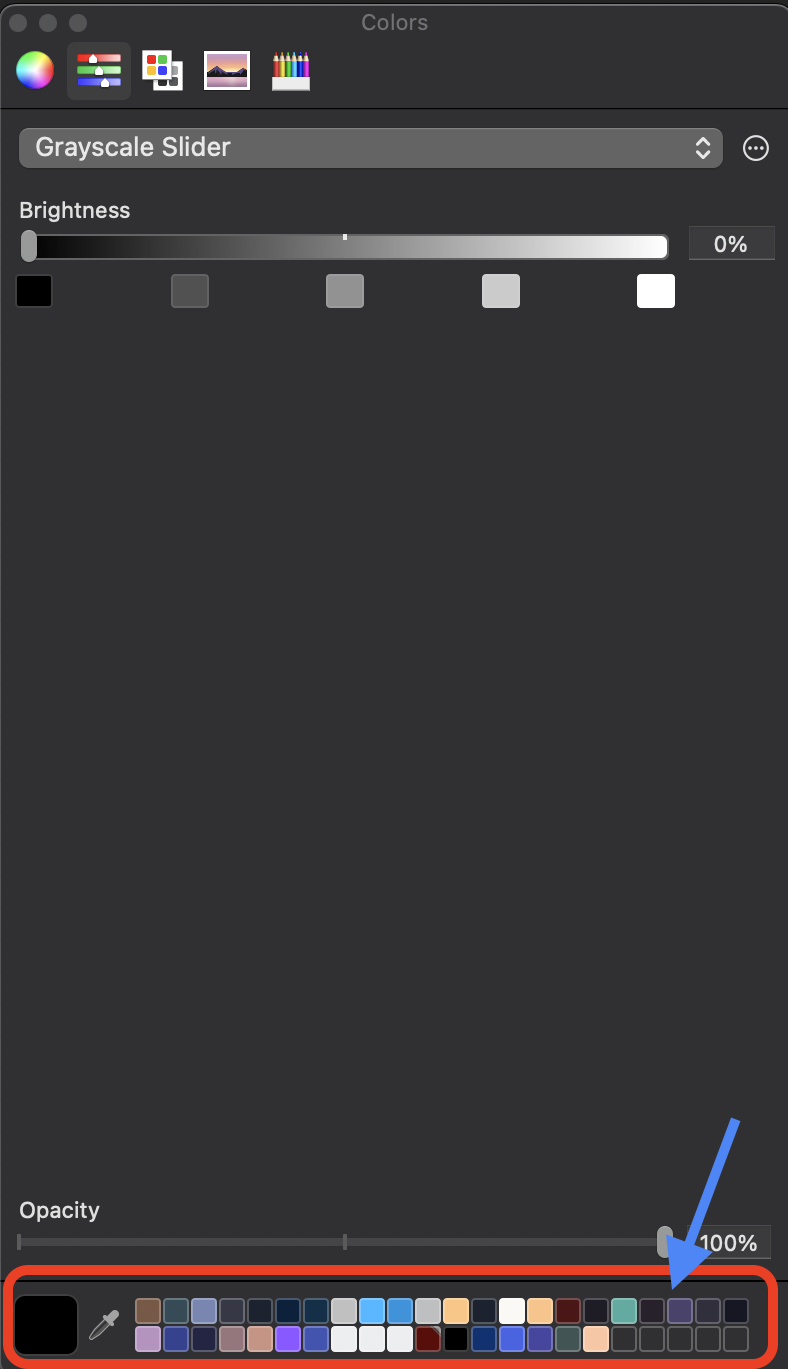
Hi there! I am wondering if there’s a way to delete the custom colors that you can save at the bottom of Colors. I’ve been saving a bunch of colors and want to only keep the ones that I will be using, but I can’t figure out how to delete them.
Please see this photo below to see what saved colors I am referencing.
To delete the custom colors from Apple’s color picker, you can either drag the swatch to the system Trash (e.g. to the icon on the Dock) or click the swatch to select it and hit the Delete key.
Besides clicking on and choosing a new custom color in windows, can you delete a custom color to leave it blank? the delete key in windows does not work.
If you can’t drag it to the Recycle Bin, it means the feature is Scrivener app centric on Windows, unlike on Mac where this and other housekeeping functions are distributed by the OS.
I’ve tried this multiple times but it doesn’t work. I am in the Scrivener app itself and the colors that I am pointing to in my picture are all custom colors that I manually dragged into a slot. I’m trying to figure out how to get rid of them. If I drag them, it only changes the order that they appear in the slots. When I click a color and press delete, nothing happens
Seeing as how this is really a general macOS question, it might help to look for existing conversations out there on the matter. This is the best I’ve found, as it goes over all of the many different ways in which Apple has changed this over the years. I.e. you’re going to have to match the method to whatever year your OS is from.
I’m not sure what it is about saved custom colours, but I don’t think I’ve ever seen a single palette tool handle the notion of removing colours very well at all.[1] Adding them, that’s often very easy, but removing them? Good luck.
If you ask me, using that third tab in the colour picker interface is actually the best way to work with saved colours, rather than the little strip at the bottom. Not only can you save sets of them, but you can give the colours names, and there is an actual visual user interface for working with them. Quite a nice tool if all you need is the basics, especially since you don’t have to install anything, and all your software shares them.
Outside of graphic design software where custom colour handling is of course a feature and not a thing dangling at the bottom of the colour picker with a UI that hasn’t changed for 30 years. ↩︎