When I open scrivener, I have no idea where my last or recent notes were. For example it’s all scattered rather than one master view which shows me my work trajectory. If I check date modified, I have to go into the various groups and subgroups of which I have hundreds.
In Onenote they have this calendar called OneCalendar where one can see everything one worked on for a particular date. With Scrivener I can’t find my latest notes on a piece of writing (for example a note I added in the outline view under the title).
Also when I write in the actual notes section which I did once, it shows up in RTF on my Opus lister but it’s not linked to any piece. So I wrote a note in the notes section to “enter pen” but it’s has no ID or tag which links it to any writing.
This particular Scrivener project I’m using for project management, to put some file notes for various pieces of writing. I like the visual of for example the title of a piece–and then adding notes about next steps directly under in the outline view.
If you search by date modified you can specify as small as 1-2 days. Any list should be small. Date modified is more inclusive than date created. You could also create a collection “this week” and add documents to the collection as you work/ modify and delete old documents as you go.
In particular, “mdate” searching is a good way to cut out the really old stuff and focus on the range of time you are interested in. Saving that as a search collection can help you keep on top of what has changed in the past three days, or whatever range you stipulate.
If I understand right, you want to be able to navigate inside your documents (not just at the binder level) as per your last additions’ date/time.
Scrivener doesn’t have this kind of sorting/navigation ability built-in.
But… you can still do it.
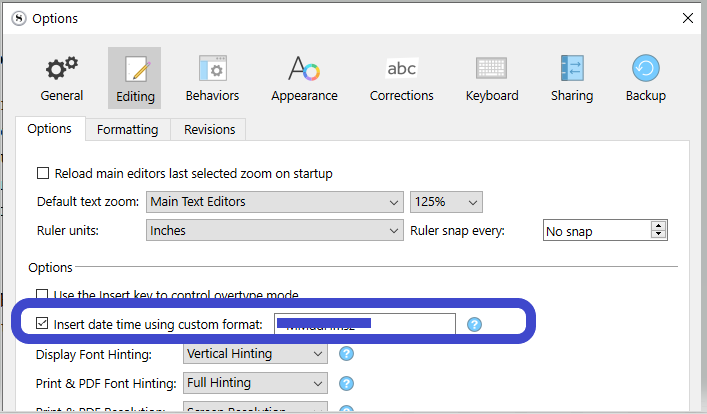
What I would do (which will work natively in the Windows version) is that I would use the function to insert date/time. You can mod it as much as you want.
Ctrl-D will then insert the content of that field.
You can then search per date, using Project Search.
If you add a uncommon bracket to that date stamp (one that you don’t use for anything else), you can turn that time/date into a tag ; the brackets allowing you to use a Regex to strip them tags off at compile, or to clear them off of your project eventually.
⟦260105⟧
After that it is only up to you to discipline yourself into inserting that tag where your method asks for it. → Ctrl-D, … new input (inline note, whatever you please).
P.S. If you choose to also include the time of day, just don’t use it for Project Search. Use it as a reference for you, but only search for the date.
⟦260105-16:50⟧ → Search for ⟦260105 or 260105
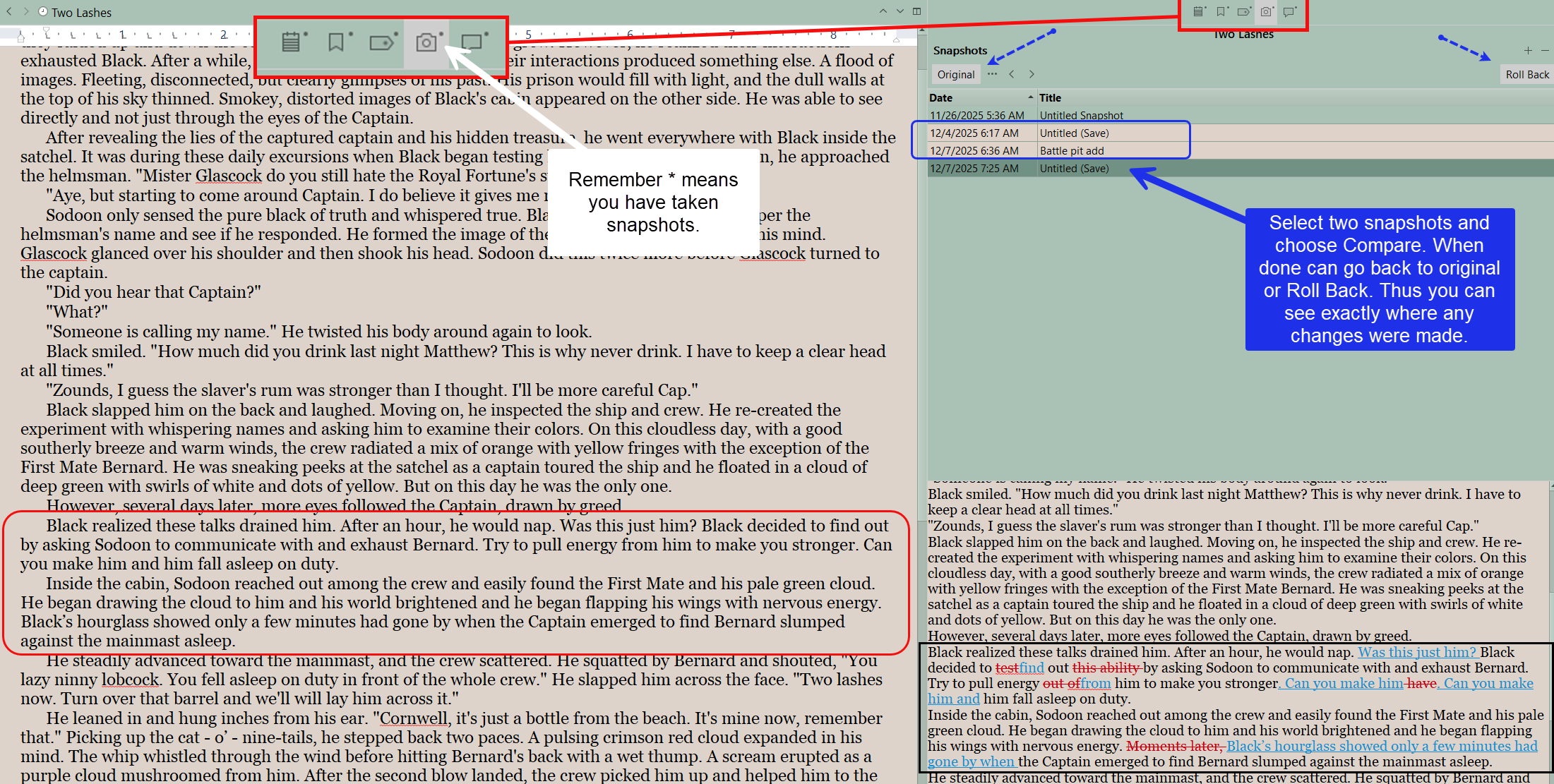
The other trick is if making changes is to use snapshots when make changes. Then when you identify recently changed documents if you use compare function between snapshots it is easy to see additions (blue) and subtractions (red) with a single click. Snapshots when taken have a date and time included as well.
I am not sure I understand this or it will help. If i knew the date of my last comment in scrivener on a file then it would help, but I want the program to show me, where i last worked. Also I set it up but i don’t understand this. I’ll try some of the other suggestions.
The link doesn’t work, Amber. I wonder if I can search mdate: December 2025, for example. I’ll try that. I’m just using the top search box. I don’t understand or can’t find a “project seach” that someone mentioned.
Okay thank you all for the suggestions. I did some experimenting per the suggestions including just trying to pull from date modified but it doesn’t work. It’s not reliable.
What I do (sometimes) and have been doing for years including when my long-form writing was in Word, when I was done with that writing session and closing down the app and/or computer, I’d insert the text [Restart Here] and then when returning to the document I’d use the app’s search to find that text. I put that text into my app that returns text via a special keyboard key for “quickness”. I picked those words with brackets as it was very unlikely such words would be in the document for real. Any unique set of characters that can be remembered works. Simple, and works.
Edit. Just reminded by @RevoTiLlor and confirmed. Thanks.
Here is an article on my website on search by date and using created and modified dates in the outliner to search for recently modified or created documents.
Here is an image of what I meant by using snapshots to compare recent changes. The advantage of snapshots allow you to easily make comparisons or roll back changes.
The app will open a project in the last view you were in, at the position you were in within the last document you worked on.
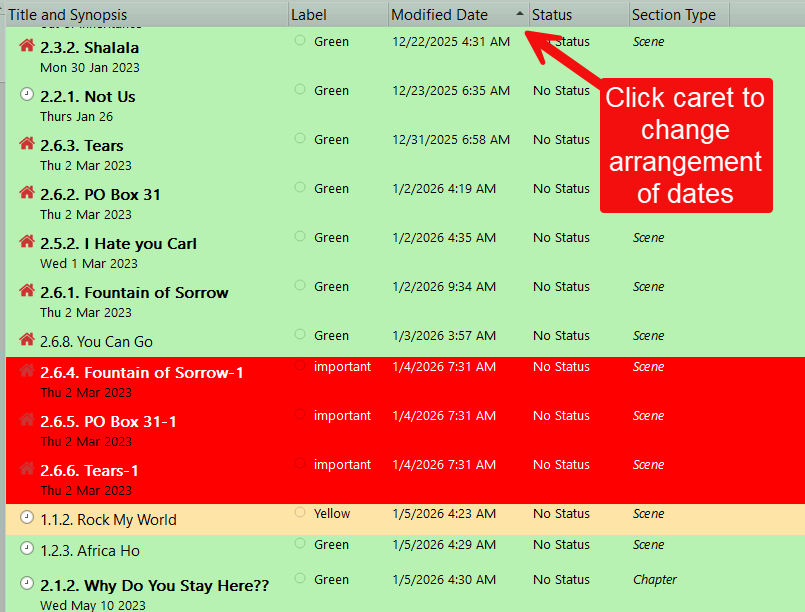
Any further editing history can be explored in Outliner View mode by adding Modified Date to the Outliner and sorting it by clicking in the Modified Date column header. You’d need to position your cursor on the highest-level document, which is Draft or Manuscript, to see where you last worked when sorting, or if you don’t jump around much, on the top-most document in the hierarchy you’ve worked on.
I note that you referred to the standalone Notes document. This is outside of the Draft or Manuscript, so in that case, highlight everything in the Binder by clicking in it and selecting Ctrl+A. Notes and everything else will show up in the Modified Date sort.
If I open a folder in my draft folder, the documents are sorted alphabetically. Is there a way to sort them by date modified? This is easily done in the MacOS version, but I can’t seem to find a way on the iOS version.
the easiest way is to create a search by date collection and you can do it for the last X number of days and the search will show all documents modified or created in that time frame (based on which option you choose) use mdate which is more inclusive. Save as a dynamic collection and rerun the search whenever you want to see recent documents.
Yes, I know, but I want to sort all of the files in the folder, and there doesn’t seem to be a Select All option in search. I can search for the letter “e”, which finds pretty much all the files, but then when I view a file, every “e” is highlighted in yellow, which makes the file difficult to read. Is there any way to access the sort options without doing a search first?
Yeah, searching by ‘e’ has always been my “hack” in the iOS version. There is no way to dynamically (or even in a static way) sort the binder, no. What I would do, if you’re looking to work on a few recently worked-on things, is think of Project Bookmarks as a kind of extended working area, kind of like how one would use a Collection in the desktop version. From search results you can swipe left on a result, and easily add entries to the bookmark list, then cancel out, go back to the binder level and work from the project bookmark list.
Of course it’s worth noting right above that, the whole Recent list itself. The iOS version already collates recently worked upon items, and you don’t have to keep going back to the top level to access them, as that history button is available from the editor too.
Between those two tools, the recent list and a manually organised area with bookmarks, you should be able to keep a nice working area without having to use Project Search for that purpose—use it to find stuff to add to these lists, instead.

 There is no way to dynamically (or even in a static way) sort the binder, no. What I would do, if you’re looking to work on a few recently worked-on things, is think of Project Bookmarks as a kind of extended working area, kind of like how one would use a Collection in the desktop version. From search results you can swipe left on a result, and easily add entries to the bookmark list, then cancel out, go back to the binder level and work from the project bookmark list.