Hi - I am looking for a way to track which characters are in which scenes across my book. I have assigned each character a Keyword, and see how to save a keyword search into a smart collection. Is there a way to organize the collections? I would also like to have collections for location, etc. and it would be nice to be able to have all of the character collections in one folder, location collections in another, etc. I see a way to create a folder but it seems to be inside of a collection. Thanks.
Hi.
That’s not how it works. You can’t create collections “folders”.
But I don’t see how it could be very usefull. (Perhaps detail your reason to want so?)
Collections are listed under Navigate / Collections
You can use an emoji in their name to make visual cues/groupings.
Say, like  as a prefix for characters,
  for locations etc.
Or “Char - Paul” … “Char - Maria” … “Location - Ballroom”
If you want to work on your project in a way that you end up with so many collections that folders would actually make sense, I would then recommend that you rather use the Outliner and sort per metadata.
You’ll be able to switch from one sorting to another with zero navigation and therefor much faster than by using collections.
You can also use Edit > Find > Filter for keywords. It can also offer some sort of focussed view, in the sense that only the positives will be listed, the other documents hidden from the outliner. It also preserves the binder order of documents (as opposed to sorting, in some cases), while, as I said, showing only the documents that return a positive on the filter. Or the opposite, or per different basic criterias if you use the extra filter controls.
The trick would then be to make your keywords and metadata non-repetitive. Don’t use a keyword word in a custom metadata, for example, so that you don’t end up with somewhat messy results. (Or use emojis or exclusive prefixes to create categories or groups, like shown above. This would allow you to further refine the filter by the fact that these emojis or prefixes would be exclusive to a specific custom metadata. Including it in the filter field would inevitably reject everything else for not having it.)
2 Likes
Adding to what Vincent said you can choose colors for collections so could have blues for POV’s and green for locations for example. You can also organize keywords in folders so these could be easily copied when you want to run a search using keywords rather than build long lists of collections. Use them and save the ones you are heavily using, then delete when you move on, rather than have a list of 50 collections.
2 Likes
This has come up quite a few times – see forum search for, say: folders for collections. My own request, back in 2018, got a no from Keith, and I doubt anything has changed.
1 Like
I do not believe the idea behind collections is that you become inundated by dozens of collections and certainly not repeated folders.
The working result can be achieved by clicking on the Key icon to list your keywords, click on one or more criteria you’d like a view of, then select the looking glass at the base of the menu and choose: Search Keywords Only.
In this example, I’ve selected the names Alisha and Ji-ae, and I get a search result in the Binder that is fully editable.
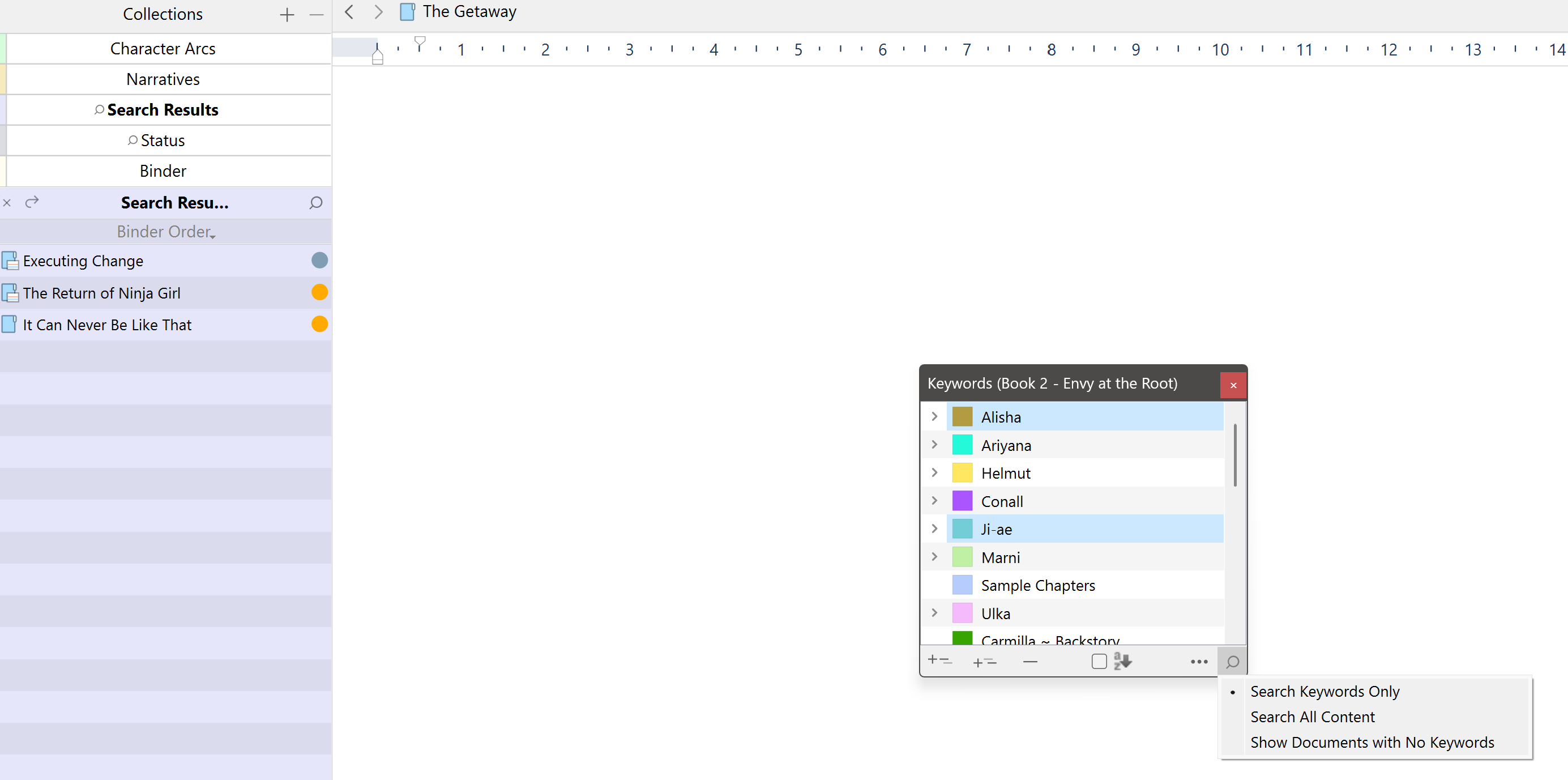
If I wanted to, I could add the result to a new collection and call it “Alisha and Ji-ae” to have it available for a later date, but the collection won’t update if I add their names as a keyword to a future chapter.
A refresh trigger sounds like something to consider, though it’s probably true that the collection sees itself as a result of a manual selection and not a result of specific search criteria.
3 Likes
Thanks to everyone who replied - what a great community!!
RevoTiLlor gave what seems to be the most intuitive suggestion for tracking multiple characters: do the search from the Keywords box (thanks for taking the time to do the screen shots - that was very helpful) I hadn’t seen the tiny search icon in the lower right. Much faster than building custom collections or typing numerous names into the search bar. Thanks for that!
Creating custom collection colors, or using emoji’s in the names (thanks for the tip) doesn’t solve the basic problem of having too many collections. Why do I want folders for collections? Who wants to scroll through 50+ items no matter how well sorted, rather than just having a few folders. I agree with auxbuss that this seems like an obvious solution to a common problem. The design philosophy for an app shouldn’t be that there is a “correct” way to do things, but rather to give the user multiple ways to do the same thing so that it can fit into their preferred workflow.
As a fairly new writer I have been very impressed with Scrivener’s tools; however, they are often hard to find and not always intuitively laid out. For example: why isn’t all of the metadata for a file collected into the same location? Keywords are in their own, resizable pop-up window that can be triggered by a toolbar button. Labels, Status and Custom Metadata are in under Project Settings which is not resizable and there is no toolbar button. Why? I’m sure there is an obscure reason but it’s kind of frustrating when you’re jumping back and forth between them setting up your file.
Also: a common feature of Mac desktop apps (like Photos, Music, or Lightroom just to name a few) is the ability to make smart folders either by saving a search (like Scrivener does) OR by creating a new one and editing the rules for it (which Scrivener doesn’t do). Smart folders are then integrated into the file/folder system of the app, instead of sitting in their own space without the ability to put into folders. Perhaps this could be considered when the time comes to update the app.
You can rearrange collections and position the ones you are currently using at the top of the list.
1 Like