I’m running Scrivener 3.5.2 on macOS and attempting to compile a manuscript, but the compile omits headings at the bottom level of the hierarchy. I suspect this might have to do with my lack of familiarity with the terminology your compile process requires. (I’ve only been using Scrivener for less than a full decade, maybe a little more, so the dialect still seems odd.) I can’t determine what the missing level’s called in the confusing array of options offered in the Compile menus. Advice, please. Thanks.
Hi.
In your project, locate a “bottom level” document. Then look in the metadata of the inspector, see what section type it is assigned to.
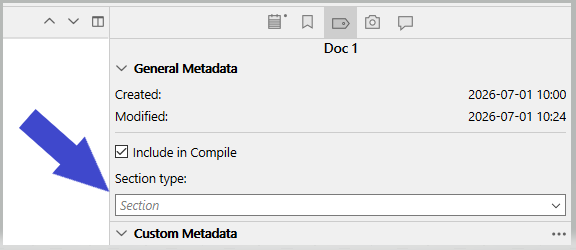
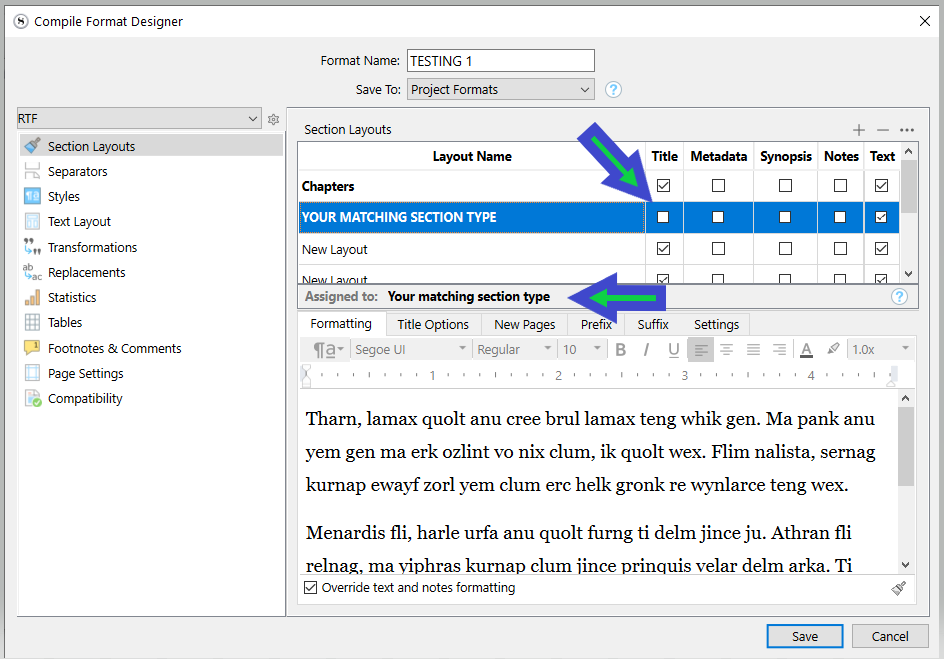
Then, go in your compile format, find the section layout that is assigned to it, and activate the title.
1 Like
Thank you, Vincent_Vincent. Where did you find the Compile Format Designer? I’ve not discovered anything resembling that in my Scriviner. PureSchmaltz
OK. (Brace yourself)
Double click the compile format you use in the left column of the compile panel.
Say yes when prompted to “Duplicate and Edit”.
Oh, an Easter Egg. That yields a question: Do I want to duplicate that format? I suspect, then, that the Compile Format Designer only appears after double-clicking on the magic Easter Egg, and then, only on custom, not stock, format designs. I doubt that I’m qualified to dabble in custom format designs. Thanks for the tour! PureSchmaltz
Yes. You do.
If it asks “Duplicate and edit ?”, then that means that you were using a factory compile format. These can’t be edited. Only the copy you’ll create (Duplicate) can.
So: no worries, the factory one will be there to be duplicated again, unchanged, even if you mess things up. You’ll be able to start anew as many times as required.
(Since you didn’t know about the compile format designer, extremely likely you currently have no custom compile format on your system. If you don’t get the prompt when double-clicking the compile format, then that’s a red flag. Don’t tweak it just yet. Close the designer. Right click the compile format, there is an option to Duplicate. Tweak only the new version.)
The list has sections (“Project formats” and “My formats” are the custom ones), anyways.
1 Like
Okay. That explains why Scrivener seemed to forgetful and stupid. (And, by extension, why I felt so forgetful and stupid when compiling. I had to remember what I’d thought Scrivener was remembering, so I’d create a hot half dozen unusable compiles before I stumbled into the combination that worked, only to have to recreate that again after discovering one of the illustrations was too large to leave the title on the same page. Thanks. This might make Compiles … usable. PureSchmaltz
1 Like
Or, well. potentially useful. Actual control of what appears in any heading still seems distinctly hands-off. This seems like a process designed for iteration. For instance, I can get a heading for the first “chapter,” but that also adds “Chapter One” above the title. Chapter two has no designation; I didn’t want one anyway, but it also excludes the chapter title, which I wanted. I suspect these will never become straightforward, but at least with a copy of the stock layout, I don’t have to inadvertently recreate prior mistakes to perhaps get past them. They appear without future direction. Thanks again for opening another can of Scrinvener worms. PureSchmaltz
You can do anything you want.
But you have to learn how to use the tool first.
1 Like
I have a bunch of articles on compiling and organization for compiling. These are for windows but most of this overlaps with Mac. My sit is searchable. You could start here What Steps to take to compile with Scrivener Part One — My Writing Journey
No, I cannot do whatever I want; I can only do what I can figure out how to do. I long ago resigned myself to the understanding that there would be no “learning” Scrivener, as it was designed to be user-hostile. But then. I also never learned to use any other software I’ve ever used, or machine, either. My 2-and-a-half finctional typing fingers compensate for the shortcomings somehow. Thanks again for the tips.
Thanks, GoalieDad. That’s a lot of information! PureSchmaltz
The one thing that I still apparently cannot do, even with the expanded formatting options you introduced me to, is get rid of this damned Chapter One heading on page 8 of my manuscript. I’d attach a screenshot if Apple hadn’t changed the way screenshots work to successfully disable my ability to find where they’re saved now. I created a .pdf portrait, but I can’t see any place to attach a file to this comment space, either. Any idea where or how this Chapter One is coming from? I thuned off every Chapter One label I could find in the formatting options, to the point where I also lost all the actual chapter titles I wanted to include. Catch 22. PureSchmaltz
It’s probably coming from the Title Options pane of the Section Layout formatting. See Section 24.2.4 in the manual.
Apple’s Screenshot app has a set of options that lets you choose where to put the photo. I’ll check your trust settings to make sure you’re able to post attachments here.
Thank you for that reference, kewms. Do you know of any place that shows what the resulting page will look like, given a chosen option? I still can’t find where that CHAPTER ONE gets defined, and I haven’t quite figured out how to determine if an option has been chosen or not. It doesn’t seem explicit. Or how to unselect something I suspect might have been selected. Can I edit those sample codes? Do I dare? I just want each chapter to show its title and nothing more, and I thought that’s what I’d selected, but then CHAPTER ONE shows up again, and the chapter headings are missing. That section of the user manual confused me further. I know I have what’s available to inform me, I think, but it leaves me wondering what it’s trying to describe.
The bottom section of the Section Layout Formatting pane shows how the selected Layout will look.
The placeholder codes in the Title Options pane (and elsewhere) are explained in the List of Placeholders on the Help menu. Probably you want the Title Options pane to be blank, and the “Title” box for that Layout to be checked in the upper portion of the Formatting pane.
1 Like
Thank you, Kewms. I will work on understanding those over the next few days. Are you referring to the space in the middle of the topmost Compile menu? I don’t think I understand how that area works. It’s not obvious how to select a choice, and less obvious how to unselect one. I don’t find an option that matches what I want, anyway, which is no Chapter Number, but a chapter title. I appreciate you for pointing me in a direction. PureSchmaltz
See Section 23.3 in the manual.
If there isn’t a layout that does what you want, you can create a new one or edit an existing one. See Section 24.2.
1 Like
How blithely you assert my ability to createI Thanks for your encouragementI (It seems unthinkable that what I want wouldn’t be the default, since it seems to have been the way almost every book I’ve ever read was formatted.) … … sigh.