How to Organise Myself

I have a project on which I have written an awful lot, but this awful lot is scattered about on what would best be thought of as digital napkins…alongside actual paper napkins.

I need to start to get things in order, which is why I am returning to Scrivener, but I was hoping there was a way to ‘tag’ paragraphs and sentences, though it seems I can only do this for a whole document rather than bits and pieces that I can then ‘filter’ by and order.

I don’t want to put each into its own separate document ideally. I also don’t want ‘inline’ comments as I really need to tag practically every paragraph in the document, it would appear very cluttered, and adding comments doesn’t tie each of the items together either as it is a new comment each time….the comments themselves aren’t linked.

Apologies I don’t think I’m explaining this very well: I just want to say click ‘house’ and everything I have written about ‘house’ to be present itself.

If anyone knows of an alternative tool that can do this I’d be most appreciative.
Hi.

If you want to do it inside Scrivener, here is one way that could work. It doesn’t completely match your description, but close. As close as it gets, as far as I can tell.

To tag/keyword specific paragraphs, you’ll have to make up your own tag.
Use odd brackets, that you are sure you don’t use elsewhere in your project.
Ex: ❰ ❱
These, by being unique, will allow you to remove your tags automatically at compile, via a RegEx formula. If they were to be used elsewhere in your project, you couldn’t ; not without risking removing other stuff.
To these brackets add a unique symbol that will give all of those tags something in common. Ex: ⬧ (Again, it must be unique, not used elsewhere, anywhere, in your project.)
Your tag would look like this :
❰⬧Keyword❱
⮚ ❰⬧xxxxx❱ for a blank.

Paste this at the beginning (or wherever you want) of the paragraphs to sort/reference, and replace “xxxxx” with your custom keyword.

In a document added to project bookmarks, build a list of your tags as you go. (Copy/Paste)

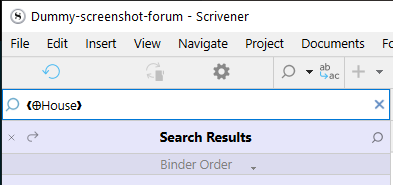
Searching using Project Search will return a list of documents containing a specific tag ; just like the built-in keywords system would, but in this case allowing Find... to cycle through them in their exact location within the document/text.

⬧ will allow you to cycle through all of these tags. Replacing this symbol for another would allow you to create sub-families if needed.
❰Ꚛxxxxx❱
If you don’t need sub-families, you can remove the symbol (⬧). The brackets being unique, you don’t need it. Search for ❰ (the opening one) using Find... or Project Search and you’ll get the same result.
With sub-families, “❰” becomes your common denominator to all of your tags, regardless of any group/families you would have created using different symbols.
. . . . . . . . . .

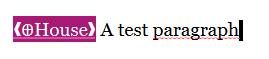
❰ꚚHouse❱


image

. . . . . . . . . .

It might look like an obtrusive system, but I use it a lot and can say it doesn’t take long to get used to it and to have your eyes skip the tags when they are not of interest. – When reading, in other words. They’re just like a first line indent.

So there you go – you have that as an option. :slight_smile:

1 Like

For what it is worth, whenever working in Scrivener pushes me toward splitting documents up more than I feel quite comfortable with, I take advantage of the fact that documents in Scriv can have subdocuments — just as folders do. So, instead of having the pieces of my micro-split document sitting in a folder in the Binder, they sit under (are gathered together under) a shell document. Don’t ask me why this helps psychologically and organizationally, but it does. The Binder correctly represents that this particular bunch of stuff is what I would naturally think of as a single document, but I have split it into little pieces for functional reasons — like to be able to assign keywords that will zone in on very specific passages.

3 Likes

IF you tag with keywords, then can have multiple tags for one file and make a collection for documents tagged with keyword poetry, or new york recipes and then use comments to highlight crucial points in the text, so it becomes easy to drill down.

Searching for tags as vincent suggested can get to specific points of text, here is one possible way to tag inside documents which would be searchable. (the added xxx’s were to be sure not match anything in the novel.

List of Error Codes (not seem as helpful)
Would use a double X in the error codes as a way to be able to search for them.
Xxx-this means there is an area that needs additional work or more thought to develop. The first letter further clues you in on what is key for specific issues.
Mxxx -map needs development
WBxxx -for world building issues
Fxxx-foreshadowing occurring
FFxxx foreshadowing failing/needs work
Sxxx-set/location needs work
Pxxx- plot needs development
Cxxx-conflict needs work
Dxxx-dialogue needs work

Wxxx-word choice issue

Could do characters as well with repeat of first letter of name as code for issue with character area

Here’s a quick and easy way using a tag inside Comments.

Here are 2 examples I put together:

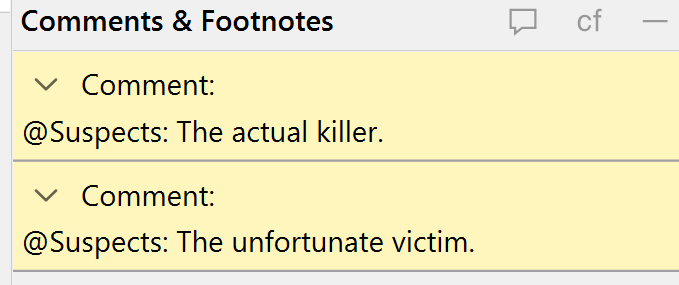
My tag is simple: @Suspects. No obscure non-standard keyboard characters.

In my first document, I selected 2 words and added a comment comprising the tag, followed by a clarifying statement.

In another document, I followed the same process.

Clicking the Manuscript folder with Comments selected in the Inspector lists my 2 comments (all comments in the Manuscript), as shown in my first picture.

But what if I have many hundreds of comments and need to keep an index of keyword tags?

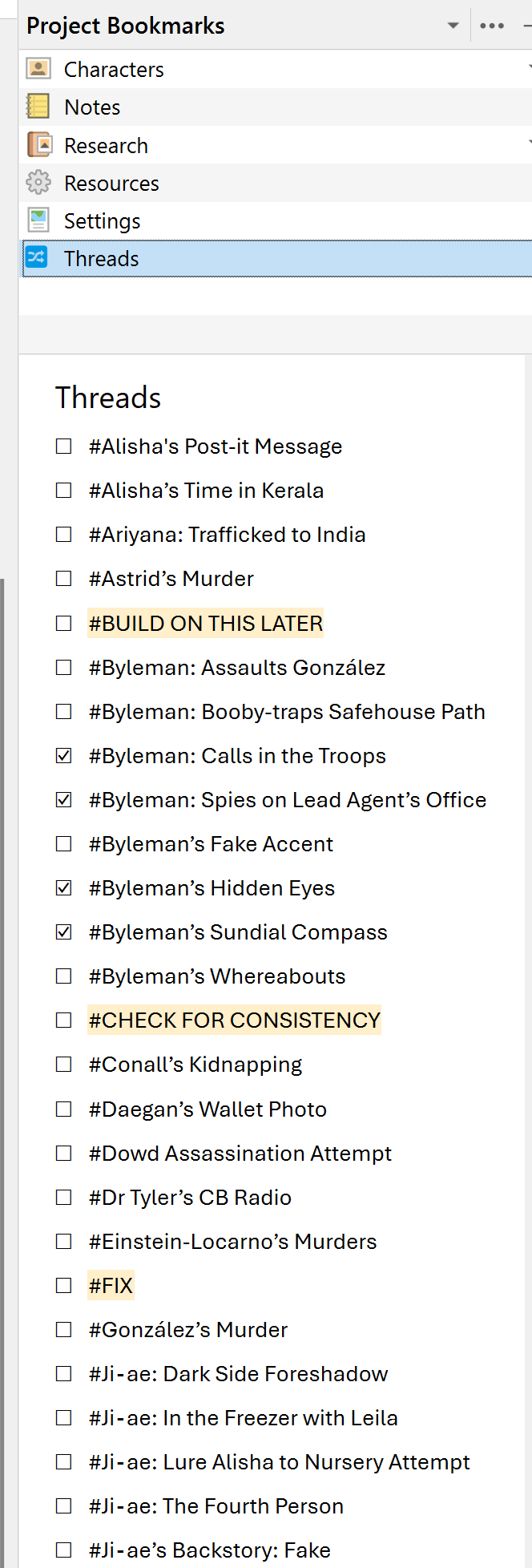
No problem. Run a Threads index document. Every time you create a new keyword tag, also add it to your Threads document. So, you’ll end up with:
@Families

@Suspects

@Zombies

etc., which you can sort alphabetically.

The document can be dragged to Project Bookmarks for easier access and editing, without leaving the document you’re editing. (Obviously, your focus would switch to the Threads document.) In effect, you’d be able to create tags on the fly.

Here’s a living example-–I normally use # instead of @. And I have an AutoHotKey that allows me to assign checkboxes via a keyboard shortcut:

Back to the example.

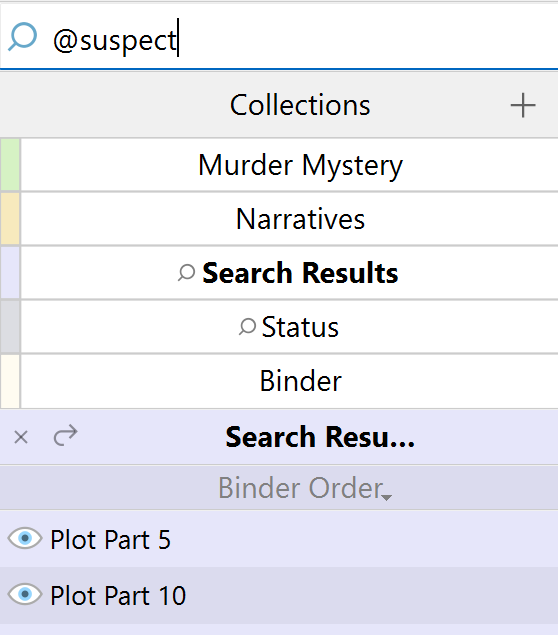
A Project Search of @Suspects lists all the relevant documents and actually highlights the words you assigned the Comment to.

List of Binder documents:

Exact words highlighted, first hit:

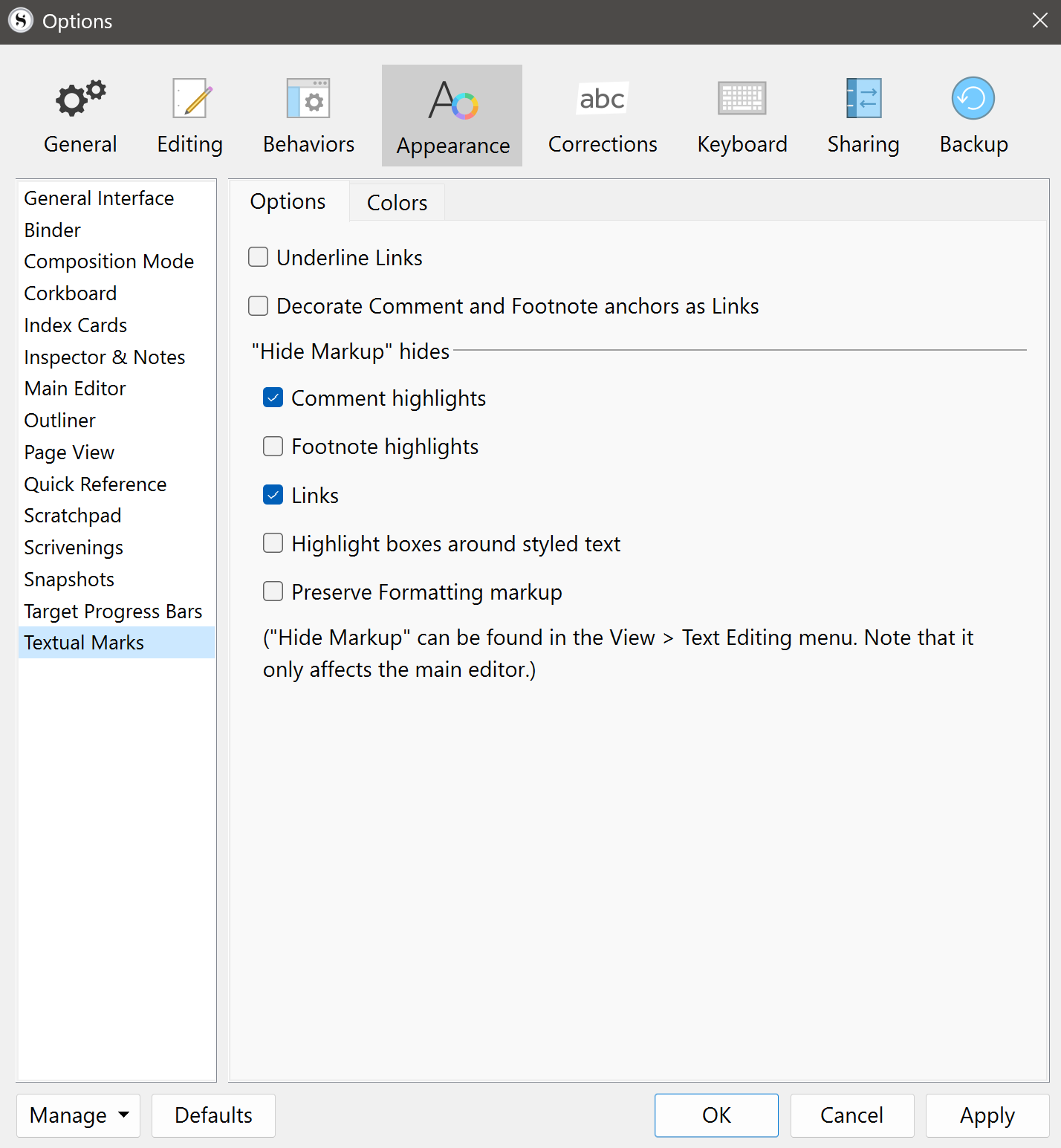
Note that on Windows, if you have File > Options > Appearance > “Hide Markup” hides > Comment highlights ticked, the selected words assigned to Comments won’t show up in single-document mode, but they will in Scrivenings mode. This is not the case on Mac.

2 Likes