So much for Scrivener! Very non-intuitive, I merrily wrote my manuscript and then it was impossible to export to Word since I hadn’t been taught the chunks I should put the chapters in with your silly little initial tutorial. I liked being able to write new chapters and toggle back and forth but all that went in the toilet when I need to get the whole manuscript out. Me dumb? I imagine that will be your assessment. I complete waste of money and a frustrating experience.
You are not dumb.
Just freaking out for nothing. …rather than asking for assistance as to the proper way to do it.
Whatever you did and/or how you did it, whatever the state your project is currently in, you can’t be more than a few simple and easy steps away from getting things back in order, at the very worse.
9 Likes
Vincent is right . Compiling is complex but learnable. The first step is making sure your project is set up properly to compile. Then choose a standard format which scrivener provides and click compile. If the result is off you can tweak it. This are lots of compile tutorials if you google it. If you want I have several articles on compiling including how to set up the project( assigning the correct section types). You could start with this one.
4 Likes
Okay now, at the risk of not being remotely helpful, the interactive tutorial is not only extremely robust for what it is but also incredibly intuitive. Not to mention that the actual user manual is over 900 pages and the video tutorial library is massive.
6 Likes
The funny thing about this remark is that it is one of the signal strengths of Scrivener that you can pretty much put a Scrivener project into whatever chunks you want – and have Scrivener compile it into an appropriately seamless whole.
5 Likes
Hey Justine – and welcome to the LL forum!
Sorry to hear you’ve had problems getting your manuscript out in the way you want. I completely agree the whole compile process is pretty complex. The good news is that, once you’ve gotten it set up the way you like, getting your work out becomes as simple as pressing a couple of buttons.
Yup, that’s what I love about Scrivener too!
Let’s see if we can help!
Firstly – what platform are you working on? macOS, Windows, or iPad or iPhone?
Secondly – can you tell us a bit about how you’ve structured things in your binder? For example, in my WIP I’ve got:
Lvl 0: DRAFT (Folder – no text or title, just a holding folder)
— Lvl 1: Parts (Folder – no text, just a title)
— — Lvl 2: Chapters (Folder – no text, just a title)
— — — Lvl 3: Scenes (Document – no title, just text)
5 Likes
Following up on Pigfender with a real life example from my current novel, I’m editing. What system scrivener is on will help with us tailoring advice if you want help.
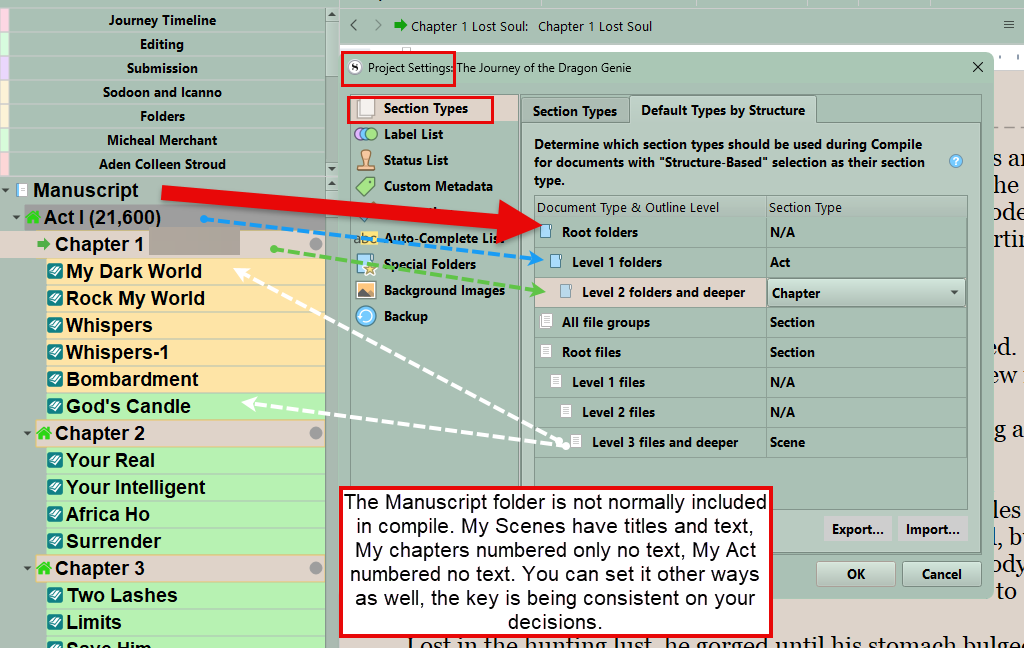
No, ignore all that for the moment. Even I’m confused by what I’m looking at there.
Let’s take this in steps and just go with the two questions I asked. It’s complicated enough!
1 Like
Thank you, dear pigfender! I was beginning to think I was only going to be chided, rather than talked off the ledge!
I am using macOS (Tahoe, latest).
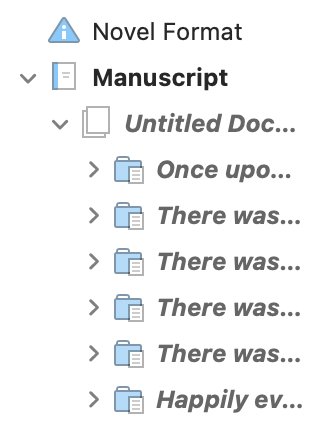
I can’t say I intentionally structured anything! I see
 Novel format
Manuscript (icon is a page with a blue border on the left)
Icon showing 2 white pages
Then a series of icons below, blue folders with a white page in front
Here’s a screen grab (or actually no, it won’t let me)
Really appreciate the help.
p.s. friends, massive is an antonym to intuitive! I spent about 2 hours trying to find an answer in the manual and googling (which renders the most answers, and takes me back to Scrivener)
1 Like
Yeah, the forum software doesn’t let new members post pictures for their first few posts as an anti-bot spam protection thing. But that’s okay, your description was really helpful. You’ve got something like this:
Next two questions!
Thirdly, Ignoring Scrivener entirely for a second, how do you want your finished book to be structured?
E.g.,
- Do you just want Chapters going Ch1, Ch2, Ch3, etc?
- Do you want to have Parts and Chapters (Part 1, Ch1, Ch2, Ch3, Part 2, Ch4, etc)?
- Do you have any prologues, epilogues?
Fourthly, back to Scrivener… Those blue folders with the page in front… is it fair to say that each of those is a complete chapter? Or will some chapters be several of these together? Or something else (e.g., “it depends!!!”)?
4 Likes
I’ve moved the thread to the Mac support forum, where people are more likely to see it. I’ve also boosted your trust level to allow you to post screenshots.
Thank you, @pigfender, for jumping in.
3 Likes
This novel is Chapters 1, 2 and 3 etc.
No pro/epilogues.
Each blue folder with page in front is a complete chapter.
Thank you!!
1 Like
You’re in good hands. 
1 Like
Fantastic!
Now - last two questions for a bit!
fifthly – Does the document that has an icon that looks like two white pages (just below the “Manuscript” item) have any text in it that you need to include, or is it just a blank document?
sixthly – What output are you looking to create here?
E.g.,
- Are you just looking to get everything into a sensible state so that you can use an app like MS Word to tinker further?
- Are you looking for something that looks as much more like a “finished” novel?
- If so… are there any “special requests or features” about what you’re after that you think I might need to know?
2 Likes
Just a silly question…. But are the folders with your writing INSIDE or OUTSIDE the Manuscript folder at the top of the Binder stack?
I’m starting to think you put your writing outside of where the compile process looks for things to put together for the output.
This is how the system handles having research folders, templetes, and so forth that are of Blake to the project but not intended to make it to the final product.
3 Likes
Not silly, obvs! Outside . . . uh oh!
5th: all folders below manuscript, including the 2 white pages, have text to include. All are chapters.
6th: I was needing to output the whole manuscript to Word to send to my editor. I was able to highlight and copy and then paste everything from Manuscript (top)
I met my deadline and sent the draft to my editor yesterday.
My new goal is to start on a new project, a memoir, and avoid the mistakes delineated so shamefully above. If you have a suggestion for me to get back to basic and try to learn this stuff before plunging forward, much appreciated!
My two cents (or shillings/farthings/whatever  ) for anyone feeling overwhelmed by Scrivener is this:
- It isn’t Word/Pages/LO Writer
- If you are familiar with the above, just make use of the Editor (in the manuscript or draft folder) and bang away at writing. It behaves much the same way, except you can cut up chapters/sections/scenes into bite-sized little documents for rearranging.
- Gradually become familiar with the Binder. As the organizational heart of the Project, that’s where all your supporting docs are located. You mentioned that you are working on a memoir: the Binder’s folders are great places to import research material (genealogy stuff, old dairies, letters, photos, etc. All the life material all in one place.) And it’s a great place for original docs created; ideas, notes and whatever.
- And the Binder is also where search results (Collections) are located.
- At your leisure get familiar with the Inspector. It’s much like the Inspector any other app has, albeit with a muncha buncha Scrivenery functions. Synopses and the little Notes section help with your thinking on that particular part. And: customized metadata rocks!
- And learn about Compiling months before you need to. I created two test projects, one using the General Non-Fiction template and the other using Novel With Parts. I filled them up with pages and pages of loren ipsum, divided everything into chapters, added prologues and appendices and all sorts of things designed to push the compiler and my sanity to the limit and will run test compile after test compile until I finally get the output to be what I want it to be, then save the thing as custom templates for my non-fiction and fiction so in the future I won’t be freaking out like I usually do when I try to Compile.
7 Likes
My suggestion is to try to learn Compile NOT on a new project. Learning works best without any kind of pressure, like of a deadline or the importance of a text or whatever.
So why not use this one, as it is sent out already? Maybe you want to create a copy with a distinct name of the whole project on Finder level first. But you will also find out that Compile works non-destructive.
5 Likes